Token HUD
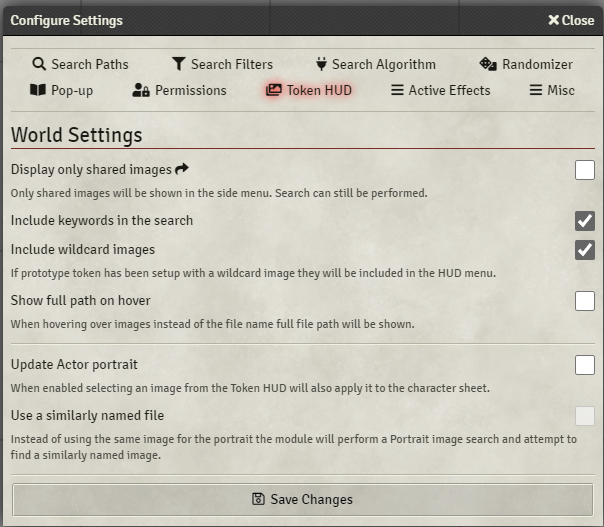
World settings for the new Token HUD button:
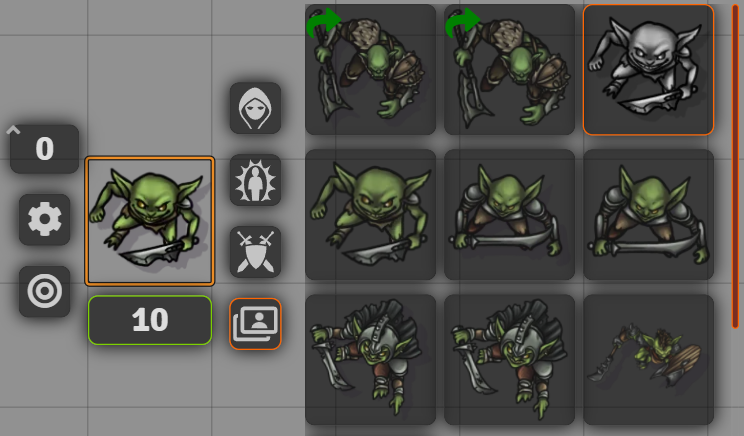
Also have a look at Token HUD Client Settings for visually configuring the HUD on the client side.
Only shared (images with a green arrow) will be displayed on the Token HUD.
By default only the full name search will be shown in the Token HUD. Enabling this will also include keyword searches. Look at Search by Keyword for more details about keyword search.
If the prototype token has been setup wild a wildcard path [1] (e.g. images/adventurers/*.png), enabling of this setting will make the module perform a wildcard search and include all files in the Token HUD that match that wildcard:
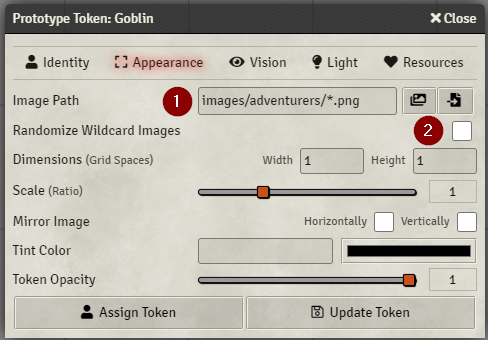
Note: 'Randomize Wildcard Images' [2] does NOT need to be enabled for this feature to work.
By default hovering on an image on the Token HUD will show it's file name:
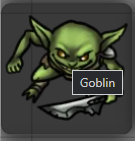
After enabling this setting the full path will be shown instead:

By default selecting the image on the Token HUD will only update the Token image. Enabling this setting will also apply the image to the Actor sheet.
Behaves the same as Sync Portrait and Token based on image name similarity in the Randomizer settings. Once the an image is selected on the Token HUD a separate search will be performed using the image name to find a matching Actor image.