Search Paths
The directories that will be scanned for art can be set here. All of the sub-directories will be searched as well so feel free to organise your art as you wish.
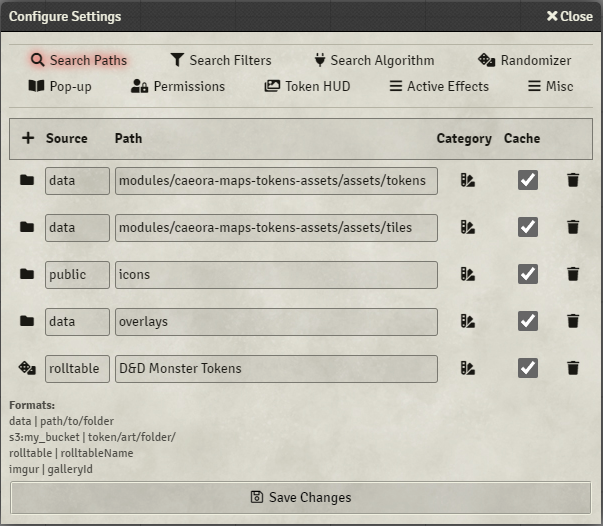
The root of these paths is assumed to be Foundry VTT's local Data folder. The same folder where you would find your worlds, systems, and modules.
By default 'Token Variants' will attempt to search Caeora's Maps, Tokens, and Assets asset folder if installed.
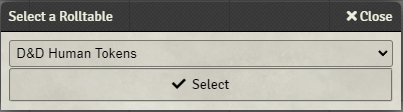
Clicking on the folder icon will open up a File browser which will let you to select the folder you want to be scanned. Entering 'rolltable' as a source and selecting the dice icon will open up a dialog instead with all of the available rollable tables.
Formats:
- Configured AWS S3 bucket: s3:bucketName | path/in/the/bucket/
- Rolltables: rolltable | rolltable name
- Imgur galleries: imgur | galleryID
- e.g. https://imgur.com/gallery/ JweWCpf -> imgur | JweWCpf
- Imgur paths can be automatically converted to RollTables by pressing the "<<" button
- !!! Imgur galleries cannot be accessed when running Foundry on 'localhost'
- For your ForgeVTT asset library see Forge Asset Library Paths setting
Each path can have categories assigned to it. By default a new path will have 'Portrait', 'Token', and 'PortraitAndToken' categories. Categories dictate what type of searches will return images from these folders and what filters will be applied to them.
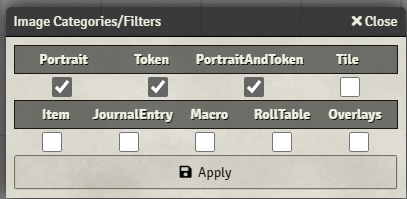
For example as modules/caeora-maps-tokens-assets/assets/tokens is assigned to all three of the default categories, images from that folder and its subfolders will show up in Portrait and Token searches (clicking on a potrait on the actor sheet, Token HUD side menu, Token Configuration's select image button, etc.). However these image will not show up in Item searches (right-clicking item images), Tile searches (Tile HUD side menu),
Macro (right-clicking macro images), etc.
Filters will get applied as per Search Filters settings.
Additional categories can be defined in the Misc > Custom Image Categories setting.
By default the module will scan image sources only when the world is loaded or when the Search Paths settings have changed. If new art is added while the world is still open it will not be found by the module. Disabling 'Cache' will force the scan to be done every time an art search is performed at a potentially significant cost to speed at which the art is displayed to the user depending on the number of images.
For small directories and rolltables the performance hit is negligible so experiment with the convenience/performance trade-offs until you find the right balance.