-
Notifications
You must be signed in to change notification settings - Fork 34
Added a new FAQ and updated an existing doc #887
New issue
Have a question about this project? Sign up for a free GitHub account to open an issue and contact its maintainers and the community.
By clicking “Sign up for GitHub”, you agree to our terms of service and privacy statement. We’ll occasionally send you account related emails.
Already on GitHub? Sign in to your account
Merged
Merged
Changes from all commits
Commits
File filter
Filter by extension
Conversations
Failed to load comments.
Loading
Jump to
Jump to file
Failed to load files.
Loading
Diff view
Diff view
There are no files selected for viewing
44 changes: 44 additions & 0 deletions
44
...apps/how-do-i-fix-the-try-again-error-when-opening-the-testsigma-desktop-app.md
This file contains hidden or bidirectional Unicode text that may be interpreted or compiled differently than what appears below. To review, open the file in an editor that reveals hidden Unicode characters.
Learn more about bidirectional Unicode characters
| Original file line number | Diff line number | Diff line change |
|---|---|---|
| @@ -0,0 +1,44 @@ | ||
| --- | ||
| title: "How Do I Fix the Try Again Error When Opening the Testsigma Desktop App?" | ||
| metadesc: "Desktop app may fail to launch with a Try again error in Chrome 139+. This occurs when browser permission changes block pop-ups or local network access." | ||
| order: 24.21 | ||
| page_id: "how-do-i-fix-the-try-again-error-when-opening-the-testsigma-desktop-app" | ||
| warning: false | ||
| contextual_links: | ||
| - type: section | ||
| name: "Contents" | ||
| - type: link | ||
| name: "Steps to Resolve the Permission Issue" | ||
| url: "#steps-to-resolve-the-permission-issue" | ||
| --- | ||
|
|
||
| --- | ||
|
|
||
| When you click Open the desktop app from the Testsigma web application, the desktop app may fail to launch and display a Try again error message in Chrome browser versions 139 and later. | ||
|
|
||
| This issue can occur due to Chrome browser permission restrictions. After a browser version update, the permissions required to open the desktop application (such as pop-ups or local network access) may be blocked, causing Chrome to prevent the request. | ||
|
|
||
| 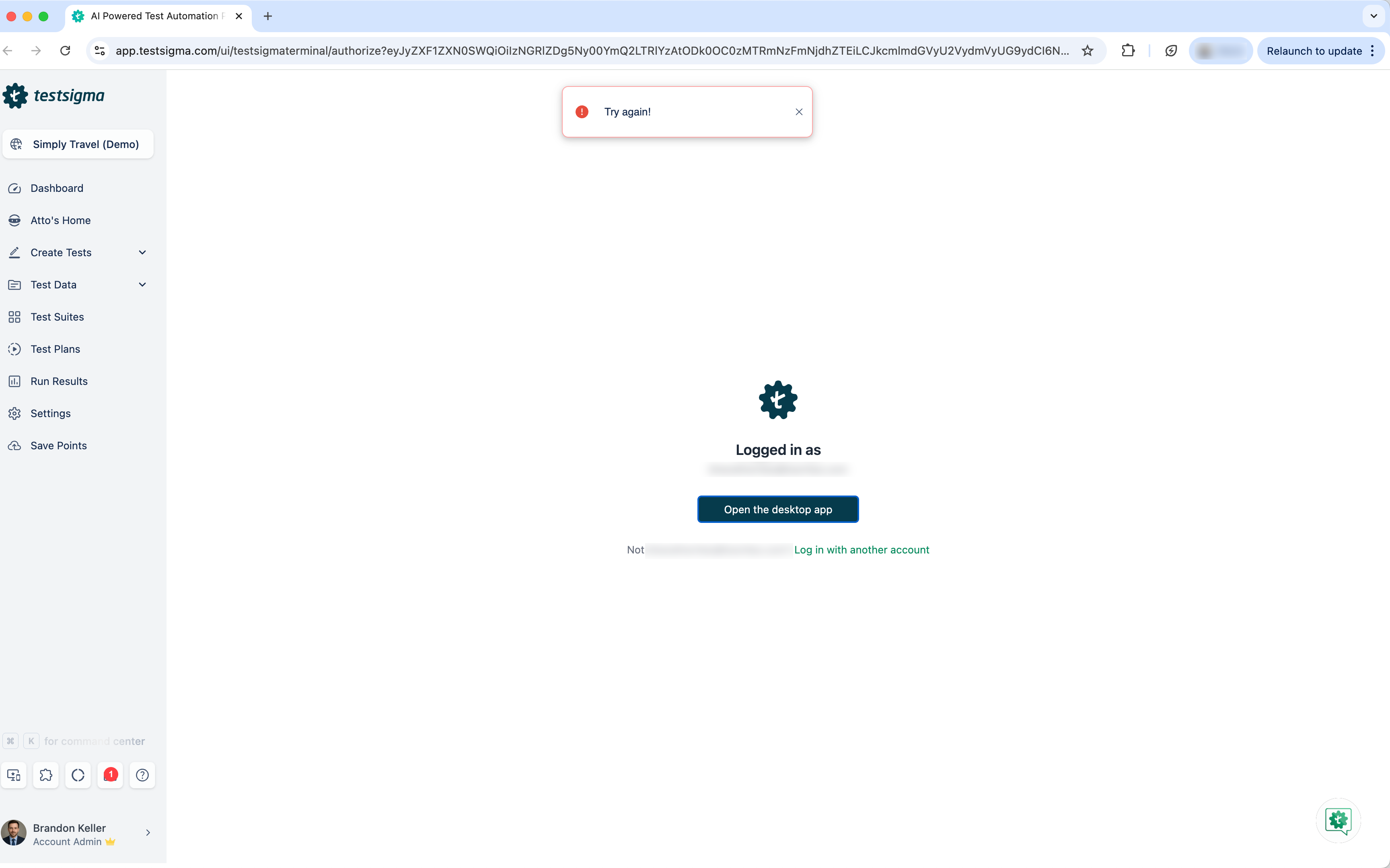 | ||
|
|
||
| This article discusses how to resolve the permission issue. | ||
|
|
||
| --- | ||
|
|
||
| ## **Steps to Resolve the Permission Issue** | ||
|
|
||
| 1. In **Chrome**, click the **Site Information** icon in the address bar. | ||
|
|
||
| 2. Ensure the following permissions are set to **Allow**: | ||
| - **Pop-ups and redirects** | ||
| - **Local network access** | ||
| 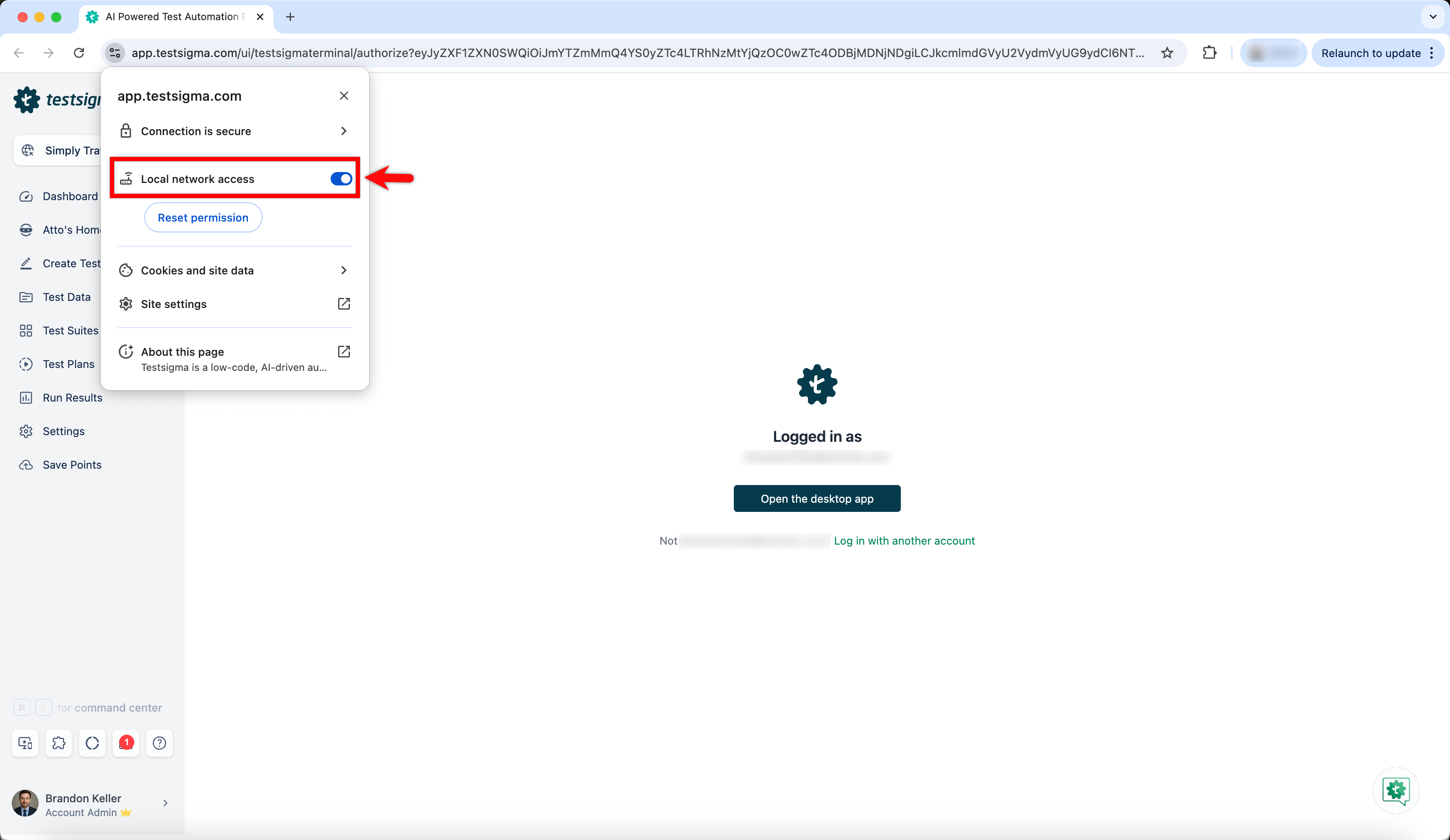 | ||
|
|
||
| 3. If these permissions were previously denied, click **Reset permissions**. | ||
|
|
||
| 4. Refresh the page. | ||
|
|
||
| 5. Click **Open the desktop app** again in Testsigma. | ||
|
|
||
| 6. When **Chrome** displays the permission prompt, click **Allow** or **Open** to proceed with launching the desktop application. | ||
|
|
||
| --- | ||
This file contains hidden or bidirectional Unicode text that may be interpreted or compiled differently than what appears below. To review, open the file in an editor that reveals hidden Unicode characters.
Learn more about bidirectional Unicode characters
Add this suggestion to a batch that can be applied as a single commit.
This suggestion is invalid because no changes were made to the code.
Suggestions cannot be applied while the pull request is closed.
Suggestions cannot be applied while viewing a subset of changes.
Only one suggestion per line can be applied in a batch.
Add this suggestion to a batch that can be applied as a single commit.
Applying suggestions on deleted lines is not supported.
You must change the existing code in this line in order to create a valid suggestion.
Outdated suggestions cannot be applied.
This suggestion has been applied or marked resolved.
Suggestions cannot be applied from pending reviews.
Suggestions cannot be applied on multi-line comments.
Suggestions cannot be applied while the pull request is queued to merge.
Suggestion cannot be applied right now. Please check back later.
There was a problem hiding this comment.
Choose a reason for hiding this comment
The reason will be displayed to describe this comment to others. Learn more.
Update image filenames to match Chrome 139+ documentation context.
The document discusses Chrome 139+ (lines 17–19), but both image filenames reference Chrome 138:
chrome_138.1.pngchrome_138.pngIf these screenshots were taken from an older browser version, consider renaming them to
chrome_139.1.pngandchrome_139.pngfor consistency. If the filenames are intentional (e.g., due to S3 bucket constraints), update the surrounding text to clarify which browser version the screenshots represent.Also applies to: 34-34
🤖 Prompt for AI Agents