



Personal Windows configuration and setup scripts for a clean, optimized development environment.
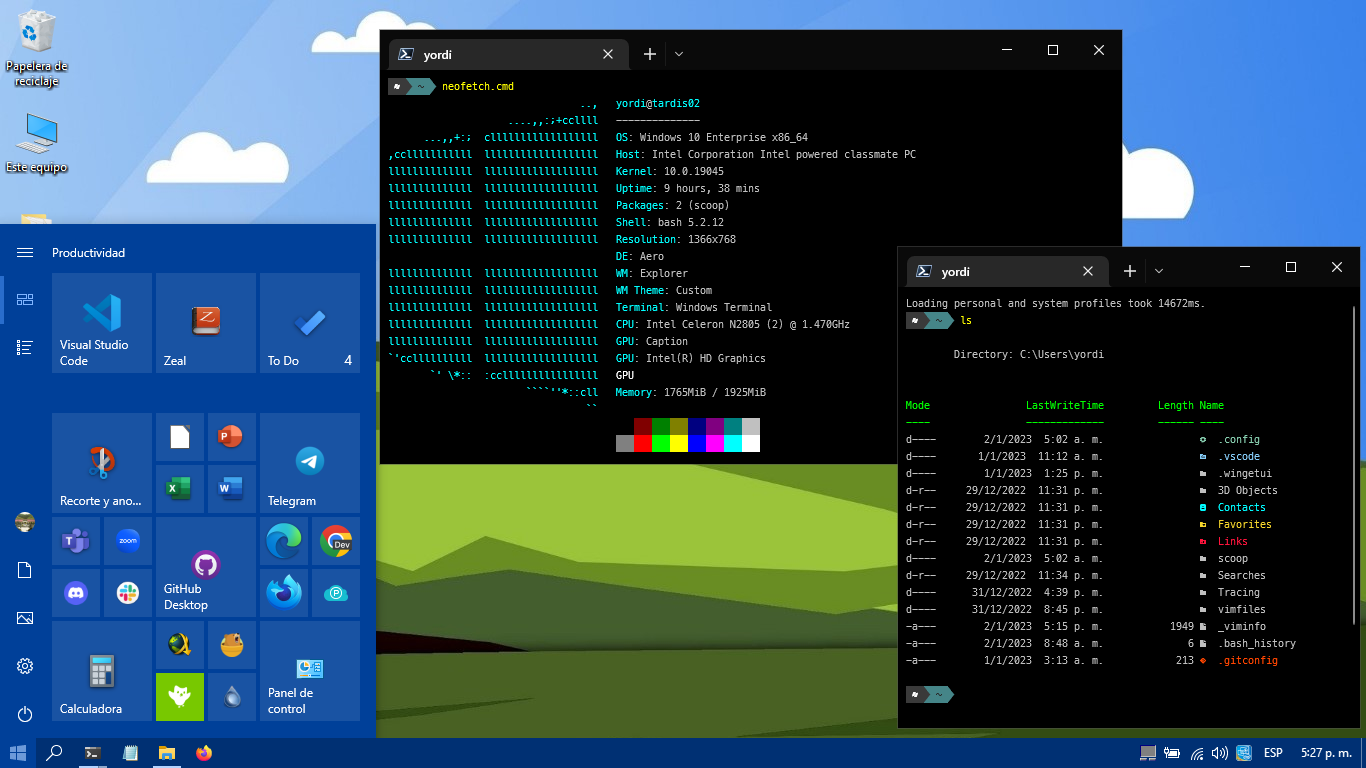
Before starting, ensure you have:
- Windows 10/11 (64-bit) - Fresh installation recommended
- Internet connection - Required for downloads
- Administrator access - All scripts require elevated privileges
- At least 10GB free space - For tools and programs
If you need to install Windows first:
ISO Download:
- Windows 10
- Windows 11
- LTS versions (only for specific use cases)
USB Creation Tools:
- Rufus (Recommended)
- BalenaEtcher
- WoeUSB (for creating Windows USB from Linux)
Run this command in PowerShell as Administrator:
# Enable script execution
Set-ExecutionPolicy RemoteSigned -Scope CurrentUser -Force

# Download and run setup script
irm https://raw.githubusercontent.com/yordisc/dotfiles.exe/master/setup.ps1 | iex
This will:
- Check prerequisites
- Install all required tools
- Clone this repository
- Execute configuration scripts
- Install programs
- Apply customizations
If you prefer step-by-step installation or the automated script fails:
# Open PowerShell as Administrator
Start-Process powershell -Verb RunAs

# Check for updates
Install-Module PSWindowsUpdate -Force
Get-WindowsUpdate
Install-WindowsUpdate -AcceptAll -AutoRebootOption A: Purchase License
Option B: Use KMS Activation (Temporary - for testing)
REM Run CMD as Administrator
slmgr /ipk NPPR9-FWDCX-D2C8J-H872K-2YT43
slmgr /skms kms.digiboy.ir
slmgr /ato$PSVersionTable.PSVersion
# If version is less than 7.0, proceed to next stepIMPORTANT: Install these tools IN ORDER before cloning the repository.
# Download and install silently
winget install Microsoft.PowerShell --silent

# Or use direct installer
Invoke-WebRequest -Uri "https://github.com/PowerShell/PowerShell/releases/download/v7.4.0/PowerShell-7.4.0-win-x64.msi" -OutFile "$env:TEMP\PowerShell-7.4.0-win-x64.msi"
msiexec.exe /package "$env:TEMP\PowerShell-7.4.0-win-x64.msi" /quiet ADD_EXPLORER_CONTEXT_MENU_OPENPOWERSHELL=1 ADD_FILE_CONTEXT_MENU_RUNPOWERSHELL=1 ENABLE_PSREMOTING=1 REGISTER_MANIFEST=1 USE_MU=1 ENABLE_MU=1 ADD_PATH=1

# Restart terminal after installation# Check if WinGet is installed
winget --version
# If not found, install from Microsoft Store or manually:
Invoke-WebRequest -Uri "https://github.com/microsoft/winget-cli/releases/latest/download/Microsoft.DesktopAppInstaller_8wekyb3d8bbwe.msixbundle" -OutFile "$env:TEMP\winget.msixbundle"
Add-AppPackage -Path "$env:TEMP\winget.msixbundle"winget install Git.Git --silent
# Restart terminal to load Git in PATHDownload and run manually:
Or wait until repository is cloned to use included script.
# Navigate to home directory
cd ~

# Clone this repository ONCE
git clone https://github.com/yordisc/dotfiles.exe
cd dotfiles.exe

# Verify you're in the correct directory
Get-LocationNow that you have the repository, run the configuration scripts IN ORDER:
# From dotfiles.exe directory
.\scripts\01-prerequisites\gpedit-install.batSet-ExecutionPolicy RemoteSigned -Scope CurrentUser -Force
Invoke-RestMethod get.scoop.sh | Invoke-Expression
# Install essential Scoop packages
scoop install neofetch
scoop bucket add extras# Download Nerd Fonts
Invoke-WebRequest -Uri "https://github.com/ryanoasis/nerd-fonts/releases/download/v3.1.1/Hack.zip" -OutFile "$env:TEMP\Hack.zip"
Expand-Archive -Path "$env:TEMP\Hack.zip" -DestinationPath "$env:TEMP\Hack"
# Install fonts (requires manual installation on Windows)
# Navigate to: Control Panel > Fonts
# Drag and drop font files from $env:TEMP\Hack
explorer.exe "$env:TEMP\Hack"
Write-Host "Please install fonts manually by dragging them to the Fonts window"
pauseOr install via command (requires admin):
.\scripts\02-system-setup\install-fonts.ps1# Basic cleanup - removes pre-installed apps and disables telemetry
.\scripts\02-system-setup\LimpiarWindows.bat# Additional optimizations
cd ~
git clone https://github.com/IgorGiraffa/Windows-10-tweaker
cd Windows-10-tweaker
.\tweaker.ps1
# Return to dotfiles directory
cd ~/dotfiles.execd ~
git clone https://github.com/aikoncwd/win10script
cd win10script
.\aikoncwd-win10-script.vbs
# Return to dotfiles directory
cd ~/dotfiles.exewinget install wingetui
# Then open WinGet-UI and import package list
.\wingetinstallers\package-list.jsoncd ~
git clone https://github.com/Romanitho/Winget-Install-GUI
cd Winget-Install-GUI/Sources
.\Winget-Install-GUI.ps1
# Select programs from: ~/dotfiles.exe/wingetinstallers# Install all programs from list
.\scripts\03-programs\install-programs.ps1- Development: VSCode, Git, Node.js, Python
- Browsers: Chrome, Firefox
- Utilities: 7-Zip, PowerToys, Everything
- Communication: Discord, Slack
- Media: VLC, ShareX
# Install Oh My Posh
winget install JanDeDobbeleer.OhMyPosh

# Install Terminal Icons module
Install-Module -Name Terminal-Icons -Repository PSGallery -Force

# Apply PowerShell profile
.\scripts\04-customization\apply-powershell-profile.ps1

# Or manually copy profile
Copy-Item -Path ".\PowerShell\Microsoft.PowerShell_profile.ps1" -Destination $PROFILE -Force

# Reload profile
. $PROFILE# Copy Windows Terminal settings
Copy-Item -Path ".\config\terminal-settings.json" -Destination "$env:LOCALAPPDATA\Packages\Microsoft.WindowsTerminal_8wekyb3d8bbwe\LocalState\settings.json" -Force# Check installed versions
pwsh --version
git --version
winget --version
scoop --version
oh-my-posh --version
# Test neofetch
neofetchwsl --install
# Restart computerIf you have a dual-boot setup with Linux:
Option 1: Boot Repair (Ubuntu-based)
Option 2: Fedora GRUB Repair
sudo grub2-mkconfig -o /etc/grub2.cfg
sudo grub2-mkconfig -o /etc/grub2-efi.cfgSet-ExecutionPolicy RemoteSigned -Scope CurrentUser -Force# Restart PowerShell terminal
# Or add to PATH manually:
$env:Path += ";C:\Program Files\Git\cmd"# Install App Installer from Microsoft Store
# Or download manually from GitHub releases# Always run PowerShell as Administrator
Start-Process powershell -Verb RunAsOnline Repair:
DISM /Online /Cleanup-Image /RestoreHealth
sfc /scannow
Offline Repair:
DISM /Image:C:\ /Cleanup-Image /RestoreHealth /Source:D:\sources\install.wim- HDD Regenerator - For bad sector repair
- Use Windows built-in checker:
chkdsk C: /F /R
# Update all drivers via Windows Update
Install-Module PSWindowsUpdate -Force
Get-WindowsUpdate -Install -AcceptAll -IgnoreReboot

# Or use Driver Booster (third-party)- Windows Terminal Documentation
- Oh My Posh Themes
- PowerShell Gallery
- Scoop Documentation
- WinGet Documentation
- Oh My Posh by Jan De Dobbeleer
- Scoop by Luke Sampson
- Nerd Fonts by Ryan L McIntyre
- Community contributors and testers
This project is licensed under the MIT License - see the LICENSE file for details.
Contributions are welcome! Please feel free to submit a Pull Request.
- Fork the repository
- Create your feature branch (
git checkout -b feature/AmazingFeature) - Commit your changes (
git commit -m 'Add some AmazingFeature') - Push to the branch (
git push origin feature/AmazingFeature) - Open a Pull Request
Note: This setup is designed for development environments. Some scripts disable security features - use at your own risk and understand what each script does before running it.