psvpack is a command-line tool primarily for Linux, BSD, and MacOS for managing PS Vita PKG files. It can be used for searching a list of backups, as well as automatic download and installation.
Copyright (c) 2018 J. Hipps

Permission is hereby granted, free of charge, to any person obtaining a copy of this software and associated
documentation files (the "Software"), to deal in the Software without restriction, including without limitation the
rights to use, copy, modify, merge, publish, distribute, sublicense, and/or sell copies of the Software, and to permit
persons to whom the Software is furnished to do so, subject to the following conditions:

The above copyright notice and this permission notice shall be included in all copies or substantial portions of
the Software.

THE SOFTWARE IS PROVIDED "AS IS", WITHOUT WARRANTY OF ANY KIND, EXPRESS OR IMPLIED, INCLUDING BUT NOT LIMITED TO THE
WARRANTIES OF MERCHANTABILITY, FITNESS FOR A PARTICULAR PURPOSE AND NONINFRINGEMENT. IN NO EVENT SHALL THE AUTHORS OR
COPYRIGHT HOLDERS BE LIABLE FOR ANY CLAIM, DAMAGES OR OTHER LIABILITY, WHETHER IN AN ACTION OF CONTRACT, TORT OR
OTHERWISE, ARISING FROM, OUT OF OR IN CONNECTION WITH THE SOFTWARE OR THE USE OR OTHER DEALINGS IN THE SOFTWARE.
- Python 3.4+
- Git
- pkg2zip
- Development tools (such as gcc, make, etc.) to compile pkg2zip, if necessary
On Debian-like systems:
sudo apt-get install git python3 python3-dev build-essential
On newer RedHat-like systems (CentOS 7, Fedora):
sudo yum install python36 git '@Development Tools'
If you do not already have pkg2zip installed, these steps will walk you through compiling and installing it.
git clone https://github.com/mmozeiko/pkg2zip.git
cd pkg2zip
make -j4
sudo cp pkg2zip /usr/local/bin/pkg2zip
Now confirm that you can run pkg2zip:
pkg2zip
You should see a message such as pkg2zip v1.8 or similar, along with an error such as no pkg file specified.
If you get an command not found error, try opening a new terminal, then try again. If you still get the same error, then make sure /usr/local/bin is in your $PATH by running echo $PATH. If it's NOT in your $PATH, you can either add it by running echo 'export PATH="${PATH}:/usr/local/bin"' >> ~/.$(basename $SHELL)rc ; . ~/.$(basename $SHELL)rc, or you can just copy pkg2zip to /usr/bin/pkg2zip instead.
git clone https://git.ycnrg.org/scm/gtool/psvpack.git
cd psvpack
sudo ./setup.py install
After installation, you should now be able to run:
psvpack
Make sure to run this as your user and NOT root! This will generate the ~/.config/psvpack directory, create
a default configuration, then launch your default editor (defined by $EDITOR; nano is used if this is not defined). Once the editor is launched, be sure to update the tsv_urls values. If you installed pkg2zip to /usr/local/bin/pkg2zip, then you can leave the value as the default. Once you have finished making changes, press Control+X to save and exit. This file is located at ~/.config/psvpack/config.yaml if you need to make further updates in the future.
Once you have the correct URLs for TSV files added to your config file, you can begin using psvpack. The general usage is as follows:
psvpack [OPTIONS] COMMAND GAME_OR_ID
COMMAND can be one of the following:
search- Search through TSV files for a title name, content ID, or title IDinstall- Download and (optionally) install a specific title ID/content ID, or group of items matching the same title ID (such as DLC)
The COMMAND can also be abbreviated. For example s for search and i for install.
General usage:
psvpack [-a|-e|-U|-E|-J|-A] [-g GAME_LIST] s[earch] GAME_TITLE_OR_ID
- By default, only results for
USandJPregions will appear. To change this behaviour, the following region flags can be used:-a/--allregions- Show releases from all regions-e/--english- Show only English releases (USandEUregions)-U/--us- Show only USA releases-E/--eu- Show only European releases-J/--jp- Show only Japanese releases-A/--asia- Show only Asian releases (ASIAregion, does not include Japan)
- By default, the
PSVgame list is searched. Use the-goption to specify a differentGAME_LIST. The following are available:PSV- PS Vita gamesPSM- PS Mobile gamesPSX- PS1 gamesPSP- PSP gamesPSV_DLC- PS Vita DLCPSP_DLC- PSP DLC
- The
GAME_TITLE_OR_IDcan either be a text search term (eg. part of a game name or "original name") or a Title ID (such asPCSG00XXX)
Finding PSV games by search term:
psvpack s neptun
This will return a list of all Neptunia games for PS Vita. If you wish to grab a title, copy the ID for use with the install command.
Finding all related DLC for a Vita game:
psvpack -g PSV_DLC s PCSG00551
This will return a list of all DLC packs associated with title PCSG00551 (Taiko no Tatsujin V Version). If you wish to grab a single DLC from the list, copy its ID for user with the install command.
You can also use UTF-8 text when searching for Japanese or Asian titles:
psvpack -g PSP s 伝説
This searches for PSP games with the text 【伝説】(densetsu).
Be sure to add quotes when your search term contains spaces:
psvpack -g PSX s "final fanta"
This searches for Final Fantasy PSX games.
IMPORTANT NOTE: When using
psvpackto directly install content to an SD card (for sd2vita) or via VitaShell's USB functionality, you must be sure to unmount the volume before disconnecting! Failure to do so can result in corrupted data, since the Linux kernel will typically buffer writes to external devices. To safely unmount, click the "eject" icon if using Thunar or Nautilus (default file managers for most desktop distros), or use theumountcommand. Example:umount /media/$USER/XXXX-YYYY(usemount | grep exfatto check the mountpoint if unsure). When unmounting, it can take a few minutes to flush pending writes in some cases, especially when using VitaShell's USB functionality. If you forget to do this, it can result in weird errors when trying to launch games, or games not working at all.
General usage:
psvpack [-r INSTALL_ROOT] [-N] [-X] [--getall] [-g GAME_LIST] i[nstall] TITLE_OR_CONTENT_ID
- As usual, you can specify the game list with
-g.PSV(PS Vita) will be used by default, but you'll need to specify this for any other list. - The install root can be specified with
-roption. By default,pkg2zipwill "install" the game into the current directory. If you connect your Vita via USB with VitaShell, then you can install games directly to your Vita'sux0. For example, your OS might automatically mount your Vita to/media/user/XXXX-YYYY(typically, a File Manager window might pop-up on Ubuntu upon mounting, for example). In this case, you could use-r /media/user/XXXX-YYYY. - Use
-Noption to only download the PKG file. It can be later installed or extracted by re-running the sameinstallcommand. psvpack will automatically detect the cached pkg file and not re-download it. - The
-Xoption skips SHA256 checksum verification. This can speed up installation when installing from a cached PKG file, but is a good idea to leave enabled. If the checksum verification fails, then psvpack will re-download the file. - Use the
--getalloption when batch-installing all DLC for a particular game. TITLE_OR_CONTENT_IDshould be the Title ID or Content ID of the game or DLC you wish to install. This can be acquired by using thesearchcommand. For installing a single DLC package, you should use the Content ID. For installing all related DLC, use the Title ID of the main game.
Download and extract a PS Vita game:
psvpack i PCSE00898
This will download and extract Hyperdimension Neptunia U Action Unleashed (JP) to your default installation root (by default, the current directory). This can be handy if you wish to later sync the extracted files via FTP to your Vita with VitaShell's builtin FTP client. For this particular title, an apps/PCSE00898 directory will be generated.
Only download a PS Vita game:
psvpack -N i PCSE00898
This will download the package for Neptunia U (JP) to psvpack's cache folder, but will not extract or install it. This is handy if you wish you pre-download a series of packages for later installation to your Vita.
Installing a pre-downloaded title:
psvpack -r /media/jacob/4CA1-3459 i PCSE00898
This will extract and install our pre-downloaded PKG file from the previous step. The -r option is used to specify the root of the Vita's ux0 directory. In this example, the Vita was auto-mounted by the OS to /media/jacob/4CA1-3459.
If your OS has auto-mounting enabled, a File Manager window might automatically launch once your Vita is connected with VitaShell's USB mode or you have inserted an SD card (used with sd2vita). In the screenshot below, you can see the path to the auto-mounted volume:
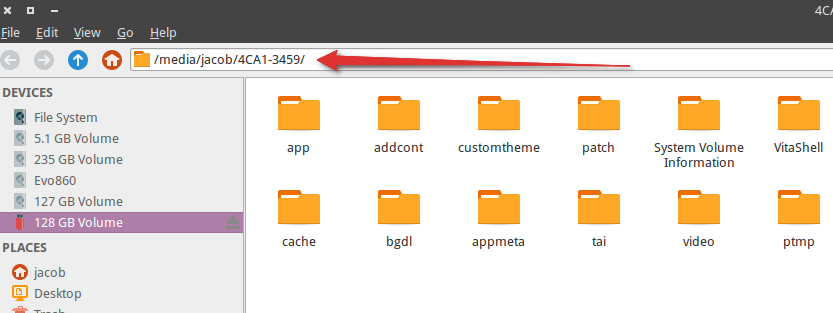
Alternatively, you can run mount | grep exfat to check the mountpoint of your Vita (if it was auto-mounted).
Installing all related DLC:
psvpack -r /media/jacob/4CA1-3459 --getall -g PSV_DLC i PCSG00551
This will download all related DLC items related to Taiko no Tatsujin V Version, then install them to the Vita's ux0 filesystem mounted at /media/jacob/4CA1-3459.