Teams
-
Open Teams and open the connectors menu of the channel that you'd like VeeamNotify to post in.
Screenshot
-
Hover your cursor over the channel name and select "Connectors" from the overflow menu on the right.
-
If this is the first time you're utilizing webhooks in this team, the connector may not be enabled by default.
-
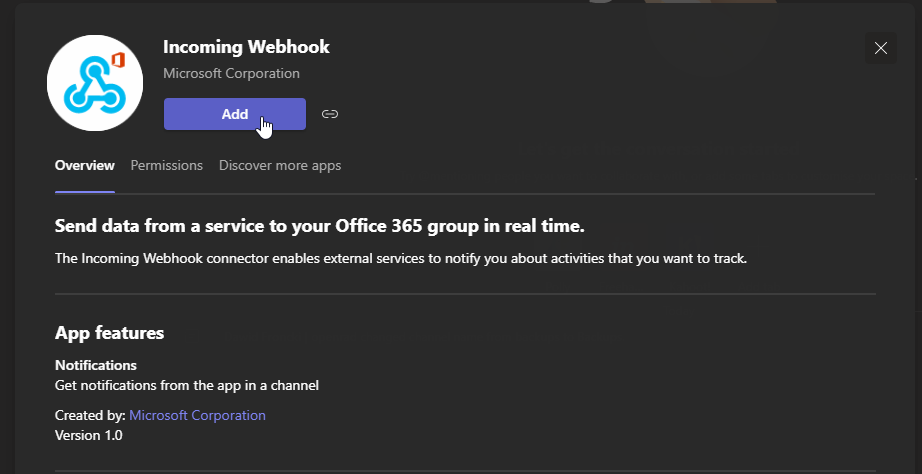
You can enable the Incoming Webhooks connector by searching "Webhook" and clicking "Add" on the first option.
Screenshot
-
You will see the connector overview screen, in which you can click "Add" once again.
Screenshot
-
After this, you repeat the first step to get to the connectors menu. The difference will be that now the "Incoming Webhook" connector will show in the "Connectors for your team" section.
-
-
Select "Configure" on the "Incoming Webhook" connector.
Screenshot

-
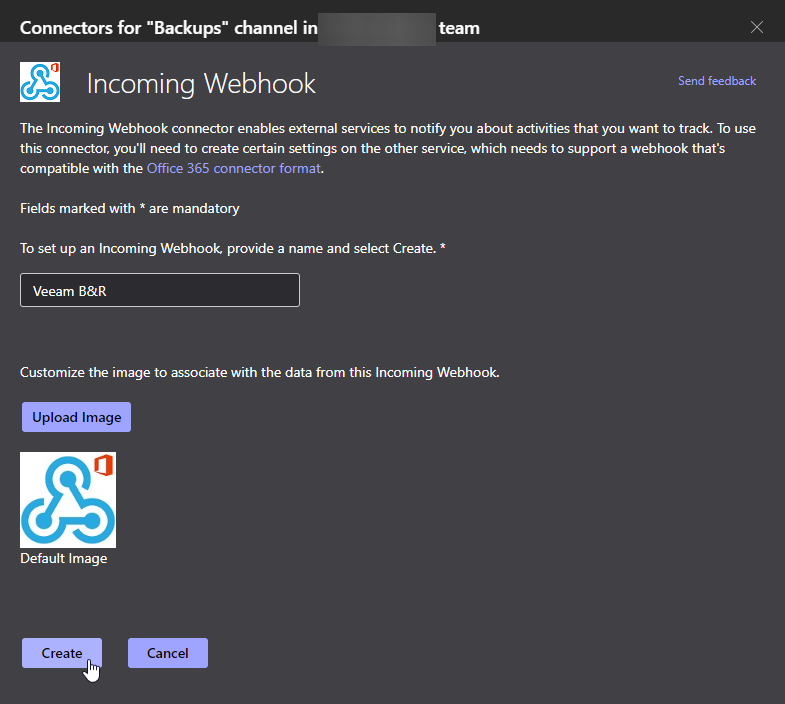
Set the webhook's name and optionally an image
Screenshot
-
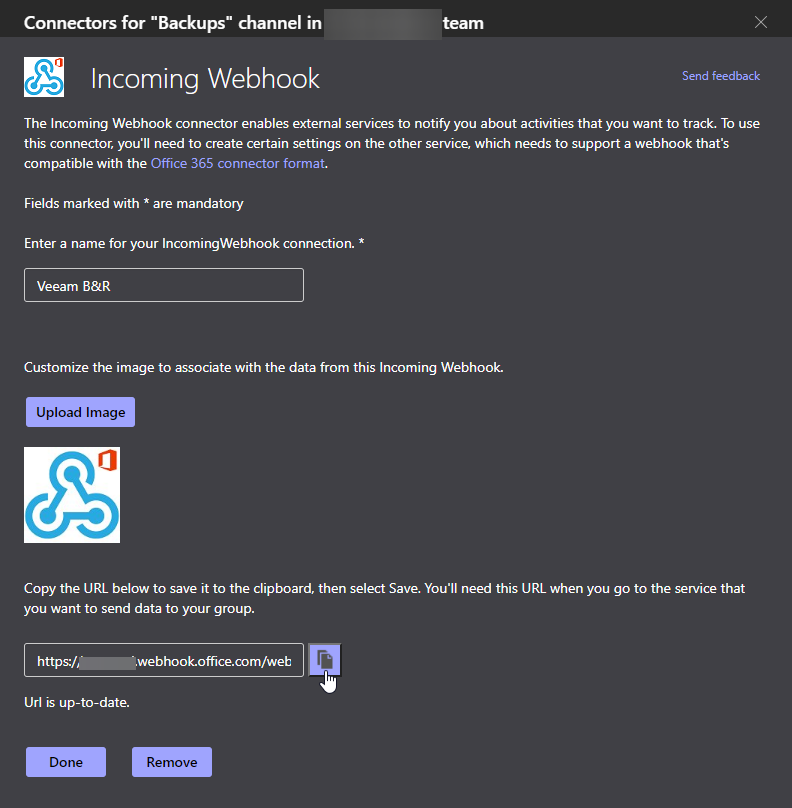
Click the "Create" button. This will refresh the prompt with a new element containing the Webhook URL. Copy this.
Screenshot
-
Paste the webhook into the relevant field in your VeeamNotify
conf.json, and enjoy your notifications!

