⚠️ ALPHA SOFTWARE - NOT FOR PRODUCTION USEVelociTerm NB is currently in alpha development phase. While fully functional for testing and evaluation, it should NOT be used in production environments. The authentication system has been significantly enhanced for secure testing, but additional security hardening and features are planned before production readiness.
Professional Terminal Session Management for Network Engineers

VelociTerm NB is a web-based platform that organizes and manages SSH connections to network devices, with advanced session filtering, NetBox integration, and multi-terminal capabilities. Built specifically for network professionals managing complex infrastructure.
VelociTerm NB solves the common problem of managing dozens or hundreds of network device connections. Instead of juggling multiple SSH clients, remembering IP addresses, and manually organizing connections, VelociTerm provides:
Advanced Session Management:
- Organize network devices in folders by site, function, or custom criteria
- Real-time filtering across device names, IPs, types, and platforms
- Complete CRUD operations for sessions and folders
- Bulk import from NetBox with automatic organization
Professional Multi-Terminal Interface:
- Multiple simultaneous SSH sessions in floating windows
- Full terminal functionality with colors, interactive prompts, and proper sizing
- 13+ professional themes including CRT, Matrix, and Solarized variants
- Live theme switching without disconnecting active sessions
NetBox Integration:
- Direct integration with NetBox DCIM for device discovery
- Search and filter devices by site, platform, and status
- Automatic session creation with proper metadata
- Encrypted per-user API token storage
Enterprise Authentication:
- Dual authentication system: JWT tokens and session cookies
- Local system authentication (Windows/Linux credentials)
- LDAP/Active Directory integration ready
- Secure token management with automatic refresh
Legacy Format Compatibility:
- Works seamlessly with existing session files from other tools
- Reads and writes standard YAML formats without disruption
- No migration required for existing workflows
🔬 ALPHA RELEASE - EVALUATION READY
VelociTerm NB is fully functional for testing, evaluation, and development environments. The enhanced authentication system provides secure access for testing purposes, but production deployment requires additional security hardening and features currently in development.
Development Status:
- Core Functionality: Fully operational and stable
- Authentication: Enhanced security with dual JWT/Session system
- User Interface: Production-quality experience
- NetBox Integration: Complete and tested
- Multi-Terminal SSH: Stable and performant
Architecture:
- Frontend: React 18 with modern hooks, xterm.js terminals, WebSocket communication
- Backend: Python FastAPI with real-time WebSocket support, encrypted storage, NetBox API integration
- Security: Enhanced dual authentication (JWT + Session), encrypted credentials, per-user workspaces
Alpha Status Features:
- Core session management: ✅ Fully functional
- Multi-terminal SSH: ✅ Stable and tested
- NetBox integration: ✅ Complete
- User interface: ✅ Production-quality
- Authentication: ✅ Enhanced security for testing
- Production hardening: 🚧 In development
Enhanced for Testing:
- Real system authentication required (Windows/Linux credentials)
- JWT token management with automatic refresh
- Encrypted per-user workspaces
- Session-based WebSocket security
- No demonstration/POC authentication modes
Production Readiness Roadmap:
- Advanced user management and role-based access control
- Comprehensive audit logging and compliance features
- Multi-factor authentication integration
- Enterprise-grade session management
- Security certification and penetration testing
- Python 3.12+ with venv support
- Node.js v20+ (tested with v20.9.0)
- Git for cloning the repository
- System Credentials: Windows or Linux user account for authentication
1. Clone the Development Repository:
git clone https://github.com/scottpeterman/velociterm.git
cd velociterm
git checkout dev
2. Backend Setup:
# Create virtual environment
python -m venv venv

# Activate virtual environment
source venv/bin/activate  # Linux/Mac
# or
venv\Scripts\activate     # Windows

# Install dependencies
pip install -r requirements.txt

# Optional: Configure JWT settings for testing
export JWT_ACCESS_TOKEN_EXPIRE_MINUTES=2880  # 48 hours for testing

# Start backend server
python main.py
Backend will run on http://localhost:8050
3. Frontend Setup (new terminal):
# Navigate to frontend directory
cd vtnb_fe

# Install dependencies
npm install

# Start development server
npm start
Frontend will open automatically at http://localhost:3000
Authentication:
- Use your actual system credentials (Windows/Linux username and password)
- Toggle between JWT Token mode and Session Cookie mode
- User workspace created automatically on first login
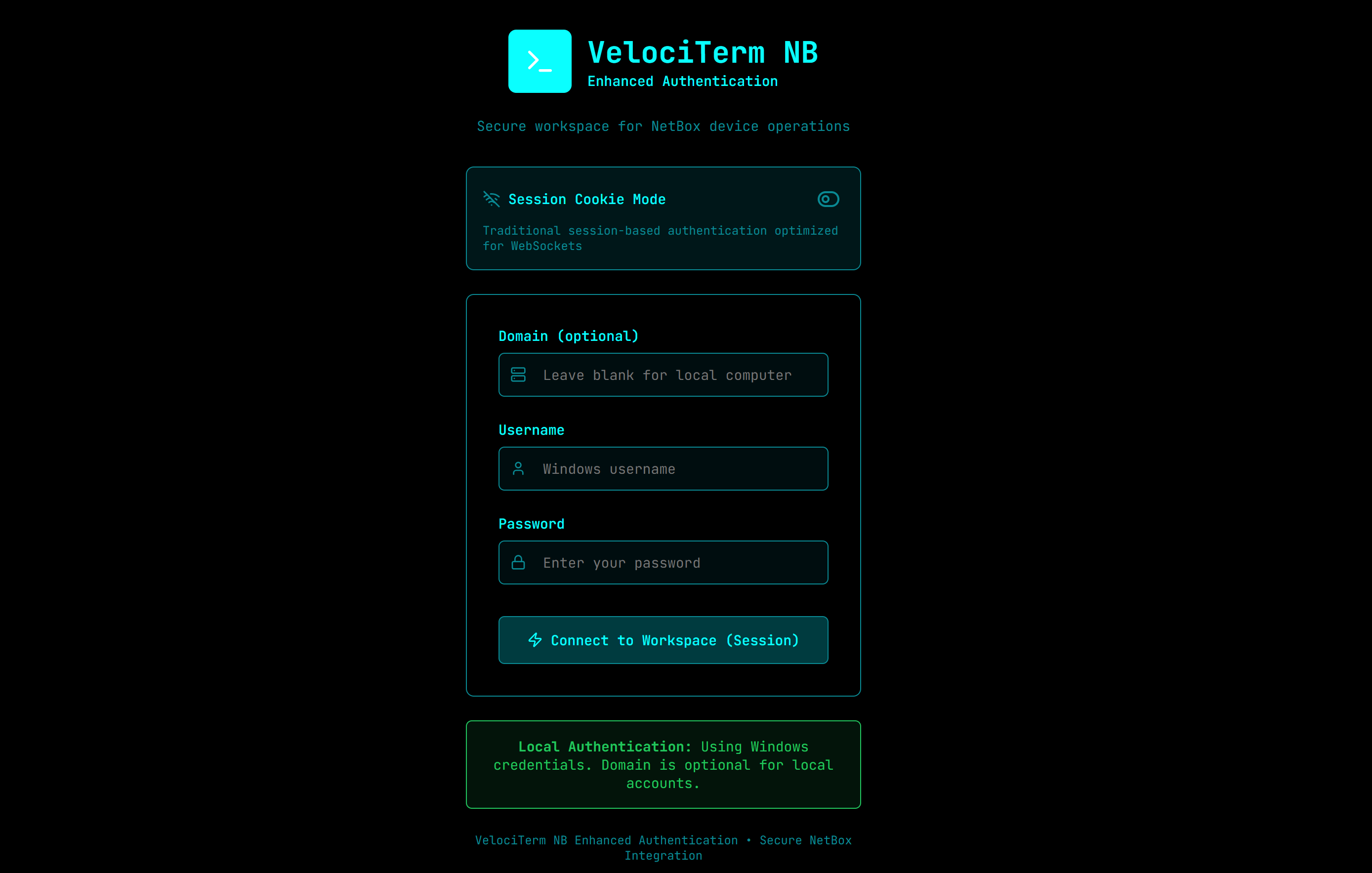
- Login: Enter your Windows/Linux system username and password
- Choose Auth Mode: Toggle between Session and JWT authentication
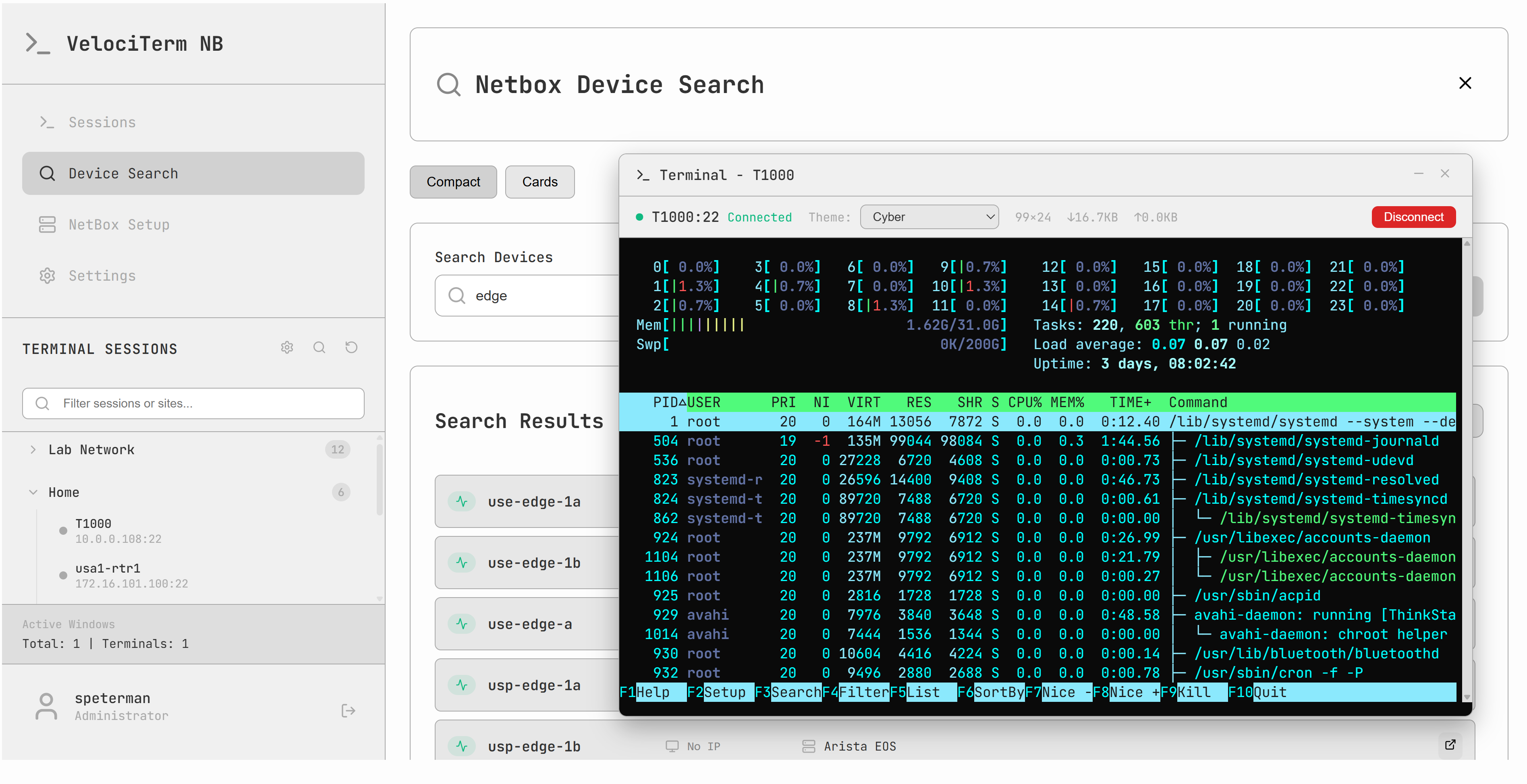
- Configure NetBox (optional): Add your NetBox API token in Settings
- Add Sessions: Create your first session or import from NetBox
- Connect: Click any session to open an SSH terminal
Dual Authentication Modes:
- JWT Token Authentication: Modern stateless authentication with automatic token refresh
- Session Cookie Authentication: Traditional authentication optimized for WebSocket connections
- User Choice: Toggle between authentication methods on login screen
- Secure Fallback: Automatic fallback between authentication modes
Authentication Methods:
- Local Authentication: Windows/Linux system credentials with secure validation
- LDAP Integration: Enterprise directory authentication (configurable)
- Real Credentials Required: No demonstration modes - actual system authentication only
Smart Filtering:
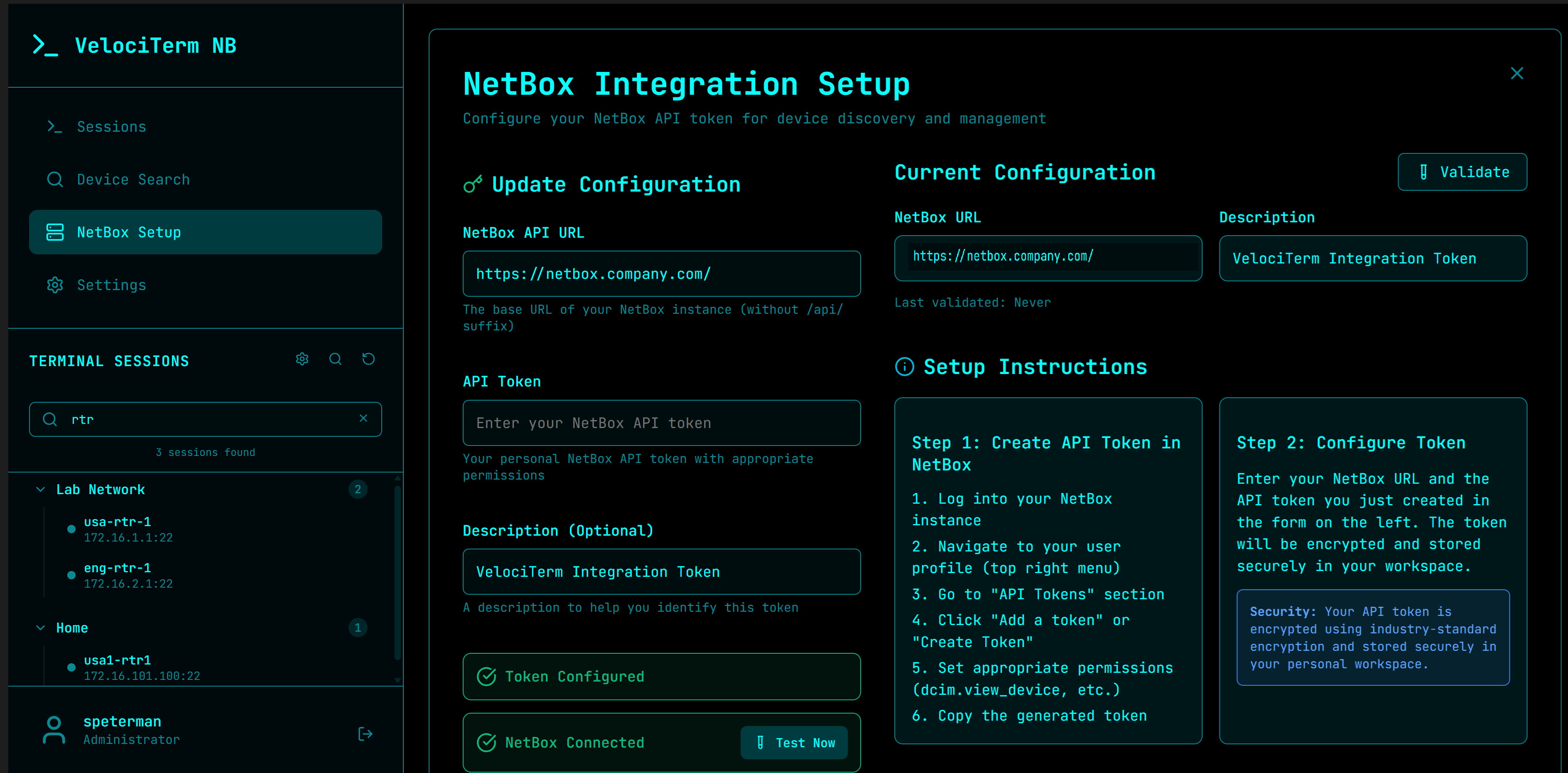
- Search across device names, IP addresses, device types, platforms, and folders
- Auto-expand behavior: folders expand when filtering, collapse when cleared
- Real-time results with performance optimization for large device collections
- Result counting with contextual empty states
Folder Management:
- Hierarchical organization with visual connection status indicators
- Create, rename, and delete folders with validation
- Move sessions between folders with drag-and-drop support
- Automatic organization by NetBox site information
Multi-Terminal Support:
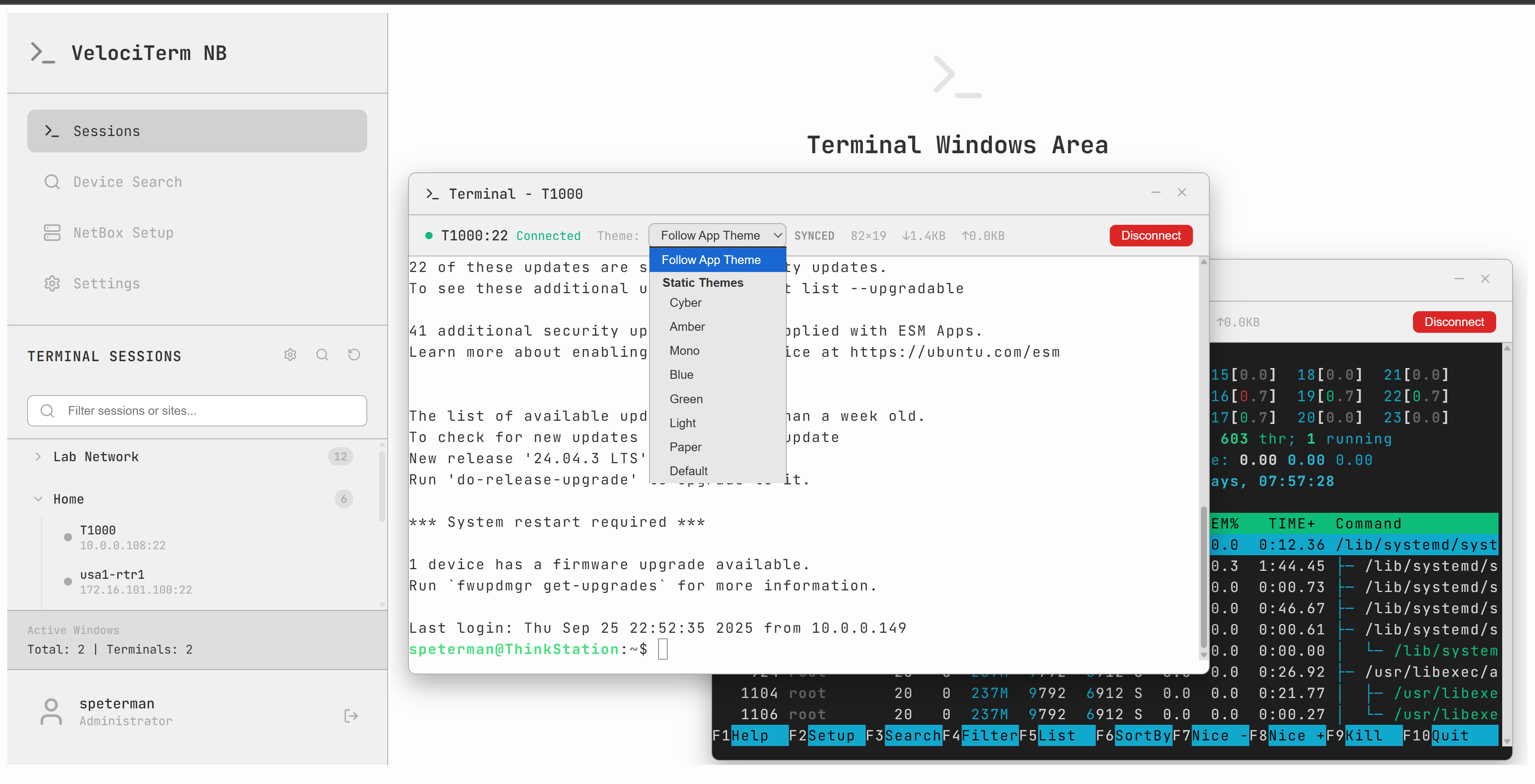
- Open multiple SSH sessions simultaneously in floating windows
- Each terminal maintains independent configuration and theme
- Proper window management with drag, resize, minimize, and focus handling
- Real-time connection status tracking
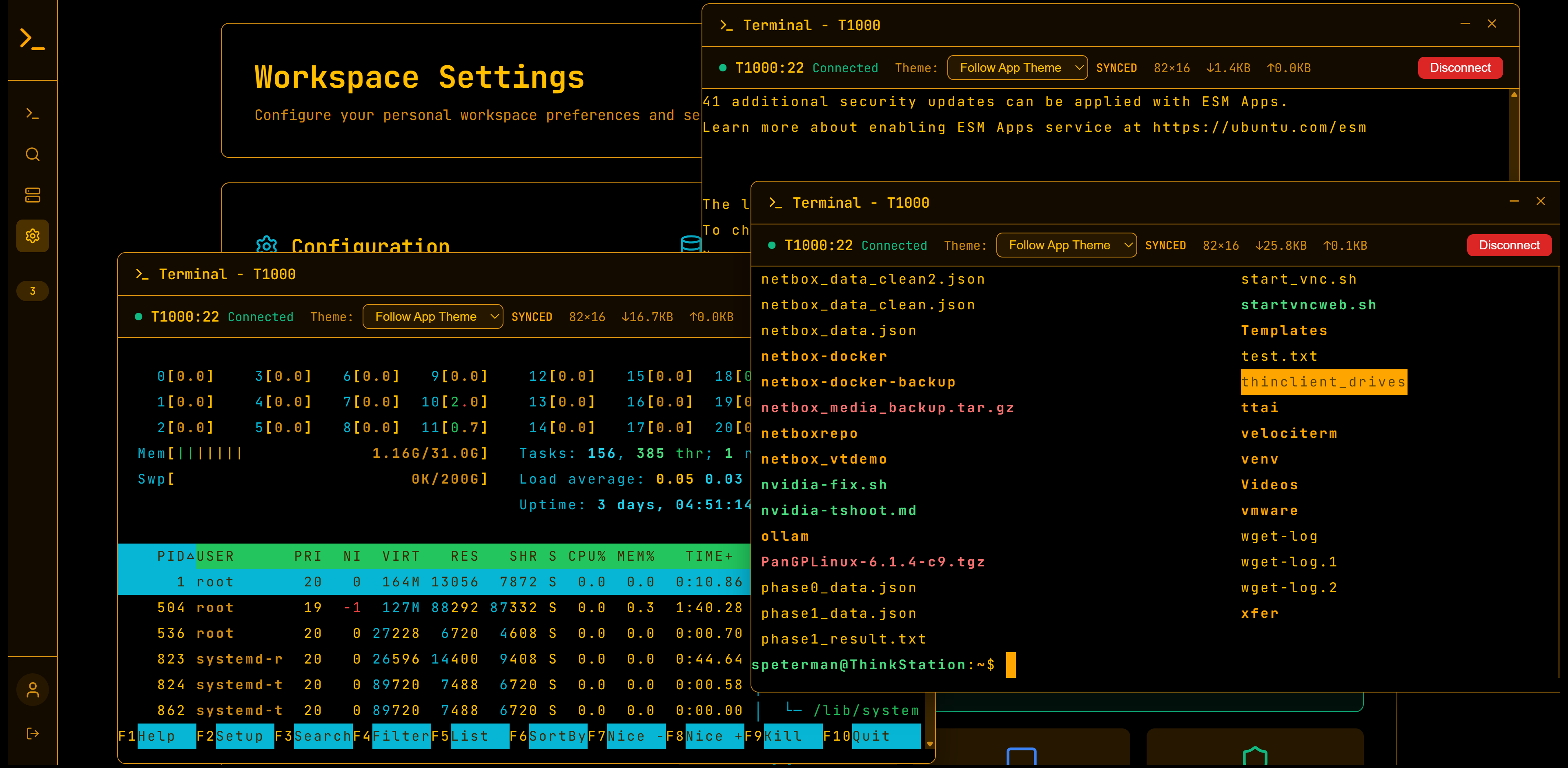
Terminal Features:
- Full xterm.js integration with addon support (search, web links, fit)
- True color support and proper terminal emulation
- Dynamic resizing and font configuration
- Connection error handling with auto-reconnect logic
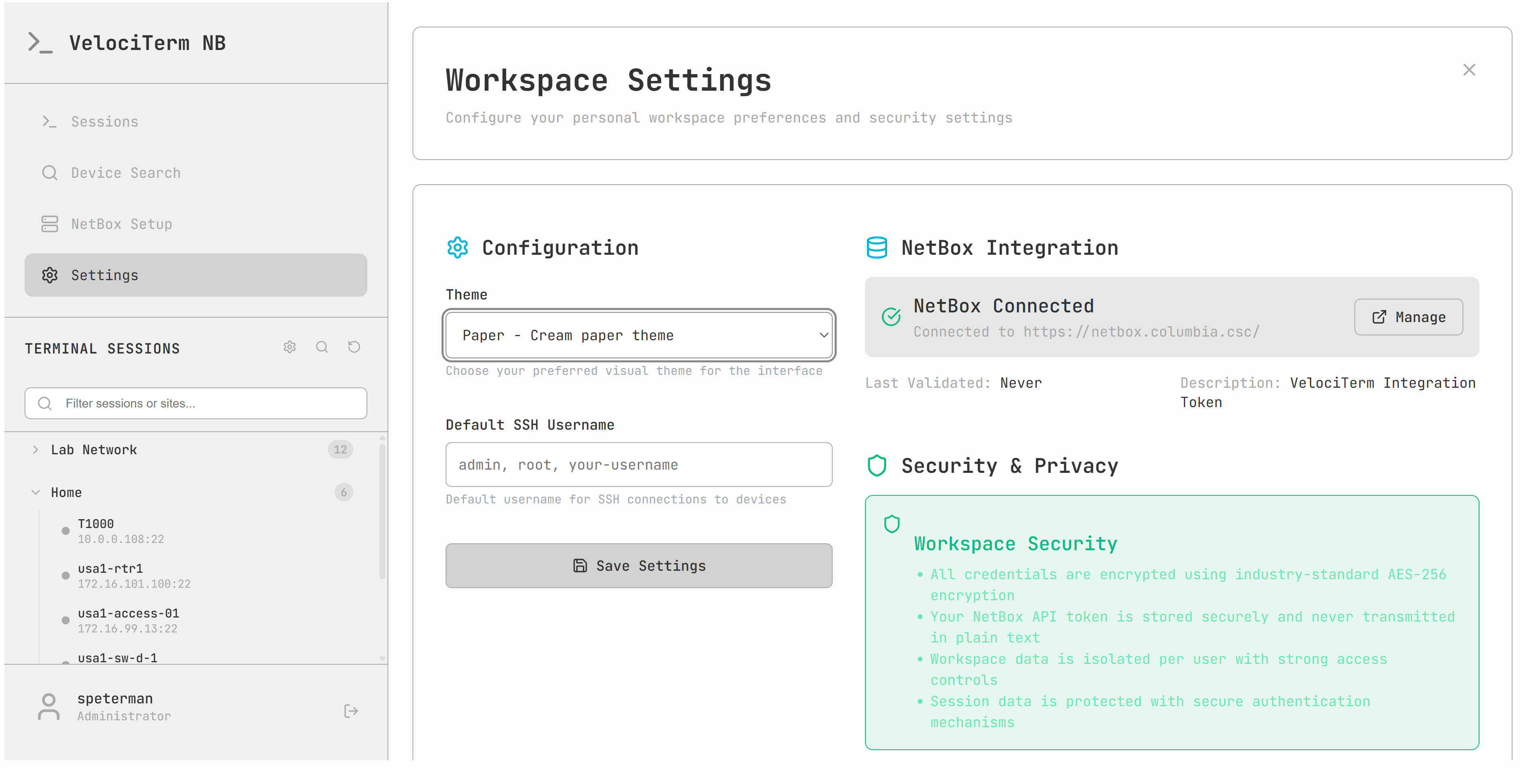
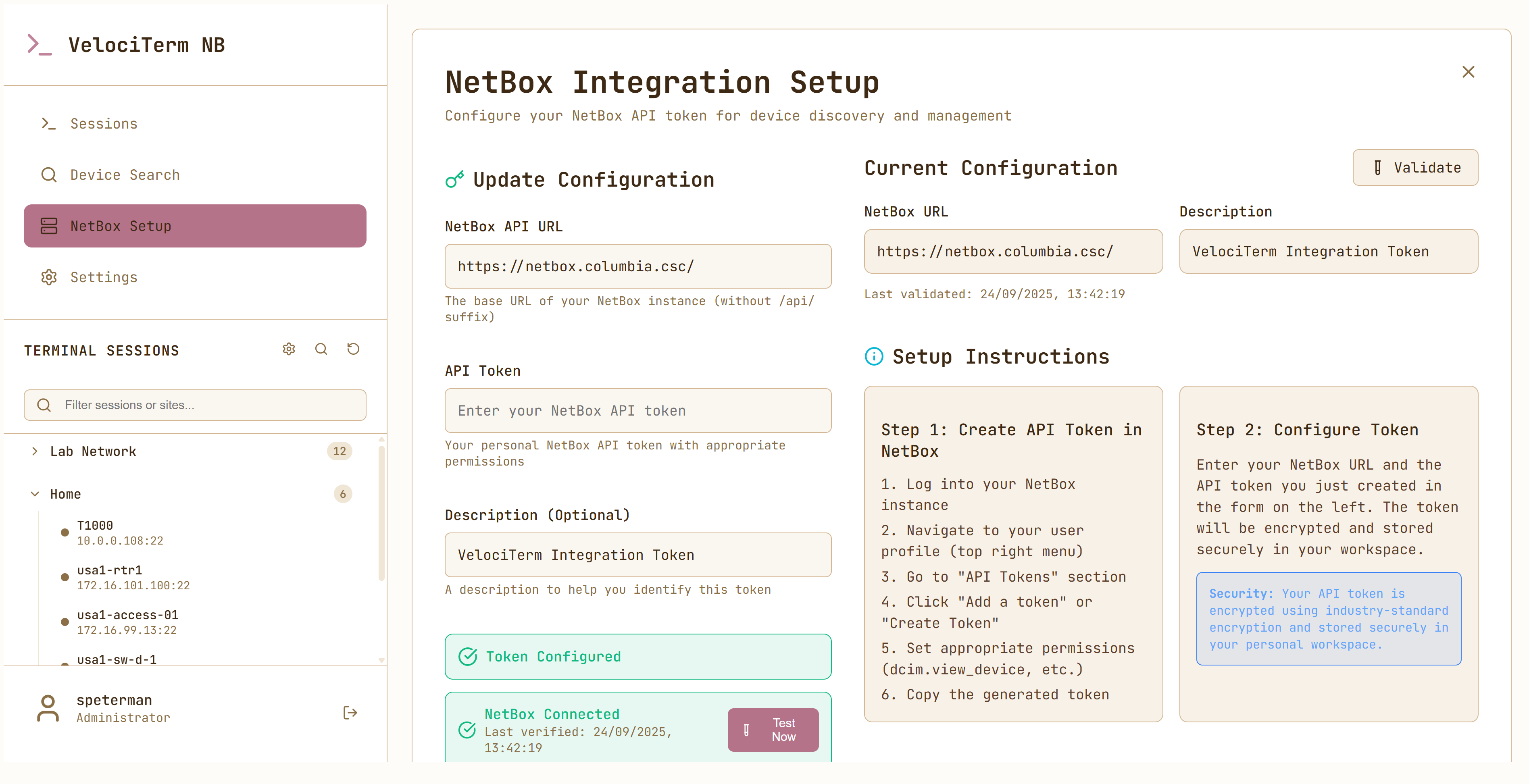
13+ Professional Themes:
- CRT variants (Cyber, Amber, Green, Mono)
- Corporate themes for professional environments
- Light themes for daytime usage
- Forest and paper themes for comfortable viewing
- Live theme switching without disconnecting sessions
Device Discovery:
- Real-time device search with site, platform, and status filtering
- Compact and card view modes for different workflows
- Bulk device selection and import capabilities
- Connection testing and API validation
- Secure per-user token management
Backend (Python/FastAPI):
- Enhanced dual authentication API (JWT + Session)
- Real-time WebSocket SSH terminal management
- Encrypted per-user workspaces with secure credential storage
- NetBox API integration with error handling and validation
- Modular authentication system supporting multiple backends
Frontend (React):
- Modern component architecture with performance optimization
- Advanced session management with real-time filtering
- Professional window management with floating terminals
- Complete theme system with 13+ variants
- Authentication mode selection and transparent token management
Current Alpha Implementation:
- Enhanced dual authentication system (JWT + Session)
- Real system credential validation (Windows/Linux)
- Per-user encrypted workspaces using PBKDF2 key derivation
- Automatic JWT token refresh with graceful fallback
- IP-based WebSocket validation for terminal access
- Secure cookie management and session cleanup
Production Security Roadmap:
- Multi-factor authentication support
- Role-based access control with granular permissions
- Comprehensive audit logging and compliance reporting
- Advanced session management with timeout policies
- Security certification and penetration testing
VelociTerm Embedded Terminal supports SSH key-based authentication, allowing password-less access to network devices. This feature enables seamless integration into automated workflows and eliminates the need to repeatedly enter passwords.
Authentication Flow:
- User authenticates to VelociTerm (JWT/Session authentication)
- VelociTerm stores
velociterm_userin localStorage and session - When connecting with blank password:
- Backend receives
velociterm_userfrom WebSocket connection - Backend looks for SSH key in
/workspace/{velociterm_user}/keys/id_rsa - If key exists: Attempts SSH key authentication
- If key auth fails or no key: Falls back to password (if provided)
- Backend receives
Example Connection with SSH Key:
// WebSocket payload when password is blank
{
  "type": "connect",
  "hostname": "10.0.0.108",
  "port": 22,
  "username": "speterman",              // SSH username on device
  "password": "",                        // Empty = attempt key auth
  "velociterm_user": "DESKTOP-MACHINE$speterman"  // Key lookup user
}

// Backend process:
// 1. Checks /workspace/DESKTOP-MACHINE$speterman/keys/id_rsa
// 2. Found? → Attempts: ssh -i /workspace/.../id_rsa speterman@10.0.0.108
// 3. Success! → Establishes SSH session
// 4. Failure? → No fallback (password was blank)1. Locate Your Workspace:
# After logging into VelociTerm, your workspace is created:
# /workspace/{velociterm_user}/keys/

# Example for Windows user:
/workspace/DESKTOP-MACHINE$speterman/keys/

# Example for Linux user:
/workspace/hostname$username/keys/
2. Add Your SSH Private Key:
# Copy your existing key
cp ~/.ssh/id_rsa /workspace/DESKTOP-MACHINE\$speterman/keys/

# Or generate a new key
ssh-keygen -t rsa -b 4096 -f /workspace/DESKTOP-MACHINE\$speterman/keys/id_rsa

# Set proper permissions (Linux/Mac)
chmod 600 /workspace/DESKTOP-MACHINE\$speterman/keys/id_rsa
chmod 644 /workspace/DESKTOP-MACHINE\$speterman/keys/id_rsa.pub
3. Deploy Public Key to Target Devices:
# Method 1: Using ssh-copy-id
ssh-copy-id -i /workspace/DESKTOP-MACHINE\$speterman/keys/id_rsa.pub user@device

# Method 2: Manual deployment
cat /workspace/DESKTOP-MACHINE\$speterman/keys/id_rsa.pub | \
  ssh user@device "mkdir -p ~/.ssh && cat >> ~/.ssh/authorized_keys"

# Method 3: Copy and paste
# Copy public key content, then on device:
vi ~/.ssh/authorized_keys
# Paste the public key content
# Save and set permissions: chmod 600 ~/.ssh/authorized_keysIn the UI:
- Navigate to device URL:
/embed?host=10.0.0.108&port=22&name=Device - Log into VelociTerm (JWT authentication)
- SSH credential form appears
- Enter SSH username (e.g.,
speterman) - Leave password field BLANK
- Click "Connect"
- VelociTerm automatically uses your SSH key!
Visual Indicators:
- Password placeholder:
"Enter password (or leave blank for key auth)" - Hint text:
💡 Leave password blank to use your SSH key - No asterisk on password field (optional)
Example HTML:
<!-- Embed with SSH key auth -->
<iframe
  src="https://velocit erm.local/embed?host=10.0.0.108&port=22&name=CoreSwitch"
  width="100%"
  height="600"
  frameborder="0"
></iframe>

<!-- User workflow:
1. Logs into VelociTerm
2. Enters SSH username
3. Leaves password blank
4. Connects with SSH key automatically
-->Workspace Isolation:
- Each user has isolated workspace:
/workspace/{velociterm_user}/ - Keys stored in
keys/subdirectory - Encrypted workspace using PBKDF2 key derivation
- Keys never accessible by other users
Key File Format:
/workspace/
  └── DESKTOP-MACHINE$speterman/
      ├── keys/
      │   ├── id_rsa          # Private key (chmod 600)
      │   └── id_rsa.pub      # Public key (chmod 644)
      ├── sessions/           # User's session files
      └── settings.yaml       # User preferences
Supported Key Types:
- RSA (2048, 4096 bits)
- ECDSA (256, 384, 521 bits)
- ED25519 (recommended for new keys)
Security Best Practices:
- Use strong passphrases on private keys (VelociTerm doesn't prompt for them)
- Rotate keys periodically
- Use separate keys for VelociTerm vs personal use
- Monitor key usage via SSH device logs
- Deploy keys only to authorized devices
Connection Fails with Blank Password:
Problem: "Authentication failed" with blank password
Causes:
1. SSH key not present in workspace
2. SSH key has incorrect permissions
3. Public key not deployed to target device
4. Wrong SSH username

Solutions:
1. Verify key exists: ls -la /workspace/{user}/keys/id_rsa
2. Check permissions: chmod 600 /workspace/{user}/keys/id_rsa
3. Verify public key on device: cat ~/.ssh/authorized_keys
4. Try password auth to confirm username is correct
Key Auth Works, But Password Fallback Doesn't:
Problem: Key auth fails, password fallback doesn't work
Cause: Password field was left blank

Solution:
- For password fallback to work, provide BOTH:
  - Username: speterman
  - Password: your_password
- VelociTerm tries key first, then password
- Blank password = key-only auth (no fallback)
Finding Your velociterm_user:
// Open browser console on VelociTerm page
console.log(localStorage.getItem('velociterm_user'));
// Output: "DESKTOP-MACHINE$speterman"

// This is your workspace directory name
// Your keys should be in: /workspace/DESKTOP-MACHINE$speterman/keys/NetBox Integration with SSH Keys:
<!-- NetBox device view with VelociTerm embedded -->
<h2>{{ device.name }} - {{ device.primary_ip }}</h2>

<!-- Embedded terminal with SSH key support -->
<iframe
  src="https://velociterm.local/embed?host={{ device.primary_ip }}&name={{ device.name }}"
  width="100%"
  height="800"
  style="border: 1px solid #333;"
></iframe>

<!-- Workflow:
1. User already logged into VelociTerm
2. Opens NetBox device page
3. Embedded terminal loads
4. User enters their SSH username
5. Leaves password blank
6. SSH key auth happens automatically
7. Instant access to device console
-->
Automated Dashboard with Multiple Devices:
<div class="device-dashboard">
  <!-- Multiple embedded terminals, all using SSH keys -->

  <div class="terminal-grid">
    <iframe src="/embed?host=core-sw-01&port=22&name=Core-SW-01"></iframe>
    <iframe src="/embed?host=dist-sw-01&port=22&name=Dist-SW-01"></iframe>
    <iframe src="/embed?host=edge-rtr-01&port=22&name=Edge-RTR-01"></iframe>
    <iframe src="/embed?host=fw-01&port=22&name=Firewall-01"></iframe>
  </div>

  <!-- All terminals:
  - Use same VelociTerm authentication
  - Same SSH keys from user's workspace
  - No password prompts needed
  - Instant access to all devices
  -->
</div>Programmatic Embedded Terminal Creation:
// Create embedded terminal with SSH key auth
function createEmbeddedTerminal(device) {
  const iframe = document.createElement('iframe');

  // URL includes device info
  iframe.src = `/embed?host=${device.ip}&port=${device.port}&name=${device.name}`;
  iframe.width = '100%';
  iframe.height = '600';
  iframe.style.border = '1px solid #444';

  // Append to container
  document.getElementById('terminal-container').appendChild(iframe);

  // User will:
  // 1. Enter their SSH username
  // 2. Leave password blank
  // 3. Connect with SSH key automatically
}

// Example usage
const devices = [
  { ip: '10.0.0.108', port: 22, name: 'CoreSwitch01' },
  { ip: '10.0.0.109', port: 22, name: 'CoreSwitch02' },
  { ip: '10.0.0.110', port: 22, name: 'DistSwitch01' }
];

devices.forEach(device => createEmbeddedTerminal(device));Current Implementation (Alpha):
- ✅ Manual key management (copy to workspace directory)
- ✅ Automatic key lookup by
velociterm_user - ✅ Password fallback support
- ✅ Works across all VelociTerm interfaces
⚠️ No UI for key upload⚠️ No UI for key generation⚠️ Single key per user workspace⚠️ Manual public key deployment to devices
Planned Enhancements:
- Web UI for key upload and download
- In-app key generation with download
- Multiple keys with device-specific associations
- Key rotation and expiration policies
- Automated public key deployment
- Key usage audit logging
- SSH agent forwarding support
- User Demand: ~10% of users requested SSH key authentication
- Implementation Status: Fully functional in alpha release
- Approach: Manual key management (industry-standard practice)
- Use Cases: Automated workflows, dashboard integrations, password-less access
- Integration: Works seamlessly with NetBox embedded terminals
The current setup is designed for development and secure testing:
Development Features:
- Hot reload for both backend and frontend
- Comprehensive logging with configurable levels
- Browser developer tools integration
- WebSocket message inspection and debugging
Testing Security:
- Real authentication required (no demo modes)
- Encrypted workspace storage
- Secure token management
- Session isolation and cleanup
Single-Server Testing:
# Production build testing
cd vtnb_fe
npm run build
cp -r build/* ../static/

# Run with enhanced security
export JWT_SECRET_KEY="$(openssl rand -base64 32)"
export JWT_ACCESS_TOKEN_EXPIRE_MINUTES=60
python main.py
Security Considerations for Testing:
- Use HTTPS in any networked testing environment
- Implement proper firewall rules
- Monitor authentication logs
- Limit access to authorized test users only
velociterm/
├── main.py                      # Backend entry point with JWT support
├── requirements.txt             # Python dependencies
├── config.yaml                  # Authentication configuration
├── models.py                   # Data models and schemas
├── workspace_manager.py        # Session and workspace management
├── routes/                     # Modular authentication system
│   ├── auth.py                # JWT + Session authentication
│   ├── jwt_handler.py         # JWT token management
│   └── auth_dependencies.py   # Dual authentication support
├── README_Backend.md           # Backend documentation
└── vtnb_fe/                   # Frontend application
    ├── package.json           # Node.js dependencies
    ├── src/                   # React components with auth support
    └── README_Frontend.md     # Frontend documentation
Getting Started:
- Fork the repository and create a feature branch
- Follow the setup instructions above
- Test with both JWT and Session authentication modes
- Submit pull requests with detailed descriptions
Code Standards:
- Python: Follow PEP 8 with comprehensive error handling
- React: Component-based architecture with performance optimization
- Authentication: Test both JWT and Session modes
- Documentation: Update READMEs for significant changes
Suitable for Alpha Testing:
- Development and staging environments
- Internal testing and evaluation
- Proof-of-concept deployments
- Educational and training use
NOT Suitable (Production Environments):
- Customer-facing systems
- Business-critical infrastructure
- Uncontrolled network access
- Production device management
When reporting issues during alpha testing:
- Include authentication mode used (JWT vs Session)
- Specify authentication method (Local vs LDAP)
- Provide browser and system information
- Include relevant console errors
- Document steps to reproduce
Security Enhancements:
- Advanced user management and role-based access control
- Multi-factor authentication integration
- Comprehensive audit logging
- Enhanced session management policies
Enterprise Features:
- LDAP/Active Directory production integration
- Team collaboration and session sharing
- Configuration management integration
- High availability deployment options
Production Readiness:
- Security certification and penetration testing
- Performance optimization for enterprise scale
- Container deployment with orchestration
- Backup and disaster recovery features
Integration Expansion:
- Additional DCIM platform support
- Monitoring system connectivity
- API extensibility for custom integrations
- Mobile application development
VelociTerm NB is developed for network professionals who need efficient, organized access to infrastructure devices. The project builds on excellent open-source libraries including React, xterm.js, FastAPI, and Paramiko.
Key Dependencies:
- xterm.js: Professional terminal emulation
- React: Modern user interface framework
- FastAPI: High-performance Python web framework
- Paramiko: Pure Python SSH implementation
- PyJWT: JSON Web Token implementation
⚠️ ALPHA SOFTWARE REMINDERVelociTerm NB is currently in alpha development. While fully functional and significantly more secure than initial versions, it is not ready for production deployment. Use only in testing, development, and evaluation environments.
VelociTerm NB - Alpha Release for Testing and Evaluation
Repository: https://github.com/scottpeterman/velociterm/tree/dev
Status: Alpha - Functional for testing, enhanced security, not production-ready
Setup Time: Clone, install, and run in under 5 minutes