A comprehensive satellite tracking application with integrated dual-radio control, real-time Doppler correction, advanced visualizations, and AI-powered frequency predictions for amateur radio satellite operations.
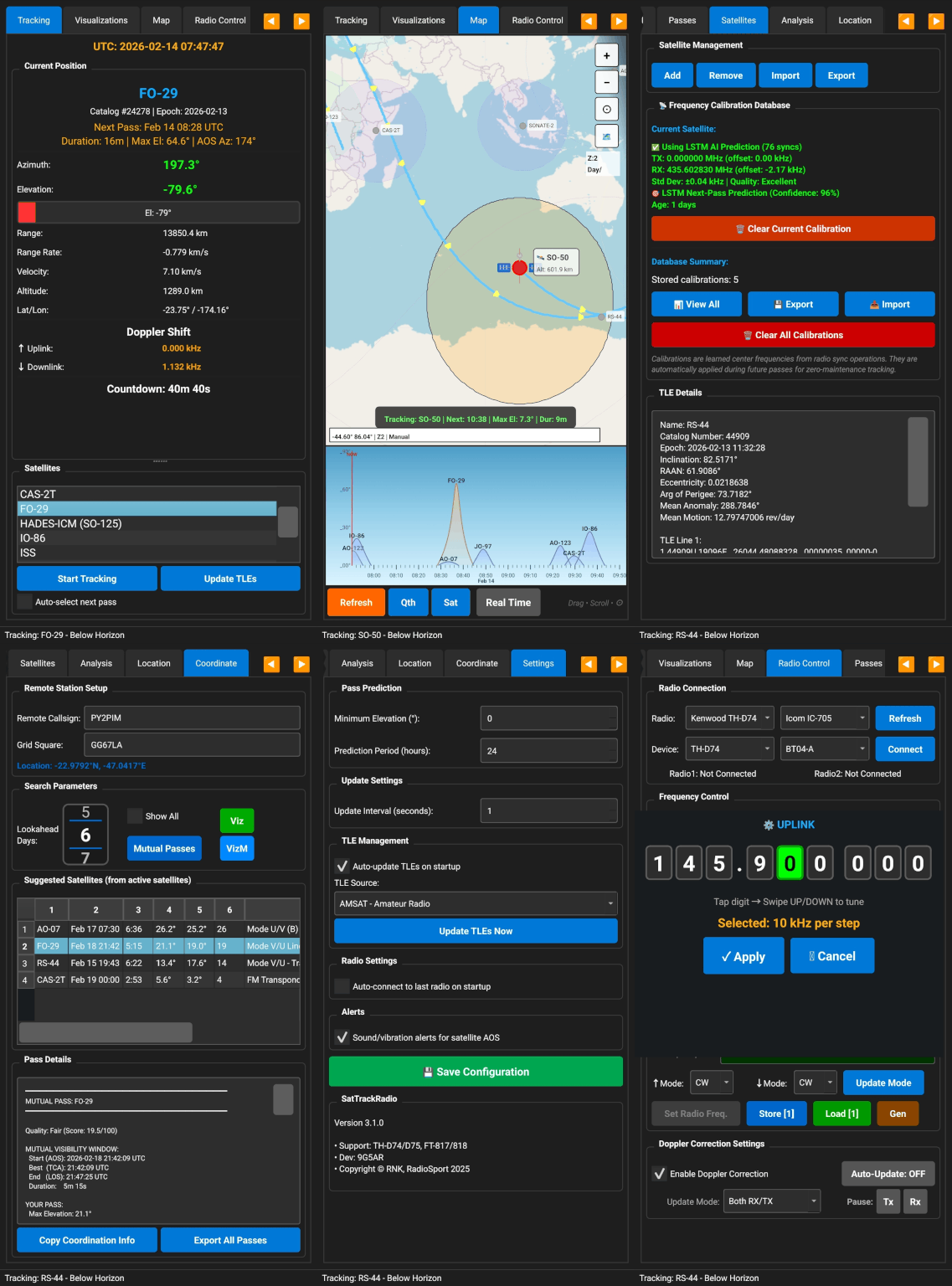
- Real-time position tracking with azimuth, elevation, range, and velocity
- SGP4 propagator for accurate orbital calculations using official SGP4 library
- Pass prediction with configurable minimum elevation (0-90°)
- Multi-satellite support with easy selection and management
- GPS time synchronization for atomic clock accuracy
- TLE age warnings - alerts when orbital data is older than 30 days with visual indicators
- Altitude and velocity display for each tracked satellite
- Range rate tracking for precise Doppler calculations
- Radio 1 & Radio 2 Support:
- Icom IC-705 (CI-V protocol via Bluetooth)
- Yaesu FT-818 (CAT control via Bluetooth)
- Kenwood TH-D74 (ASCII commands via Bluetooth)
- Kenwood TH-D75 (Compatible with D74 protocol)
- Independent control of two radios simultaneously
- Flexible Radio Routing:
- Assign uplink to Radio 1 or Radio 2
- Assign downlink to Radio 1 or Radio 2
- Full duplex operation with two radios
- Simplex operation with single radio
- Mix and match radio types (e.g., IC-705 for uplink, TH-D74 for downlink)
- Automatic Doppler correction for uplink and downlink frequencies
- Real-time frequency updates during satellite passes
- Multiple update modes:
- RX Only (Downlink/Simplex)
- TX Only (Uplink/Simplex)
- Both (Full Duplex)
- Manual frequency adjustment with frequency locking
- Mode selection (FM, NFM, WFM, AM, LSB, USB, CW, CWR, RTTY, DV/D-STAR)
- Sync from radio to read current frequencies
- Frequency calibration integration - uses your learned frequencies automatically
- Independent connection status for each radio
- Auto-reconnect on connection loss
Single Radio Setup (Simplex):
- Select your radio type in Radio 1 dropdown
- Select paired Bluetooth device
- Leave Radio 2 as "---"
- Assign Radio 1 to both uplink and downlink selectors
- Click Connect
Dual Radio Setup (Full Duplex):
- Select first radio type in Radio 1 dropdown
- Select first Bluetooth device
- Select second radio type in Radio 2 dropdown
- Select second Bluetooth device
- Assign Radio 2 to uplink, Radio 1 to downlink (or vice versa)
- Click Connect
- Both radios connect independently
IC-705 Satellite Mode Setup:
- Select "Icom IC-705" in Radio 1 (or Radio 2) dropdown
- Select paired Bluetooth device (the IC-705 must be paired as an SPP/serial device)
- Assign Radio 1 to uplink and/or downlink as needed
- Click Connect — the app communicates using Icom's CI-V protocol
- Doppler updates are applied to the active VFO only
Connection Status:
- Each radio shows independent connection status
- Green = Connected and ready
- Red = Disconnected
- Yellow = Connecting
The app learns from your actual operating experience to predict the best frequencies for future passes using machine learning!
- Saves Your Successful Frequencies: After making a contact, save the frequencies that actually worked
- Learns Equipment Characteristics: Accounts for your radio's oscillator drift and characteristics
- Tracks Satellite Drift: Monitors how satellite frequencies change over time
- AI-Powered Predictions: Uses LSTM machine learning to predict optimal frequencies
- Historical Analysis: Maintains complete history of all your syncs with statistics
- Quality Assessment: Rates calibration quality (Excellent/Good/Fair/Poor)
- Per-Transponder Tracking: Individual calibration for each satellite mode
- Confidence Scoring: Shows prediction reliability (0-100%)
Step 1: First Contact
- Start with nominal frequencies from the transponder database
- Make your contact as usual
Step 2: Save What Worked
- After a successful contact, go to the Radio Control tab
- Your current frequencies are displayed
- Click "Sync Radio" to save them to the calibration database
- The app records: frequencies, time, elevation, range, and your location
Step 3: Build Your Database
- Each sync adds to your calibration history
- The app tracks patterns across multiple passes
- Statistical analysis calculates drift rates and confidence
Step 4: AI Predictions Activate
- After 5+ syncs, the LSTM prediction model kicks in
- The app predicts optimal frequencies for your next pass
- Predictions include confidence levels (0-100%)
- Better data = better predictions
Step 5: Use Predictions
- Predicted frequencies automatically appear in the Radio Control tab
- The app shows prediction confidence and when it was calculated
- Fine-tune manually as needed during the pass
- Continue syncing to improve accuracy
The calibration system compensates for:
- Your radio's oscillator drift
- Satellite oscillator drift over time
- Temperature effects on equipment
- Regional propagation conditions
- Your specific antenna and setup characteristics
- ⭐ Excellent (10+ syncs): Very reliable predictions with low frequency variance
- ✅ Good (5-9 syncs): Solid predictions with moderate confidence
⚠️ Fair (3-4 syncs): Basic predictions, more data needed- ❌ Poor (1-2 syncs): Insufficient data for reliable predictions
- See complete list of all saved calibrations
- Check sync count and age for each satellite/mode
- View quality ratings at a glance
- Monitor which calibrations need updating
- Sort by satellite, sync count, or age
- Export: Backup your calibration database to a file
- Import: Restore calibrations from backup
- Share: Transfer calibrations between devices
- Data saved in portable JSON format
- Preserves complete history and statistics
- Clear Current: Remove calibration for selected satellite/mode
- Clear All: Delete entire calibration database (with confirmation)
- Useful for starting fresh or removing bad data
Quick access to your favorite frequency pairs for instant recall during operations.
- 15 Memory Slots per satellite/transponder combination
- Store Current Frequencies: Save uplink/downlink pairs with one click
- Load Saved Frequencies: Recall stored frequencies instantly
- Gen Button: Automatically generate 15 frequency pairs from a single seed
- Persistent Storage: Frequencies saved across app sessions
- Auto-Advance: Automatically moves to next available slot
- Per-Transponder Memory: Separate memory banks for each satellite mode
- Visual Indicators: See which slots are occupied
Storing Frequencies:
- Set your desired uplink and downlink frequencies
- Click "Store [#]" button
- Frequencies are saved to that slot
- Slot counter automatically advances to next available position
Loading Frequencies:
- Click "Load [#]" button
- Frequencies are loaded into uplink/downlink fields
- Doppler correction applies if enabled
- Slot counter advances to next occupied slot for quick scanning
Generating Frequency Pairs (Gen Button):
- Store your preferred uplink/downlink pair in slot 1 (the seed)
- Click "Gen" button
- App automatically generates 14 additional pairs (slots 2-15):
- Pairs spaced at 5 kHz intervals
- Alternating above/below seed frequency to keep it centered
- Computed via transponder's linear relationship
- Validated against transponder passband limits
- Requires linear transponder mode (not FM/repeater)
- All 15 slots instantly populated for quick scanning during pass
Gen Button Example:
- Slot 1 seed: ↑145.950 MHz / ↓435.800 MHz
- Gen creates: 145.940/435.785, 145.960/435.815, 145.945/435.792, etc.
- Maintains correct uplink-to-downlink ratio for the transponder
Memory Management:
- Each satellite/transponder has its own 15-slot memory bank
- Switch satellites to access different memory banks
- Overwrite slots by storing to occupied positions
- Use Gen to quickly populate all 15 slots from a seed
- Memory persists when app is closed
- Data is device-specific, not synced to cloud
- Scrolling Graph: Satellite passes scroll right-to-left toward the NOW line in real-time
- Live Updates: Graph refreshes every second, continuously showing upcoming passes
- Multi-Satellite Display: All upcoming passes shown simultaneously with color-coded labels
- Interactive Controls:
- Pan: Drag to view past or future time periods
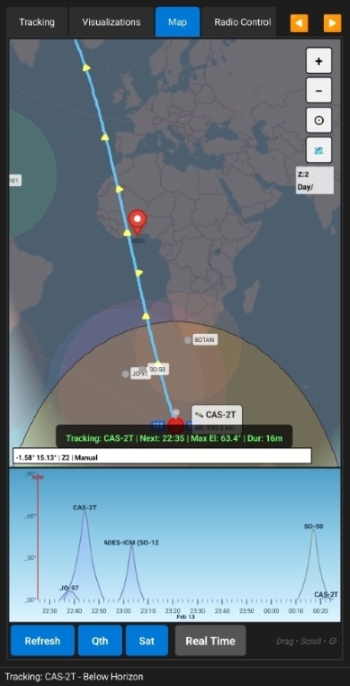
- Real-time satellite tracking on world map
- Zoom and pan with touch/mouse controls
- Tile caching for offline operation
- Multi-satellite display - track multiple satellites simultaneously
- Observer location marker - shows your position on the map
- Satellite footprint visualization - shows coverage area
- Ground track display - satellite path across Earth's surface
- Real-time footprint calculation based on satellite altitude
- Geographic coordinate system projection
- Horizon visibility circle showing coverage area
- Color-coded footprints for different satellites
- Toggle footprint visibility for each satellite
- Footprint follows satellite in real-time
- Handles date line wrapping for global tracking
- Future path prediction - see where satellite will travel
- Historical track - where satellite has been
- Configurable track length - adjust how much path to display
- Color-coded by elevation - shows when satellite is visible
- Smoothly updated as satellite moves
- Works in both real-time and visualization modes
- Predict future pass geometry - see satellite path at any future time
- Set custom time - jump to specific date/time to preview pass
- TCA (Time of Closest Approach) viewing - center on best contact time
- Coverage area preview - see footprint at selected time
- Multi-satellite comparison - view overlapping coverage zones
- Reset to real-time - return to live tracking instantly
- Azimuth/Elevation display in polar coordinates
- Real-time satellite position on sky plot
- Pass prediction overlay - see entire pass trajectory
- Horizon markers for 0° elevation
- Cardinal direction indicators (N, E, S, W)
- Elevation rings at 30° and 60°
- Visual pass quality assessment - high elevation = better passes
Real-Time Tracking:
- Go to Visualizations tab
- Map shows your location and tracked satellite
- Satellite footprint and ground track update automatically
- Polar plot shows satellite position in sky
- All views synchronized with current time
Future Pass Visualization:
- Go to Visualizations tab
- Select target date/time
- Click "Show at Selected Time"
- Map displays satellite position at that time
- Footprint shows coverage at selected moment
- Click "Clear Viz" to return to real-time
Multi-Satellite Tracking:
- Add multiple satellites to tracking list
- All satellites appear on map with different colors
- Toggle individual footprints on/off
- Each satellite has distinct marker and footprint
- Track up to 10 satellites simultaneously
- TLE (Two-Line Element) management
- Automatic updates from Celestrak
- Import/export TLE files
- Multiple TLE sources (Amateur, Weather, CubeSats, Space Stations, Starlink)
- Age warnings for TLEs older than 30 days
- Visual indicators showing TLE freshness
- Last update timestamp display
- Transponder database integration
- Automatic download from SatNOGS database
- Support for multiple transponders per satellite
- Uplink/downlink frequency pairs
- Mode information (FM, SSB, CW, etc.)
- Cached offline access
- Per-transponder calibration support
- GPS integration (Android)
- Automatic location acquisition
- GPS time synchronization for sub-second accuracy
- Altitude detection
- Fix quality indicators
- Horizontal and vertical accuracy display
- Auto-update location on first fix
- Manual location entry with validation
- Observer location caching - saves across sessions
- Named locations - assign custom names to positions
- Geodetic coordinate support with WGS-84 ellipsoid
- Modern dark theme optimized for night operations
- Tabbed interface for easy navigation:
- Tracking - Real-time satellite position and velocity
- Visualizations - Map, footprint, ground track, and sky view
- Radio Control - Dual radio management with calibration status
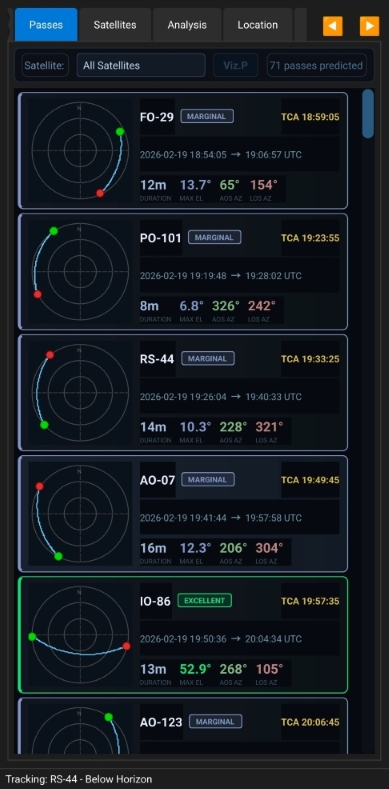
- Passes - Upcoming pass prediction cards.
- Satellites - Satellite list with TLE management
- Location - GPS and manual position entry
- Settings - Calibration management and app configuration
- Visual Lookahead Dial - Scrollable circular dial to set prediction period (1-30 days)
- Calibration Status Indicators - See sync count and quality on Radio and Satellites tabs
- Status indicators and countdown timers
- Color-coded pass predictions based on elevation
- Enhanced information display with emoji indicators for quick recognition
- Connection status for each radio with color coding
- Screen always-on during tracking - prevents timeout during passes
Install on your Android phone (APK available in releases).
- Android 7.0 (Nougat) or higher
- Bluetooth capability for radio control
- GPS for location services (optional)
- Internet connection for TLE/transponder updates
- ~50MB storage space
BLUETOOTH- For radio controlBLUETOOTH_CONNECT- For Bluetooth device pairingACCESS_FINE_LOCATION- For GPS functionalityINTERNET- For TLE and transponder updates
-
Set Your Location
- Navigate to the Location tab
- Enter coordinates manually or use GPS (Android)
- Click "Get GPS Location & Time" for automatic setup
- Optionally name your location
- Save your location
-
Add Satellites
- Go to Satellites tab
- Click "Update TLEs" to download latest orbital data
- Select TLE source (Amateur, Weather, etc.)
- Satellites and their transponders are automatically downloaded
- Check TLE age indicators for data freshness
-
Track a Satellite
- Select a satellite from the list
- Click "Start Tracking"
- View real-time position, velocity, and Doppler data
- Azimuth, elevation, range, and range rate update every second
-
Connect Radio(s)
- Go to Radio Control tab
- For Single Radio:
- Select radio type in Radio 1 dropdown
- Choose Bluetooth device
- Leave Radio 2 as "---"
- Click "Connect"
- For Dual Radio:
- Select first radio type in Radio 1
- Choose first Bluetooth device
- Select second radio type in Radio 2
- Choose second Bluetooth device
- Assign radios to uplink/downlink
- Click "Connect"
-
Enable Auto-Tracking
- Check "Enable Doppler Correction"
- Check "Auto Update Radio"
- Select update mode (RX Only, TX Only, or Both)
- Choose which radio handles uplink and downlink
- Radio(s) will automatically adjust frequency during passes
For linear transponder satellites (e.g., AO-91, AO-92):
-
Connect Two Radios:
- Radio 1: Receive radio (e.g., IC-705 or TH-D74 for 145.880 MHz downlink)
- Radio 2: Transmit radio (e.g., FT-818 or IC-705 for 435.190 MHz uplink)
-
Assign Radio Functions:
- Uplink Radio Selector: Choose "Radio2"
- Downlink Radio Selector: Choose "Radio1"
-
Enable Auto-Tracking:
- Check "Enable Doppler Correction"
- Check "Auto Update Radio"
- Both radios update independently with correct Doppler
-
During Pass:
- Radio 1 tracks downlink frequency
- Radio 2 tracks uplink frequency
- Full duplex communication maintained
- Monitor both connection status indicators
For FM satellites (e.g., ISS, SO-50):
-
Use Single Radio:
- Set Radio 1 to your transceiver
- Leave Radio 2 as "---"
-
Assign to Both Functions:
- Uplink Radio Selector: "Radio1"
- Downlink Radio Selector: "Radio1"
-
Auto-Tracking:
- Select "RX Only" for receive
- Or "TX Only" for transmit
- Radio switches between as needed
- Go to Visualizations tab
- Your location appears as a marker
- Tracked satellite shows with footprint
- Ground track displays satellite path
- Footprint shows coverage area
- Polar plot shows satellite in sky
- In Map tab, click "RealTime".
- Click Custom(UTC).
- Click "Apply"
- Map displays satellite position at that moment
- See footprint coverage for planning
- Click "Custom" to return to real-time
- Track multiple satellites simultaneously
- Each has unique color marker
- Toggle individual footprints on/off
- View overlapping coverage areas
- Compare pass geometries
- Plan coordination windows
- Select your satellite and transponder
- The app shows nominal frequencies from the database
- Enable Doppler correction
- Make your contact
- Note actual working frequencies
- After a successful contact, stay on Radio Control tab
- Your current frequencies are shown in the frequency displays
- Click the "Sync Radio" button
- A confirmation appears showing what was saved
- The calibration status updates to show "1 sync"
- Frequency memory automatically stores successful frequencies
For Best Results:
- Sync after each successful contact
- Try to sync at different elevations (low, medium, high passes)
- Sync at different times of day
- The more variety in conditions, the better the predictions
- Use GPS time for accurate timestamps
What Happens:
- Each sync is added to the history
- The app calculates average frequencies
- Standard deviation shows frequency consistency
- Drift rate tracks changes over time
- Quality rating improves with more syncs
-
Look for the LSTM Prediction Indicator
- Appears in Radio Control tab calibration status
- Shows "LSTM Model: Active" with confidence percentage
- Displays predicted uplink and downlink frequencies
- Shows when prediction was calculated
-
Automatic Frequency Loading
- When you select a satellite with LSTM predictions
- Predicted frequencies automatically load
- Doppler correction applies on top of predictions
- No manual adjustment needed for start
-
Monitor Confidence
- 80%+ confidence = Very reliable, use as-is
- 60-80% confidence = Good starting point, minor tuning may be needed
- Below 60% = Use with caution, manual adjustment likely needed
-
Fine-Tune During Pass
- If signal is weak, adjust manually
- Note the working frequency
- Sync again after pass to improve model
- Each sync refines predictions
-
During a Pass:
- Dial in your working frequencies
- Note which slot number is shown (0-14)
- Click "Store" button
- Frequencies saved to that slot
- Display advances to next empty slot
-
Recalling Frequencies:
- Click "Load" button
- Frequencies from selected slot load
- Load button cycles through occupied slots
- Instant frequency recall for repeated satellites
-
Memory Organization:
- Each satellite/transponder has separate memory bank
- 15 slots per configuration
- Switch satellites to access different banks
- Store multiple working frequency pairs
- Great for different pass elevations or modes
- Store successful frequencies immediately after contact
- Label your approach: low slot numbers for low passes, high for high passes
- Overwrite old data when conditions change
- Use with calibration: Memory complements, doesn't replace calibration
- Quick recall: Perfect for rapid frequency changes during crowded passes
- Go to Passes tab
- Minimum elevation (check settings tab)
- Upcoming passes are sorted by AOS time
- Pass cards are color coded by elevation.
For maximum accuracy in Doppler calculations:
- Go to Location tab
- Click "Get GPS Location & Time"
- Wait for GPS fix (indicated by status)
- Fix quality shown (Excellent/Good/Fair/Poor)
- Check "Use GPS Time"
- GPS provides atomic clock accuracy for time-sensitive operations
- Time source indicator shows "GPS (Atomic Clock Accuracy)"
- System offset displayed for reference
- Minimum Elevation: Set minimum angle for pass predictions (0-90°)
- Prediction Period: Use visual lookahead dial (1-30 days)
- Update Interval: Position update frequency (1-60 seconds)
- Auto-update TLEs: Automatically refresh TLEs on startup
- TLE Source: Choose Celestrak category (Amateur, Weather, CubeSats, etc.)
- Auto-connect Radio: Connect to last used radio on startup
- Use GPS Time: Enable GPS-based time synchronization
- Radio 1 Type: Select Yaesu FT-818, Kenwood TH-D74/D75, or ---
- Radio 2 Type: Select second radio type or ---
- Radio 1 Device: Choose paired Bluetooth device
- Radio 2 Device: Choose second Bluetooth device
- Uplink Assignment: Assign uplink to Radio 1 or Radio 2
- Downlink Assignment: Assign downlink to Radio 1 or Radio 2
- Update Mode: RX Only, TX Only, or Both
- Auto Doppler: Enable/disable automatic Doppler correction
- View All Calibrations: See complete calibration database
- Export Calibrations: Backup your frequency data
- Import Calibrations: Restore from backup
- Clear Current: Remove calibration for selected satellite
- Clear All: Delete entire calibration database
- Show All Footprints: Toggle footprint display for all satellites
- Ground Track Length: Adjust how much satellite path to display
- Map Zoom Level: Default zoom for map view
- Theme: Dark mode (optimized for night use)
- Official SGP4 propagator with full perturbation theory
- Geodetic coordinate conversion with WGS-84 ellipsoid
- Look angle calculations in SEZ (South-East-Zenith) frame
- Greenwich Sidereal Time calculations for ECI to ECEF conversion
- Range rate computation for accurate Doppler prediction
- Footprint calculation using geometric horizon formula
- Ground track projection on geodetic coordinates
- Relativistic Doppler formula for satellite velocities
- Corrects for satellite velocity along line of sight
- Separate calculations for uplink and downlink
- Real-time updates based on range rate
- Integrates with frequency calibration for improved accuracy
- Pre-compensation for uplink transmission
- Direct correction for downlink reception
- Machine Learning Approach: Similar to Long Short-Term Memory (LSTM) neural networks
- Pattern Recognition: Learns from your historical sync data
- Multi-Factor Analysis: Considers elevation, range, time, temperature drift
- Recursive Predictions: Each prediction improves based on previous accuracy
- Confidence Scoring: Provides reliability estimate (0-100%)
- Adaptive Learning: Model updates with each new sync
For each calibration, the system calculates:
- Mean Frequencies: Average uplink and downlink from all syncs
- Standard Deviation: Frequency consistency measure
- 95% Confidence Interval: Range where true frequency likely falls
- Drift Rate: Frequency change over time (MHz/day)
- Prediction Accuracy: R² score showing model fit quality
- Timestamp (UTC with GPS accuracy)
- Uplink frequency used
- Downlink frequency used
- Satellite elevation at time of sync
- Range to satellite
- Observer location
- Transponder mode
- Sync method (manual/auto)
- Binary CAT commands
- BCD frequency encoding
- Frequency resolution: 10 Hz
- 9600 baud rate
- Mode selection support
- Read/Write frequency operations
- ASCII command protocol
- Dual-band operation (Band A/B)
- Frequency resolution: 5 kHz (VHF), 6.25 kHz (UHF)
- Extended receive coverage on Band B
- Mode and power level control
- Status query support
- OpenStreetMap tile integration
- Tile caching for offline use
- Mercator projection for world display
- Geodetic to screen coordinate conversion
- Multi-satellite rendering with color coding
- Footprint calculation using spherical geometry
- Ground track smoothing for visual clarity
Includes sample pre-configured TLEs and transponders for:
- AO-92 (FOX-1D) - FM transponder
- ISS (ZARYA) - Voice and APRS
- Always download the latest TLEs for best accuracy
- TLEs: Celestrak (https://celestrak.org)
- Amateur Radio satellites
- Weather satellites
- CubeSats
- Space Stations
- Starlink constellation
- Transponders: SatNOGS Database (https://db.satnogs.org)
- Calibration Data: Locally stored on device in JSON format
- Frequency Memory: Device-local persistent storage
- Map Tiles: OpenStreetMap contributors
- Check internet connection
- Verify HTTPS connectivity
- Try different TLE source
- Look for TLE age warnings (>30 days indicator)
- Manual import option available
- Verify Bluetooth pairing in Android settings
- The app only lists devices from Bluetooth "paired" list
- Check radio is in CAT control mode
- For FT-818: Ensure correct baud rate (9600)
- For TH-D74/D75: Verify data band selection
- For IC-705: Ensure the radio's Bluetooth SPP (Serial Port Profile) is enabled and the device is paired before launching the app
- Ensure radio is powered on
- Check battery levels on both radio and phone
- Try forgetting and re-pairing Bluetooth device
- Split or Dual Watch not activating: The app sets these automatically on connection — if they don't engage, try disconnecting and reconnecting
- CI-V errors or no response: Confirm the IC-705 Bluetooth is set to SPP mode (not just audio); check the CI-V address in the radio's menu matches the default (0xA4)
- Frequency not updating during pass: Verify the IC-705 is the selected radio for the uplink/downlink you want to update
- Wrong VFO being updated: The app uses VFO-A for the main frequency and VFO-B for split — do not manually switch VFOs during a tracked pass
- Mode not changing: All IC-705 modes are supported (LSB, USB, AM, FM, NFM, WFM, CW, CWR, RTTY, DV/D-STAR); if a mode from the transponder database isn't recognized, the radio defaults to USB
- Both radios not connecting: Check each is paired separately
- Wrong radio responding: Verify radio assignments in selectors
- Interference between radios: Ensure adequate separation
- One radio disconnects: Check battery, Bluetooth range
- Frequency not updating: Verify update mode includes that radio
- Connection status unclear: Each radio has independent status indicator
- Grant location permissions in Android settings
- Enable location services system-wide
- Ensure clear sky view
- Wait 30-60 seconds for initial fix
- Check GPS status indicator for fix quality
- Move away from buildings/obstacles
- Restart app if GPS fix stalls
- Update TLEs (older than 7 days may be inaccurate)
- Use GPS time synchronization for precise timing
- Verify observer location is correct
- Build frequency calibration database for personalized accuracy
- Check satellite is in view (elevation > 0°)
- Ensure tracking is active
- Verify radio is connected and responding
- Map not loading: Check internet connection for tile download
- Ground track missing: Verify tracking is active
- Satellite not on map: Check satellite elevation > 0°
- Visualization stuck: Click "Clear" to reset to real-time
- Ensure a satellite is selected
- Select a transponder mode first
- Check that frequencies are displayed
- Verify you're on the Radio Control tab
- Confirm radio is connected
- Need at least 5 syncs before LSTM activates
- Check calibration age (expires after 30 days)
- Verify same transponder mode is selected
- Look at calibration status indicator for details
- Ensure syncs have varied elevation/conditions
- More syncs needed (aim for 10+ for best results)
- Try syncing at different elevations
- Ensure GPS time is accurate during syncs
- Check for consistency in your synced frequencies
- Verify TLEs are current
- Review and clear any bad sync data
- Verify TLEs are current (update if old)
- Check that you're using the correct transponder
- Ensure location is accurate
- Consider clearing and rebuilding calibration
- Compare with nominal frequencies
- Check if satellite frequencies have changed
- Uninstalling app removes all local data
- Export calibrations regularly as backup
- Import to restore from backup file
- Data is device-specific, not cloud-synced
- Use file manager to locate backup files
- Slot shows wrong frequency: Verify correct satellite/transponder selected
- Can't overwrite slot: Simply store to same slot number
- Memory cleared: Each satellite/transponder has separate bank
- Load not working: Ensure slot is occupied (check slot counter)
- Gen button disabled: Requires linear transponder and slot 1 stored first
- Gen creates invalid pairs: Check transponder passband limits - some combinations may be invalid
- Lost memory: Uninstalling app clears memory, export calibrations includes memory
- Start Simple: Make contacts using nominal frequencies first
- Sync Every Contact: More data = better predictions
- Vary Your Conditions: Sync at different elevations and times
- Use GPS Time: Accurate timestamps improve predictions
- Keep TLEs Fresh: Update regularly for best accuracy
- Export Regularly: Backup your calibrations weekly
- Monitor Quality: Check calibration ratings in Settings
- Be Patient: LSTM needs 5+ syncs to activate
- Trust High Confidence: 80%+ predictions are very reliable
- Fine-Tune as Needed: Predictions are starting points, adjust during pass
- Use Memory Slots: Store successful frequencies for quick recall
- Review Statistics: Check calibration details to identify patterns
-
Pre-Pass Checklist:
- Verify both radios are fully charged
- Check both Bluetooth connections are stable
- Confirm radio assignments match your setup
- Test frequency updates on both radios
- Verify correct antennas connected
- IC-705 users: Confirm the IC-705 is in Bluetooth SPP mode before connecting
-
During Full Duplex Pass:
- Monitor both connection status indicators
- Watch for frequency updates on both radios
- Listen to downlink while transmitting on uplink
- Note any connection drops for troubleshooting
- Use memory slots to store working frequencies
-
Simplex Operation:
- Set single radio for both uplink and downlink
- Use RX Only mode for listening
- Switch to TX Only when transmitting
- Let Doppler adjust frequency for you
- Store successful frequencies to memory
-
Pre-Pass Setup
- Start tracking 5-10 minutes before AOS
- Check calibration status for selected satellite
- Verify TLE age is recent (< 7 days ideal)
- Enable Doppler correction and auto-tracking
- Load frequency memory or use calibration predictions
- Check both radios connected (if using dual radio)
- Verify GPS time sync is active
- Set correct transponder mode
-
During the Pass
- Let auto-tracking update your radio(s)
- Watch for signal strength and clarity
- Fine-tune manually if needed
- Note actual frequencies that work best
- Monitor elevation and range indicators
- Check footprint on map for coverage
- Use polar plot to track satellite position in sky
-
Post-Pass
- Sync frequencies after successful contacts
- Store working frequencies to memory slots
- Use Gen button to create full memory bank from best frequency
- Check prediction confidence levels
- Monitor calibration quality rating
- Export calibrations if many updates made
- Review pass on map visualization
- Note any issues for troubleshooting
-
Maintenance
- Update TLEs weekly (or when age indicator warns)
- Export calibrations monthly
- Review calibration database quarterly
- Clear old/bad calibrations as needed
- Clean up unused frequency memory slots
- Check Bluetooth pairing status periodically
- Update transponder database monthly
-
Learning the Footprint:
- Zoom in to see your local coverage
- Note how footprint size changes with altitude
- Higher satellites = larger footprints
- Plan operations when footprint covers your area
-
Ground Track Planning:
- View future track to predict visibility
- Look for passes that cross your region
- Note direction of travel (ascending/descending)
- Compare tracks for multiple satellites
-
Using Timeline Mode:
- Set time to peak elevation for best view
- Check footprint coverage at TCA
- Preview overlapping satellite coverage
- Plan coordinated multi-satellite operations
-
Multi-Satellite Coordination:
- Track multiple satellites simultaneously
- Compare footprints for overlap
- Plan relay operations
- Identify mutual visibility windows
Contributions are welcome!
This project is licensed under the MIT License - see the LICENSE file for details.
Developer: 9G5AR
Copyright: RNK, RadioSport 2025
- Celestrak for TLE data
- SatNOGS for transponder database
- OpenStreetMap contributors for map tiles
- Qt framework and community
- Official SGP4 library developers
- Icom for their published CI-V protocol documentation enabling IC-705 integration
- Special thanks to Travis Goodspeed (KK4VCZ), LA3QMA, WM8S, M1HOG, AG6IE, and DG6OBE for their pioneering work in reverse-engineering the Kenwood TH-D74 CAT protocol
- Amateur radio satellite community for feedback and testing
For issues, questions, or feature requests:
- Open an issue on GitHub
- Contact: 9G5AR
- Amateur radio forums and satellite communities
This software is provided "as is" without warranty. Use at your own risk. Always verify satellite pass times and frequencies before operations. The developer is not responsible for any damage to equipment or regulatory violations. Ensure compliance with local amateur radio regulations when operating.
73 de 9G5AR 🛰️📡