



TFTPGui is a fully modernized TFTP server written in Python 3 with a graphical user interface, headless (CLI) mode, and a web-based dashboard for true flexibility. It was built as a replacement for outdated Python2/xinetd TFTP setups and provides real-time monitoring, logging, security controls, and an easy configuration system.
If you work with firmware, embedded devices, PXE booting, routers/switches, or lab environments, this tool gives you all the control and visibility that the old stuff is missing.
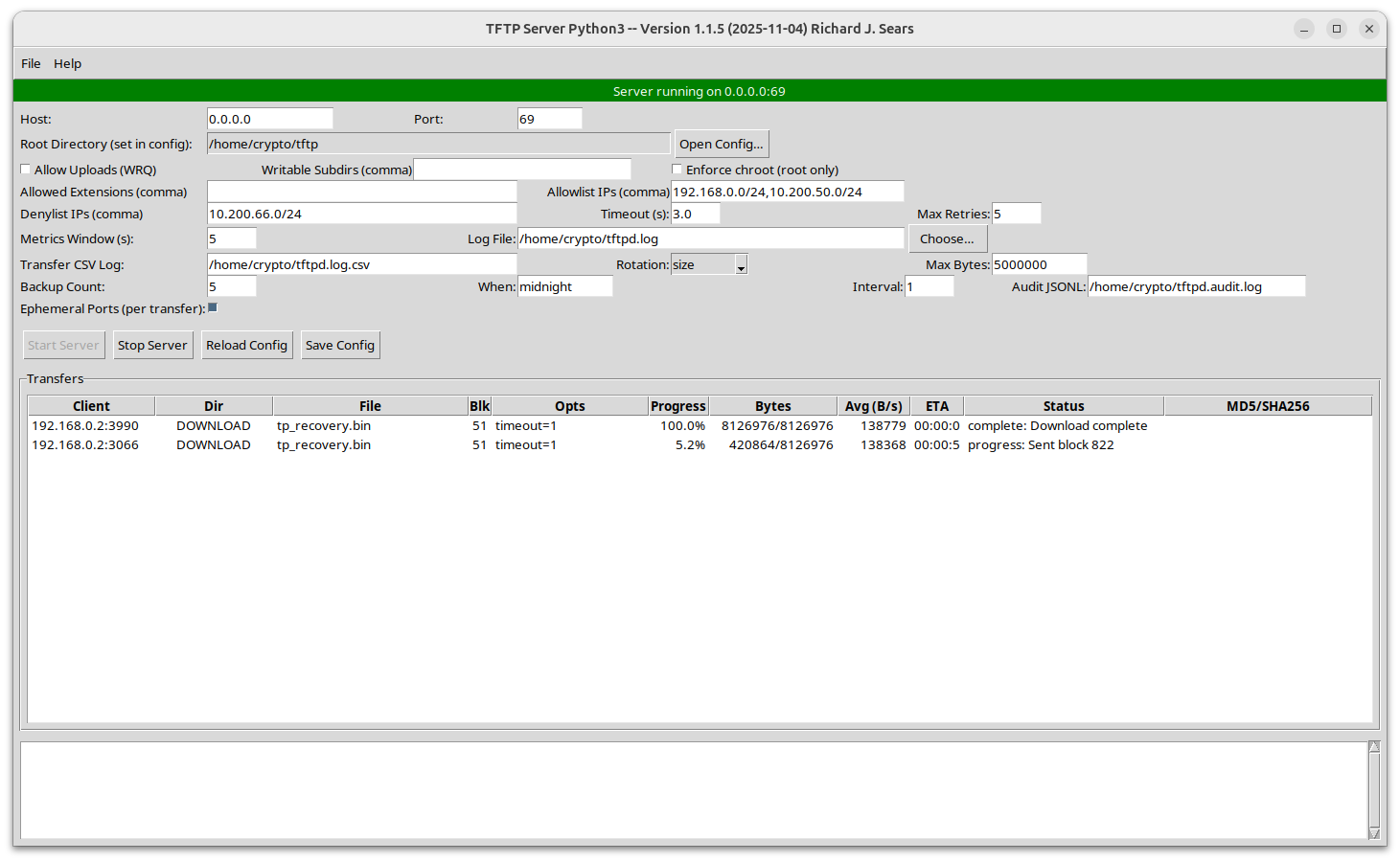
- Runs in GUI or headless mode
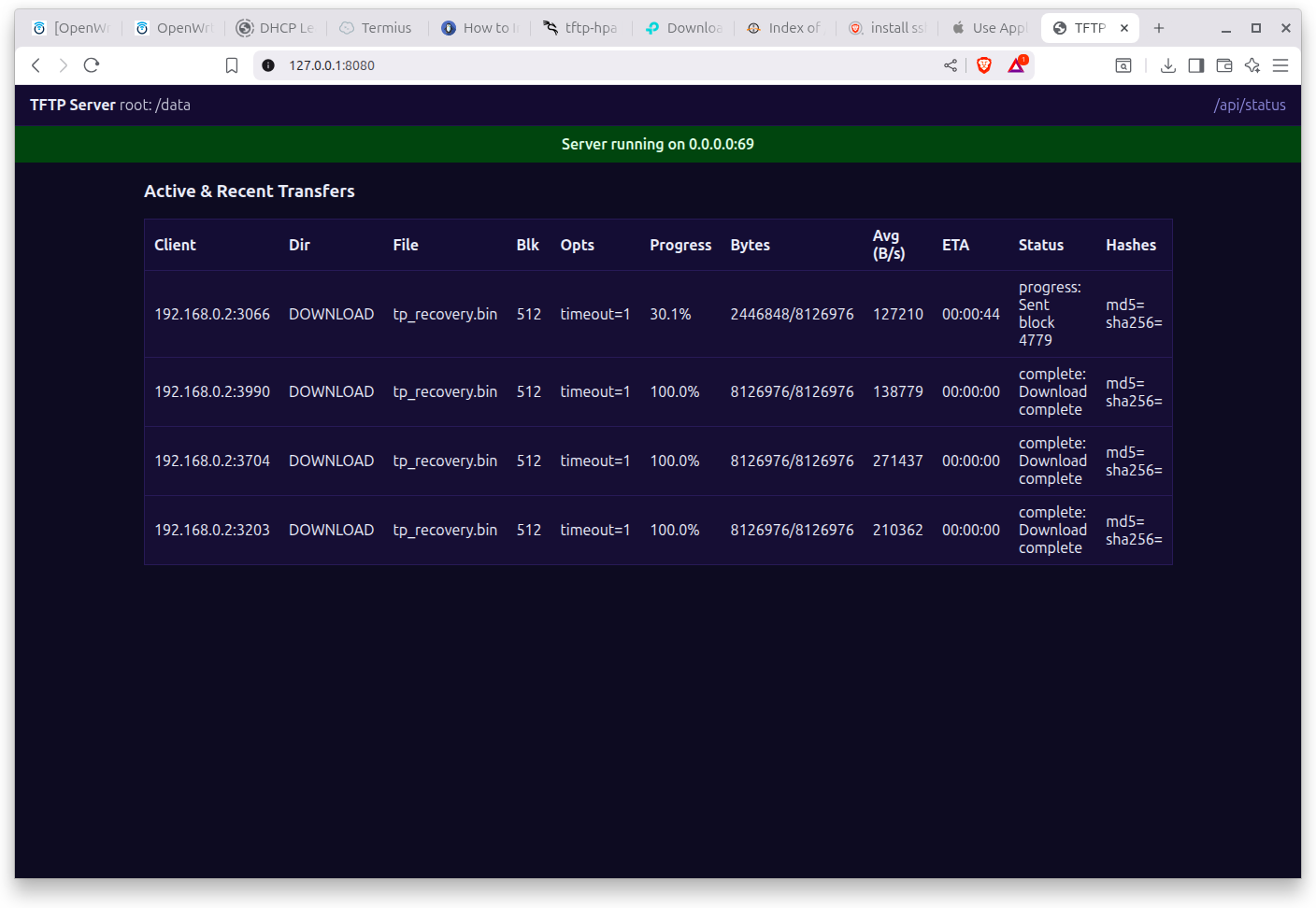
- Web Dashboard for veiwing status and transfers
- Real-time transfer progress bars
- JSON-based configuration
- IP allowlist / denylist support
- Enforced root directory scoping
- Audit logging + log rotation
- Writable subdirectory controls
- CLI override for config file location
- Built-in status banner in the GUI
- MIT licensed
- Docker image
You only need a few basics:
- Python 3.10 or newer
tkinterinstalled (for GUI mode)- Linux, macOS, or WSL on Windows
- Permissions to bind to TFTP ports (default 69)
- Docker (optional, headless)
Example for Debian/Ubuntu:
sudo apt-get update
sudo apt-get install python3 python3-tk
You will need these as well if not already installed:
# Core web interface dependencies for Web UI
fastapi>=0.104.0
uvicorn[standard]>=0.24.0
git clone https://github.com/rjsears/tftpgui.git
cd tftpguipython3 -m venv venv
source venv/bin/activateTFTPGui uses a JSON configuration file:
.tftpgui_config.json
The script checks for it in this order:
- The directory where the script is run
- Your home directory
- A custom path specified with
--configor-c
{
  "host": "0.0.0.0",
  "port": 69,
  "root_dir": "/home/crypto/tftp",

  "allow_write": false,
  "writable_subdirs": [],
  "enforce_chroot": false,

  "filename_allowlist": [],
  "allowlist_ips": ["192.168.0.0/24", "10.200.50.0/24"],
  "denylist_ips": ["10.200.66.0/24"],

  "timeout_sec": 3.0,
  "max_retries": 5,
  "log_level": "INFO",

  "log_file": "/home/crypto/tftpd.log",
  "audit_log_file": "/home/crypto/tftpd.audit.log",
  "transfer_log_file": "/home/crypto/tftpd.log.csv",

  "log_rotation": "size",
  "log_max_bytes": 5000000,
  "log_backup_count": 5,
  "log_when": "midnight",
  "log_interval": 1,

  "metrics_window_sec": 5,
  "ephemeral_ports": true,
  "transfer_port_min": 50000,
  "transfer_port_max": 50100,

    "web": {
    "enabled": true,
    "host": "0.0.0.0",
    "port": 8080
  }
}
You can override the config file on launch:
python3 tftpgui_enterprise.py -c /path/to/custom.jsonThis is handy if you want to run both a Docker headless version and the GUI version on the same system (at different times).
python3 ./tftpgui_enterprise.pyOr with a specific config:
python3 ./tftpgui_enterprise.py -c /path/config.jsonIf you need privileged ports (like port 69):
sudo ./python3 tftpgui_enterprise.pypython3 ./tftpgui_enterprise.py --headlessLogs and audit events will print to stdout and your configured log files.
python3 ./tftpgui_enterprise.py -w -p 8080If you are running the Web Dashboard, you should see this when you start the server:
Web UI starting on 0.0.0.0:8080
TFTP server running with config: /app/.tftpgui_config.json. Press Ctrl+C to stop.
21:04:30 [INFO] Listener bound on 0.0.0.0:1069
21:04:30 [INFO] Listener bound on 0.0.0.0:1069
[server] RUNNING on 0.0.0.0:1069
INFO:     Started server process [1]
INFO:     Waiting for application startup.
INFO:     Application startup complete.
INFO:     Uvicorn running on http://0.0.0.0:8080 (Press CTRL+C to quit)
INFO:     172.17.0.1:55248 - "GET /api/events HTTP/1.1" 200 OK
INFO:     172.17.0.1:55262 - "GET /api/events HTTP/1.1" 200 OK
INFO:     172.17.0.1:55274 - "GET /api/events HTTP/1.1" 200 OK
INFO:     172.17.0.1:55282 - "GET /api/events HTTP/1.1" 200 OK
INFO:     172.17.0.1:55292 - "GET /api/events HTTP/1.1" 200 OK
INFO:     172.17.0.1:55302 - "GET /api/events HTTP/1.1" 200 OK
You don’t have to run TFTPGui directly on your host — it can also run inside a Docker container.
The container is built to run in headless mode (no GUI), perfect for lab servers and appliances.
docker pull rjsears/tftpgui:1.1.6Or always grab the newest build:
docker pull rjsears/tftpgui:latestdocker run --rm -it --network host --user 0:0 \
-v /home/crypto/tftp:/data \
-v /home/crypto/.tftpgui_config.json:/app/.tftpgui_config.json:ro \
-v /home/crypto/tftpgui/logs:/logs \
rjsears/tftpgui:1.1.6docker run --rm -it --network host \
--sysctl net.ipv4.ip_unprivileged_port_start=0 \
-v /home/crypto/tftp:/data \
-v /home/crypto/.tftpgui_config.json:/app/.tftpgui_config.json:ro \
-v /home/crypto/tftpgui/logs:/logs \
rjsears/tftpgui:1.1.6These use your host’s network stack directly, so you don’t have to map UDP ports.
docker run --rm -it \
  -p 69:1069/udp \
  -p 50000-50100:50000-50100/udp \
  -v /home/crypto/tftp:/data \
  -v /home/crypto/container.tftpgui_config.json:/app/.tftpgui_config.json:ro \
  -v /home/crypto/tftpgui/logs:/logs \
  rjsears/tftpgui:1.1.6
This maps UDP port 69 and an ephemeral range (50000–50100) that the server uses for data transfers.
Adjust the range in both your config and command if you need more concurrent sessions.
version: "3.9"

services:
  # -------------------------------------------------------------
  # Recommended: Bridged networking with mapped ports (portable)
  # -------------------------------------------------------------
  tftpgui:
    # Use the published image, or uncomment "build" to build locally
    image: rjsears/tftpgui:1.1.6
    # build:
    #   context: .
    #   dockerfile: Dockerfile

    container_name: tftpgui
    restart: unless-stopped

    # Map host 69 -> container 1069, and a fixed data port range 50000-50100
    ports, plus 8080 for the Web UI:
      - "69:1069/udp"
      - "50000-50100:50000-50100/udp"
      - "8080:8080/tcp"

    # Volumes:
    # - Map your TFTP data root to /data
    # - Mount your Docker-specific config to /app/.tftpgui_config.json (read-only)
    # - Mount a logs directory to /logs so files persist on the host
    volumes:
      - ./data:/data
      - ./container.tftpgui_config.json:/app/.tftpgui_config.json:ro
      - ./logs:/logs

    # Command delegates to the default CMD in Dockerfile, but you can override here if desired
    command: ["--headless", "-c", "/app/.tftpgui_config.json"]

    # Helpful labels and resource hints (optional)
    labels:
      com.rjsears.tftpgui: "bridged"

  # -------------------------------------------------------------
  # Advanced: Host networking (binds 69/udp directly on the host)
  # Enable with:  docker compose --profile hostnet up -d tftpgui-host
  # -------------------------------------------------------------
  tftpgui-host:
    # Use the same image
    image: rjsears/tftpgui:1.1.6
    # build:
    #   context: .
    #   dockerfile: Dockerfile

    container_name: tftpgui-host
    restart: unless-stopped

    profiles: ["hostnet"]

    # Host networking means no port mappings; the app binds directly to host interfaces
    network_mode: host

    # Choose ONE of the following permission strategies (uncomment as needed):
    #
    # 1) Run as root inside container (simplest):
    # user: "0:0"
    #
    # 2) Allow non-root to bind low ports on this container:
    # sysctls:
    #   - net.ipv4.ip_unprivileged_port_start=0
    #
    # 3) If your image grants python cap_net_bind_service and your host allows it:
    # cap_add:
    #   - NET_BIND_SERVICE

    volumes:
      - ./data:/data
      - ./host.tftpgui_config.json:/app/.tftpgui_config.json:ro
      - ./logs:/logs

    # For host mode, your config should typically set "port": 69 and "root_dir": "/data"
    command: ["--headless", "-c", "/app/.tftpgui_config.json"]

    labels:
com.rjsears.tftpgui: "hostnet"tftpgui/
├─ Dockerfile
├─ docker-compose.yml
├─ tftpgui_enterprise.py
├─ container.tftpgui_config.json
├─ host.tftpgui_config.json
├─ data/ # your TFTP root (host)
│ ├─ uploads/
│ └─ staging/
└─ logs/ # audit, transfer, app logs (host)
Inside the container, the root directory is /data and logs are in /logs.
Here’s an example container.tftpgui_config.json you can mount:
{
  "host": "0.0.0.0",
  "port": 1069,
  "root_dir": "/data",

  "allow_write": false,
  "writable_subdirs": [],
  "enforce_chroot": false,

  "filename_allowlist": [],
  "allowlist_ips": ["192.168.0.0/24", "10.200.50.0/24"],
  "denylist_ips": ["10.200.66.0/24"],

  "timeout_sec": 3.0,
  "max_retries": 5,
  "log_level": "INFO",

  "log_file": "/logs/tftpd.log",
  "audit_log_file": "/logs/tftpd.audit.log",
  "transfer_log_file": "/logs/tftpd.log.csv",

  "log_rotation": "size",
  "log_max_bytes": 5000000,
  "log_backup_count": 5,
  "log_when": "midnight",
  "log_interval": 1,

  "metrics_window_sec": 5,
  "ephemeral_ports": false,
  "transfer_port_min": 50000,
  "transfer_port_max": 50100,

    "web": {
    "enabled": true,
    "host": "0.0.0.0",
    "port": 8080
  }
}Inside the container, the root directory is /data and logs are in /logs.
Here’s an example host.tftpgui_config.json you can mount:
{
  "host": "0.0.0.0",
  "port": 69,
  "root_dir": "/data",

  "allow_write": false,
  "writable_subdirs": [],
  "enforce_chroot": false,

  "filename_allowlist": [],
  "allowlist_ips": ["192.168.0.0/24", "10.200.50.0/24"],
  "denylist_ips": ["10.200.66.0/24"],

  "timeout_sec": 3.0,
  "max_retries": 5,
  "log_level": "INFO",

  "log_file": "/logs/tftpd.log",
  "audit_log_file": "/logs/tftpd.audit.log",
  "transfer_log_file": "/logs/tftpd.log.csv",

  "log_rotation": "size",
  "log_max_bytes": 5000000,
  "log_backup_count": 5,
  "log_when": "midnight",
  "log_interval": 1,

  "metrics_window_sec": 5,
  "ephemeral_ports": false,
  "transfer_port_min": 50000,
  "transfer_port_max": 50100,

    "web": {
    "enabled": true,
    "host": "0.0.0.0",
    "port": 8080
  }
}mkdir -p data/uploads data/staging logs
# If needed:
sudo chown -R 10001:10001 data logsdocker compose up -d tftpguidocker compose --profile hostnet up -d tftpgui-host- GUI mode isn’t supported inside Docker — use headless mode.
- Host networking is simplest for Linux deployments; bridged networking works anywhere, but you must map UDP ports correctly.
- Make sure mounted volumes (
/data,/logs) are writable by the container user.
TFTPGui supports two types of logs:
Includes:
- Timestamp
- Client IP
- Filename
- Total bytes
- Success/failure state
In JSONL format for automation and compliance.
Log rotation is controlled with:
log_max_byteslog_backup_countlog_whenlog_interval
Some future improvements already under consideration:
- GUI-based root directory selector
- Dark mode / theming
- System tray integration
- Built-in TFTP client tester
- Service install script
This project is licensed under the MIT License.
MIT License

Copyright (c) 2025
Richard J. Sears
Suggestions and pull requests are welcome! Feel free to fork the project, open issues, or submit ideas.
Created by Richard J. Sears Built in Python3 with a focus on real-world use, stability, and control.
- My Amazing and loving family! My wonderful wife and kids put up with all my coding and automation projects and encouraged me in everything. Without them, my projects would not be possible.
- My brother James, who is a continual source of inspiration to me and others. Everyone should have a brother as awesome as mine!