


This is an Introductory Tutorial to the FIWARE Platform. We will start with the data from a supermarket chain’s store finder and create a very simple “Powered by FIWARE” application by passing in the address and location of each store as context data to the FIWARE context broker.
The tutorial uses cUrl commands throughout, but is also available as Postman documentation

- このチュートリアル は日本語で もご覧いただけます。
- Architecture
- Prerequisites
- Starting the containers
- Creating your first "Powered by FIWARE" app
- Next Steps
Our demo application will only make use of one FIWARE component - the Orion Context Broker. Usage of the Orion Context Broker is sufficient for an application to qualify as “Powered by FIWARE”.
Currently, the Orion Context Broker relies on open source MongoDB technology to keep persistence of the context data it holds. Therefore, the architecture will consist of two elements:
- The Orion Context Broker which will receive requests using NGSI
- The underlying MongoDB database :
- Used by the Orion Context Broker to hold context data information such as data entities, subscriptions and registrations
Since all interactions between the two elements are initiated by HTTP requests, the entities can be containerized and run from exposed ports.
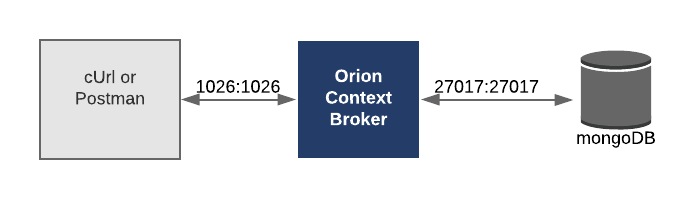
To keep things simple both components will be run using Docker. Docker is a container technology which allows to different components isolated into their respective environments.
- To install Docker on Windows follow the instructions here
- To install Docker on Mac follow the instructions here
- To install Docker on Linux follow the instructions here
Docker Compose is a tool for defining and running multi-container Docker applications. A YAML file is used configure the required services for the application. This means all container services can be brought up in a single command. Docker Compose is installed by default as part of Docker for Windows and Docker for Mac, however Linux users will need to follow the instructions found here
You can check your current Docker and Docker Compose versions using the following commands:
docker-compose -v
docker version
Please ensure that you are using Docker version 18.03 or higher and Docker Compose 1.21 or higher and upgrade if necessary.
First pull the necessary Docker images from Docker Hub and create a network for our containers to connect to:
docker pull mongo:3.6
docker pull fiware/orion
docker network create fiware_default
A Docker container running a MongoDB database can be started and connected to the network with the following command:
docker run -d --name=mongo-db --network=fiware_default \
  --expose=27017 mongo:3.6 --bind_ip_all --smallfiles
The Orion Context Broker can be started and connected to the network with the following command:
docker run -d --name fiware-orion -h orion --network=fiware_default \
  -p 1026:1026  fiware/orion -dbhost mongo-db
Note: If you want to clean up and start again you can do so with the following commands
docker stop fiware-orion
docker rm fiware-orion
docker stop mongo-db
docker rm mongo-db
docker network rm fiware_default
All services can be initialised from the command-line using the docker-compose
command. Please clone the repository and create the necessary images by running
the commands as shown:
git clone git@github.com:Fiware/tutorials.Getting-Started.git
cd tutorials.Getting-Started

docker-compose -p fiware up -d
Note: If you want to clean up and start again you can do so with the following command:
docker-compose -p fiware down
You can check if the Orion Context Broker is running by making an HTTP request to the exposed port:
curl -X GET \
'http://localhost:1026/version'The response will look similar to the following:
{
    "orion": {
        "version": "1.12.0-next",
        "uptime": "0 d, 0 h, 3 m, 21 s",
        "git_hash": "e2ff1a8d9515ade24cf8d4b90d27af7a616c7725",
        "compile_time": "Wed Apr 4 19:08:02 UTC 2018",
        "compiled_by": "root",
        "compiled_in": "2f4a69bdc191",
        "release_date": "Wed Apr 4 19:08:02 UTC 2018",
        "doc": "https://fiware-orion.readthedocs.org/en/master/"
    }
}
What if I get a
Failed to connect to localhost port 1026: Connection refusedResponse?If you get a
Connection refusedresponse, the Orion Content Broker cannot be found where expected for this tutorial - you will need to substitute the URL and port in each cUrl command with the corrected IP address. All the cUrl commands tutorial assume that orion is available onlocalhost:1026.Try the following remedies:
- To check that the docker containers are running try the following:
docker psYou should see two containers running. If orion is not running, you can restart the containers as necessary. This command will also display open port information.
- If you have installed
docker-machineand Virtual Box, the orion docker container may be running from another IP address - you will need to retrieve the virtual host IP as shown:curl -X GET \ 'http://$(docker-machine ip default):1026/version'Alternatively run all your cUrl commands from within the container network:
docker run --network fiware_default --rm appropriate/curl -s \
 -X GET 'http://orion:1026/version'
At its heart, FIWARE is a system for managing context information, so lets add
some context data into the system by creating two new entities (stores in
Berlin). Any entity must have a id and type attributes, additional
attributes are optional and will depend on the system being described. Each
additional attribute should also have a defined type and a value attribute.
curl -iX POST \
  'http://localhost:1026/v2/entities' \
  -H 'Content-Type: application/json' \
  -d '
{
    "id": "urn:ngsi-ld:Store:001",
    "type": "Store",
    "address": {
        "type": "PostalAddress",
        "value": {
            "streetAddress": "Bornholmer Straße 65",
            "addressRegion": "Berlin",
            "addressLocality": "Prenzlauer Berg",
            "postalCode": "10439"
        }
    },
    "location": {
        "type": "geo:json",
        "value": {
             "type": "Point",
             "coordinates": [13.3986, 52.5547]
        }
    },
    "name": {
        "type": "Text",
        "value": "Bösebrücke Einkauf"
    }
}'Each subsequent entity must have a unique id for the given type
curl -iX POST \
  'http://localhost:1026/v2/entities' \
  -H 'Content-Type: application/json' \
  -d '
{
    "type": "Store",
    "id": "urn:ngsi-ld:Store:002",
    "address": {
        "type": "PostalAddress",
        "value": {
            "streetAddress": "Friedrichstraße 44",
            "addressRegion": "Berlin",
            "addressLocality": "Kreuzberg",
            "postalCode": "10969"
        }
    },
    "location": {
        "type": "geo:json",
        "value": {
             "type": "Point",
             "coordinates": [13.3903, 52.5075]
        }
    },
    "name": {
        "type": "Text",
        "value": "Checkpoint Markt"
    }
}'Although the each data entity within your context will vary according to your use case, the common structure within each data entity should be standardized order to promote reuse. The full FIWARE data model guidelines can be found here. This tutorial demonstrates the usage of the following recommendations:
Although the value fields of the context data may be in any language, all
attributes and types are written using the English language.
In this case we only have one entity type - Store
NGSI-LD is a currently a
draft recommendation,
however the proposal is that each id is a URN follows a standard format:
urn:ngsi-ld:<entity-type>:<entity-id>. This will mean that every id in the
system will be unique
Schema.org is an initiative to create common structured
data schemas. In order to promote reuse we have deliberately used the
Text and
PostalAddress type names within our
Store entity. Other existing standards such as
Open311 (for civic issue tracking) or
Datex II (for transport systems) can also be used, but
the point is to check for the existence of the same attribute on existing data
models and reuse it.
The streetAddress, addressRegion, addressLocality and postalCode are all
examples of attributes using camel casing
- We have used an
addressattribute for civic locations as per schema.org - We have used a
locationattribute for geographical coordinates.
GeoJSON is an open standard format designed for
representing simple geographical features. The location attribute has been
encoded as a geoJSON Point location.
A consuming application can now request context data by making HTTP requests to the Orion Context Broker. The existing NGSI interface enables us to make complex queries and filter results.
At the moment, for the store finder demo all the context data is being added directly via HTTP requests, however in a more complex smart solution, the Orion Context Broker will also retrieve context directly from attached sensors associated to each entity.
Here are a few examples, in each case the options=keyValues query parameter
has been used shorten the responses by stripping out the type elements from each
attribute
This example returns the data of urn:ngsi-ld:Store:001
curl -X GET \
'http://localhost:1026/v2/entities/urn:ngsi-ld:Store:001?options=keyValues'{
"id": "urn:ngsi-ld:Store:001",
"type": "Store",
"address": {
"streetAddress": "Bornholmer Straße 65",
"addressRegion": "Berlin",
"addressLocality": "Prenzlauer Berg",
"postalCode": "10439"
},
"location": {
"type": "Point",
"coordinates": [13.3986, 52.5547]
},
"name": "Bösebrücke Einkauf"
}This example returns the data of all Store entities within the context data
curl -X GET \
'http://localhost:1026/v2/entities?type=Store&options=keyValues'[
{
"id": "urn:ngsi-ld:Store:001",
"type": "Store",
"address": {
"streetAddress": "Bornholmer Straße 65",
"addressRegion": "Berlin",
"addressLocality": "Prenzlauer Berg",
"postalCode": "10439"
},
"location": {
"type": "Point",
"coordinates": [13.3986, 52.5547]
},
"name": "Bose Brucke Einkauf"
},
{
"id": "urn:ngsi-ld:Store:002",
"type": "Store",
"address": {
"streetAddress": "Friedrichstraße 44",
"addressRegion": "Berlin",
"addressLocality": "Kreuzberg",
"postalCode": "10969"
},
"location": {
"type": "Point",
"coordinates": [13.3903, 52.5075]
},
"name": "Checkpoint Markt"
}
]This example returns all stores found in the Kreuzberg District
curl -X GET \
http://localhost:1026/v2/entities?type=Store&q=address.addressLocality==Kreuzberg&options=keyValues[
{
"id": "urn:ngsi-ld:Store:002",
"type": "Store",
"address": {
"streetAddress": "Friedrichstraße 44",
"addressRegion": "Berlin",
"addressLocality": "Kreuzberg",
"postalCode": "10969"
},
"location": {
"type": "Point",
"coordinates": [13.3903, 52.5075]
},
"name": "Checkpoint Markt"
}
]This example return all Stores within 1.5km the Brandenburg Gate in Berlin (52.5162N 13.3777W)
curl -X GET \
'http://localhost:1026/v2/entities?type=Store&georel=near;maxDistance:1500&geometry=point&coords=52.5162,13.3777'[
{
"id": "urn:ngsi-ld:Store:002",
"type": "Store",
"address": {
"streetAddress": "Friedrichstraße 44",
"addressRegion": "Berlin",
"addressLocality": "Kreuzberg",
"postalCode": "10969"
},
"location": {
"type": "Point",
"coordinates": [13.3903, 52.5075]
},
"name": "Checkpoint Markt"
}
]Want to learn how to add more complexity to your application by adding advanced features? You can find out by reading the other tutorials in this series:
101.
Getting Started
102.
Entity Relationships
103.
CRUD Operations
104.
Context Providers
105.
Altering the Context Programmatically
106.
Subscribing to Changes in Context
201.
Introduction to IoT Sensors
202.
Provisioning an IoT Agent
203.
IoT over MQTT
250.
Introduction to Fast-RTPS and Micro-RTPS
301.
Persisting Context Data (MongoDB, MySQL, PostgreSQL)
302.
Querying Time Series Data (MongoDB)
303.
Querying Time Series Data (CrateDB)
401.
Managing Users and Organizations
402.
Roles and Permissions
403.
Securing Application Access
404.
Securing Microservices with a PEP Proxy
503.
Introduction to Media Streams
The full documentation can be found here.
The context of the store finder demo is very simple, it could easily be expanded to hold the whole of a stock management system by passing in the current stock count of each store as context data to the Orion Context Broker.
So far, so simple, but consider how this Smart application could be iterated:
- Real-time dashboards could be created to monitor the state of the stock across each store using a visualization component. [Wirecloud]
- The current layout of both the warehouse and store could be passed to the context broker so the location of the stock could be displayed on a map [Wirecloud]
- User Management components [Wilma, AuthZForce, Keyrock] could be added so that only store managers are able to change the price of items
- A threshold alert could be raised in the warehouse as the goods are sold to ensure the shelves are not left empty [publish/subscribe function of Orion Context Broker]
- Each generated list of items to be loaded from the warehouse could be calculated to maximize the efficiency of replenishment [Complex Event Processing - CEP]
- A motion sensor could be added at the entrance to count the number of customers [IDAS]
- The motion sensor could ring a bell whenever a customer enters [IDAS]
- A series of video cameras could be added to introduce a video feed in each store [Kurento]
- The video images could be processed to recognize where customers are standing within a store [Kurento]
- By maintaining and processing historical data within the system, footfall and dwell time can be calculated - establishing which areas of the store attract the most interest [connection through Cygnus to Apache Nifi]
- Patterns recognizing unusual behaviour could be used to raise an alert to avoid theft [Kurento]
- Data on the movement of crowds would be useful for scientific research - data about the state of the store could be published externally. [extensions to CKAN]
Each iteration adds value to the solution through existing components with standard interfaces and therefore minimizes development time.
MIT © FIWARE Foundation e.V.