




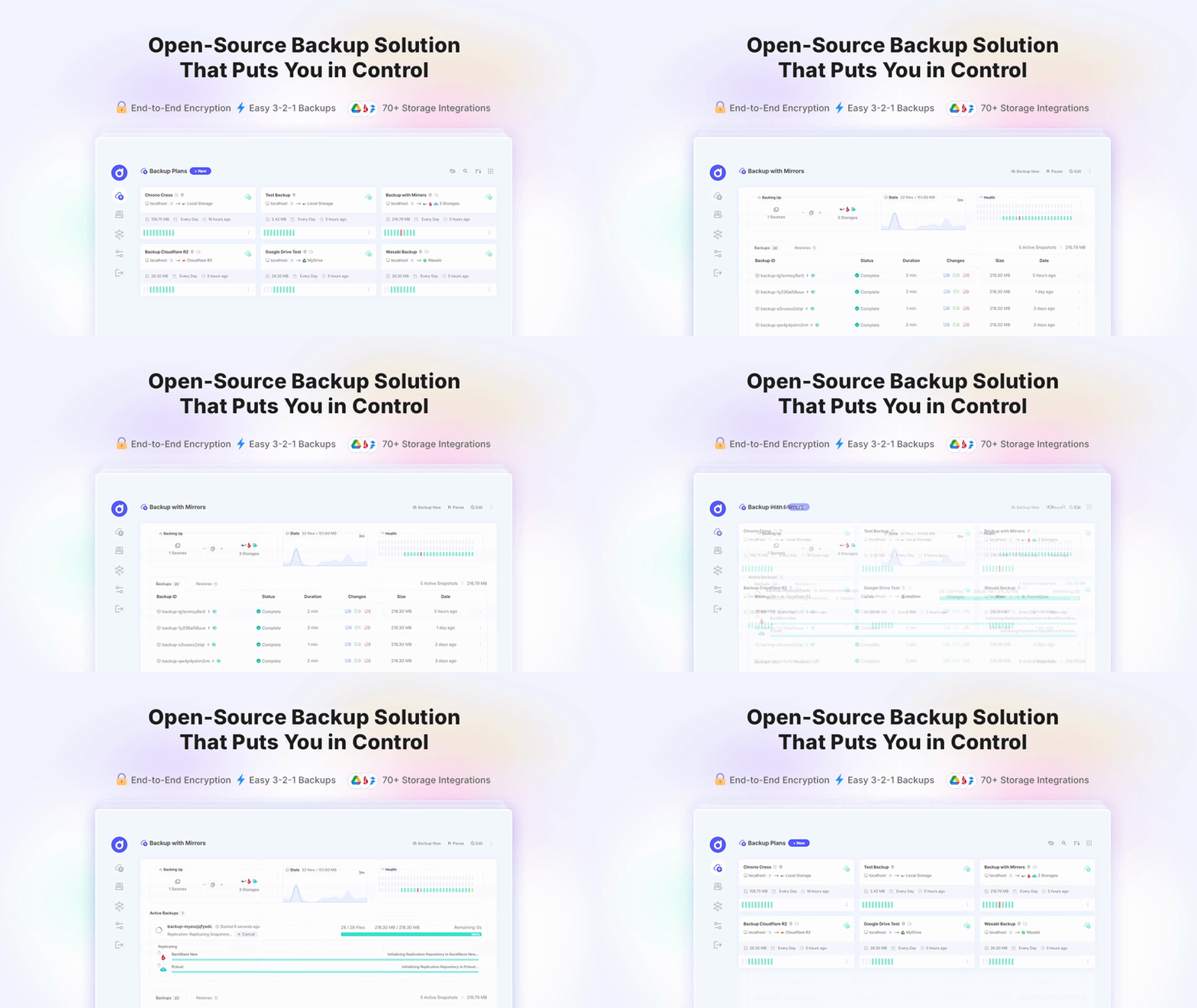
Pluton is a self-hosted backup management platform that simplifies automated, incremental backups across your storage destinations. Pluton leverages powerful open-source tools - Restic for secure incremental backups and Rclone for versatile cloud storage connectivity - wrapped in an intuitive web interface designed for both beginners and advanced users.
- Automated backups with encryption, compression and retention policies powered by Restic
- Backup Replication Auto backup your content to multiple cloud storages to create 3-2-1 backup plans.
- Easy Restore & Download: Restore or download backed up snapshot data easily with just a few clicks.
- Flexible scheduling For automated backup jobs with fine-grained retention policies
- End-to-end encryption Backups are totally encrypted from your local machine to your cloud storage.
- 70+ Storage Support: Store encrypted data to your favorite cloud storages (powered by rclone).
- Event Notifications: Get notifications to Email, Slack, Discord & Push Notifications (NTFY).
- Auto Retry Logic: Automatically retries backups if they fail with customization options.
- Intuitive UI: Manage everything from a single, clean interface.
- Real-time Progress Tracking: Track the progress of your backups in real-time.
- Extensive Logging: View app and backup logs right from the UI for better debugging.
- Run Scripts before/after: Ability to run scripts before and after running backups.
Pluton can be installed on Windows, macOS and Linux Desktop variants. You can download the installers from the Download page.
To run Pluton, make sure you have Docker and Docker Compose installed on your machine. Then, use the provided docker-compose.yml file to run the application.
services:
  pluton:
    image: plutonhq/pluton:latest
    container_name: pluton-backup
    restart: unless-stopped

    ports:
      - "${SERVER_PORT:-5173}:${SERVER_PORT:-5173}"

    volumes:
      # Main data volume - contains database, config, logs
      - pluton-data:/data

      # Optional: Mount host directories to backup

      # Example: Make user's documents folders Accessible to Pluton
      # - /home/user/documents:/mnt/documents:ro #linux
      # - /home/user/photos:/mnt/photos:ro #linux
      # - C:/Users/username/Documents:/mnt/documents:ro # Windows
      # - C:/Users/username/Pictures:/mnt/photos:ro # Windows

      # Example: Make a Docker volume (named 'wp-data') Accessible to Pluton
      # - /var/lib/docker/volumes/wp-data/_data:/mnt/wordpress:ro
      # - C:/ProgramData/docker/volumes/wp-data/_data:/mnt/wordpress:ro  # Windows

    environment:
      # ===== REQUIRED: Security & Authentication =====
      # Generate secure random strings (min 12 characters each)
      ENCRYPTION_KEY: ${ENCRYPTION_KEY} # Encryption key for restic/rclone Snapshot encryption
      USER_NAME: ${USER_NAME} # Admin username for login
      USER_PASSWORD: ${USER_PASSWORD} # Admin password for login

      # ===== Application Settings =====
      APP_TITLE: ${APP_TITLE:-Pluton}
      APP_URL: ${APP_URL:-http://localhost:5173}
      SERVER_PORT: ${SERVER_PORT:-5173}
      MAX_CONCURRENT_BACKUPS: ${MAX_CONCURRENT_BACKUPS:-2}
      SESSION_DURATION: ${SESSION_DURATION:-7} # How long frontend login Session lasts in Days

      # ===== User Interface Security Settings =====
      ALLOW_CUSTOM_RESTORE_PATH: ${ALLOW_CUSTOM_RESTORE_PATH:-true}
      ALLOW_FILE_BROWSER: ${ALLOW_FILE_BROWSER:-true}
      DISABLE_EVENT_SCRIPTS: ${DISABLE_EVENT_SCRIPTS:-false}

      # ===== Docker-specific (do not change) =====
      NODE_ENV: production
      IS_DOCKER: "true"

volumes:
  pluton-data:
Then create an .env file that contains the required environment variables:
ENCRYPTION_KEY=s0eK1r12973fS501SW
USER_NAME=admin
USER_PASSWORD=0123456789

# Optional - override defaults
SERVER_PORT=7173
And finally, run:
docker compose up -d
Pluton can be installed on headless Linux servers. Follow the installation instruction to get started.
Pluton is built on the shoulders of giants. We would like to thank the creators and contributors of the following projects: