

Professional cloud architecture diagrams in official AWS, Azure and GCP style, from a description in Claude or ChatGPT or from your Terraform







TerraVision is a free, open-source cloud architecture diagram generator for AWS, Azure and Google Cloud that works in both directions: design to code (describe it to your AI assistant, get the diagram, then the Terraform) and code to diagram (draw what your Terraform deploys).
Ask your AI assistant for a cloud architecture diagram, in plain words, and get the diagram a cloud architect would draw: the official AWS, Azure and GCP icons, with every resource in its VPC, subnet, zone or resource group. From a description, from your Terraform code, or the other way round, with the Terraform written from the diagram. TerraVision runs on your own computer and needs no cloud access.

The same three-tier design on each cloud, then a flagship for each. Every example comes with the prompt and the source file: see the full gallery of 12 →
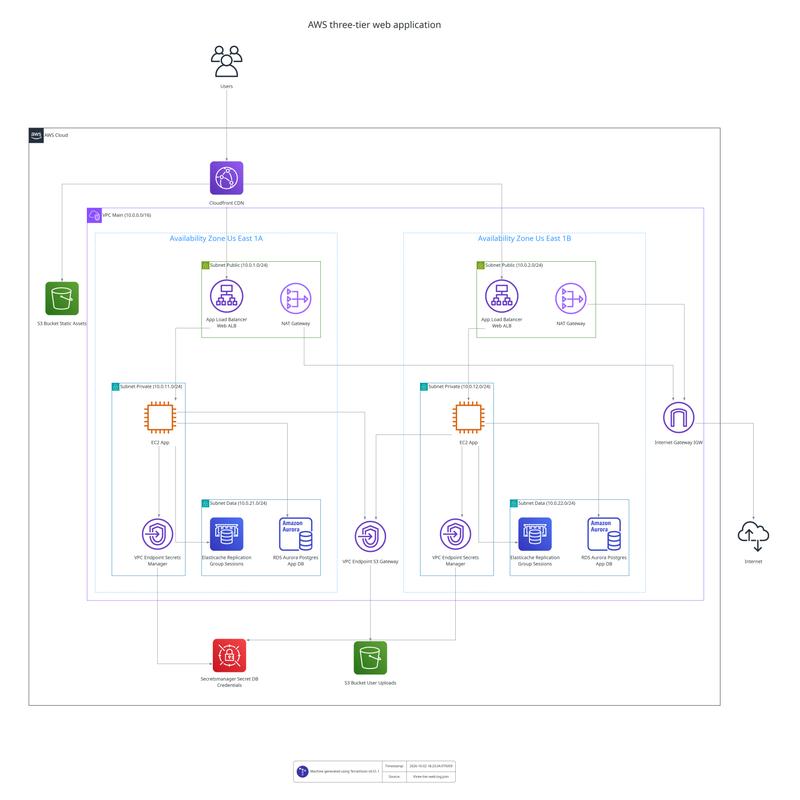 AWS three-tier web app |
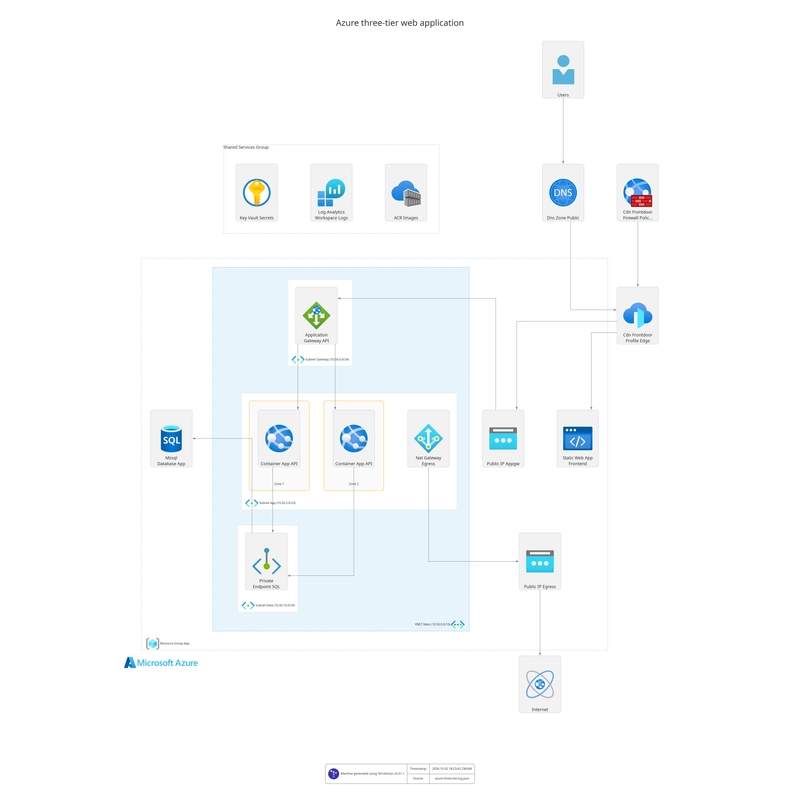 Azure three-tier web app |
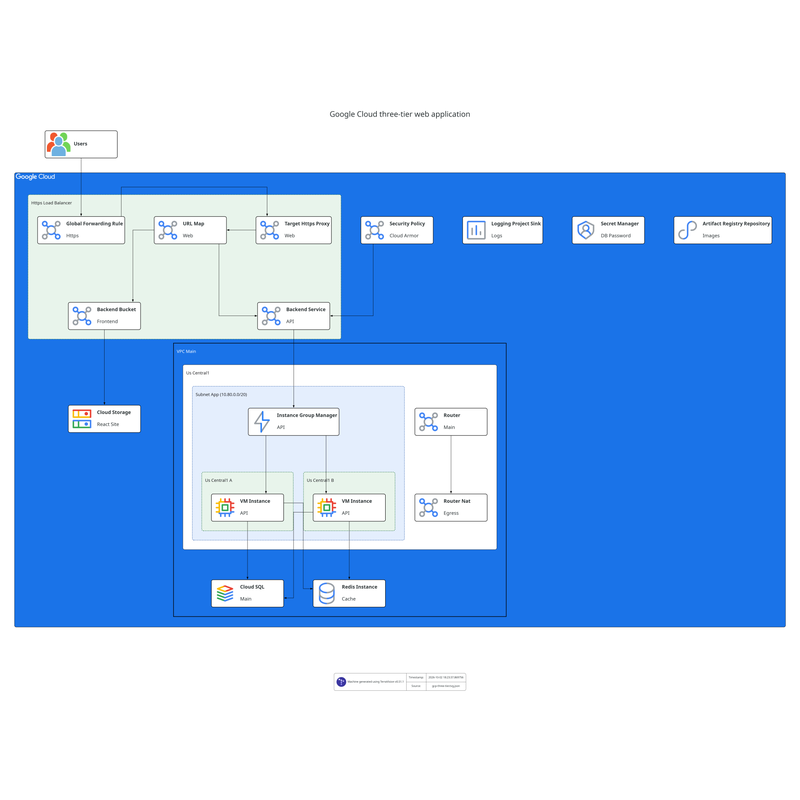 Google Cloud three-tier web app |
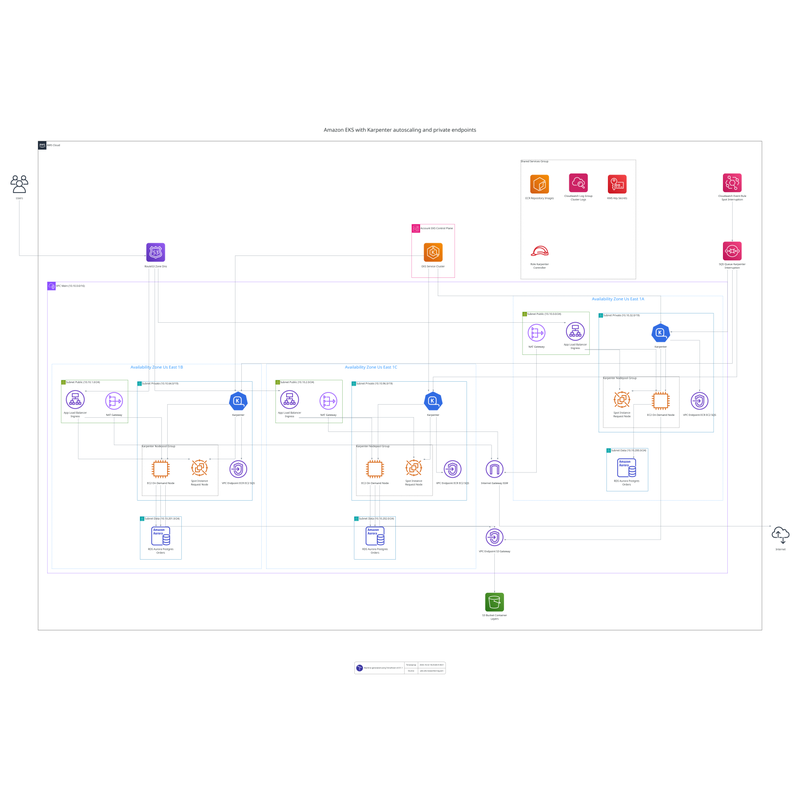 AWS EKS with Karpenter |
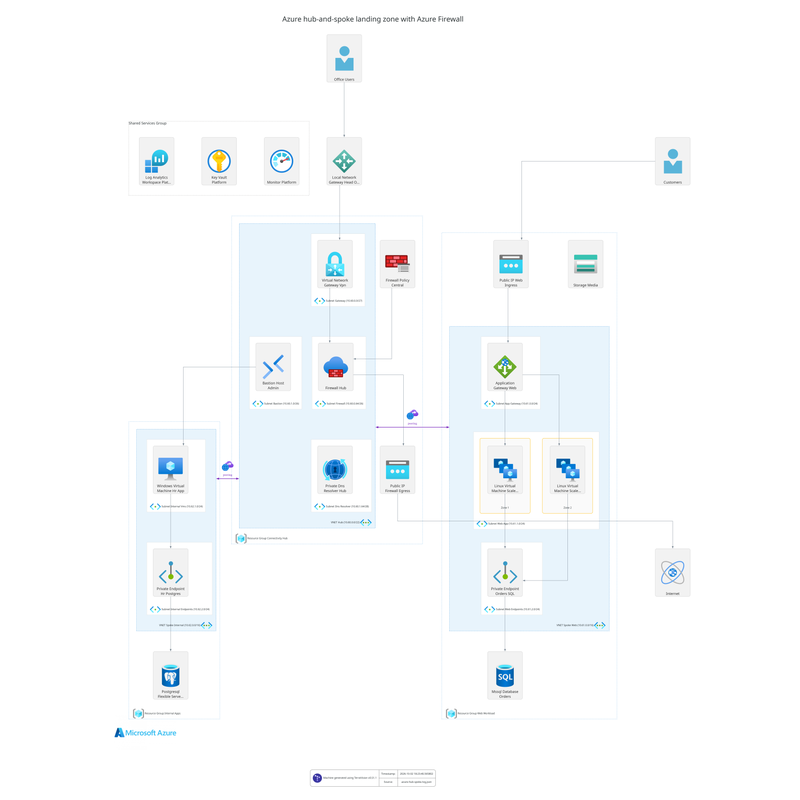 Azure hub-and-spoke landing zone |
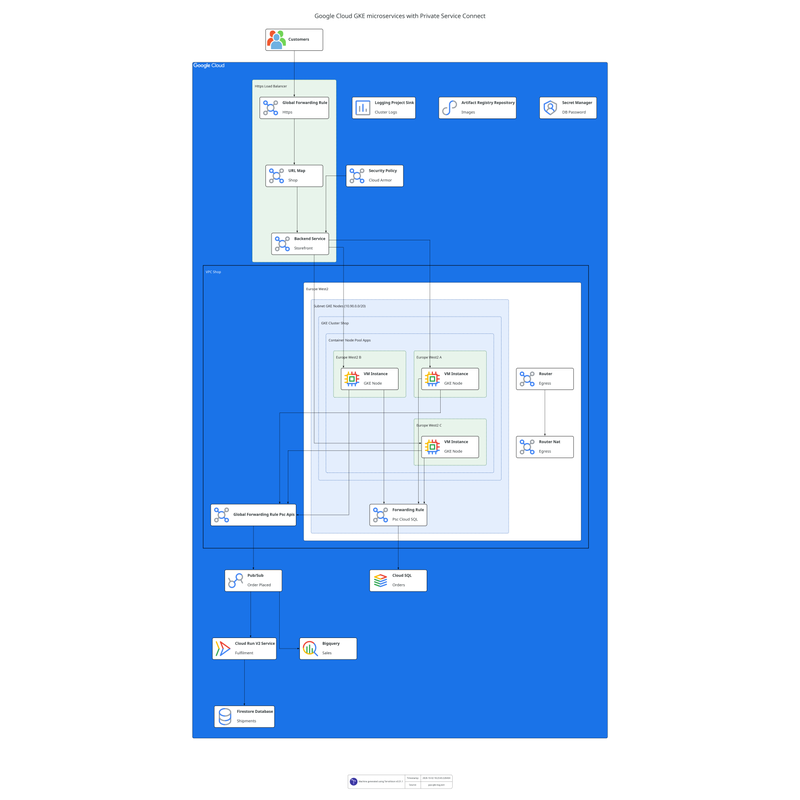 Google Cloud GKE with Private Service Connect |
More in the gallery: AWS serverless event-driven · AWS data lake · AWS multi-region failover · AWS multi-account network · Azure AKS · Google Cloud data pipeline
TerraVision installs as an extension in Claude Desktop and a plugin in the ChatGPT desktop app, where the diagram appears right in the chat. It also works in Claude Code, Codex CLI, GitHub Copilot, Cursor and any other MCP client.
TerraVision needs Graphviz (to draw) and Git. uv runs TerraVision for Claude Code, Codex, Antigravity CLI and other MCP clients; Claude Desktop brings its own on Windows and macOS, so skip it there. Terraform is only needed to draw from Terraform code.
macOS
With Homebrew:
brew install graphviz git
brew install uv                        # not needed for Claude Desktop
brew install hashicorp/tap/terraform   # optional: to draw from Terraform code
Windows
In PowerShell:
winget install --id Graphviz.Graphviz -e
winget install --id Git.Git -e
winget install --id astral-sh.uv -e    # not needed for Claude Desktop
winget install --id Hashicorp.Terraform -e   # optional: to draw from Terraform code
Then open a new terminal, and restart your AI app, so they see the new programs.
Linux (Debian, Ubuntu)
sudo apt install graphviz git
# Ubuntu 26.04 and later only (also Debian 14 "forky"/testing).
# Skip on older releases such as Ubuntu 24.04: graphviz already includes it.
sudo apt install libgvplugin-neato-layout8

curl -LsSf https://astral.sh/uv/install.sh | sh   # Claude Desktop on Linux needs uv pre-installed

# optionally install terraform, to draw from Terraform code: HashiCorp's apt repository
wget -O- https://apt.releases.hashicorp.com/gpg | sudo gpg --dearmor -o /usr/share/keyrings/hashicorp-archive-keyring.gpg
echo "deb [signed-by=/usr/share/keyrings/hashicorp-archive-keyring.gpg] https://apt.releases.hashicorp.com $(lsb_release -cs) main" | sudo tee /etc/apt/sources.list.d/hashicorp.list
sudo apt update && sudo apt install terraform
Other distributions: HashiCorp's install guide.
Can't use a package manager? Without admin rights, or when your organisation's Artifactory or Nexus doesn't carry these packages, download each one from its own site instead: Graphviz (on Windows, the ZIP archive unpacks into any folder without admin rights; on macOS and Linux, build it from source into your home folder: steps), Git (Windows has a portable edition), uv (its installer needs no admin rights) and Terraform (a single program to unzip). Then add each one's folder to your PATH (how, on Windows) and restart your AI app, or ask your IT team to install them.
Claude Desktop:
Download terravision-<version>.mcpb from the latest release and open it (or drag it into Settings → Extensions). Diagrams appear right in the chat, with buttons to open the image, edit it in draw.io, show it in its folder and see its source.
Claude Code (terminal, VS Code or JetBrains):
claude plugin marketplace add patrickchugh/terravision
claude plugin install terravision-cloud-diagrams@terravision
Then start a new Claude Code session. Diagrams are saved in a diagrams folder in your project.
The very first start downloads and installs TerraVision, which can take longer than Claude Code waits. If /mcp shows TerraVision failed to connect, choose Reconnect. To avoid it, install it ahead of time: uvx --from "terravision[mcp]" terravision --version.
ChatGPT desktop app and OpenAI Codex CLI (the desktop app includes Codex and uses the same plugins):
In the desktop app, go to Settings, add the marketplace https://github.com/patrickchugh/terravision, then select terravision-cloud-diagrams. For the CLI:
codex plugin marketplace add https://github.com/patrickchugh/terravision
codex plugin add terravision-cloud-diagrams@terravision
Google Antigravity CLI (agy, which replaced Gemini CLI):
agy mcp add terravision -- uvx --from "terravision[mcp]" terravision mcp --output-dir /path/for/diagramsGemini CLI stopped working for personal Google accounts on 18 June 2026; with a Gemini Code Assist Standard or Enterprise licence or a paid API key it still runs, and installs TerraVision with gemini extensions install https://github.com/patrickchugh/terravision.
VS Code with GitHub Copilot, Cursor and other MCP clients:
Add TerraVision as an MCP server that runs uvx --from "terravision[mcp]" terravision mcp --output-dir <folder for diagrams>. The setup guide has the configuration for each.
Any other agent (Cursor, GitHub Copilot, Codex, Claude Code and more) with the skills CLI:
npx skills add patrickchugh/terravisionThis installs the skill only: the instructions that teach the assistant the TerraVision graph format. It does not install TerraVision itself. The assistant then runs the terravision command, so install TerraVision and the prerequisites first. It does not include the MCP server, so there is no diagram view in the chat; for that, use the Claude Desktop extension or the Claude Code / ChatGPT plugin above. The installer needs Node.js, which provides npx.
| You have | Ask something like | You get |
|---|---|---|
| An idea | "Draw an AWS three-tier app: React on CloudFront, ECS Fargate behind an ALB in two AZs, SQL Server on RDS Multi-AZ" | The diagram (PNG, SVG, editable draw.io) and its graph. Refine it by asking: "add ElastiCache", "show how a request flows through it" |
| A diagram you like generated from TerraVision | "Write the Terraform for this architecture" | Terraform for the resources, zones and connections, with the diagram's flows and labels kept (quality depends on model used) |
| Terraform code, local or on GitHub but no VERIFIED diagram | "Draw the architecture of the Terraform in ./infra" or "Show me a cloud architecture diagram of https://github.com/patrickchugh/testcase-bastion//examples" | A diagram of what terraform plan says the code deploys |
| A TerraVision diagram of your Terraform that you want to publish in HTML documentation, or review resource by resource, for example in a security audit | "Make this diagram interactive" or "Give me an interactive version I can click through" | A single HTML page that works in any browser or docs site, no server needed: click any resource to see its settings (encryption, public access, ports, IAM), search and zoom. Built from terraform plan, so it needs the Terraform, not just a picture |
| Terraform with an existing TerraVision diagram in a repository | "Keep this diagram up to date in CI" | A workflow that redraws the diagram whenever the Terraform changes |
The first diagram takes a little longer while TerraVision installs itself. If anything is missing, the assistant says what to install. To check at any time, ask: "Is TerraVision set up correctly?"
The full guide, with more example prompts: Use TerraVision with AI assistants.
Point the TerraVision GitHub Action at your Terraform, and the diagram redraws itself on every change:
- uses: hashicorp/setup-terraform@v3
- uses: patrickchugh/terravision-action@v2
  with:
    source: ./infrastructure
    outfile: docs/architecture
    format: both
A terravision.yml next to the Terraform adds the title, numbered flows and connection labels to every version. GitLab, Jenkins, Azure DevOps and others: CI/CD Integration.
- ✅ Built for AI assistants — marketplace extensions and plugins for Claude, Codex, Gemini, Copilot and Cursor; diagrams appear right in the chat in Claude Desktop and the ChatGPT desktop app (guide)
- ✅ Provably Accurate diagrams — accurate diagrams generated directly from your Terraform code so your code is the source of truth - what you see is what you get
- ✅ MCP server and agent skill — let any AI agent, or an assistant in an IDE such as Visual Studio Code, generate diagrams from a JSON graph or your Terraform (guide)
- ✅ In Diagram flow annotations — labels, titles, and flow sequences supported via YAML or generated by AI models including Ollama (running local) and AWS Bedrock
- ✅ JSON graph input — describe an architecture in a few lines of JSON and render it, resources match Terraform names so no need to learn a custom DSL (Graph Format)
- ✅ 100% client-side — designed with security in mind; no cloud access required, runs locally, your code never leaves your machine
- ✅ CI/CD ready — automate diagram updates on every PR merge
- ✅ Free & open source — no expensive diagramming tool licenses
- ✅ Multi-cloud — AWS, Google Cloud (GCP) and Azure supported
- ✅ Interactive HTML output — clickable nodes, pan/zoom, search, animated data flow
- ✅ Editable draw.io export — open in draw.io, Lucidchart, or any mxGraph editor
- ✅ Terragrunt compatible — auto-detects single- and multi-module Terragrunt projects
| TerraVision | Manual tools (draw.io, Lucidchart, Visio) |
AI workspaces (Eraser) |
Diagram as code (Mermaid, D2, Python Diagrams) |
Live cloud scanners (e.g. Cloudcraft) |
|
|---|---|---|---|---|---|
| Draw from a plain-English description | ✅ inside the assistant you already use (Claude, ChatGPT, Copilot) |  only if your organisation approves third-party models only if your organisation approves third-party models |
✅ |  |
|
| Draw from Terraform | ✅ built from terraform plan, client side |
|
AI interprets the files you paste (potentially exposes code & secrets) |
|
|
| Draw an environment you have no access to, or one not built yet | ✅ from the code and a variables file: --varfile prod.tfvars draws prod, --varfile dev.tfvars draws dev, with no access to the target account or its state |
drawn by hand from documents |
from code you paste |
written by hand |
draws only an account it can connect to |
| Write the Terraform for a design | ✅ by your assistant, checked by redrawing the code AI writes | Lucidchart beta, AWS only, paid add-on |
|
|
|
| Official icons and VPC, subnet, zone grouping conventions | ✅ built in | icon libraries; correct grouping is up to you |
icons, generic groups |
|
|
| Stays current automatically | ✅ redrawn from the code in CI | |
repository sync |
|
✅ follows the live account |
| High Security - No access to your cloud account or upload of your code | ✅ | ✅ | |
✅ | |
| Price | Free, open source | Free to paid | Free tier, paid plans | Free, open source | Paid |
Already draw by hand? Generate the first version with TerraVision, then polish the exported file in draw.io or Lucidchart. Full comparison: TerraVision vs draw.io, Lucidchart, Eraser, Mermaid and others.
| Provider | Status | Resource types |
|---|---|---|
| AWS | ✅ Full support | 385 types |
| Google Cloud | ✅ Full support | 264 types |
| Azure | ✅ Full support | 245 types |
Full list: Node types.
TerraVision is also a command-line tool, for scripts and for people who prefer to write the graph themselves.
pipx install terravision   # or: uv tool install terravision
                           # or: pip install terravision in a virtual env
You also need Python 3.11+ (uv installs one for you), Graphviz and Git, plus Terraform 1.x (or OpenTofu) when drawing from Terraform code; JSON graphs don't need it. See the Installation Guide for platform-specific instructions, Docker, and Nix.
Describe the architecture as nodes and connections. AWS is shown here; expand the Azure and GCP examples below.
{
  "tv_aws_users.users": ["aws_cloudfront_distribution.cdn"],
  "aws_cloudfront_distribution.cdn": ["aws_s3_bucket.static_site", "aws_alb.api"],
  "aws_vpc.main": ["aws_subnet.public~1", "aws_subnet.private~1"],
  "aws_subnet.public~1": ["aws_alb.api"],
  "aws_subnet.private~1": ["aws_lambda_function.orders"],
  "aws_alb.api": ["aws_lambda_function.orders"],
  "aws_lambda_function.orders": ["aws_dynamodb_table.orders", "aws_sqs_queue.events"]
}
Azure example
{
  "tv_azurerm_users.users": ["azurerm_cdn_frontdoor_profile.edge"],
  "azurerm_cdn_frontdoor_profile.edge": ["azurerm_linux_web_app.api"],
  "azurerm_resource_group.app": ["azurerm_virtual_network.main", "azurerm_mssql_database.orders", "azurerm_servicebus_queue.events", "azurerm_key_vault.secrets"],
  "azurerm_virtual_network.main": ["azurerm_subnet.app"],
  "azurerm_subnet.app": ["azurerm_linux_web_app.api"],
  "azurerm_linux_web_app.api": ["azurerm_mssql_database.orders", "azurerm_servicebus_queue.events", "azurerm_key_vault.secrets"]
}
GCP example
{
  "tv_gcp_users_icon.users": ["google_compute_global_forwarding_rule.lb"],
  "google_compute_global_forwarding_rule.lb": ["google_cloud_run_v2_service.api"],
  "google_cloud_run_v2_service.api": ["google_sql_database_instance.orders", "google_pubsub_topic.events", "google_storage_bucket.assets"],
  "google_pubsub_topic.events": ["google_cloudfunctions2_function.worker"]
}
Render it:
terravision draw --source architecture.tvg.json --format svgEach key is <terraform_resource_type>.<name>; each value is what it connects to or contains. That is the whole format. Full spec, schema and more examples: Graph Format. Works for AWS (aws_*), Azure (azurerm_*) and GCP (google_*).
git clone https://github.com/patrickchugh/terravision.git
cd terravision

# EKS cluster example
terravision draw --source tests/fixtures/aws_terraform/eks_automode --show

# Azure VM scale set
terravision draw --source tests/fixtures/azure_terraform/test_vm_vmss --show

# From a public Git repo (note the // for subfolder)
terravision draw --source https://github.com/patrickchugh/terraform-examples.git//aws/wordpress_fargate --show
That's it — your diagram is saved as architecture-aws.dot.png (the provider is appended to the name) and opens automatically.
The diagram is derived from terraform plan, so it shows what the code actually deploys: conditionals, count, for_each and modules are resolved. Eraser and friends draw what the AI imagines; TerraVision proves what the code deploys.
terravision visualise --source ./path-to-your-terraform --showClick any resource to see its Terraform metadata, search resources, pan/zoom, and watch animated data flow on edges. The HTML is a single self-contained file that works fully offline.
Click any of these to see the interactive HTML output TerraVision produces:
- 🟧 AWS demo — Wordpress on ECS Fargate with CloudFront, RDS, EFS
- 🟦 Azure demo — VM scale set with load balancer and VNet
- 🟩 GCP demo — Core GCP networking and compute
# From a local directory
terravision draw --source ./path-to-your-terraform

# From a Git repository
terravision draw --source https://github.com/user/repo.git

# Custom format and filename
terravision draw --source ./path-to-your-terraform --format svg --outfile my-architecture

# Editable draw.io file
terravision draw --source ./path-to-your-terraform --format drawio --outfile my-architecture# Step 1: in your Terraform environment
terraform plan -out=tfplan.bin
terraform show -json tfplan.bin > plan.json
terraform graph > graph.dot
# Step 2: diagram generation, no Terraform or cloud access required
terravision draw --planfile plan.json --graphfile graph.dot --source ./path-to-your-terraformterravision draw --source ./path-to-your-terraform --ai-annotate ollama # local LLM (no data leaves your machine)
terravision draw --source ./path-to-your-terraform --ai-annotate bedrock # AWS Bedrock via boto3 (uses your AWS credentials)
terravision draw --source ./path-to-your-terraform --ai-annotate restapi # any OpenAI-compatible endpoint (OpenAI, LiteLLM, vLLM, ...)Only metadata and the summary graph are sent to the LLM — never your .tf source. The bedrock backend authenticates via the standard AWS credential chain (no infrastructure to deploy); restapi is configured via TV_RESTAPI_URL, TV_RESTAPI_KEY, and TV_RESTAPI_MODEL. See the Annotations Guide and AI-Powered Annotations for the full configuration.
terravision draw --source ./path-to-your-terraform --simplifiedStrips VPCs, subnets, and networking plumbing. Great for executive presentations.
terravision --help shows full help text details.
| Option | Description | Example |
|---|---|---|
--source |
Terraform directory or Git URL | ./path-to-your-terraform |
--format |
Output format: png, svg, pdf, drawio, and more |
svg |
--outfile |
Output filename | my-architecture |
--workspace |
Terraform workspace | production |
--varfile |
Variable file (repeatable) | prod.tfvars |
--planfile |
Pre-generated plan JSON | plan.json |
--graphfile |
Pre-generated graph DOT | graph.dot |
--ai-annotate |
AI annotation backend | ollama, bedrock, restapi |
--simplified |
High-level view (no networking) | (flag) |
--show |
Open after generation | (flag) |
The complete documentation lives at patrickchugh.github.io/terravision.
For users:
- Installation Guide
- Usage Guide
- Annotations Guide
- CI/CD Integration
- MCP Server Guide
- llms.txt (docs index for AI agents)
- FAQ
- Troubleshooting
Diagram generators and comparisons:
- Gallery of example architecture diagrams
- Cloud architecture diagram generator
- AI cloud architecture diagram generator (description to diagram) and diagram to Terraform
- AWS, Azure and Google Cloud architecture diagram generators
- Terraform diagram generator
- TerraVision vs draw.io, Lucidchart, Eraser, Mermaid and live cloud scanners
For contributors:
Common questions — cloud credentials, LLM data privacy, offline use, Terragrunt, output formats, and more — are answered in the FAQ on the documentation site.
Contributions are very welcome. See CONTRIBUTING.md for development setup, coding standards, and the PR process.
- Issues: GitHub Issues
- Discussions: GitHub Discussions
- Documentation: patrickchugh.github.io/terravision
See LICENSE.
- Graphviz — diagram rendering
- Terraform — infrastructure parsing
- Terragrunt — multi-module orchestration
- Cloud provider icons from official AWS, GCP, and Azure icon sets