

Lecture slides, recordings and photos of the board —
turned into one study note you can actually use.


This repository holds the installers. Every download here is built and signed by the author; the app's source code is kept in a private repository.
Notebot is free while it is in beta.
| Requirements | File | |
|---|---|---|
| macOS | Apple silicon (M1 or later), macOS 12 or newer | Notebot-x.y.z.dmg — about 400 MB |
| Windows | Windows 10 or 11, 64-bit | Notebot-Setup-x.y.z.exe — about 245 MB |
Both files are on the latest release page. There is no Intel-Mac build.
- Open the
.dmgand drag Notebot into Applications. - The first launch shows “Notebot cannot be opened because Apple cannot check it for malicious software.” That is macOS noticing an app that was not bought from the App Store, not a problem with the download.
- Close the message, open System Settings → Privacy & Security, scroll down and press Open Anyway. Confirm once.
This is needed only for the first install. Updates from inside the app never ask again.
- Run the
Notebot-Setupfile. It installs for your user only, so Windows never asks for an administrator password. - Windows may show “Windows protected your PC.” That is SmartScreen noticing an installer without a company certificate. Press More info, then Run anyway.
- Notebot lands in your Start menu, with an optional desktop shortcut.
To remove it later: Settings → Apps → Notebot → Uninstall. Your notes folder is never touched.
Notebot asks four things, once:
- Sign in with Google. Notebot is in beta with a small group, so signing in is how we know who is testing it. See what is recorded.
- Your name, for the app to greet you by.
- A folder for your notes. Any folder. One inside iCloud Drive or OneDrive puts your notes on your phone too.
- An AI key. A free Gemini key from Google AI Studio is the recommendation — its free tier is the best deal — and the setup has a button that opens the page and tests the key before continuing. An Anthropic (Claude) or OpenAI key works too: paste it in the same field and Notebot reads which company it belongs to.
There is also an optional download of the transcription model (about 150 MB), used when you add a lecture recording. You can skip it; it downloads the first time you need it.
A welcome note opens on the first launch and explains the rest inside the app.

|

|
- Drop a lecture in, get one note. Slides as PDF or PowerPoint, an audio recording, photos of the whiteboard, scans of handwritten pages, your own typed notes — any mix, for one lecture. Notebot writes a single explained note, not a transcript.
- Then practise the way your exam will test you. Drill turns your notes into a practice exam: multiple choice, true or false, short answers, written problems and essays, in the mix each course uses. Use the questions already in your notes, let Notebot write new ones from them, or both. Every new question is checked before you see it, and a written answer comes back scored out of ten against your notes.
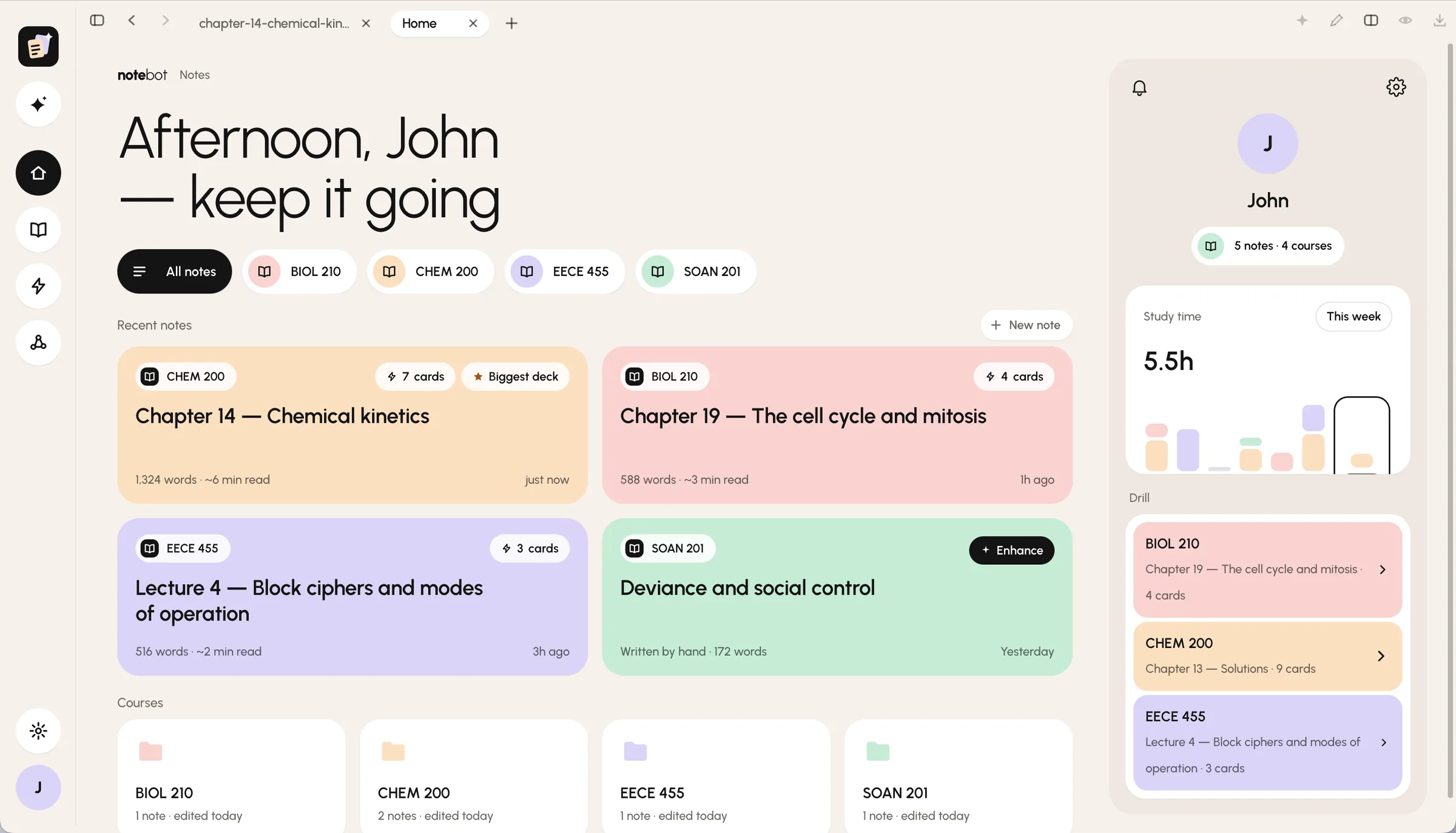
- Read it in the app. Rendered Markdown with maths and diagrams, a live outline, full-text search across the vault and an exam lens. Select a passage you don't follow and AI help explains it more simply, gives an example, or says why it's true.
- Recordings stay on your computer. They are transcribed locally before anything is sent to the company your key belongs to.
- Your notes are plain Markdown files in the folder you chose. Obsidian and any other Markdown app read the same folder.
More, with pictures, at notebotapp.com.
Notebot checks this page for a newer version about once a day. When there is one, a line appears at the top of the window: What's new shows the release notes, Update installs it and reopens the app.
Every release since 1.0.7 ships a .sig file next to the installer — an Ed25519 signature over the exact file. Notebot verifies it before installing anything, and refuses a download that does not match. That is why in-app updates are the safest way to upgrade.
- Notes, recordings and figures are never uploaded to us. They live in your folder.
- Your AI key stays on your computer and is used only to talk to that company's API — Google, Anthropic or OpenAI, whichever key you pasted.
- What goes to that company: the lecture you drop in, when you press Run; and, only when you ask for them, the parts of your notes behind new Drill questions, a checked answer or an AI-help explanation. Always under your own key.
- The beta sign-in records your name, email address, which version you run and the day you last opened it. Nothing else. The privacy page is the full list, and says how to have it deleted.
Open an issue with what you were doing and, if a run failed, the text under Show details in the panel. If you are in the beta group, a message works too.
Made by Giorgio Bachour, a student who needed it.