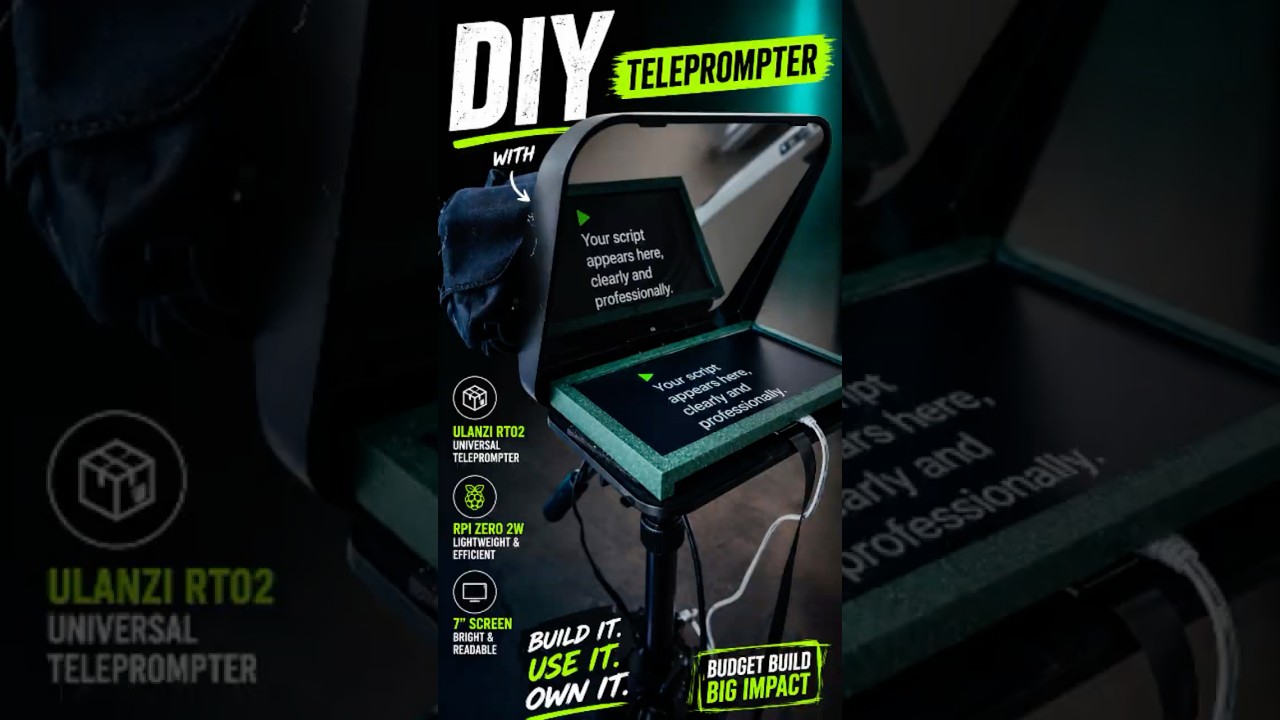
A lightweight, dedicated teleprompter built on a Raspberry Pi Zero 2 W, running a custom Python/Pygame application. Designed to be cheap, compact, and reliable — a single-purpose device that boots straight into the app and does nothing else.
| Component | Details | Link |
|---|---|---|
| Computer | Raspberry Pi Zero 2 W | raspberrypi.com |
| Display | 8" LCD 1024x768, 174x136mm (recommended) | AliExpress |
| Display (alt) | 7" LCD 1024x600, 165x100mm | AliExpress |
| Display controller | Mini HDMI driver board, 5V via Micro USB | included with display |
| Teleprompter frame | Ulanzi RT02 with beam splitter glass | AliExpress |
| Mini HDMI cable | Connector C1 x2 + Flexible Flat Cable for RPi Zero 2W | AliExpress |
| Input | Bluetooth keyboard | |
| OS | Raspberry Pi OS Lite 64-bit |
The 8" display (174mm wide) fits the Ulanzi RT02 holder (180mm) almost perfectly, covering the full beam splitter glass area with just 3mm clearance on each side. The 7" display also fits well with more clearance. The whole unit is powered independently — no phone battery anxiety, no notifications, no distractions.
- Auto-boots straight into the script selection menu
- White text for speech, red text for stage directions in
[ ]brackets - Adjustable scroll speed (1–10)
- Play/Pause, rewind, speed control
- Beam splitter glass correction (horizontal flip)
- Top fade effect — text fades out as it reaches the top
- Multilingual UI: Serbian, English, German, Spanish, French
- Language preference saved to
config.json - Shutdown option directly from the menu
- Exit to terminal option for maintenance
- Web interface for wireless script management — no WinSCP needed
Upload and manage scripts directly from your browser — no WinSCP, no SSH, no cables needed.
Access via: http://teleprompter.local:5000 or http://[ip_address]:5000
Features:
- Upload
.txtscript files via drag & drop or file picker - Delete scripts
- Preview script content with color-coded stage directions
- Works from any device on the same WiFi network (phone, tablet, PC)
Install Flask before first use:
sudo apt install python3-flask -yRPi Zero 2 W — quad-core ARMv8, 512MB RAM, built-in WiFi + Bluetooth 4.2. The app uses pre-rendering (all text drawn to one large surface at startup) so scrolling is smooth even on this compact hardware.
Display — 8" LCD 1024x768, 174x136mm. Paired with a compact mini HDMI controller board from AliExpress. The controller is small enough to hide behind the display, keeping the setup clean. Powered via Micro USB 5V.
Ulanzi RT02 — designed for phones and tablets but works perfectly as an open frame for a custom display. The 8" panel (174mm) fits the RT02 holder (180mm internal width) with 3mm clearance on each side, covering the full beam splitter glass area cleanly. Mounts on any standard tripod via 1/4" thread.
Use Raspberry Pi Imager:
- Device: Raspberry Pi Zero 2 W
- OS: Raspberry Pi OS Lite (64-bit)
- Edit Settings:
- Hostname:
teleprompter - Username:
zero - Password: your password
- WiFi SSID + password
- Enable SSH (password authentication)
- Hostname:
Wait 2–3 minutes for first boot, then:
ssh zero@teleprompter.local
sudo apt update && sudo apt upgrade -ysudo apt install python3-pygame python3-evdev fonts-dejavu-core bluetooth bluez python3-flask -y
sudo systemctl enable bluetooth
sudo systemctl start bluetoothmkdir ~/teleprompter
mkdir ~/teleprompter/scripts
echo 'zero ALL=(ALL) NOPASSWD: /sbin/poweroff' | sudo tee /etc/sudoers.d/teleprompterUse WinSCP (SFTP, host: teleprompter.local) to upload:
teleprompter.py→/home/zero/teleprompter/webserver.py→/home/zero/teleprompter/start.sh→/home/zero/teleprompter/- Your
.txtscript files →/home/zero/teleprompter/scripts/
Important: Always use WinSCP for uploading Python files. Copy-pasting code through the terminal can corrupt formatting.
sudo raspi-config
# System Options → S6 Auto Login → Yesecho 'if [ "$(tty)" = "/dev/tty1" ]; then /home/zero/teleprompter/start.sh; fi' >> ~/.profileMake start.sh executable:
chmod +x ~/teleprompter/start.shsudo rebootAfter reboot:
- Teleprompter app appears on display automatically
- Web interface available at
http://teleprompter.local:5000
Scripts are plain .txt files in the scripts/ folder. One file per episode.
Welcome to the show.

[Pause — look at the camera]

Today we are talking about artificial intelligence.

[Cut to B-roll]

The technology has evolved rapidly over the past decade.
- Normal lines → large white text (speech)
- Lines wrapped in
[ ]→ smaller red text (stage directions) - Empty lines → paragraph spacer
| Key | Action |
|---|---|
Space |
Play / Pause |
↑ |
Speed up |
↓ |
Slow down |
R (hold) |
Rewind (3× speed) |
ESC |
Back to menu |
Depending on which display you use, change these two lines at the top of teleprompter.py:
# 8" display (recommended)
SCREEN_WIDTH  = 1024
SCREEN_HEIGHT = 768

# 7" display
SCREEN_WIDTH  = 1024
SCREEN_HEIGHT = 600
And update /boot/config.txt accordingly:
# 8" display
hdmi_cvt=1024 768 60 6 0 0 0

# 7" display
hdmi_cvt=1024 600 60 6 0 0 0A dedicated wireless controller is currently in development — an ESP32-based Bluetooth HID device in a custom 3D-printed enclosure with:
- 5 onboard buttons (Play/Pause, Speed+, Speed−, ESC, Enter)
- 3 avionic plug outputs for external foot pedals
- Presents itself to the RPi as a standard Bluetooth keyboard — no drivers needed
This will be published as a separate project and linked here when ready.
If the display does not show correctly, add to /boot/config.txt:
# Force HDMI output
hdmi_force_hotplug=1

# Set resolution to match your display
hdmi_group=2
hdmi_mode=87
hdmi_cvt=1024 768 60 6 0 0 0

# Disable overscan (black borders)
disable_overscan=1The beam splitter glass mirrors the image. The flip direction is set in the script:
# In apply_beam_splitter_flip() and load_and_run():
pygame.transform.flip(surface, True, False)   # horizontal flip (current)
pygame.transform.flip(surface, False, True)   # vertical flip
pygame.transform.flip(surface, True, True) # bothBlack screen on boot:
cat ~/teleprompter/start.logPermission denied on start.sh:
chmod +x ~/teleprompter/start.shfbcon not available error:
Use kmsdrm — do not use fbcon or x11 on RPi Zero.
Slow or stuttering scroll:
Make sure the script uses pre-rendering (big_surface). Without it, the Zero CPU cannot render text fast enough.
Bluetooth not ready:
sudo rfkill unblock bluetooth
sudo systemctl restart bluetooth
Script does not autostart:
Use .profile, not .bashrc or .bash_profile.
cat ~/.profile # check the line is there at the bottomWeb interface not accessible:
sudo apt install python3-flask -y
sudo rebootteleprompter/
├── teleprompter.py # Main application
├── webserver.py # Web interface for script management
├── config.json # Saved language preference
├── start.sh # Startup script (launches both apps)
├── start.log # Runtime log (auto-generated)
├── webserver.log # Web server log (auto-generated)
└── scripts/
├── episode_01.txt
├── episode_02.txt
└── ...
If this saved you hours of frustration, consider buying me a coffee ☕

MIT License. Use freely, modify freely, share freely.