Quickstart guide and tutorials #349
Conversation


|
The latest updates on your projects. Learn more about Vercel for GitHub.
|


|
Note Other AI code review bot(s) detectedCodeRabbit has detected other AI code review bot(s) in this pull request and will avoid duplicating their findings in the review comments. This may lead to a less comprehensive review. WalkthroughAdds eight new tutorial MDX pages, rewrites the Quickstart page into an image-guided step-by-step guide, and updates Changes
Sequence Diagram(s)(The changes are documentation-only; no application control flow or feature runtime behavior was introduced, so no sequence diagram is provided.) Estimated code review effort🎯 3 (Moderate) | ⏱️ ~25 minutes Poem
Pre-merge checks and finishing touches✅ Passed checks (3 passed)
✨ Finishing touches
🧪 Generate unit tests
Thanks for using CodeRabbit! It's free for OSS, and your support helps us grow. If you like it, consider giving us a shout-out. Comment |
![coderabbitai[bot]](https://avatars.githubusercontent.com/in/347564?s=60&v=4)

There was a problem hiding this comment.
Actionable comments posted: 4
🧹 Nitpick comments (32)
docs/introduction/quickstart/project-member.mdx (2)
2-4: Quote YAML scalars and trim spacing in front matter.Avoid parsing issues with the apostrophe and double space after the colon.
-title: I'm a Project Member
-description:  Learn how to collaborate effectively on work items in Plane using comments, mentions, sub-work items, and activity tracking.
+title: "I'm a Project Member"
+description: "Learn how to collaborate effectively on work items in Plane using comments, mentions, sub-work items, and activity tracking."
5-5: Add placeholder body or stub section.Page renders as an empty doc. Add at least an H1 and TODO so it’s discoverable.
+
+# I'm a Project Member
+
+Content coming soon. If you're a contributor, see the Tutorials section for related guidance.
docs/introduction/quickstart/project-admin.mdx (1)
5-5: Add minimal stub content.Currently empty; add a header or link to the Workspace/Project setup guides.
+
+# I'm a Project Admin
+
+See Quickstart: Workspace Admin and Tutorials: Create Project to get started.
docs/introduction/tutorials/organize-and-view-work.mdx (4)
25-30: Polish layout list formatting.Fix spacing/dashes; use en dashes/em dashes consistently.
-    - List - Detailed table view for scanning many items with full information
-    - Board - Visual workflow cards for drag-and-drop state management and team discussions
-    - Calendar- Timeline view for deadline management and scheduling
-    - Table - Excel-like grid for bulk editing and data manipulation
-    - Timeline - Project timeline view for dependencies and milestone tracking
+    - List — Detailed table view for scanning many items with full information
+    - Board — Visual workflow cards for drag-and-drop state management and team discussions
+    - Calendar — Timeline view for deadline management and scheduling
+    - Table — Excel-like grid for bulk editing and data manipulation
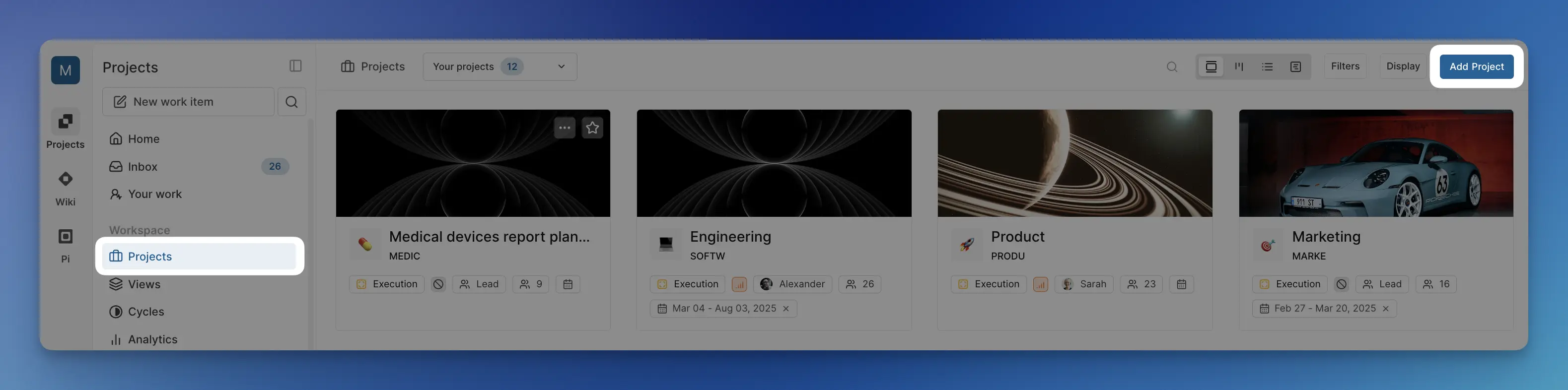
+    - Timeline — Project timeline view for dependencies and milestone tracking
69-76: Fix numbering and duplication.Use auto-numbering with “1.” for clean Markdown and remove duplicate “3.”.
-3. Give it a clear name.
-3. Your view is saved with all current settings
+1. Give it a clear name.
+1. Your view is saved with all current settings.
88-104: Capitalize product surface consistently (“Your work”).Align with UI label and tighten copy.
-## Use Your work dashboard for personal productivity
-Your work dashboard gives you a unified view of all your work across every project in your workspace:
+## Use Your work dashboard for personal productivity
+Your work dashboard gives you a unified view of all your work across every project in your workspace:
@@
-Use Your work as your starting point each morning:
+Use Your work as your starting point each morning:
@@
-This cross-project view helps you prioritize when you're working on multiple projects and ensures nothing falls through the cracks. Your work dashboard becomes your personal mission control for staying organized across your entire workspace.
+This cross-project view helps you prioritize across multiple projects and ensures nothing falls through the cracks. Your work dashboard becomes your personal mission control.
113-121: Clean up bullets and stray hyphen.-- Plan work with cycles → - Group work into time-based iterations +- Plan work with cycles → Group work into time-based iterationsdocs/introduction/tutorials/create-workspace.mdx (4)
13-13: Grammar fix in intro sentence.-Let's get you set up your workspace where you and your team can collaborate on projects. +Let's set up your workspace so you and your team can collaborate on projects.
41-49: Tighten URL guidance and warning formatting.-Your workspace URL will be automatically generated from your workspace name, but you can customize it: +Your workspace URL is generated from the name, but you can customize it: @@ -:::warning -The choice is permanent and cannot be changed later. Make sure it’s exactly how you want it before continuing. +:::warning +This choice is permanent and cannot be changed later. Make sure it’s exactly how you want it before continuing. :::
51-53: Punctuation pass.-Choose the range that best matches your expected team size. This helps Plane optimize your experience. Don't worry about being exact. You can always invite more people later +Choose the range that best matches your expected team size. This helps Plane optimize your experience. Don't worry about being exact—you can always invite more people later.
24-26: Use same-page anchor for skip link in create-workspace tutorialIn docs/introduction/tutorials/create-workspace.mdx, replace the absolute link to step 2 with a local anchor targeting “Learn workspace navigation” (## Learn workspace navigation → #learn-workspace-navigation):
:::info
- 💡 Don’t need another workspace right now? You can skip to [step 2](/getting-started/tutorials/create-workspace#explore-your-new-workspace) to learn about workspace navigation with your existing workspace.
+ 💡 Don’t need another workspace right now? Skip to [Explore your new workspace](#learn-workspace-navigation) to learn about workspace navigation with your existing workspace.
:::
docs/introduction/tutorials/invite-members.mdx (2)
3-3: Trim double space after colon in description.-description: Learn how to invite team members to your Plane workspace, assign roles, and manage member permissions. +description: Learn how to invite team members to your Plane workspace, assign roles, and manage member permissions.
50-57: Style consistency for role descriptions.Lowercase generic nouns within bullets; tighten punctuation.
-- Best for Workspace owners, team leads, IT administrators.
+- Best for workspace owners, team leads, and IT administrators.
@@
-- Best for most team members, developers, designers, project contributors
+- Best for most team members—developers, designers, and project contributors.
@@
-- Best for External contractors, clients, temporary collaborators
+- Best for external contractors, clients, and temporary collaborators.
docs/introduction/tutorials/create-work-items.mdx (5)
6-7: Remove editorial note or fold it into content.If kept, move into “Update your work item” under Drafts.
-Mention unfinished work items go to the Drafts folder.
+
24-26: Fix spacing.-1. Navigate to your project by clicking its name in the sidebar.Make sure you're in the **Work items** tab. +1. Navigate to your project by clicking its name in the sidebar. Make sure you're in the **Work items** tab.
75-83: Renumber steps or use auto-numbering.Duplicate “3.” appears. Prefer “1.” for Markdown auto-numbering.
-3. For more detailed work, click the expand icon (diagonal arrows) in the peek view, or right-click the work item and select **Open in new tab**.
-3. Let's practice moving work through your workflow:
+1. For more detailed work, click the expand icon (diagonal arrows) in the peek view, or right-click the work item and select **Open in new tab**.
+1. Let's practice moving work through your workflow:
101-103: Fix double period and quotes consistency.-If you prefer, you can still update the state directly by opening your work item and clicking the "State" field to select "Done".. +If you prefer, you can update the state directly by opening your work item and clicking the “State” field to select “Done.”
68-71: Add the Drafts note where it fits.## Update your work item Now let's explore how to access and view work items: +Unfinished work items are saved to Drafts automatically and can be completed later.docs/introduction/quickstart/workspace-admin.mdx (8)
18-20: Grammar and clarity for URL immutability.-:::warning -The Workspace URL cannot be changed after creation. So be careful when provide this slug at the time of creation. +:::warning +The workspace URL cannot be changed after creation. Be careful when providing this slug during creation. :::
25-37: Tighten invite steps; align button text and roles.-1. Under Workspace Settings where you already are, click Members tab on the left pane. +1. In Workspace Settings, click **Members** in the left pane. @@ - - Admin: Full workspace control and settings access. - - Member (Default): Can create projects, issues, and collaborate fully. - - Guest: Limited access to specific projects they're invited to. + - Admin — Full workspace control and settings access + - Member (default) — Can create projects, issues, and collaborate fully + - Guest — Limited access to specific projects they’re invited to @@ -4. Click "Send invitation" +4. Click **Send invitations**.
44-53: Project creation copyedits.-1. Look for **Projects** section on your sidebar. +1. In the sidebar, find **Projects**. @@ - 1. enter the name and write a brief description explaining what this project aims to accomplish. - 2. Select the State that the project is in Draft, Planning, Execution. etc. - 3. By default, the project access is **Public** This means that all Workspace Admins and Members can see and join this project. Change this to Private if you want members to join only through invite. - 4. Select start and end dates if you want to and assign priority. - 5. Assign a project lead and add the members you want to part of this project. + 1. Enter a clear name and a brief description of the project. + 2. Select the current project state (Draft, Planning, Execution, etc.). + 3. By default, access is **Public**—all workspace Admins and Members can see and join. Choose **Private** to require invites. + 4. Optionally set start/end dates and a priority. + 5. Assign a project lead and add members who will be part of this project.
59-61: Fix phrasing and link intent.-If you'd dive deeper into this, you can see the Project Admin setup guide. +Want more detail? See the Project Admin setup guide.
61-69: Singular/plural and sample list polish.-## Create your first work items +## Create your first work items @@ - - "Design new homepage layout" - - "Update company about page" + - "Design a new homepage layout" + - "Update the company About page" - "Optimize site performance"
75-86: Feature highlights: convert to bullets and parallel structure.-🚀 Ready for more? Your Business trial includes powerful features: - -Project Templates: Create reusable project setups -Cycles: Plan work in sprints with start/end dates -Modules: Break large projects into phases -Pages: Create documentation and requirements -Initiatives: Track company-wide goals +🚀 Ready for more? Your Business trial includes powerful features: +- Project Templates — Create reusable project setups +- Cycles — Plan work in sprints with start/end dates +- Modules — Break large projects into phases +- Pages — Create documentation and requirements +- Initiatives — Track company-wide goals
87-92: Integrations list as bullets.-Set up integrations with Slack, GitHub, Figma -Import data from Jira, Linear, or other tools -Configure advanced workflows and automation +- Set up integrations with Slack, GitHub, and Figma +- Import data from Jira, Linear, or other tools +- Configure advanced workflows and automation
98-102: Action list formatting.- Schedule a team walkthrough session - Explore detailed tutorials for advanced features - Set up your first cycle/sprint - Configure integrations you need +- Schedule a team walkthrough session +- Explore detailed tutorials for advanced features +- Set up your first cycle/sprint +- Configure the integrations you needdocs/introduction/tutorials/create-project.mdx (6)
2-4: Title clarity and punctuation.Prefer singular article; keep description punctuation consistent.
-title: Create projects
+title: Create a project
 description: Learn how to create and configure your first Plane project with the right features, workflow states, and team members
6-6: Fix typo (“worksapce”).-Also Introduce the Projects section under Workspaces here so they know where to view and join all projects in their worksapce. +Also introduce the Projects section under Workspaces so readers know where to view and join all projects in their workspace.
29-31: Spacing and punctuation around examples.-Plane automatically suggests a Project ID based on your project name (like "WEB" for "Website Redesign"). This ID will prefix all your issues (WEB-1, WEB-2, etc.).You can customize it, but keep it short (3-5 characters). +Plane automatically suggests a Project ID based on your project name (like "WEB" for "Website Redesign"). This ID will prefix all your issues (WEB-1, WEB-2, etc.). You can customize it, but keep it short (3–5 characters).
37-49: Parallel phrasing for features list.- - Modules (Recommended for larger projects) - Turn this ON if you want to group related work into features or components + - Modules (Recommended for larger projects) - Turn this ON if you want to group related work into features or components. @@ - - Intake - Turn ON if external people need to submit work items to your project. + - Intake - Turn this ON if external people need to submit work items to your project.
83-91: Label examples and punctuation.-3. Create 3-5 essential labels. eg:, *frontend*, *backend* *design*. You can also choose colors for each label +3. Create 3–5 essential labels (e.g., *frontend*, *backend*, *design*). You can also choose colors for each label.
94-97: Fix typo (“esttings”) and streamline steps.-1. Go to Project esttings. Select **Members & Teamspaces** in the sidebar. You'll see the **Members** section at the bottom +1. Go to Project settings. Select **Members & Teamspaces** in the sidebar. You'll see the **Members** section at the bottom.
📜 Review details
Configuration used: CodeRabbit UI
Review profile: CHILL
Plan: Pro
📒 Files selected for processing (11)
docs/introduction/quickstart/project-admin.mdx(1 hunks)docs/introduction/quickstart/project-member.mdx(1 hunks)docs/introduction/quickstart/workspace-admin.mdx(1 hunks)docs/introduction/tutorials/collaborate-on-work-items.mdx(1 hunks)docs/introduction/tutorials/create-project.mdx(1 hunks)docs/introduction/tutorials/create-work-items.mdx(1 hunks)docs/introduction/tutorials/create-workspace.mdx(1 hunks)docs/introduction/tutorials/invite-members.mdx(1 hunks)docs/introduction/tutorials/organize-and-view-work.mdx(1 hunks)docs/introduction/tutorials/plan-and-create-cycles.mdx(1 hunks)sidebars.ts(1 hunks)
🔇 Additional comments (15)
docs/introduction/tutorials/collaborate-on-work-items.mdx (8)
6-8: Remove TODOs; fold into Notifications section.The TODO bullets render as stray content. Move that intent into the Notifications area.
[ suggest_essential_refactor ]- - introduce Inbox - - also Account settings for email notifications.@@ ## Understanding notifications Plane automatically keeps relevant people informed: @@ -Notification channels +Notification channels @@ -In-app notifications - Badge counters and notification panel +In-app notifications - Badge counters and notification panel (see also the Inbox for a unified feed) Email notifications - Digest emails about important updates Real-time updates - Live updates when viewing work items @@ -Managing notification overload +Manage notification preferences @@ -Subscribe/Unsubscribe - Use the subscription button to control which work items notify you +Subscribe/Unsubscribe - Use the subscription button to control which work items notify you Mention thoughtfully - Only @mention people who truly need to respond Update efficiently - Batch related changes to reduce notification noise +Email settings - Adjust delivery in Account settings (see: ../../core-concepts/account/settings) +Inbox - Triage updates from one place (see: ../../core-concepts/inbox)Also applies to: 130-151
22-39: Fix ordered list formatting and spacing.Use proper ordered list syntax and tighten wording.
[ suggest_essential_refactor ]-1.Navigate to your project and go to **Work items**. -2. Click on any work item to open it in peek view. -3. Click the expand icon to open it in full view for better collaboration space. Full view gives you more room to work with comments, sub-items, and detailed discussions. +1. Navigate to your project and open **Work items**. +2. Click any work item to open it in peek view. +3. Click the expand icon to open full view for more room to work with comments and sub-work items. @@ -5. Click in the "Add comment" text area. Write a meaningful comment about the work. +5. In the “Add comment” area, write a meaningful update. @@ -The comment box also includes formatting options. +The comment box supports basic formatting. @@ -6. Click **Comment** to post it. Your comment appears in the activity timeline and all relevant team members get notified. +6. Click **Comment** to post. Your note appears in Activity and notifies relevant teammates.
40-49: Complete the @mentions instruction.There’s an unfinished bullet (“your message”). Clarify and tighten.
[ raise_critical_issue ]-## Use @mentions +## Use @mentions @@ -- your message +- Write your message @@ -"@sarah the design looks great! One question about the color scheme - should we use the brand blue or the darker variant for the call-to-action buttons?" +"@sarah the design looks great! One question: should we use the brand blue or the darker variant for the call-to-action buttons?"
51-71: Normalize headings and list markup for the sub-work items section.Use a second-level heading and proper bullets; current lines will render as plain paragraphs.
[ suggest_essential_refactor ]-Step 4: Create sub-work items -For complex tasks, break them down into smaller, manageable pieces: -When to use sub-work items - -Large features that need multiple steps -Tasks requiring different skills or team members -Work that can be done in parallel -Projects with clear phases or milestones - -Create a sub-work item - -In your work item, look for "Add sub-work item" button -Click it to create a related, smaller task -Fill in the sub-item details: - -Clear, specific title -Brief description -Assign to appropriate team member -Set realistic due date +## Create sub-work items +For complex tasks, break work down into smaller pieces. + +When to use sub-work items +- Large features that need multiple steps +- Tasks requiring different skills or owners +- Work that can be done in parallel +- Projects with clear phases or milestones + +Create a sub-work item +- In the work item, click **Add sub-work item** +- Fill in: + - Clear, specific title + - Brief description + - Assignee + - Realistic due date @@ -Example parent task: "Implement user authentication system" -Sub-work items might be: - -"Design login page wireframes" -"Set up authentication database tables" -"Create password reset flow" -"Write user registration API endpoints" +Example +- Parent: “Implement user authentication system” +- Sub-items: + - Design login page wireframes + - Set up authentication database tables + - Create password reset flow + - Write user registration API endpoints @@ -Manage sub-work items - -Each sub-item has its own lifecycle and can be worked on independently -Parent task progress automatically updates based on sub-item completion -Team members can focus on their specific sub-items while staying connected to the bigger picture +Manage sub-work items +- Each sub-item has its own lifecycle +- Parent progress updates as sub-items complete +- Teammates focus on their sub-items while staying aligned with the parentAlso applies to: 73-86
88-106: Assignee updates: convert to structured bullets and clarify guidance.
[ suggest_optional_refactor ]-Step 5: Update assignees and collaborate on changes -Sometimes work needs to move between team members: -Add or remove assignees - -Click the "Assignees" field in the work item -Add someone by selecting from the dropdown -Remove someone by clicking the X next to their name - -Common collaboration patterns - -Handoff work - Remove yourself, add the next person -Pair work - Keep multiple people assigned for collaboration -Review process - Add reviewer when work is ready for feedback - -Communicate assignment changes -When changing assignees, always add a comment explaining: -"@john passing this to you for the backend implementation. I've completed the frontend components and they're ready for integration." +## Update assignees and collaborate on changes +Sometimes work moves between teammates. + +Add or remove assignees +- Click **Assignees** +- Add from the dropdown +- Remove by clicking the X + +Common patterns +- Handoff: remove yourself, add the next owner +- Pairing: keep multiple assignees temporarily +- Review: add a reviewer when ready for feedback + +Always communicate changes +- “@john passing this to you for backend. Frontend is complete and ready for integration.”
106-128: Activity/filters: fix headings and bullet lists.
[ suggest_optional_refactor ]-Step 6: Track activity and filter updates +## Track activity and filter updates @@ -Understanding the Activity section -The activity feed shows chronological updates: - -Work item changes - State updates, priority changes, assignment changes -Comments - Team discussions and communications -System updates - Automated notifications about related work +Understanding Activity +The feed shows: +- Work item changes (state, priority, assignees) +- Comments (team discussions) +- System updates (related work) @@ -Filter activity types -Click the "Filters" button in the Activity section to control what you see: - -Updates - Show only property changes (state, priority, etc.) -Comments - Show only team discussions -Worklogs - Show only time tracking entries +Filter types +- Click **Filters** in Activity +- Updates: only property changes +- Comments: only discussions +- Worklogs: only time tracking @@ -Activity timeline benefits - -Catch up quickly - See what happened while you were away -Understand decisions - Read the discussion that led to changes -Track progress - Monitor how work moves through your workflow +Activity timeline benefits +- Catch up quickly +- Understand decisions +- Track progress
171-174: Fix “What’s next” links and promote quick-reference subsections to headings.
[ suggest_optional_refactor ]-Organize work with cycles → - Group work into sprints and time periods -Create custom views → - Filter and organize work items for different contexts -Learn advanced collaboration → - Explore advanced communication features +- [Plan work with Cycles](./plan-and-create-cycles) — group work into time-boxed periods +- [Create custom views](../../core-concepts/views) — filter and organize work items +- Learn advanced collaboration — explore more communication features @@ -Quick reference +## Quick reference @@ -Comment best practices: +### Comment best practices @@ -Mention etiquette: +### Mention etiquette @@ -Collaboration patterns: +### Collaboration patternsAlso applies to: 176-203
10-19: Minor language tightening.
[ suggest_nitpick ]-Now that you can create and manage work items, let's learn how to collaborate with your team. +Now that you can create and manage work items, learn how to collaborate with your team. @@ -- Understood how activity tracking and notifications work +- Understood activity tracking and notificationsdocs/introduction/tutorials/plan-and-create-cycles.mdx (3)
34-49: Polish creation steps; fix punctuation and examples.
[ suggest_optional_refactor ]-2. Click the **Add cycle** button in the top-right. The cycle creation dialog opens +2. Click **Add cycle** (top-right). The creation dialog opens: @@ - - Pick a name that describes the cycle's purpose and timeframe: - Example - "Sprint 1: User Authentication" - - Add a helpful description Explain what this cycle aims to accomplish: - Example: - "Complete core user authentication features including login, registration, password reset, and basic profile management. Goal is to have a functional auth system ready for beta testing." + - Pick a name that describes purpose and timeframe. Example: “Sprint 1: User Authentication” + - Add a helpful description — explain the goals. Example: “Complete core auth: login, registration, password reset, basic profile. Target: beta-ready.” @@ - Start date - When work begins (often Monday) - End date - When work should be complete (typically 1-2 weeks later) + Start date — when work begins (often Monday) + End date — when work should be complete (typically 1–2 weeks later) @@ -3. Click **Create cycle** to save it. Your cycle now appears in the "Upcoming" or "Active" section. depending on your start date. +3. Click **Create cycle** to save. Your cycle appears in “Upcoming” or “Active” depending on the start date.
89-99: Remove “Step 6:” and use a proper heading; tighten bullets.
[ suggest_essential_refactor ]-Step 6: Complete your cycle -As your cycle end date approaches: -Finish remaining work -Focus on completing work items rather than starting new ones. Move any incomplete work to the next cycle or back to the backlog. -Review what was accomplished -At cycle end, review: +## Complete your cycle +As the end date approaches: +- Finish remaining work (avoid starting new items); move incomplete items to the next cycle or backlog. +- Review what was accomplished: @@ -Completed work items - What the team delivered -Incomplete items - What needs to carry over -Lessons learned - What worked well and what to improve +- Completed items — what the team delivered +- Incomplete items — what carries over +- Lessons learned — what to improve next time
105-109: Fix empty heading.There’s a standalone “##” that will create an empty header.
[ raise_critical_issue ]-## -What's next? +## What's next?sidebars.ts (4)
13-21: Avoid hard-linking a missing index doc; use a generated index for Quickstart.If introduction/quickstart.mdx doesn’t exist, the build will fail. Prefer a generated index.
[ raise_critical_issue ][ request_verification ]- link: { type: "doc", id: "introduction/quickstart" }, + link: { + type: "generated-index", + title: "Quickstart", + description: "Workspace admin, project admin, and project member setup.", + },Run to verify presence of the doc (and siblings):
#!/bin/bash
set -euo pipefail
check() { for ext in mdx md; do test -f "docs/$1.$ext" && echo "OK: $1.$ext" && return; done; echo "MISSING: $1"; }; export -f check
# Quickstart index
check "introduction/quickstart"
# Quickstart children
for p in workspace-admin project-admin project-member; do check "introduction/quickstart/$p"; done
23-35: Make “Tutorials” a generated index instead of pointing to Projects overview.Linking to core-concepts/projects/overview is confusing for users landing in Tutorials.
[ suggest_essential_refactor ]- link: { type: "doc", id: "core-concepts/projects/overview" }, + link: { + type: "generated-index", + title: "Tutorials", + description: "Step-by-step guides: create workspace, invite members, projects, work items, collaboration, views, cycles.", + },
11-12: Verify doc id existence for introduction/core-concepts.Ensure a doc exists at docs/introduction/core-concepts.(mdx|md) or replace with a generated index/category page.
[ request_verification ]#!/bin/bash set -euo pipefail for id in "introduction/core-concepts"; do found="" for ext in mdx md; do [[ -f "docs/$id.$ext" ]] && found="yes" && echo "OK: $id.$ext"; done [[ -z "$found" ]] && echo "MISSING: $id (consider removing or replacing with a generated index)" done
162-162: Spacing nit in Importers list.
[ suggest_nitpick ]- items: ["importers/overview", "importers/asana", "importers/confluence", "importers/clickup","importers/csv", "importers/jira", "importers/linear", "importers/notion" ], + items: ["importers/overview", "importers/asana", "importers/confluence", "importers/clickup", "importers/csv", "importers/jira", "importers/linear", "importers/notion" ],
![cursor[bot]](https://avatars.githubusercontent.com/in/1210556?s=60&v=4)
This comment was marked as outdated.
This comment was marked as outdated.
Sorry, something went wrong.
There was a problem hiding this comment.
Actionable comments posted: 1
♻️ Duplicate comments (1)
docs/introduction/tutorials/create-workspace.mdx (1)
6-9: Remove editorial TODO bullets before shipping.These placeholders should not appear in published docs.
Apply this diff:
- - talk about Home
- - About the sidebar section, so they know what to find where.
- - to contact support
+
🧹 Nitpick comments (7)
docs/introduction/tutorials/create-workspace.mdx (4)
13-13: Fix intro sentence grammar.Apply:
- Let's get you set up your workspace where you and your team can collaborate on projects.
+ Let's get your workspace set up so you and your team can collaborate on projects.
17-19: Polish bullets for grammar/consistency.- - Created new workspace<br/> + - Created a new workspace<br/>
24-26: Avoid “step 2” reference; link to the section anchor instead.- 💡 Don't need another workspace right now? You can skip to step 2 to learn about workspace navigation with your existing workspace. + 💡 Don't need another workspace right now? Skip to [Learn workspace navigation](#learn-workspace-navigation) with your existing workspace.
86-89: Link “workspace documentation” and “contact support.”
- Suggest linking “workspace documentation” to
/core-concepts/workspaces/overview.- Confirm the correct support URL/email and link it here.
- Need help? Check out our workspace documentation or contact support.
+ Need help? Check out our [workspace documentation](/core-concepts/workspaces/overview) or [contact support](<ADD-SUPPORT-LINK>).
sidebars.ts (1)
14-26: Decide default expand/collapse for Tutorials.If you want Tutorials expanded by default (like “Get started”), add
collapsed: false.{ type: "category", label: "Tutorials", + collapsed: false, link: { type: "doc", id: "introduction/tutorials/overview" },docs/introduction/quickstart.mdx (2)
27-33: Normalize ordered lists to auto-number (“1.”) and fix minor grammar.Docusaurus/MD auto-numbers lists; using “1.” avoids manual renumbering mistakes and churn. Also apply small grammar fixes.
-1. Click on the workspace logo at the top left.
-2. Select **Settings**.
-2. In the **General** tab under **Administration**:
+1. Click the workspace logo at the top left.
+1. Select **Settings**.
+1. In the **General** tab under **Administration**:

-1. Under Workspace Settings, click **Members** tab on the left pane.
+1. In Workspace Settings, click the **Members** tab in the left pane.
-2. Click the **Add member** button.
+1. Click the **Add member** button.
-3. In the **Invite people to collaborate** dialog:
+1. In the **Invite people to collaborate** dialog:

-1. Look for **Projects** tab under the **Workspace** section on your sidebar.
+1. In the sidebar, under **Workspace**, click **Projects**.
-2. Click the **Add Project** button.
+1. Click the **Add Project** button.
-4. In the project creation form:
+1. In the project creation form:
-    1. Enter the name  and write a brief description explaining what this project aims to accomplish.
+    1. Enter the name and a brief description explaining what this project aims to accomplish.
-    2. Select `Planning` in the **State** dropdown.
+    1. Select `Planning` in the **State** dropdown.
-    3. By default, the project access is **Public** This means that all Workspace Admins and Members can see and join this project. Change this to **Private** if you want members to join only through invite.
+    1. By default, project access is **Public**. This means all Workspace Admins and Members can see and join this project. Change to **Private** if you want members to join only through invite.
-    4. Select start and end dates if you want to and set a priority level.
+    1. Optionally select start and end dates, and set a priority level.
-    5. Assign a project Lead and add the Members you want to part of this project.
+    1. Assign a project Lead and add the Members you want to be part of this project.
-5. Click **Create project** to finish the basic setup.
-6. You’ll see a modal with all the features enabled for this project. Leave the defaults as they are and click **Open project**.
+1. Click **Create project** to finish the basic setup.
+1. You’ll see a modal with all the features enabled for this project. Leave the defaults as they are and click **Open project**.

-1. Navigate to the **Work items** page under your new project.
+1. Navigate to the **Work items** page under your new project.
-2. Click **Add work item**.
+1. Click **Add work item**.
-3. Enter title and brief description about the work item.
+1. Enter a title and brief description for the work item.
-3. Set work item properties:
+1. Set work item properties:

-1. Click **Cycles** in your project sidebar.
+1. Click **Cycles** in your project sidebar.
-2. Click the **Add cycle** button on the top right.
+1. Click the **Add cycle** button on the top right.
-3. In the Create cycle modal:
+1. In the Create cycle modal:
-7. Click **Add to cycle**.
+1. Click **Add to cycle**.
Also applies to: 38-49, 57-67, 75-91, 100-109
106-109: Use “work items” consistently (not “issues”).-6. Select the issues you created earlier. +1. Select the work items you created earlier.
📜 Review details
Configuration used: CodeRabbit UI
Review profile: CHILL
Plan: Pro
📒 Files selected for processing (4)
docs/introduction/quickstart.mdx(1 hunks)docs/introduction/tutorials/create-project.mdx(1 hunks)docs/introduction/tutorials/create-workspace.mdx(1 hunks)sidebars.ts(1 hunks)
🚧 Files skipped from review as they are similar to previous changes (1)
- docs/introduction/tutorials/create-project.mdx
⏰ Context from checks skipped due to timeout of 90000ms. You can increase the timeout in your CodeRabbit configuration to a maximum of 15 minutes (900000ms). (1)
- GitHub Check: Cursor Bugbot
🔇 Additional comments (7)
docs/introduction/tutorials/create-workspace.mdx (3)
51-52: End sentence and tighten phrasing.
[raise_nitpick_refactor]- Choose the range that best matches your expected team size. This helps Plane optimize your experience. Don't worry about being exact. You can always invite more people later + Choose the range that best matches your expected team size. This helps Plane tailor defaults. Don't worry about being exact—you can always invite more people later.
87-87: LGTM: invite-members path is correct.
41-49: Keep the “permanent” warning — workspace slugs are immutable.
Plane workspace slugs are permanent identifiers (docs, API, and GitHub history); they cannot be changed via the UI — changing one requires contacting Plane support/engineering or deleting and recreating the workspace.sidebars.ts (2)
11-13: Good addition: surfacing Core concepts and Quickstart early.
11-26: Verify sidebar doc files exist & frontmatter ids/slugs matchAutomated check failed in the sandbox (error: "/bin/bash: -c: line 74: conditional binary operator expected"). Manually confirm the following files (accept .md/.mdx or index.md(x)) exist and that their frontmatter id/slug equals the sidebar id:
- docs/introduction/core-concepts.{md,mdx}
- docs/introduction/quickstart.{md,mdx}
- docs/introduction/tutorials/overview.{md,mdx}
- docs/introduction/tutorials/create-workspace.{md,mdx}
- docs/introduction/tutorials/invite-members.{md,mdx}
- docs/introduction/tutorials/create-project.{md,mdx}
- docs/introduction/tutorials/create-work-items.{md,mdx}
- docs/introduction/tutorials/collaborate-on-work-items.{md,mdx}
- docs/introduction/tutorials/organize-and-view-work.{md,mdx}
- docs/introduction/tutorials/plan-and-create-cycles.{md,mdx}
Run and paste output (or confirm):
ls -la docs/introduction docs/introduction/tutorials && grep -RnhE '^[[:space:]]*(id|slug):' docs/introduction || truedocs/introduction/quickstart.mdx (2)
2-8: Quickstart restructure reads well.
18-19: Update the “Create a Plane account” CTA to point to the Plane cloud sign‑up (app.plane.so)
Replace the current /#get-plane anchor with the cloud sign‑up URL — https://app.plane.so/signup (or https://app.plane.so).
File: docs/introduction/quickstart.mdx (lines 18–19)Likely an incorrect or invalid review comment.
There was a problem hiding this comment.
Actionable comments posted: 0
♻️ Duplicate comments (2)
docs/introduction/tutorials/create-project.mdx (1)
1-8: Prior “author note” issue looks resolved.The previously flagged internal note around Lines 5–6 no longer appears. Please confirm no other author notes remain.
docs/introduction/tutorials/create-work-items.mdx (1)
69-72: Author note concern addressed.The earlier “Drafts” author note is now a proper info callout. Looks good.
🧹 Nitpick comments (2)
docs/introduction/tutorials/create-project.mdx (1)
25-29: Fix typo and grammar in visibility section.
- Missing space and awkward phrasing on Line 27.
Apply this diff:
- - Projects you're part ofdisplay directly in your sidebar under the **Projects** section.
+ - Projects you're part of appear directly in your sidebar under the **Projects** section.
docs/introduction/tutorials/create-work-items.mdx (1)
94-101: Auto-numbering or sequence fix for steps.There are two “4.” sections (Lines 100 and 108). Either switch to Markdown auto-numbering (use 1. for each) or increment the latter to 5.
-4. **Move work to completion**
+5. **Move work to completion**
Or convert all ordered list items in the section to start with
1.to let Markdown auto-number.
📜 Review details
Configuration used: CodeRabbit UI
Review profile: CHILL
Plan: Pro
📒 Files selected for processing (8)
docs/introduction/tutorials/collaborate-on-work-items.mdx(1 hunks)docs/introduction/tutorials/create-pages.mdx(1 hunks)docs/introduction/tutorials/create-project.mdx(1 hunks)docs/introduction/tutorials/create-work-items.mdx(1 hunks)docs/introduction/tutorials/create-workspace.mdx(1 hunks)docs/introduction/tutorials/invite-members.mdx(1 hunks)docs/introduction/tutorials/organize-and-view-work.mdx(1 hunks)sidebars.ts(1 hunks)
✅ Files skipped from review due to trivial changes (2)
- docs/introduction/tutorials/create-pages.mdx
- docs/introduction/tutorials/organize-and-view-work.mdx
🚧 Files skipped from review as they are similar to previous changes (4)
- docs/introduction/tutorials/collaborate-on-work-items.mdx
- docs/introduction/tutorials/invite-members.mdx
- docs/introduction/tutorials/create-workspace.mdx
- sidebars.ts
⏰ Context from checks skipped due to timeout of 90000ms. You can increase the timeout in your CodeRabbit configuration to a maximum of 15 minutes (900000ms). (1)
- GitHub Check: Cursor Bugbot
🔇 Additional comments (7)
docs/introduction/tutorials/create-project.mdx (4)
6-15: Solid tutorial structure and flow.Clear steps, images, and cross-links. Reads well as an onboarding path.
53-56: Punctuation and spacing fix.
- Missing space after a period on Line 53.
[raise_nitpick_refactor]- - **Project ID**: Plane automatically suggests a Project ID based on your project name (like "WEB" for "Website Redesign"). This ID will prefix all your issues (WEB-1, WEB-2, etc.).You can customize it, but keep it short (3-5 characters). + - **Project ID**: Plane automatically suggests a Project ID based on your project name (like "WEB" for "Website Redesign"). This ID will prefix all your issues (WEB-1, WEB-2, etc.). You can customize it, but keep it short (3–5 characters).
90-97: Minor grammar/punctuation in Members section.
- Add period at the end of Line 92.
- Improve wording on Line 97.
[raise_nitpick_refactor]- - You'll see the Members section with current project members + - You'll see the Members section with current project members. - - **Guest access** - Toggle ON to allow guests view access to all project work items. + - **Guest access** - Toggle ON to allow guests to view all project work items.
112-116: Add missing period.
- Line 114 lacks terminal punctuation.
[raise_nitpick_refactor]- - You'll see default state groups already created + - You'll see default state groups already created.docs/introduction/tutorials/create-work-items.mdx (3)
6-16: Great, comprehensive walkthrough.Covers creation, properties, views, and progression; images reinforce steps.
26-31: Add missing period.
- Line 28 ends without punctuation.
[raise_nitpick_refactor]- - The work item creation dialog opens + - The work item creation dialog opens.
135-141: Add link to the next tutorial.Line 139 references collaboration but lacks a link.
[raise_nitpick_refactor]- - Collaborate on work items to learn comments, mentions, and team communication + - [Collaborate on work items](/introduction/tutorials/collaborate-on-work-items) to learn comments, mentions, and team communication

There was a problem hiding this comment.
Actionable comments posted: 1
🧹 Nitpick comments (9)
docs/introduction/quickstart.mdx (9)
27-33: Fix duplicate numbering and a minor grammar nit in “Customize workspace details”.
- “2.” repeats; make it “3.”
- Improve phrasing of the name update bullet.
-2. In the **General** tab under **Administration**:
+3. In the **General** tab under **Administration**:
     - Upload your company logo.
-    - Update workspace name if you need to change it.
+    - Update the workspace name if needed.
23-24: Consistent capitalization for the product concept “Workspace”.Headings elsewhere capitalize “Workspace”; align this one.
-### Customize workspace details
+### Customize Workspace details
38-47: Tighten wording and emphasize role names in “Invite your team”.Add missing article and make role labels visually consistent.
-1. Under Workspace Settings, click **Members** tab on the left pane.
+1. Under Workspace Settings, click the **Members** tab in the left pane.
 ...
-       - Admin: Full workspace control and settings access.
-       - Member (Default): Can create projects, issues, and collaborate fully.
-       - Guest: Limited access to specific projects they're invited to.
+       - **Admin**: Full workspace control and settings access.
+       - **Member (Default)**: Can create projects, issues, and collaborate fully.
+       - **Guest**: Limited access to specific projects they're invited to.
57-67: Fix numbering jump and grammar in “Create your project”.
- Step number jumps from 2 → 4; make it 3.
- Remove double space after “name”.
- Add missing period after “Public”.
- Add missing “be” and de-capitalize non‑UI nouns.
-1. Look for **Projects** tab under the **Workspace** section on your sidebar.
+1. Find the **Projects** tab under the **Workspace** section in your sidebar.
-4. In the project creation form:
+3. In the project creation form:
-    1. Enter the name  and write a brief description explaining what this project aims to accomplish.
+    1. Enter the name and write a brief description explaining what this project aims to accomplish.
-    3. By default, the project access is **Public** This means that all Workspace Admins and Members can see and join this project. Change this to **Private** if you want members to join only through invite.
+    3. By default, the project access is **Public**. This means that all workspace admins and members can see and join this project. Change this to **Private** if you want members to join only through invite.
-    5. Assign a project Lead and add the Members you want to part of this project.
+    5. Assign a project lead and add the members you want to be part of this project.
75-91: Polish wording and view label.
- Add missing articles in the description line.
- Prefer “list view” unless “List layout” is an official UI term.
-3. Enter title and brief description about the work item.
+3. Enter a title and a brief description of the work item.
 ...
-7. You'll see a new row added in the List layout.
+7. You'll see a new row added in the list view.
100-111: Clarify date range phrasing and add missing period.Avoid ambiguous “today through next Friday” for a 2‑week cycle.
-    - Set date range: 2 weeks (today through next Friday)
+    - Set date range: two weeks starting today
-5. Click **Add existing work item**
+5. Click **Add existing work item**.
25-25: Confirm image centering mechanism.
#centerin the image URL may be ignored by the MDX renderer. If centering doesn’t work, wrap with a div and CSS class or use MDX<img className="center" />.
57-111: Prefer Markdown auto-numbering (“1.”) for ordered lists.This prevents future numbering drift and eases maintenance.
Example:
-1. Find the **Projects** tab...
-2. Click the **Add Project** button.
-3. In the project creation form:
+1. Find the **Projects** tab...
+1. Click the **Add Project** button.
+1. In the project creation form:
25-99: Consider more descriptive alt text for images.Improve accessibility by describing the intent, not just the UI name.
Example:
- +
📜 Review details
Configuration used: CodeRabbit UI
Review profile: CHILL
Plan: Pro
📒 Files selected for processing (6)
docs/introduction/quickstart.mdx(1 hunks)docs/introduction/tutorials/collaborate-on-work-items.mdx(1 hunks)docs/introduction/tutorials/create-pages.mdx(1 hunks)docs/introduction/tutorials/organize-and-view-work.mdx(1 hunks)docs/introduction/tutorials/overview.mdx(1 hunks)docs/introduction/tutorials/plan-and-create-cycles.mdx(1 hunks)
✅ Files skipped from review due to trivial changes (1)
- docs/introduction/tutorials/overview.mdx
🚧 Files skipped from review as they are similar to previous changes (4)
- docs/introduction/tutorials/organize-and-view-work.mdx
- docs/introduction/tutorials/collaborate-on-work-items.mdx
- docs/introduction/tutorials/plan-and-create-cycles.mdx
- docs/introduction/tutorials/create-pages.mdx
⏰ Context from checks skipped due to timeout of 90000ms. You can increase the timeout in your CodeRabbit configuration to a maximum of 15 minutes (900000ms). (1)
- GitHub Check: Cursor Bugbot
| - [Create a Plane account](/#get-plane) | ||
|
|
There was a problem hiding this comment.
🧩 Analysis chain
Verify “Create a Plane account” anchor.
Check that /#get-plane exists; otherwise link to the correct signup doc.
🏁 Script executed:
#!/bin/bash
# Find any anchor, heading, or id named "get-plane"
rg -n -C2 -P '(id=["'\'']get-plane["'\'']|{#get-plane}|\(#get-plane\)|get-plane)' docs
Length of output: 267
Broken link — anchor /get-plane not found
No heading or id named "get-plane" exists in the docs; update the link to the correct signup page or add the target anchor.
File: docs/introduction/quickstart.mdx — line 18
- [Create a Plane account](/#get-plane)
🤖 Prompt for AI Agents
In docs/introduction/quickstart.mdx around lines 18–19 the markdown link target
"/#get-plane" points to a non-existent anchor "get-plane"; either update the
link to the correct signup/signup-docs path (replace the href with the actual
existing page or anchor, e.g. the site’s signup or onboarding page) or add an
HTML/MDX heading with id="get-plane" at the intended target so the anchor
resolves; ensure the link href matches the repository’s routing (absolute or
relative) and that the anchor id or heading text exactly matches "get-plane".


Description
Type of Change
Screenshots and Media (if applicable)
Test Scenarios
References
Summary by CodeRabbit