installation and setting up | configuration | intellisense and interactive REPL in Visual Studio Code
MongoDB shell assistant (msa) is a very simple command line tool that helps writing MongoDB shell scripts. It connects to MongoDB database and gets some sample data from each collection. Based on that it generates TypeScript declaration file describing a database schema. So even if you write your MongoDB shell script in JavaScript you can still benefit from having intellisense and autocompletion, not only for MongoDB shell API but also for structure of a data. Visual Studio Code has a very good support for JavaScript and TypeScript so it's prefered code editor here.
Let's create sample database executing MongoDB shell script mongo msasample.js
// msasample.js
var msasampledb = new Mongo("localhost:27017").getDB("msasample");
var users = [
        { login: "john", roles: ["admin"], isActive: true },
        { login: "steve", roles: ["editor"], isActive: false },
];
var multimedia = [
        { name: "flower.jpg", size: 100, type: "image", imageWidth: 50, imageHeight: 50 },
        { name: "sun.jpg", size: 200, type: "image", imageWidth: 500, imageHeight: 500 },
        { name: "presentation.mp4", size: 100000, type: "video", duration: 60 },
        { name: "mydoc.pdf", size: 150, type: "document" }
];
msasampledb.users.insertMany(users);
msasampledb.multimedia.insertMany(multimedia);
msasampledb.copyDatabase("msasample", "msasamplecopy");
Then install msa tool globally
npm install -g mongo-shell-assistantExecute msa command from terminal
> msa
'msa.config.json' configuration file not.
'msa.config.json' file with sample configuration has been created.
Because there is no configuration file inside current directory yet, the default one is created
{
	"localhost:27017": {
		"database1": {},
		"database2": {
			"__includes": [
				"collection1",
				"collection2"
			],
			"collection1": {
				"discriminator": "discriminatorfield1"
			}
		},
		"database3": [
			"localhost:27017",
			"database1"
		]
	}
}
Change configuration settings accordingly to our sample database
{
	"localhost:27017": {
		"msasample": {
			"multimedia":{
				"discriminator" : "type"
			}
		},
		"msasamplecopy": [
			"localhost:27017",
			"msasample"
		]
	}
}
And once again, execute msa tool from terminal
> msa
connecting to 'mongodb://localhost:27017/msasample' ...
all found collections: users,multimedia
retrieving metadata from collections: users,multimedia  ...
values of 'multimedia.type' discriminator: image,video,document

'msa.metadata.d.ts' file has been generated.
Add lines below at the beginning of you mongo shell script file:


/// <reference path="./msa.metadata.d.ts" />
var db = new Mongo("localhost:27017").getDB("msasample");
print(db.getCollectionNames());
//var data = db.__collection1__.find({}, {}).limit(10).toArray();
//printjson(data);
msa.metadata.d.ts TypeScript declaration file has been created.
Create a new MongoDb shell script script.js and copy the code above
/// <reference path="./msa.metadata.d.ts" />
var db = new Mongo("localhost:27017").getDB("msasample");
print(db.getCollectionNames());
//var data = db.__collection1__.find({}, {}).limit(10).toArray();
//printjson(data);
Then run this script executing command mongo script.js
> mongo script.js
MongoDB shell version: 3.2.3
connecting to: test
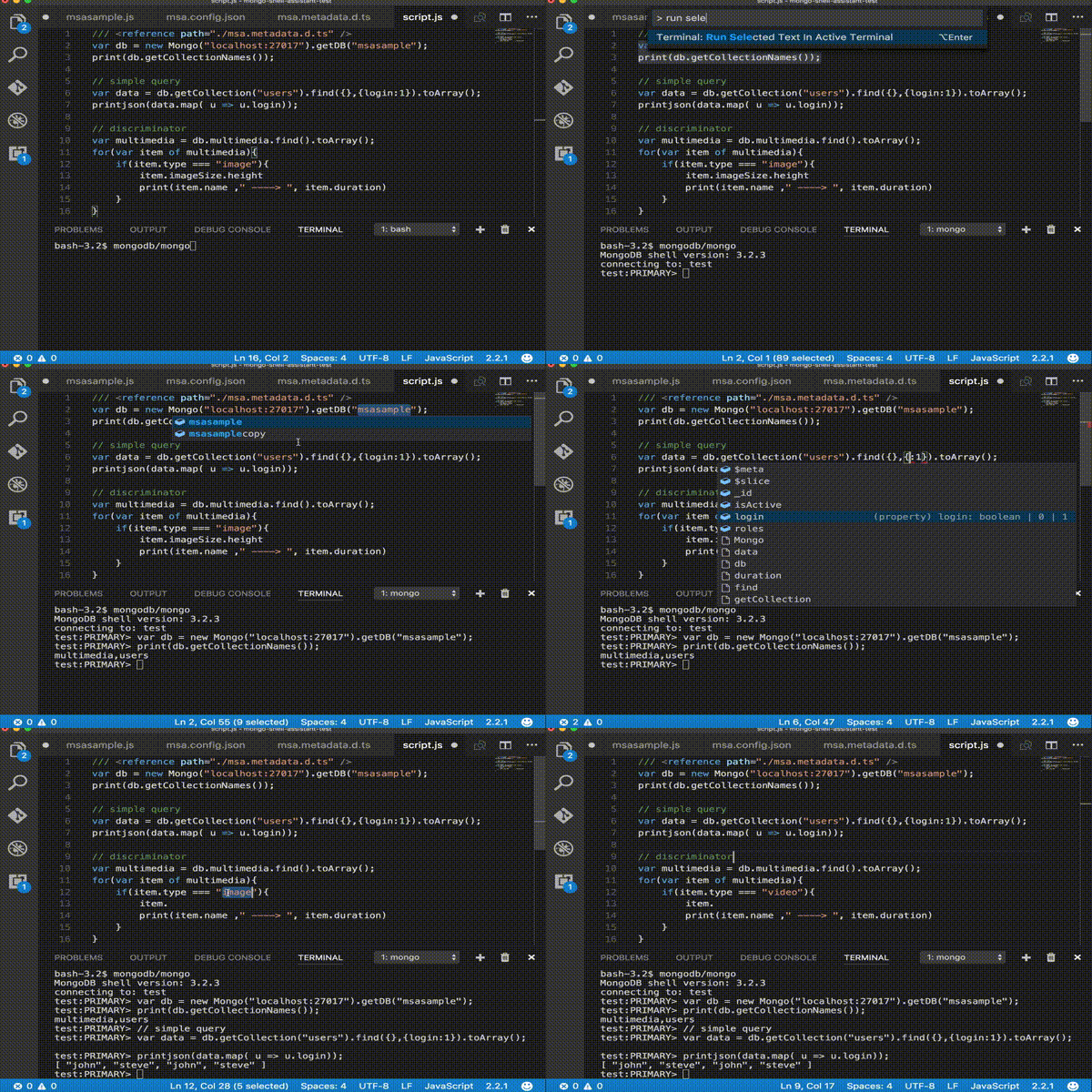
multimedia,usersMongo shell assistant provides an intellisense in a variety of different places, for intance a description of Mongo shell API, names of servers/databases/collections, query or projection objects used with querying methods like find or findOne, schema of documents returned from the database. Visual Studio Code has an integrated terminal window so we can open any REPL tool (for instance Mongo DB shell) and send selected pieces of text directly into opened terminal. Check out demo below to see how nice we can interact with MongoDB database.