
This is an application for displaying variables from Bitfocus Companion.
Download the latest releases here for Mac (ARM), Mac (Intel), and Windows (x64).
There is a TestFlight beta test for iPhone and iPad. To be added to the beta, contact me at tom@tomhillmeyer.com.
 |
|---|
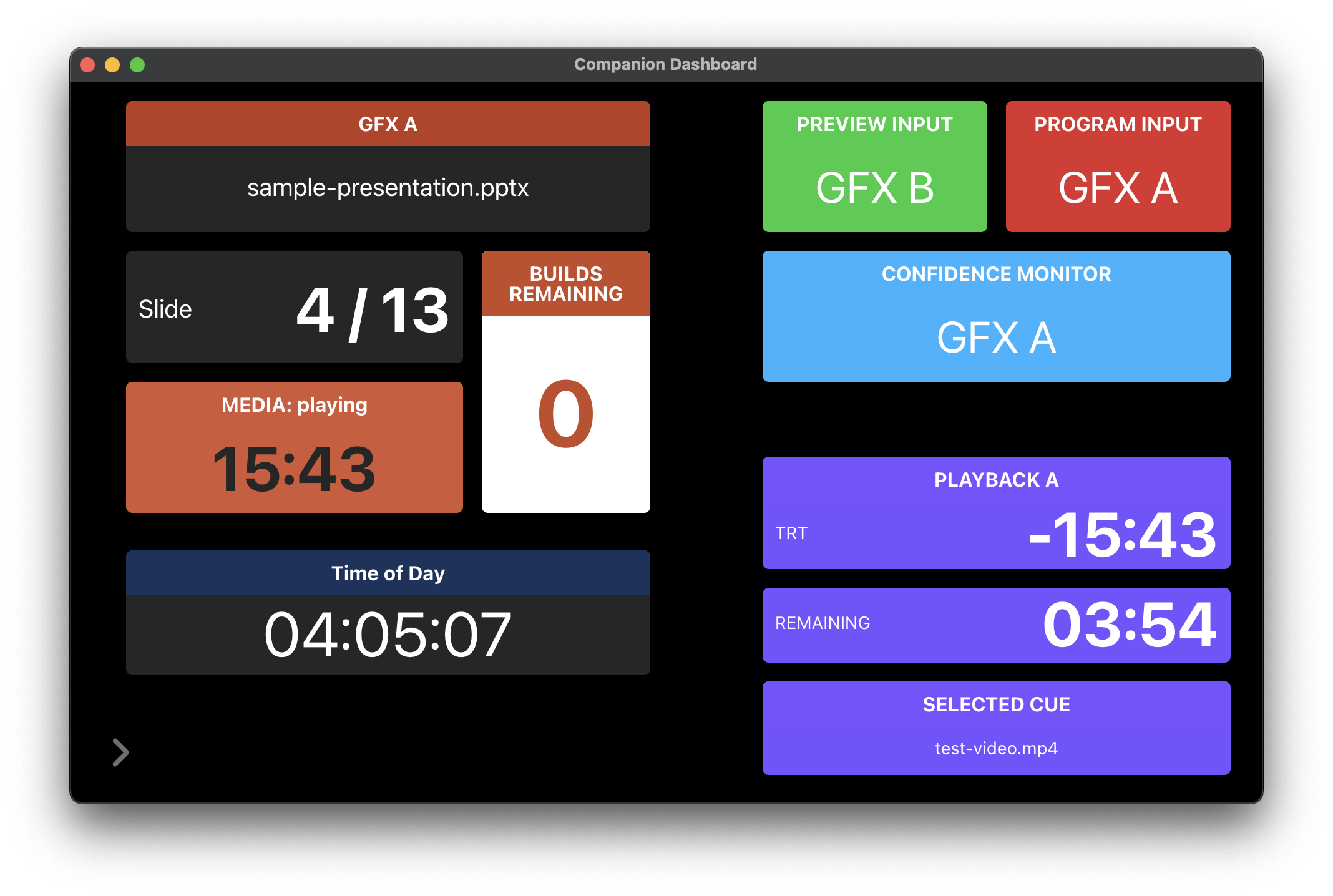
| The original inspiration, displaying variables for a live event environment with PowerPoint, video playback, and switching. |
 |
|---|
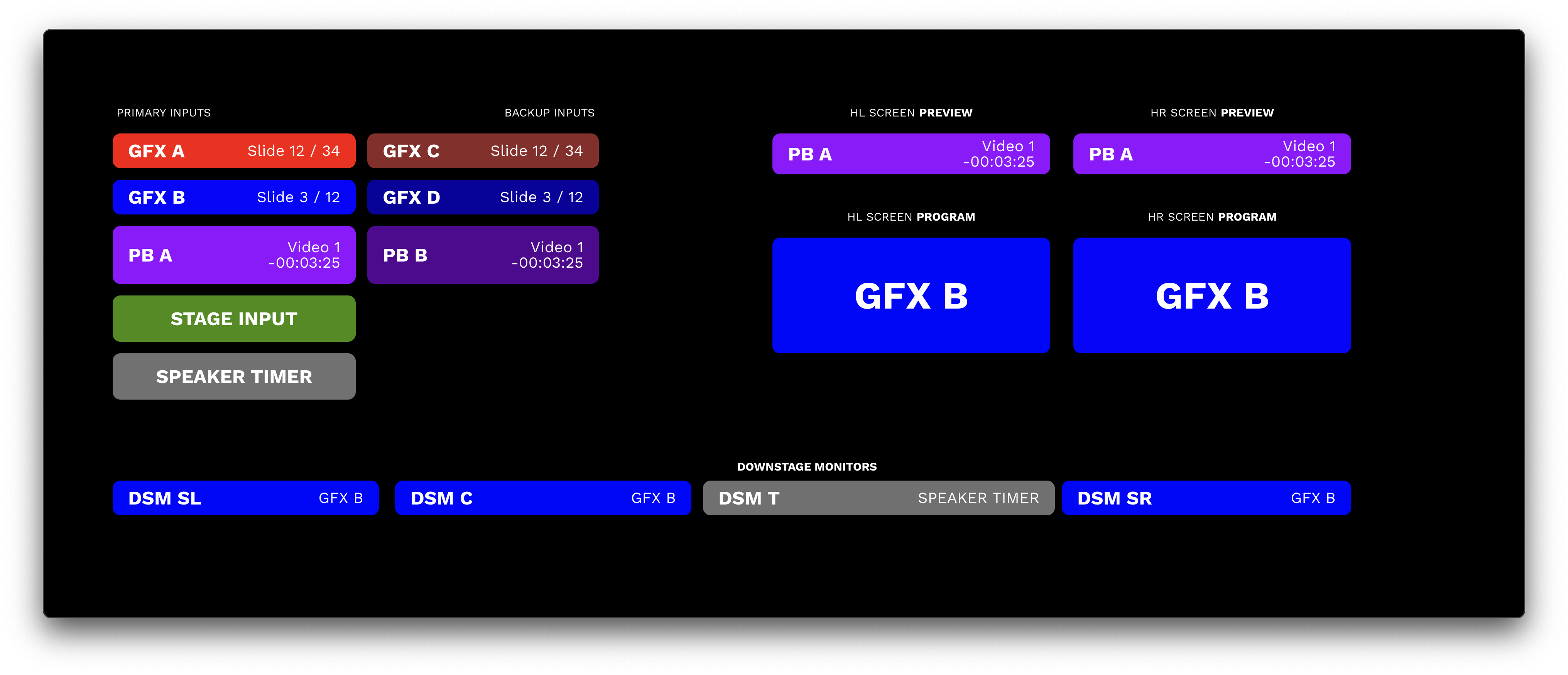
| An example of how a video switcher can use it to keep track of inputs and outputs. |
 |
|---|
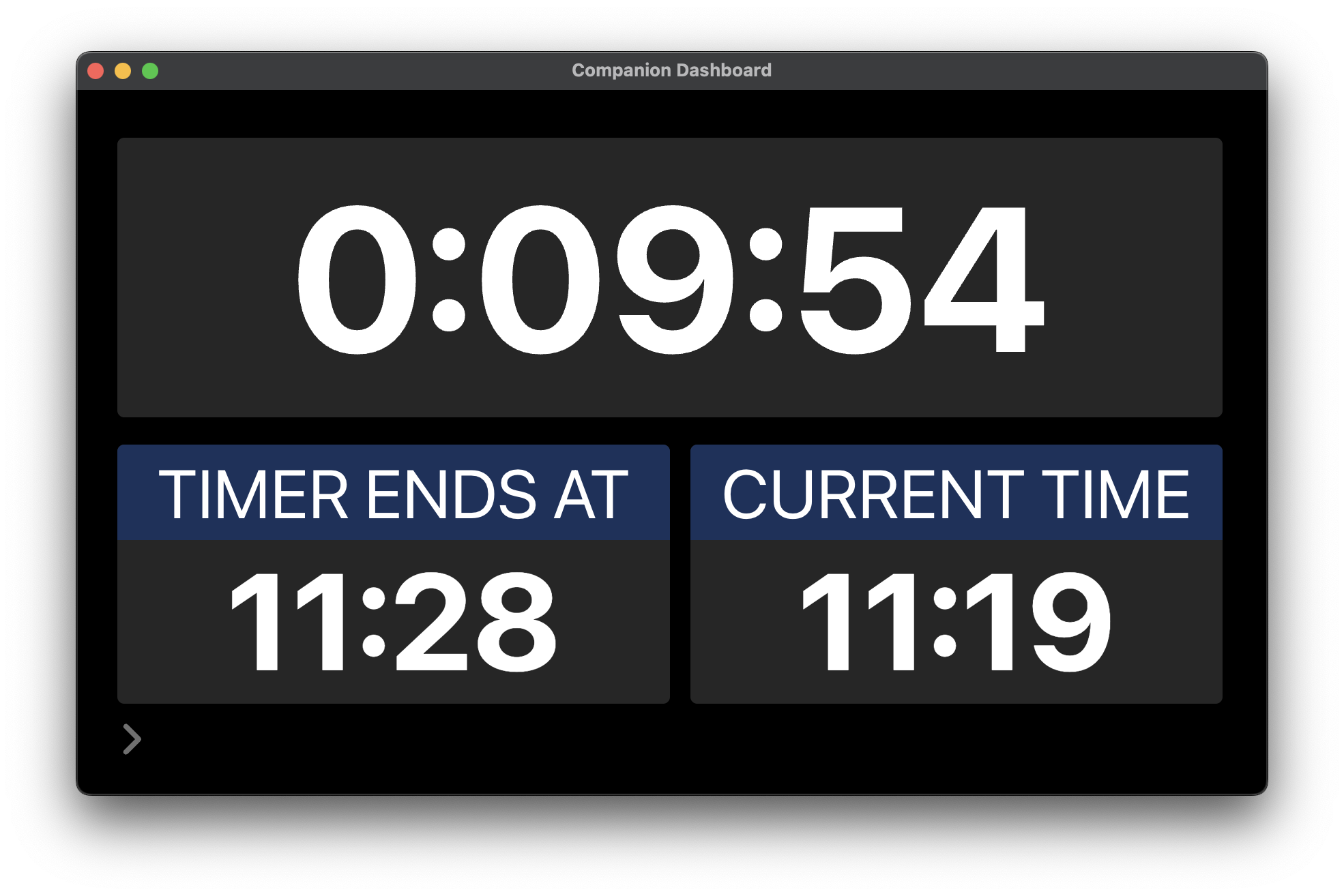
| Use Companion Dashboard to create a custom speaker timer. |
| Check out this demo here. |
 |
|---|
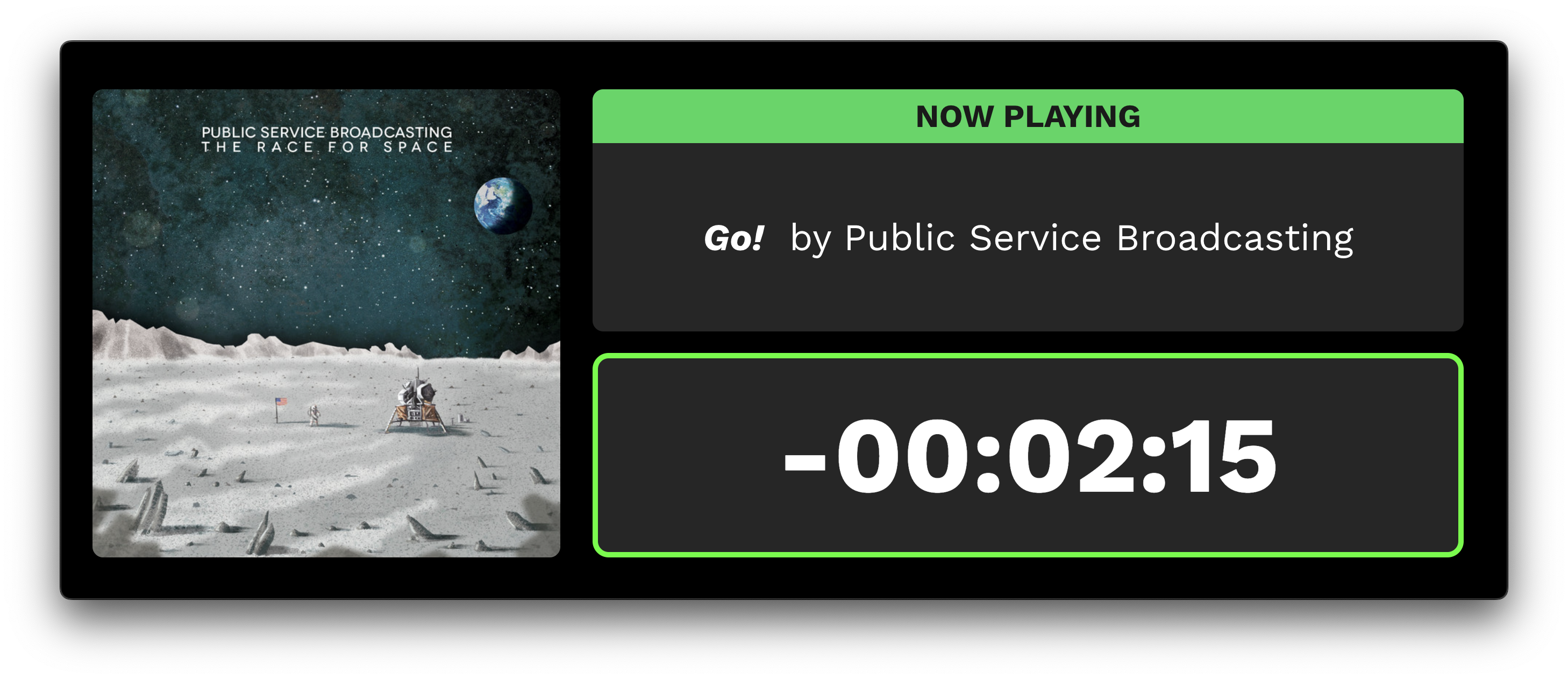
| You can display information from apps like Spotify, complete with album art. |
| See how this layout goes together here. |
 |
|---|
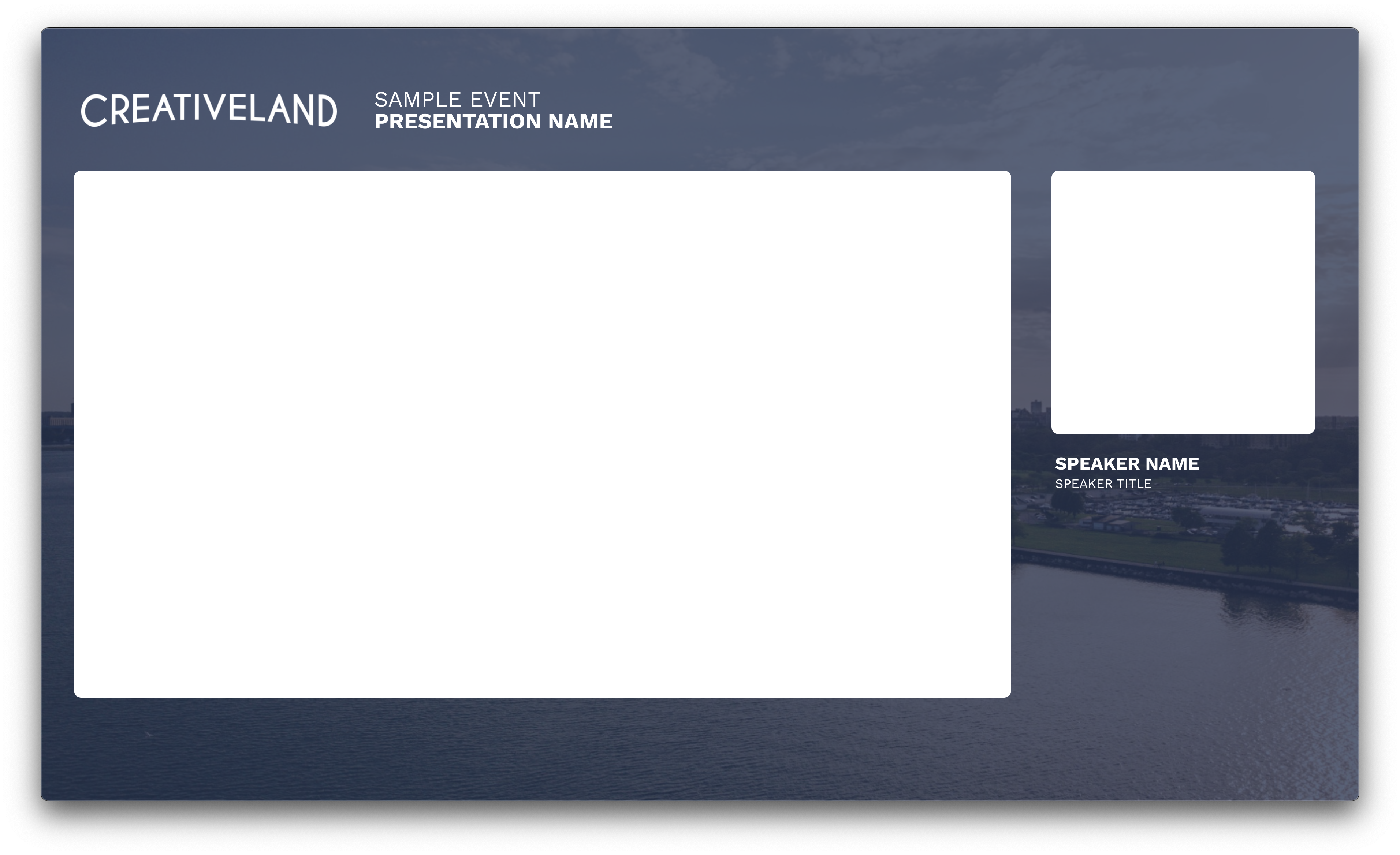
| An out-of-the-box example of how flexible this application can be. This creates a background for a two-box look with dynamic fields for presentation and speaker names. |
| See how this layout goes together here. |
 |
|---|
| Yamaha Audio Consoles |
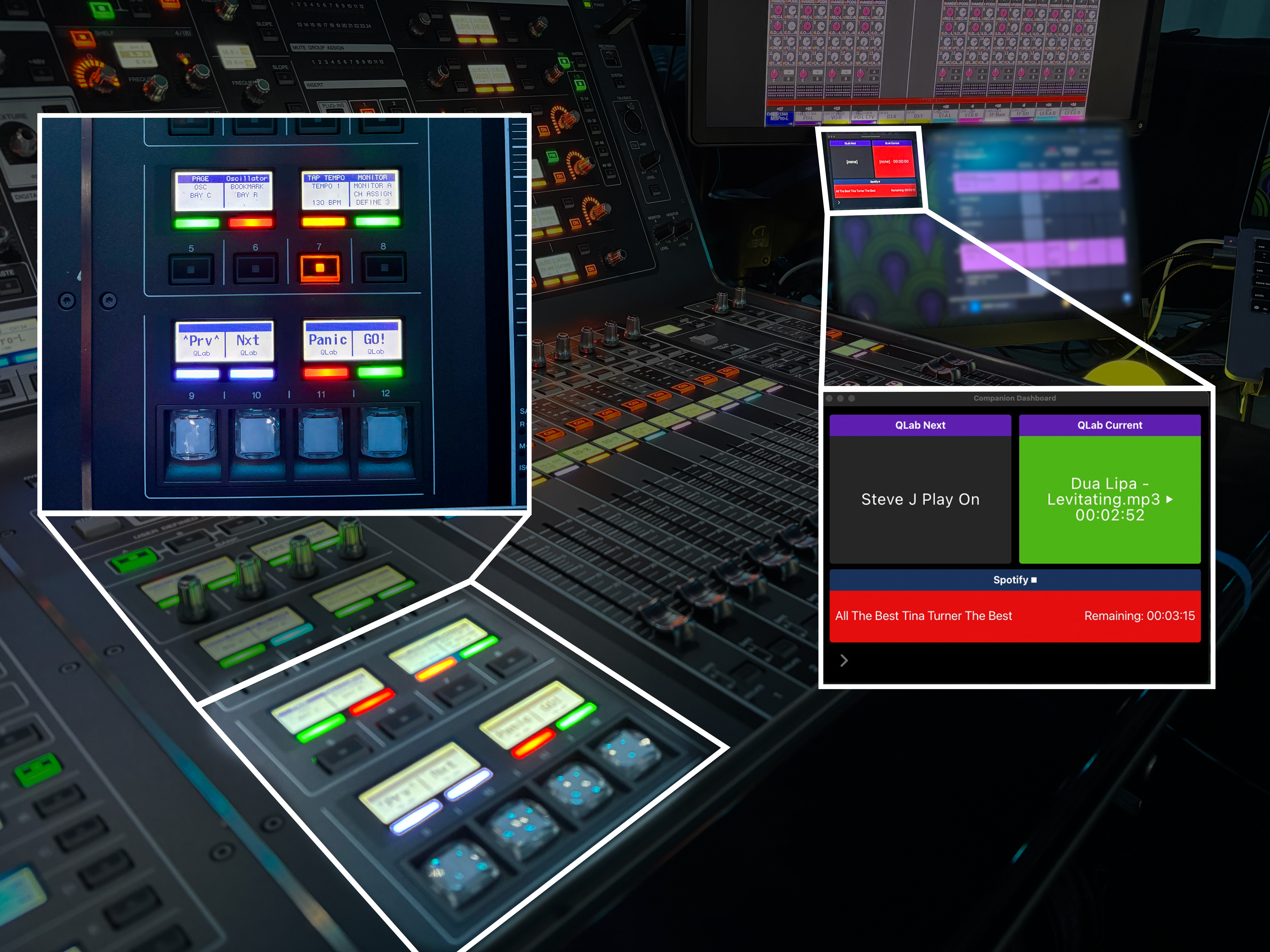
| Use control keys and MIDI to control Companion directly from the console, and use Dashboard to monitor variables and feedback colors. |
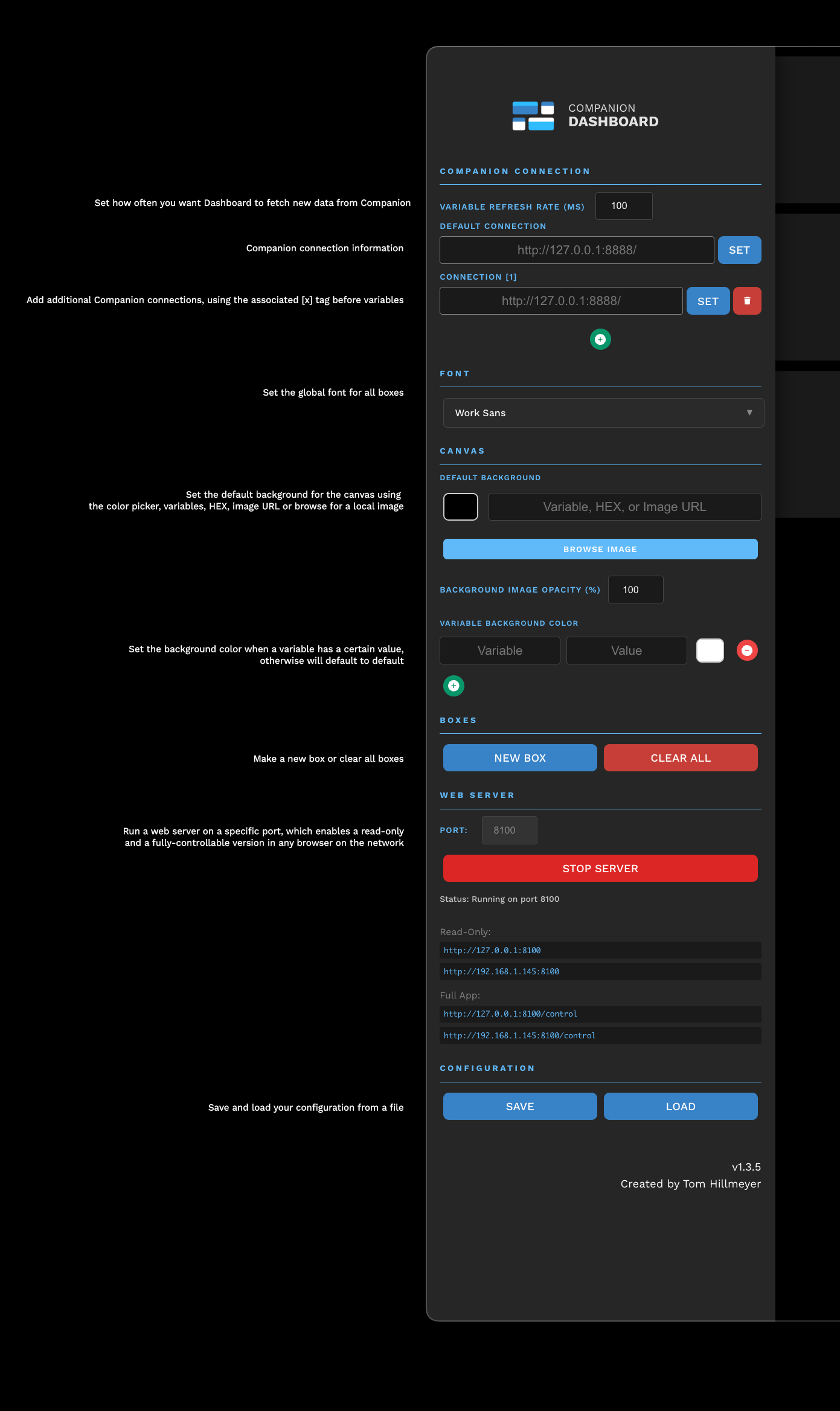
- The settings pane opens from the left side of the screen. Open it with the arrow / carrot in the bottom left of the viewport, or by swiping from the left on touch screen devices
- Input the address:port of your Companion instance and click "Set" The outline around the address will turn green if it's connected to Companion.
- Use the green "+" button to add more Companion connections
- The canvas settings let you set a background color for the dashboard.
- Click "New Box" to add a new box to the canvas. "Clear All Boxes" clears all of the boxes off of the canvas.
- The web server lets you start the output of your Dashboard to a network location.
- "Save" and "Load" allow you to download box details, layout, and Companion connection into a file to be restored from later. Loading a configuration replaces whatever configuration is in place.
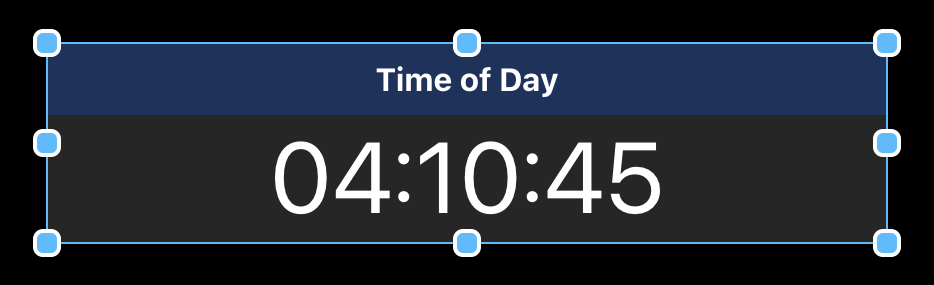
- Clicking a box once selects it and allows you to resize and move it on the canvas.
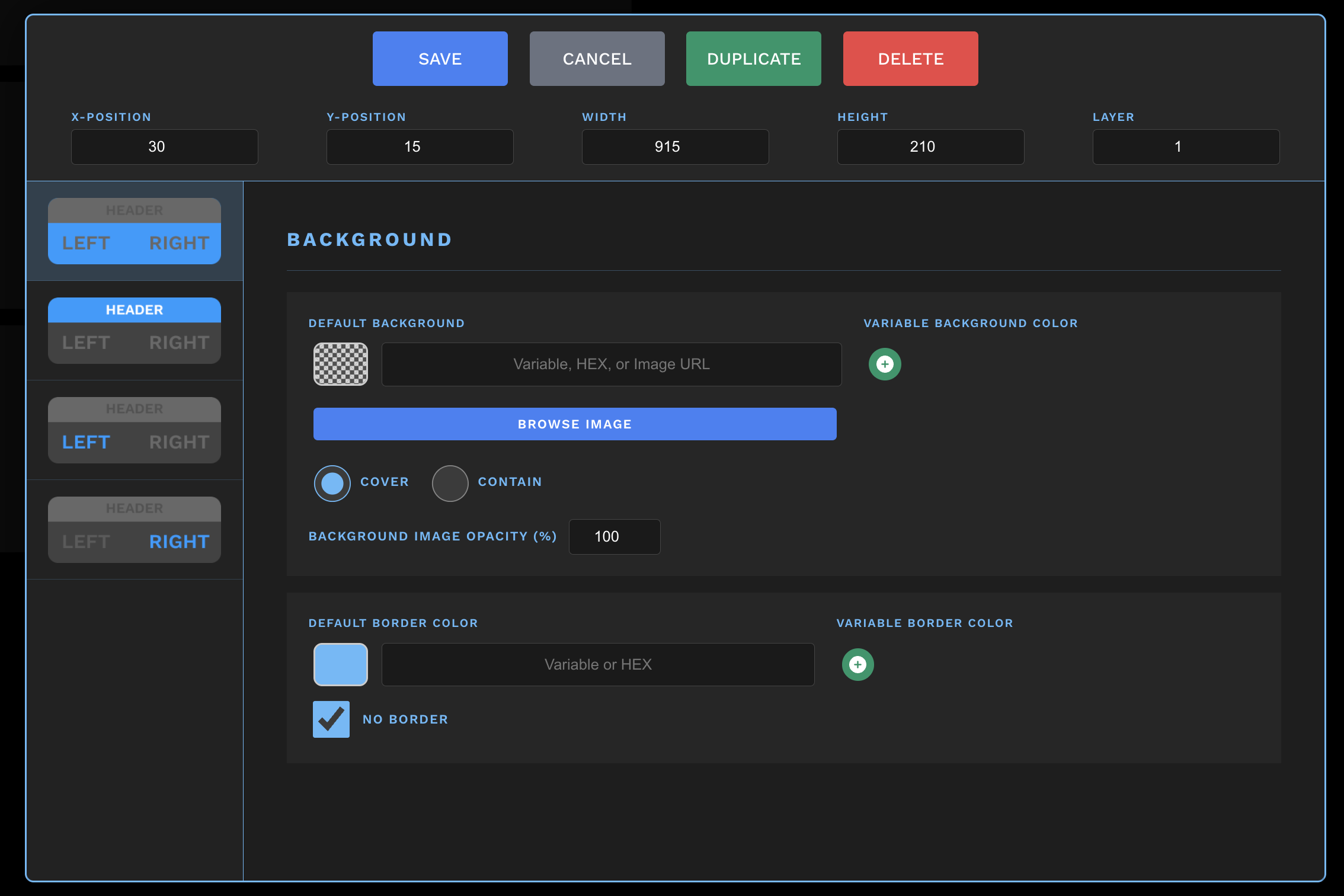
- Double clicking a box launches the settings window for that box.
- Including a variable in the standard Companion notation of
$(connection:variable)will automatically replace that variable with its value on your dashboard. - The variable by itself will use the default Companion connection. If you add
[X]immediately before the variable, it'll use that connection. For example,[1]$(connection:variable)will pull that variable from the [1] connection rather than the default connection.
All color pickers in Companion Dashboard have three options, in this order of priority:
- Variable color
- Default Variable or HEX color
- Default color picker
Clicking the green plus icon creates a new variable color. You input the Companion Variable, the value you want to look for, and then pick the color you want to apply when that variable has that value.
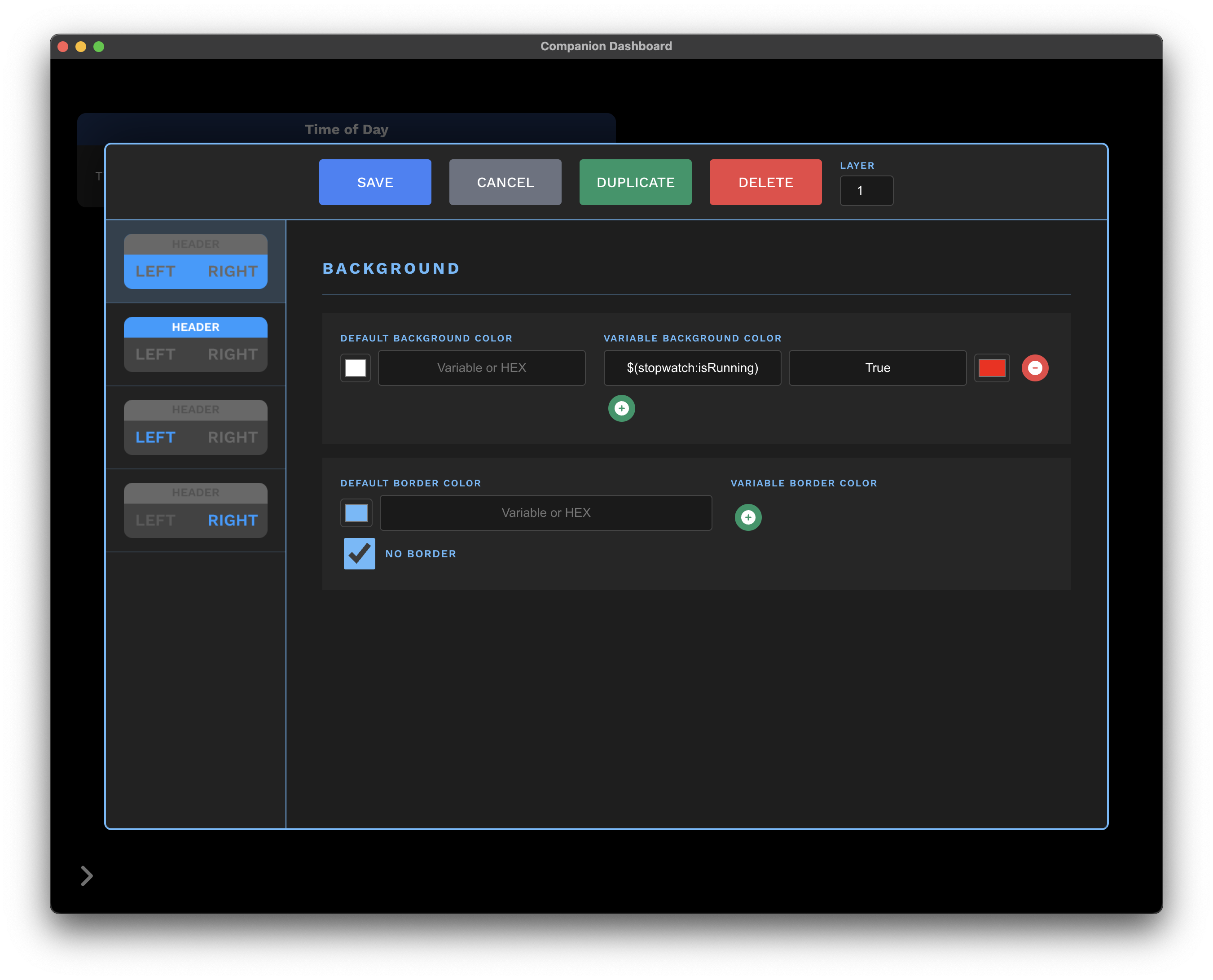
Dashboard prioritizes the variable colors from the top down. If all variable colors are false, it will check for a default variable or HEX color from that text field. If that text field is empty, it will use the default color picker value.
All text fields support HTML tags and the following markdown syntax.
- Bold
<b>Text</b>**Text**__Text__
- Italics
<i>Text</i>*Text*_Text_
- New Line
\n<br>
- Image
!(Sample Image)[https://website.com/image.png]- Image with this tag will fill the height of the box and automatically determine width
<img src="https://website.com/image.png" width="100px" height="100px" />
- Links
(Link Text)[https://website.com]
- Video / iFrame
<iframe src="https://website.com" width="100px" height="100px" />
- Text fields automatically concatenate, so you can include multiple variables and strings
- Option + click a box and it will duplicate
- Command/control + n will make a new box
- Command/control + , is a shortcut to open/close the settings menu
- Select a box and hit "backspace" or "delete" to delete
- Swipe left on touch screens to open the Settings menu
- Use
 in some circumstances where a white space isn't recognized
This is a dashboard application that leverages the fact that Companion translates connections into a uniform variable format. The intention is to avoid re-creating features of Companion, such as logic/triggers and third-party connections. Some logic will be included for ease of use, such as variable colors, but for the most part if it can be accomplished in Companion then it does not need to be accomplished here, at least in this iteration of Dashboard.
This project isn't directly affiliated with Bitfocus or Companion, but is obviously the backbone for this application. A huge thanks to the folks contributing to that project, especially @krocheck.