Setting up a new developer machine can be an ad-hoc, manual, and time-consuming process. dev-setup aims to simplify the process with easy-to-understand instructions and dotfiles/scripts to automate the setup of the following:
- OS X updates and Xcode Command Line Tools
- OS X defaults geared towards developers
- Developer tools: Vim, bash, tab completion, curl, git, GNU core utils, Python, Ruby, etc
- Developer apps: iTerm2, Sublime Text, Atom, VirtualBox, Vagrant, Docker, Chrome, etc
- Python data analysis: IPython Notebook, NumPy, Pandas, Scikit-Learn, Matplotlib, etc
dev-setup is geared to be more of an organized reference of various developer tools.
You're not meant to install everything.
If you're interested in automation, dev-setup provides a customizable setup script. There's really no one-size-fits-all solution for developers so you're encouraged to make tweaks to suit your needs.
Credits: This repo builds on the awesome work from Mathias Bynens and Nicolas Hery.
This repo takes a more light-weight approach to automation using a combination of Homebrew, Homebrew Cask, and shell scripts to do basic system setup. It also provides easy-to understand instructions for installation, configuration, and usage for each developer app or tool.
- Section 1 contains the dotfiles/scripts and instructions to set up your system.
- Sections 2 through 7 detail more information about installation, configuration, and usage for topics in Section 1.
Scripts tested on OS X 10.10 Yosemite and 10.11 El Capitan.
- Single Setup Script
- bootstrap.sh script
- Syncs dev-setup to your local home directory
~
- Syncs dev-setup to your local home directory
- osxprep.sh script
- Updates OS X and installs Xcode command line tools
- brew.sh script
- Installs common Homebrew formulae and apps
- osx.sh script
- Sets up OS X defaults geared towards developers
- pydata.sh script
- Sets up python for data analysis
- Sublime Text
- Atom
- Terminal Customization
- iTerm2
- Vim
- Git
- VirtualBox
- Vagrant
- Docker
- Homebrew
- Ruby and rbenv
- Python
- Pip
- Virtualenv
- Virtualenvwrapper
$ git clone https://github.com/donnemartin/dev-setup.git && cd dev-setup
Since you probably don't want to install every section, the .dots script supports command line arguments to run only specified sections. Simply pass in the scripts that you want to install. Below are some examples.
For more customization, you can clone or fork the repo and tweak the .dots script and its associated components to suit your needs.
Run all:
$ ./.dots all
Run bootstrap.sh, osxprep.sh, brew.sh, and osx.sh:
$ ./.dots bootstrap osxprep brew osx
Run bootstrap.sh, osxprep.sh, brew.sh, and osx.sh, pydata.sh, aws.sh, and datastores.sh:
$ ./.dots bootstrap osxprep brew osx pydata
$ curl -O https://raw.githubusercontent.com/donnemartin/dev-setup/master/.dots && ./.dots [Add ARGS Here]
- .dots
- Runs specified scripts
- bootstrap.sh
- Syncs dev-setup to your local home directory
~
- Syncs dev-setup to your local home directory
- osxprep.sh
- Updates OS X and installs Xcode command line tools
- brew.sh
- Installs common Homebrew formulae and apps
- osx.sh
- Sets up OS X defaults geared towards developers
- pydata.sh
- Sets up python for data analysis
Notes:
.dotswill initially prompt you to enter your password..dotsmight ask you to re-enter your password at certain stages of the installation.- If OS X updates require a restart, simply run
.dotsagain to resume where you left off. - When installing the Xcode command line tools, a dialog box will confirm installation.
- Once Xcode is installed, follow the instructions on the terminal to continue.
.dotsrunsbrew.sh, which takes awhile to complete as some formulae need to be installed from source.- When
.dotscompletes, be sure to restart your computer for all updates to take effect.
I encourage you to read through Section 1 so you have a better idea of what each installation script does. The following discussions describe in greater detail what is executed when running the .dots script.
The bootstrap.sh script will sync the dev-setup repo to your local home directory. This will include customizations for Vim, bash, curl, git, tab completion, aliases, a number of utility functions, etc. Section 2 of this repo describes some of the customizations.
First, fork or clone the repo. The bootstrap.sh script will pull in the latest version and copy the files to your home folder ~:
$ source bootstrap.sh
To update later on, just run that command again.
Alternatively, to update while avoiding the confirmation prompt:
$ set -- -f; source bootstrap.sh
To sync dev-setup to your local home directory without Git, run the following:
$ cd ~; curl -#L https://github.com/donnemartin/dev-setup/tarball/master | tar -xzv --strip-components 1 --exclude={README.md,bootstrap.sh,LICENSE}
To update later on, just run that command again.
If ~/.path exists, it will be sourced along with the other files before any feature testing (such as detecting which version of ls is being used takes place.
Here’s an example ~/.path file that adds /usr/local/bin to the $PATH:
export PATH="/usr/local/bin:$PATH"If ~/.extra exists, it will be sourced along with the other files. You can use this to add a few custom commands without the need to fork this entire repository, or to add commands you don’t want to commit to a public repository.
My ~/.extra looks something like this:
# Git credentials
GIT_AUTHOR_NAME="Donne Martin"
GIT_COMMITTER_NAME="$GIT_AUTHOR_NAME"
git config --global user.name "$GIT_AUTHOR_NAME"
GIT_AUTHOR_EMAIL="donne.martin@gmail.com"
GIT_COMMITTER_EMAIL="$GIT_AUTHOR_EMAIL"
git config --global user.email "$GIT_AUTHOR_EMAIL"

# Pip should only run if there is a virtualenv currently activated
export PIP_REQUIRE_VIRTUALENV=true

# Install or upgrade a global package
# Usage: gpip install –upgrade pip setuptools virtualenv
gpip(){
   PIP_REQUIRE_VIRTUALENV="" pip "$@"
}
You could also use ~/.extra to override settings, functions, and aliases from the dev-setup repository, although it’s probably better to fork the dev-setup repository.
Run the osxprep.sh script:
$ ./osxprep.sh
osxprep.sh will first install all updates. If a restart is required, simply run the script again. Once all updates are installed, osxprep.sh will then Install Xcode Command Line Tools.
If you want to go the manual route, you can also install all updates by running "App Store", selecting the "Updates" icon, then updating both the OS and installed apps.
An important dependency before many tools such as Homebrew can work is the Command Line Tools for Xcode. These include compilers like gcc that will allow you to build from source.
If you are running OS X 10.9 Mavericks or later, then you can install the Xcode Command Line Tools directly from the command line with:
$ xcode-select --install
Note: the osxprep.sh script executes this command.
Running the command above will display a dialog where you can either:
- Install Xcode and the command line tools
- Install the command line tools only
- Cancel the install
If you're running 10.8 or older, you'll need to go to http://developer.apple.com/downloads, and sign in with your Apple ID (the same one you use for iTunes and app purchases). Unfortunately, you're greeted by a rather annoying questionnaire. All questions are required, so feel free to answer at random.
Once you reach the downloads page, search for "command line tools", and download the latest Command Line Tools (OS X Mountain Lion) for Xcode. Open the .dmg file once it's done downloading, and double-click on the .mpkg installer to launch the installation. When it's done, you can unmount the disk in Finder.
When setting up a new Mac, you may want to install Homebrew, a package manager that simplifies installing and updating applications or libraries.
Some of the apps installed by the brew.sh script include: Chrome, Firefox, Sublime Text, Atom, Dropbox, Evernote, Skype, Slack, Alfred, VirtualBox, Vagrant, Docker, etc. For a full listing of installed formulae and apps, refer to the commented brew.sh source file directly and tweak it to suit your needs.
Run the brew.sh script:
$ ./brew.sh
The brew.sh script takes awhile to complete, as some formulae need to be installed from source.
For your terminal customization to take full effect, quit and re-start the terminal

When setting up a new Mac, you may want to set OS X defaults geared towards developers. The osx.sh script also configures common third-party apps such Sublime Text and Chrome.
Note: I strongly encourage you read through the commented osx.sh source file and tweak any settings based on your personal preferences. The script defaults are intended for you to customize. For example, if you are not running an SSD you might want to change some of the settings listed in the SSD section.
Run the osx.sh script:
$ ./osx.sh
For your terminal customization to take full effect, quit and re-start the terminal.

To set up a development environment to work with Python and data analysis without relying on the more heavyweight Anaconda distribution, run the pydata.sh script:
$ ./pydata.sh
This will install Virtualenv and Virtualenvwrapper. It will then set up two virtual environments loaded with the packages you will need to work with data in Python 2 and Python 3.
To switch to the Python 2 virtual environment, run the following Virtualenvwrapper command:
$ workon py2-data
To switch to the Python 3 virtual environment, run the following Virtualenvwrapper command:
$ workon py3-data
Then start working with the installed packages, for example:
$ ipython notebook
Since we spend so much time in the terminal, we should try to make it a more pleasant and colorful place.
The bootstrap.sh script and osx.sh script contain terminal customizations.
I prefer iTerm2 over the stock Terminal, as it has some additional great features. Download and install iTerm2 (the newest version, even if it says "beta release").
In Finder, drag and drop the iTerm Application file into the Applications folder.
You can now launch iTerm, through the Launchpad for instance.
Let's just quickly change some preferences. In iTerm > Preferences..., in the tab Profiles, create a new one with the "+" icon, and rename it to your first name for example. Then, select Other Actions... > Set as Default. Under the section Window, change the size to something better, like Columns: 125 and Rows: 35. I also like to set General > Working Directory > Reuse previous session's directory. Finally, I change the way the option key works so that I can quickly jump between words as described here.
When done, hit the red "X" in the upper left (saving is automatic in OS X preference panes). Close the window and open a new one to see the size change.
Since we spend so much time in the terminal, we should try to make it a more pleasant and colorful place. What follows might seem like a lot of work, but trust me, it'll make the development experience so much better.
Now let's add some color. I'm a big fan of the Solarized color scheme. It is supposed to be scientifically optimal for the eyes. I just find it pretty.
- In iTerm2 Preferences, under Profiles and Colors, go to Load Presets... and select Solarized Dark to activate it. Voila!
At this point you can also change your computer's name, which shows up in this terminal prompt. If you want to do so, go to System Preferences > Sharing. For example, I changed mine from "Donne's MacBook Pro" to just "MacBook Pro", so it shows up as MacBook-Pro in the terminal.
Now we have a terminal we can work with!
Although Sublime Text will be our main editor, it is a good idea to learn some very basic usage of Vim. It is a very popular text editor inside the terminal, and is usually pre-installed on any Unix system.
For example, when you run a Git commit, it will open Vim to allow you to type the commit message.
I suggest you read a tutorial on Vim. Grasping the concept of the two "modes" of the editor, Insert (by pressing i) and Normal (by pressing Esc to exit Insert mode), will be the part that feels most unnatural. After that it's just remembering a few important keys.
The bootstrap.sh script contains Vim customizations.

Docker automates the deployment of applications inside software containers. I think the following quote explains docker nicely: "Docker is a tool that can package an application and its dependencies in a virtual container that can run on any Linux server. This helps enable flexibility and portability on where the application can run, whether on premise, public cloud, private cloud, bare metal, etc".
The brew.sh script installs Docker.
If you prefer to install it separately, you can download it here or run:
$ brew update
$ brew install docker
$ brew install boot2docker
Initialize and start boot2docker (only need to do this once):
$ boot2docker init
Start the VM:
$ boot2docker up
Set the DOCKER_HOST environment variable and fill in IP and PORT based on the output from the boot2coker up command:
$ export DOCKER_HOST=tcp://IP:PORT

What's a developer without Git?
Git should have been installed when you ran through the Install Xcode Command Line Tools section.
To check your version of Git, run the following command:
$ git --version
And $ which git should output /usr/local/bin/git.
Let's set up some basic configuration. Download the .gitconfig file to your home directory:
$ cd ~
$ curl -O https://raw.githubusercontent.com/donnemartin/dev-setup/master/.gitconfig
It will add some color to the status, branch, and diff Git commands, as well as a couple aliases. Feel free to take a look at the contents of the file, and add to it to your liking.
Next, we'll define your Git user (should be the same name and email you use for GitHub and Heroku):
$ git config --global user.name "Your Name Here"
$ git config --global user.email "your_email@youremail.com"
They will get added to your .gitconfig file.
To push code to your GitHub repositories, we're going to use the recommended HTTPS method (versus SSH). So you don't have to type your username and password everytime, let's enable Git password caching as described here:
$ git config --global credential.helper osxkeychain
Note: On a Mac, it is important to remember to add .DS_Store (a hidden OS X system file that's put in folders) to your .gitignore files. You can take a look at this repository's .gitignore file for inspiration. Also check out GitHub's collection of .gitignore templates.
Package managers make it so much easier to install and update applications (for Operating Systems) or libraries (for programming languages). The most popular one for OS X is Homebrew.
The brew.sh script installs Homebrew and a number of useful Homebrew formulae and apps.
If you prefer to install it separately, run the following command and follow the steps on the screen:
$ ruby -e "$(curl -fsSL https://raw.githubusercontent.com/Homebrew/install/master/install)"
To install a package (or Formula in Homebrew vocabulary) simply type:
$ brew install <formula>
To update Homebrew's directory of formulae, run:
$ brew update
Note: I've seen that command fail sometimes because of a bug. If that ever happens, run the following (when you have Git installed):
$ cd /usr/local
$ git fetch origin
$ git reset --hard origin/master
To see if any of your packages need to be updated:
$ brew outdated
To update a package:
$ brew upgrade <formula>
Homebrew keeps older versions of packages installed, in case you want to roll back. That rarely is necessary, so you can do some cleanup to get rid of those old versions:
$ brew cleanup
To see what you have installed (with their version numbers):
$ brew list --versions
OS X, like Linux, ships with Python already installed. But you don't want to mess with the system Python (some system tools rely on it, etc.), so we'll install our own version with Homebrew. It will also allow us to get the very latest version of Python 2.7 and Python 3.
The brew.sh script installs the latest versions of Python 2 and Python 3.
Pip is the Python package manager.
The pydata.sh script installs pip.
Here are a couple Pip commands to get you started. To install a Python package:
$ pip install <package>
To upgrade a package:
$ pip install --upgrade <package>
To see what's installed:
$ pip freeze
To uninstall a package:
$ pip uninstall <package>
Virtualenvwrapper is a set of extensions that includes wrappers for creating and deleting virtual environments and otherwise managing your development workflow, making it easier to work on more than one project at a time without introducing conflicts in their dependencies.
Main features include:
- Organizes all of your virtual environments in one place.
- Wrappers for managing your virtual environments (create, delete, copy).
- Use a single command to switch between environments.
- Tab completion for commands that take a virtual environment as argument.
The pydata.sh script installs Virtualenvwrapper.
Create a new virtual environment. When you create a new environment it automatically becomes the active environment:
$ mkvirtualenv [env name]
Remove an existing virtual environment. The environment must be deactivated (see below) before it can be removed:
$ rmvirtualenv [env name]
Activate a virtual environment. Will also list all existing virtual environments if no argument is passed:
$ workon [env name]
Deactivate the currently active virtual environment. Note that workonwill automatically deactivate the current environment before activating a new one:
$ deactivate

Anaconda is a free distribution of the Python programming language for large-scale data processing, predictive analytics, and scientific computing that aims to simplify package management and deployment.
The pydata.sh script installs packages you need to run Python data applications. Alternatively, you can install the more heavy-weight Anaconda instead.
Follow instructions to install Anaconda or the more lightweight miniconda.
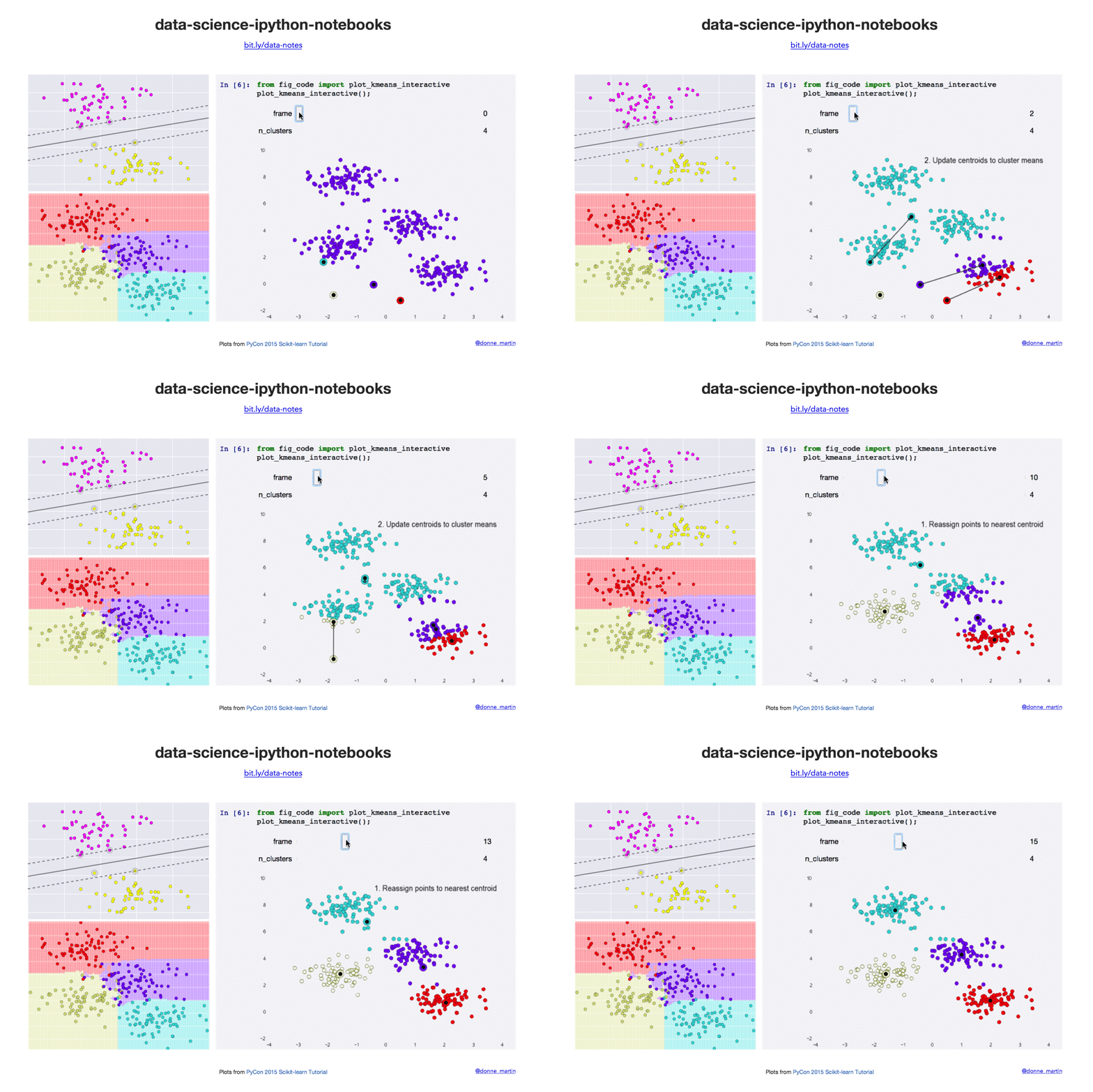
IPython is an awesome project which provides a much better Python shell than the one you get from running $ python in the command-line. It has many cool functions (running Unix commands from the Python shell, easy copy & paste, creating Matplotlib charts in-line, etc.) and I'll let you refer to the documentation to discover them.
IPython Notebook is a web-based interactive computational environment where you can combine code execution, text, mathematics, plots and rich media into a single document.
The pydata.sh script installs IPython Notebook. If you prefer to install it separately, run:
$ pip install "ipython[notebook]"
If you run into an issue about pyzmq, refer to the following Stack Overflow post and run:
$ pip uninstall ipython
$ pip install "ipython[all]"
$ ipython notebook
If you'd like to see some examples here are a couple of my repos that use IPython Notebooks heavily:
NumPy adds Python support for large, multi-dimensional arrays and matrices, along with a large library of high-level mathematical functions to operate on these arrays.
The pydata.sh script installs NumPy. If you prefer to install it separately, run:
$ pip install numpy
Refer to the following Numpy IPython Notebook.
Pandas is a software library written for data manipulation and analysis in Python. Offers data structures and operations for manipulating numerical tables and time series.
The pydata.sh script installs Pandas. If you prefer to install it separately, run:
$ pip install pandas
Refer to the following pandas IPython Notebooks.

Matplotlib is a Python 2D plotting library which produces publication quality figures in a variety of hardcopy formats and interactive environments across platforms.
The pydata.sh script installs matplotlib. If you prefer to install it separately, run:
$ pip install matplotlib
Refer to the following matplotlib IPython Notebooks.
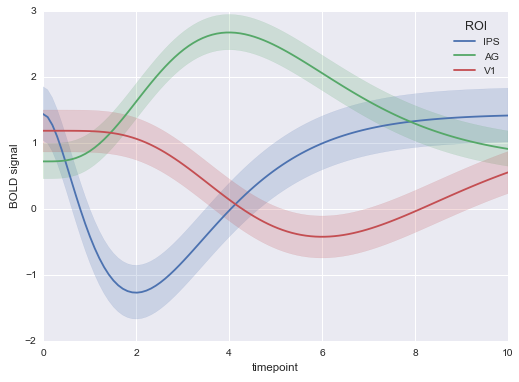
Seaborn is a Python visualization library based on matplotlib. It provides a high-level interface for drawing attractive statistical graphics.
The pydata.sh script installs matplotlib. If you prefer to install it separately, run:
$ pip install seaborn
Refer to the following matplotlib with Seaborn IPython Notebooks.

Scikit-learn adds Python support for large, multi-dimensional arrays and matrices, along with a large library of high-level mathematical functions to operate on these arrays.
The pydata.sh script installs Scikit-learn. If you prefer to install it separately, run:
$ pip install scikit-learn
Refer to the following scikit-learn IPython Notebooks.

SciPy is a collection of mathematical algorithms and convenience functions built on the Numpy extension of Python. It adds significant power to the interactive Python session by providing the user with high-level commands and classes for manipulating and visualizing data.
The pydata.sh script installs SciPy. If you prefer to install it separately, run:
$ pip install scipy
Refer to the following SciPy IPython Notebooks.