






iCloud3 is a device tracker custom component that tracks your iPhones, iPads and Apple Watches. Devices in the Family Sharing List and the HA Mobile App Integration are trackable. The device requests location data from from Apple's iCloud Location Services and monitors various Mobile App sensors and triggers to determine the device's battery level, location, distance, travel time and arrival to Home.
There are 4 major parts to the iCloud3 custom component that are used to configure, track and report device location information. They are:
- iCloud3 Device Tracker - This monitors the device's location, determines when the device should be located next and updates all the sensors.
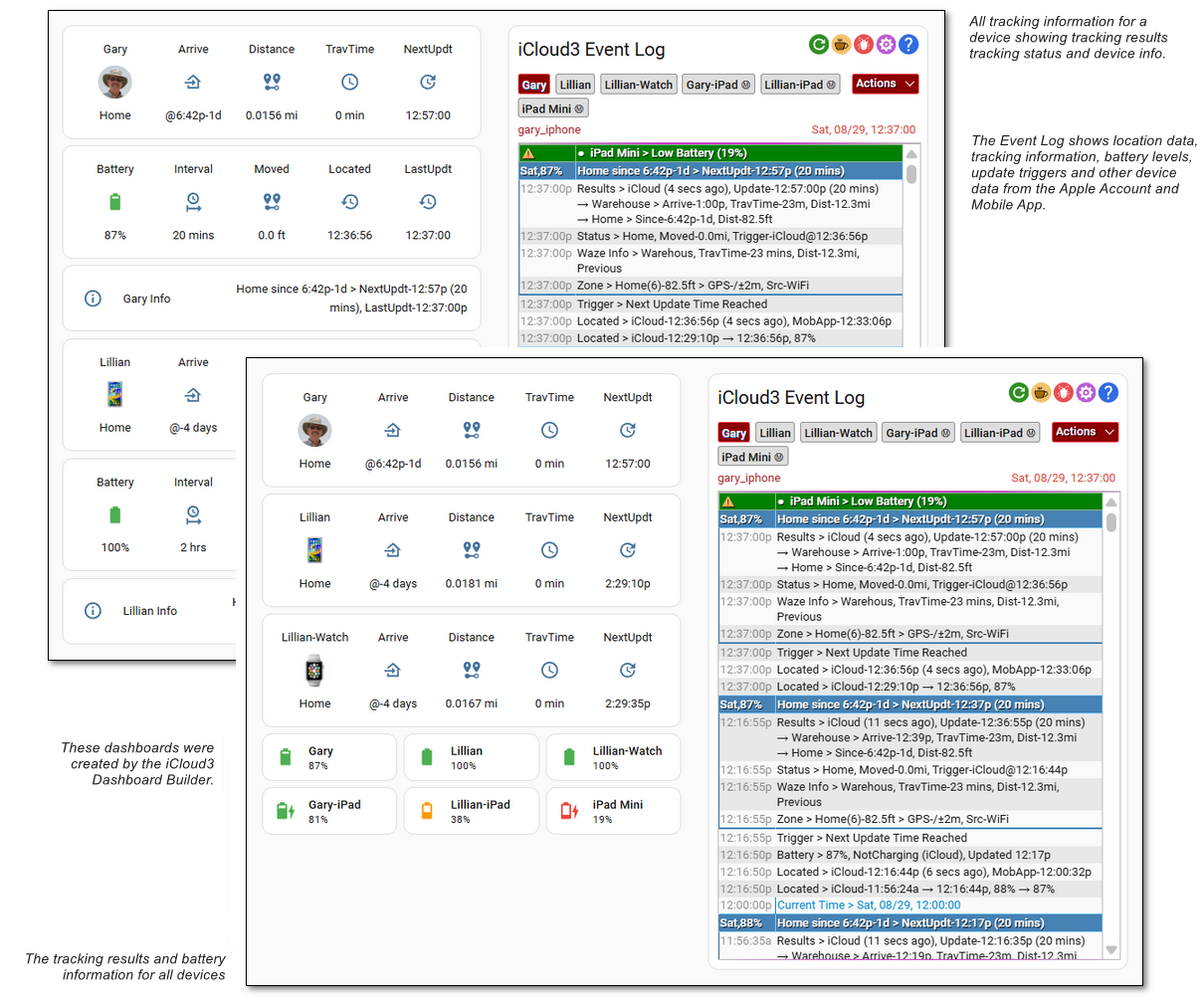
- Event Log - Shows a devices location, how the location changes are handled, the results of location updates, errors, and startup information.
- Configure Settings - Set up all the iCloud3 tracked devices, Apple Accounts, iCloud3 Dashboards, sensors and other parameters.
- Dashboard Builder - Create iCloud3 dashboards with tracking results, battery information and the Event Log in several formats. The dashboards can then be customized with the Home Assistant Dashboard Editor and the various items and views can be copied and pasted into other dashboards. The Dashboard Builder is one of the Configure Settings screens.
- Introduces the many features and components of iCloud3
- Highlights the configuration screens and parameters
- Provides example screens, automations and scripts
- The User Guide is quite extensive and can be found here
This Beta/Prelease version can be installed from HACS after it has been set up as a Custom Repository. Follow the instructions below:
- Open HACS
- Select the 3-dots in the upper-right corner, then select Custom Repositories.
- Enter the following values in the fields displayed:
- Repository:
gcobb321/icloud3_v3 - Category:
Integration
- Repository:
- Select Add
- Search for and select the iCloud3 Apple Device Tracker - Beta/Prerelease Version item on the main HACS screen.
- Select +Download and follow the normal steps for installing an integration using HACS.
iCloud3 is available on HACS. Installation instructions are in the Users Guide here
The steps needed to get going have been automated to make it as simple as possible. You install the iC, Add Apple Account, Authenticate Apple Account Sign-in, Import Apple Devices, Build iCloud3 Dashboard, End Configure Sessions and start tracking your devices.
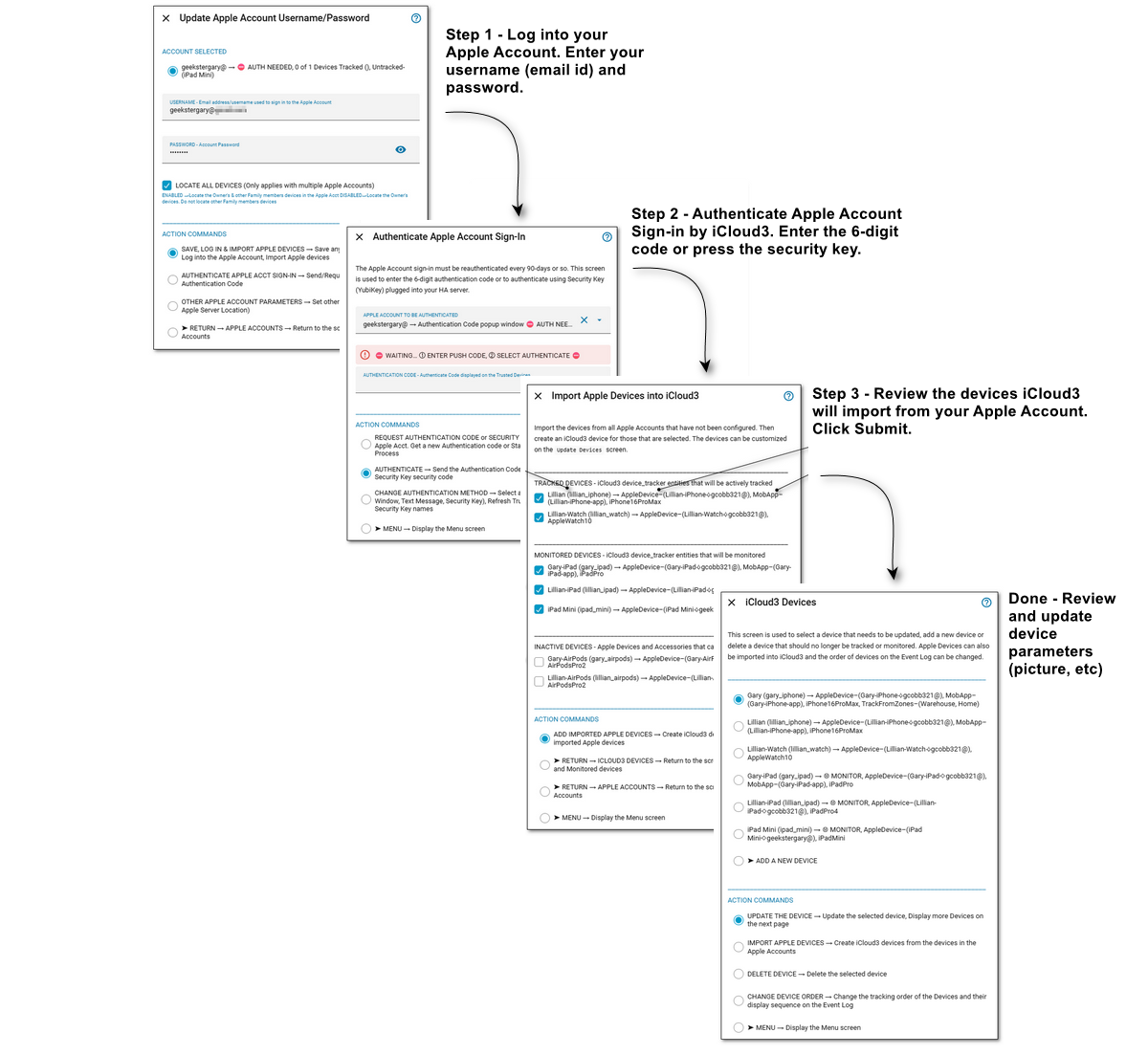
- Add the iCloud3 Integration on the HA Devices & services > +Add Integration, Select iCloud3 Apple Device Tracker
- Select the Configure Gear icon on the iCloud3 Integration screen.
- On the Update Apple Accounts screen, enter your username (email id) and password and log into your Apple Account. A sign-in notification is displayed on your trusted device.
- On the Authenticate Apple Account Sign-in screen, follow the instructions to enter the 6-digit authentication code or start the security key authentication process.
- On the Import Apple Devices screen, the device information downloaded in step 3 is used to create iCloud3 devices.
- On iCloud3 Devices screen, review and update any device configuration information you want to change (Name, Picture, Mobile App assignment, etc.)
- Exit the iCloud3 Configure Session and the iCloud3 Dashboard is built with your devices. It is added to the HA Sidebar and displayed as a cloud (
 ).
). - Display the iCloud3 Dashboard. If all went well, you should see your devices and the Event Log.

Go here for a deep dive into this process in the iCloud3 documentation.
Although Home Assistant has it's own official iCloud component, iCloud3 goes far beyond it's capabilities. The following highlights the important features.
- HA Integration - iCloud3 is a Home Assistant custom integration that is set up and configured from the HA Settings > Devices & Services > Integrations screen.
- Configuration Settings - Configuration parameters are updated online using various screens and take effect immediately without restarting HA.
- Updating and Restarting - iCloud3 can be restarted without restarting Home Assistant.
- Restore state values on restart - The current device_tracker and sensor entity states are restored on a restart. The attributes are not restored but are reset on the first tracking Event.
- Device_tracker and sensor entities - iCloud3 devices and sensors are Home Assistant entities that are added, deleted and changed on the Update iCloud3 Devices and Sensors configuration screens.
- Dashboard Builder - iCloud3 Dashboards in various formats are added to Home Assistant when the iCloud3 Integration is first installed.
- Track iPhones, iPads and Apple Watches - Track or monitor your iDevices.
- Location data sources - Location data comes from the iCloud Account and the HA Mobile App.
- Multiple Apple Accounts - Devices from several Apple Accounts can be tracked (yours, your spouse, children, friend, relative, etc.)
- Monitors Mobile App activity - Looks for location and trigger changes every 5-seconds.
- Improved GPS accuracy - GPS wandering errors leading to incorrect zone exits are eliminated.
- Actively track a device - The device will request it's location on a regular interval based on its distance from Home or another zone.
- Passively monitor a device - The device does not request it's location. It is updated when another tracked device requests theirs.
- Stationary Zone - A dynamic Stationary Zone is created when the device has not moved for a while (doctors office, store, friend's house). This helps conserve battery life.
- Zone monitoring - The number of devices in each zone is displayed when a device is updated.
- Zone Distance Sensor Attributes - Shows the distance to the center and edge of the Home zone, distance to other zones and distance to other devices.
- Track from multiple zones - Tracking results (location, travel time, distance, arrival time, etc.) are reported from the Home zone or another zone (office, second home, parents, etc.).
- Enter Zone delay - Delay processing Zone Enter triggers in case you are just driving through it.
- Zone Exits for devices not using the Mobile App - Devices that do not or can not (Apple Watch) use the Mobile App respond to a zone exit when it detects another nearby device has left a zone.
- Primary Home Zone - Set another zone as the primary zone for the device and report tracking results based on that location. This is useful when you have two homes, on a vacation at another location, triggering automations at your parents house with true devices, etc.
- Battery status - Updates the battery level and status (charging/not charging) from iCloud data during a tracking event and from the Mobile App every 5-seconds.
- Waze Route Service - The travel time and distance to Home or another tracked zone is provided by Waze.
- Waze Route Service History Database - The travel time and distance data from Waze is saved to a local database and reused when the device is in a previous location.
- Zone Activity Log - A log can be kept for each time you are in a zone. This log file (.csv format) can be imported into a spreadsheet program and used for expense reporting, travel history, device location monitoring, etc.
- Nearby devices - The distance to other devices is displayed and used to determine tracking results.
- Local Time Zone - Event times are normally displayed using the time zone your HA server is in. If, however, you are away from home and in another time zone can, the Event times can be displayed for the time zone you are in.
- Sensors and more sensors - Many sensors are created and updated with distance, travel time, polling data, battery status, zone attributes, etc. Select only the ones you want to use.
- Event Log - The current status and event history of every tracked and monitored device is displayed on the iCloud3 Event Log custom Lovelace card. Information about device configuration, errors and alerts, nearby devices, tracking results, debug information and location request results is displayed.
- Extensive Documentation - The iCloud3 User Guide explains the three main components, hot to get started, how to migrate from v2, how to install the integration, each of the screens and special features, the service calls that can request updates, locate iPhones and send notification alerts, examples of how to automate opening your garage door when you arrive home, etc.
- And More - Review the following documentation to see if it will help you track and monitor the locations of your iPhones, iPads and Apple Watches.
-
iCloud3 User Guide -The User Guide is quite extensive and can be found here
-
iCloud3 GitHub Repository - The primary GitHub Repository is here
-
iCloud3 Development GitHub Repository - The Development Repository is used for beta version changes that have not been released yet is here

*Gary Cobb, aka GeeksterGary