Simply, download the repository https://dieepak.github.io/php7.2-apache-mysql-mongo-redis/
Ensure the webserver config on .docker/config/apache-config is correct for your project. e.g. public/index.php on generic apps.
Note: you may place the files elsewhere in your project. Make sure you modify the locations for the php-fpm dockerfile, the php.ini overrides and apache config on .docker/config if you do so.
COMPOSE_APP_NAME=php-docker
COMPOSE_APP_WORKING_DIR=/var/www/html
MYSQL_ROOT_PASSWORD=root
MYSQL_DATABASE=demo
MYSQL_USER=demo
MYSQL_PASSWORD=demo
ENV APACHE_RUN_USER www-data
ENV APACHE_RUN_GROUP www-data
ENV APACHE_LOG_DIR /var/log/apache2
ENV APACHE_LOCK_DIR /var/lock/apache2
ENV APACHE_PID_FILE /var/run/apache2.pid
ENV APPLICATION_DOCUMENT_ROOT /var/www/html/public
Dependencies:
- Docker engine v1.13 or higher. Your OS provided package might be a little old, if you encounter problems, do upgrade. See https://docs.docker.com/engine/installation
- Docker compose v1.12 or higher. See docs.docker.com/compose/install
Once you're done, simply cd to your project and run docker-compose up -d. This will initialise and start all the containers, then leave them running in the background.
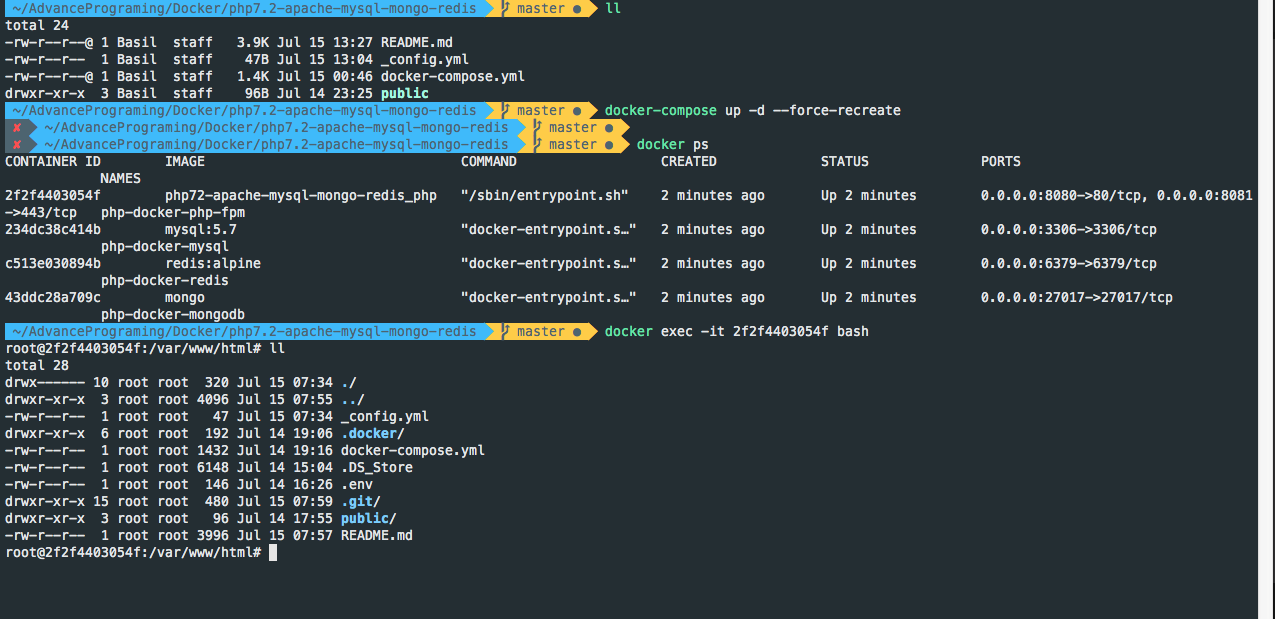
You can access your application via localhost, if you're running the containers directly, Change the hostname in case you want to add your own hostname on your /etc/hosts
| Service | Address outside containers |
|---|---|
| Webserver | localhost:8080 |
| MySQL | host: localhost; port: 3306 |
You'll need to configure your application to use any services you enabled:
| Service | Hostname | Port number |
|---|---|---|
| Mongo | mongo | 27017 (default) |
| MySQL | mysql | 3306 (default) |
| Redis | redis | 6379 (default) |
Note: you need to cd first to where your docker-compose.yml file lives.
- Start containers in the background:
docker-compose up -d - Start containers on the foreground:
docker-compose up. You will see a stream of logs for every container running. - Stop containers:
docker-compose stop - Kill containers:
docker-compose kill - View container logs:
docker-compose logs - Execute command inside of container:
docker-compose exec SERVICE_NAME COMMANDwhereCOMMANDis whatever you want to run. Examples: * Shell into the PHP container,docker-compose exec php-fpm bash* Run symfony console,docker-compose exec php-fpm bin/console* Open a mysql shell,docker-compose exec mysql mysql -uroot -pCHOSEN_ROOT_PASSWORD
It's hard to avoid file permission issues when fiddling about with containers due to the fact that, from your OS point of view, any files created within the container are owned by the process that runs the docker engine (this is usually root). Different OS will also have different problems, for instance you can run stuff in containers using docker exec -it -u $(id -u):$(id -g) CONTAINER_NAME COMMAND to force your current user ID into the process, but this will only work if your host OS is Linux, not mac. Follow a couple of simple rules and save yourself a world of hurt.
- Run composer outside of the php container, as doing so would install all your dependencies owned by
rootwithin your vendor folder. - Run commands (ie Symfony's console, or Laravel's artisan) straight inside of your container. You can easily open a shell as described above and do your thing from there.