

Real-time collaborative editing between VS Code and Neovim (or VS Code and VS Code) with no Microsoft account required. Uses direct TCP connections with AES-256-GCM end-to-end encryption — optionally exposed over the internet via SSH tunnels (localhost.run, serveo) or ngrok. Neovim interop via live-share.nvim.
| Host | Guest | Notes |
|---|---|---|
| VS Code / compatible editor | VS Code / compatible editor | Full support |
| VS Code / compatible editor | Neovim (live-share.nvim) | Full support |
| Neovim (live-share.nvim) | VS Code / compatible editor | Full support |
Gifs used with permission from azratul, maintainer of live-share.nvim.
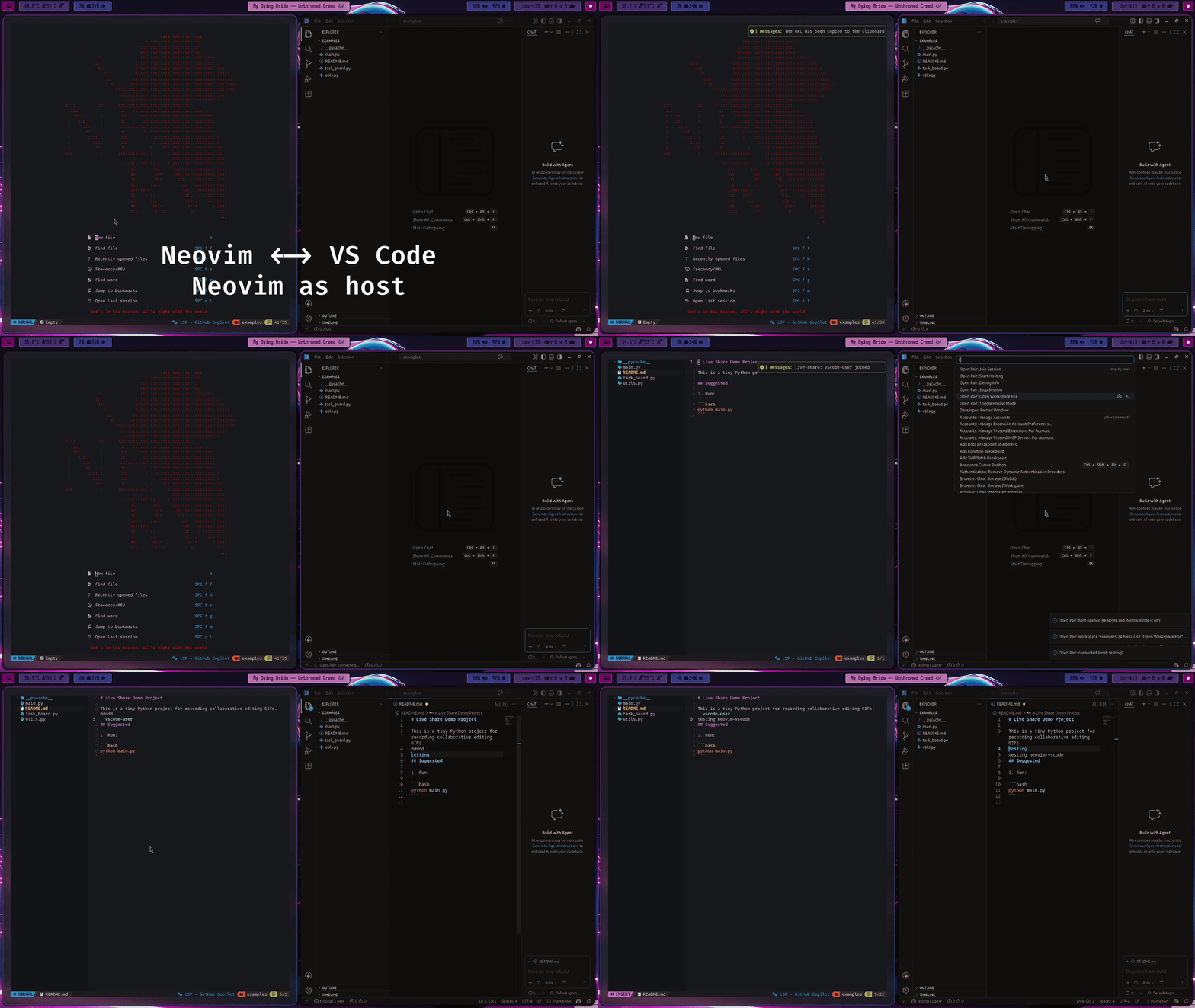
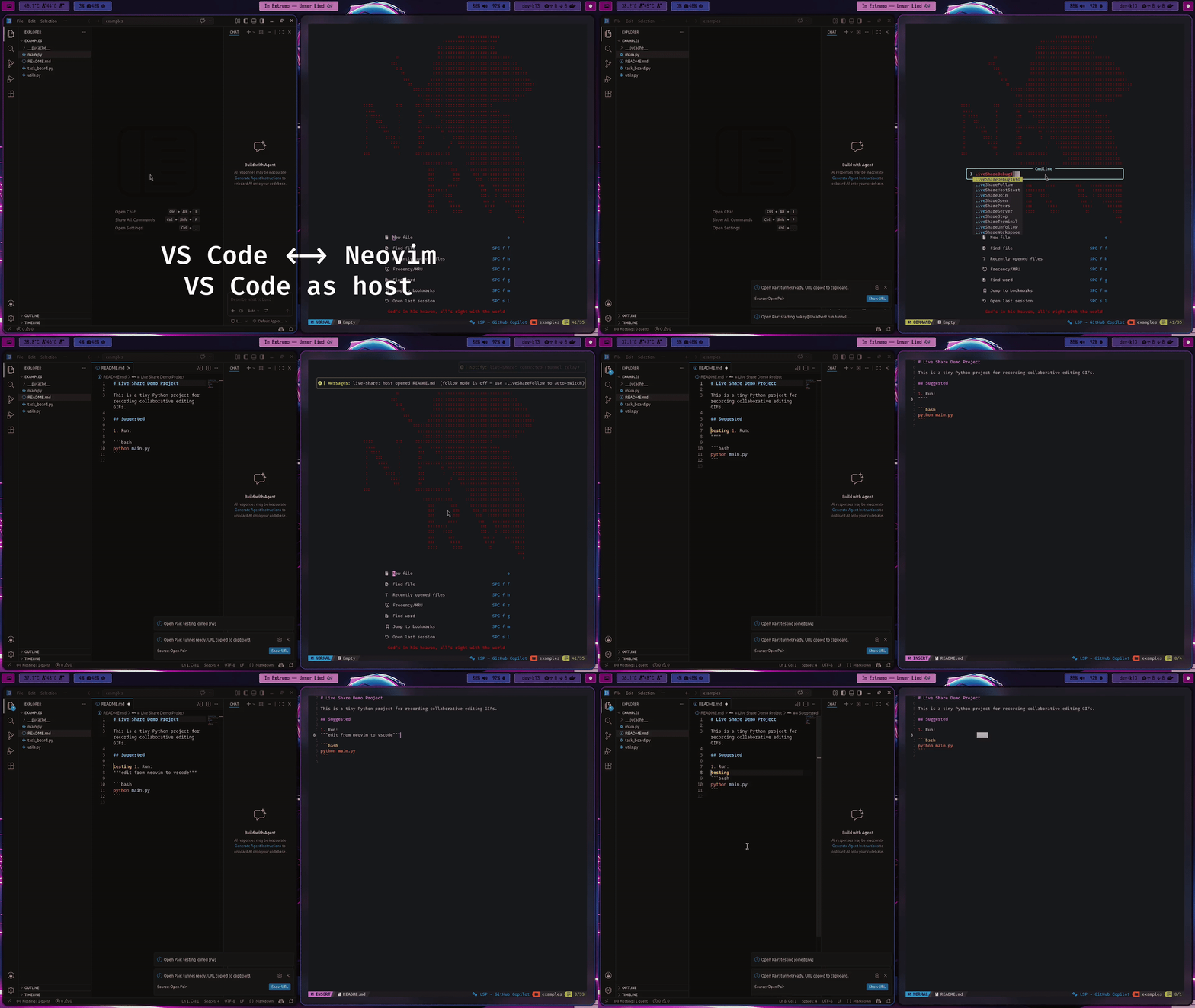
| Feature | Status |
|---|---|
| Guest mode (join a Neovim or VS Code host) | ✅ |
| Host mode (serve Neovim or VS Code guests) | ✅ |
| AES-256-GCM end-to-end encryption | ✅ |
| Remote cursors & selections | ✅ |
| Follow mode | ✅ |
| Shared terminal | WIP |
| Read-only guest role | ✅ |
Works in any VS Code-compatible editor:
- VS Code 1.85+
- VSCodium (open-source build without telemetry)
- Cursor
- Windsurf
- Google Antigravity
- A compatible editor (see above)
- To join a Neovim session: live-share.nvim running as host
- To use a tunnel:
sshin PATH (for localhost.run / serveo) orngrokCLI
Works when the host is either another VS Code instance or a Neovim session running live-share.nvim.
- Get the share URL from the host (e.g.
tcp://1.2.3.4:9876#key=...orhost.example.com:80#key=...) - Open the Command Palette (
Ctrl+Shift+P) and run Open Pair: Join Session - Paste the URL and enter your display name
- Use Open Pair: Open Workspace File to browse the remote file tree
- Use Open Pair: Toggle Follow Mode to follow a peer's cursor
- Use Open Pair: Show Peers to see who is connected
- Run Open Pair: Stop Session to disconnect
VS Code and Neovim guests can join the same session simultaneously.
- Open a folder or workspace in VS Code
- Run Open Pair: Start Hosting from the Command Palette
- Enter your display name and port (default: 9876)
- Choose a tunnel provider or None for local network only
- The share URL is automatically copied to your clipboard
- Share the URL — guests can join from VS Code or Neovim
- Approve or deny each incoming connection (read-write or read-only)
- Run Open Pair: Stop Session to end the session
| Format | Transport | When to use |
|---|---|---|
tcp://host:port#key=... |
Raw TCP | ngrok tcp:// or direct LAN |
host:port#key=... |
WebSocket | localhost.run, serveo, bore.pub |
https://host#key=... |
WebSocket | localhost.run HTTPS URLs |
| Provider | Command | Notes |
|---|---|---|
nokey@localhost.run |
ssh |
Recommended — no account needed |
localhost.run |
ssh |
Requires a localhost.run account |
serveo.net |
ssh |
Public SSH tunnel |
ngrok |
ngrok |
Requires ngrok CLI and auth token |
| None | — | Local network / VPN only |
With bore, share the port from the listening at bore.pub:<port> line — not 7835, which is bore's control port and never carries tunnel traffic.
| Setting | Default | Description |
|---|---|---|
openPair.connectTimeout |
15 |
Seconds to wait for the connection to the host to be established. Raise this on slow tunnels. |
openPair.approvalTimeout |
60 |
Seconds to wait for the host to accept the join request, once connected. |
- Neovim compatibility: requires live-share.nvim with protocol version 3+
- Single workspace folder: only the first workspace folder is shared when hosting
- No offline mode: an active network connection is required
- Tunnel reliability: third-party tunnels (serveo, localhost.run) may be unreliable or unavailable; for stable use prefer ngrok or a direct connection
"Could not establish a connection"
- Nothing completed a handshake at that address — usually the wrong host or port rather than a host that stopped sharing. Re-check the URL against what the host is actually sharing
- Check that the port is open in any firewall on the host machine
- If using a tunnel, wait a few seconds for it to establish before sharing the URL
"Connected, but the host never accepted"
- The address is reachable, so the host is running. They either declined the request or never saw the dialog — raise
openPair.approvalTimeoutif they need longer - Try a different tunnel provider — serveo and localhost.run can be flaky
"No encryption key found in URL"
- The
#key=...fragment must be present in the URL. Make sure it wasn't stripped by your messaging app (some apps remove URL fragments)
Files appear garbled (wrong encoding)
- This can happen with UTF-16 LE files on Windows. Update to v0.1.8+
Cursor of remote peer doesn't appear
- The remote file must be open in an editor tab (not just in the file tree)
Debug info
- Run Open Pair: Debug Info from the Command Palette to dump session state, transport mode, and peer list to an output channel
git clone https://github.com/darkerthanblack2000/open-pair
cd open-pair
npm install
npm run compile   # single build
npm run watch     # rebuild on save
npm run typecheck # type-check without building
npm run lint      # ESLint
npm run format    # Prettier
Press F5 in VS Code to launch the Extension Development Host.
See CONTRIBUTING.md for more details.
MIT — see LICENSE