
RemoteUpdate uses the Powershell Module PSWindowsUpdate to install Windows Updates on Remote Hosts without the need of scheduled jobs (like described here)
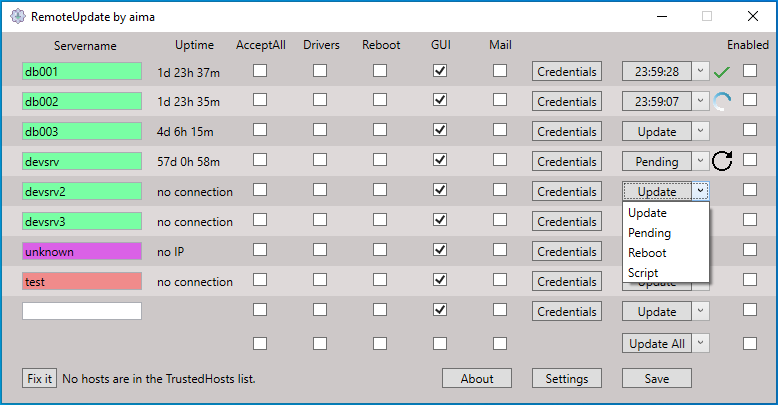
It is meant for small environments where no SCCM or other solutions are existent or bearable. As default it is not possible to install Updates via Remote Powershell, therefore the tool uses a little workaround with a Powershell VirtualAccount.
- Windows Server 2012 or newer
- Powershell 5
- .net Framework 4.7.2 on executing host
- ICMP Echo allowed on the remote hosts
- Default Firewall Rule "Windows Remote Management (HTTP-In)" enabled on the remote hosts
- Administrative credentials on the remote hosts
- Internet Access to download PSWindowsUpdate or PSWindowsUpdate already installed on the remote hosts
- Add the DNS Name of the server you want to update
- Choose between the options:
-
- Do you want to accept all available updates or choose by hand which one should be installed (-AcceptAll)
-
- Do You want driver updates installed/shown (-NotCategory Drivers)
-
- Do you want an automatic reboot after the installation (-AutoReboot)
-
- Do you want to see the Powershell GUI or just let it work in the background
-
- Do you want to get an email report (-SendReport –PSWUSettings)
- Set your credentials. If you are in a domain and your user has admin rights you don't need this.
- Save your settings for the next update (2 xml files will be created in the same directory, one for the servers and one for the general settings)
- Choose between the options:
-
- Update: Runs the update process. Does not reboot the servers unless Reboot (-AutoReboot) selected (And the updates require reboot as determined by -AutoReboot)
-
- Pending: Only checks if the server is pending a reboot. Displays the reboot icon if a reboot is pending.
-
- Reboot: Only instantly restarts the computer (Restart-Computer -Force)
-
- Script - Opens a window to let you manually run a script.
If you have a high amount of servers and want to start all at the same time, enable them with the last checkbox and press "Start All"
For each server you selected or clicked start a powershell window will open and ask you which updates should be installed or show you the progress of the installation directly (if you checked AcceptAll)
The project targets .NET Framework 4.7.2 and ships as a WPF desktop application. The recommended way to build the executable is on a Windows machine with Visual Studio 2019 (or newer) or the standalone Build Tools.
-
Install the .NET Framework 4.7.2 Developer Pack if it is not already present.
-
Install either Visual Studio with the “.NET desktop development” workload or the Build Tools for Visual Studio.
-
Clone this repository and open a Developer Command Prompt for Visual Studio.
-
Restore NuGet packages (only required once):
nuget restore RemoteUpdate.sln
-
Build the solution in the desired configuration (Debug shown below):
msbuild RemoteUpdate.sln /p:Configuration=Debug
For a release-ready executable, use
/p:Configuration=Release. -
The compiled application will be located at
RemoteUpdate\bin\<Configuration>\RemoteUpdate.exe.
You can also build directly inside Visual Studio by opening the solution
file (RemoteUpdate.sln) and selecting Build ▸ Build Solution.
There are currently no automated tests. The following manual smoke tests help verify that the reorder functionality works end-to-end:
- Launch the freshly built
RemoteUpdate.exe. - Add at least three servers (or sample hostnames) so multiple rows are visible.
- Use the ▲ and ▼ buttons to move servers up and down. Confirm that:
- The server names swap correctly.
- Checkbox states, combo-box selections, and status indicators travel with the server being moved.
- The highlighted row, if any, follows the server after reordering.
- Click Save and restart the application to ensure the new order is
persisted in
RemoteUpdateServer.xml.
- Are the credentials i saved safe? The credentials are encrypted with a SHA512 method. The EncryptionKey is your chosen password and the salt comes from the servername of each entry. Therefore it is not possible to determine if you use the same passwords on more servers. I hope it is good enough but can not guarantee anything.
- Can i use it in a productive environment? Please decide for yourself after you tested it in your lab
- What do the colors mean? Green = Host pingable; Red = Not pingable; Violet = No IP found for the DNS Record;
- Why won't it work with IPs? Cause in the default settings Remote Powershell won't accept IPs, therefore you would have to activate Remote Powershell via HTTPS (Port 5986 instead of Port 5985) and i would have to do some work for this, which i haven't till today.
- Do you want feedback or feature requests? I would highly appreciate it and i'm going to try my best to develop it further
- How can i contact you? via Mail