Control, inspect, test, and capture real terminal applications for agents and TUI review.


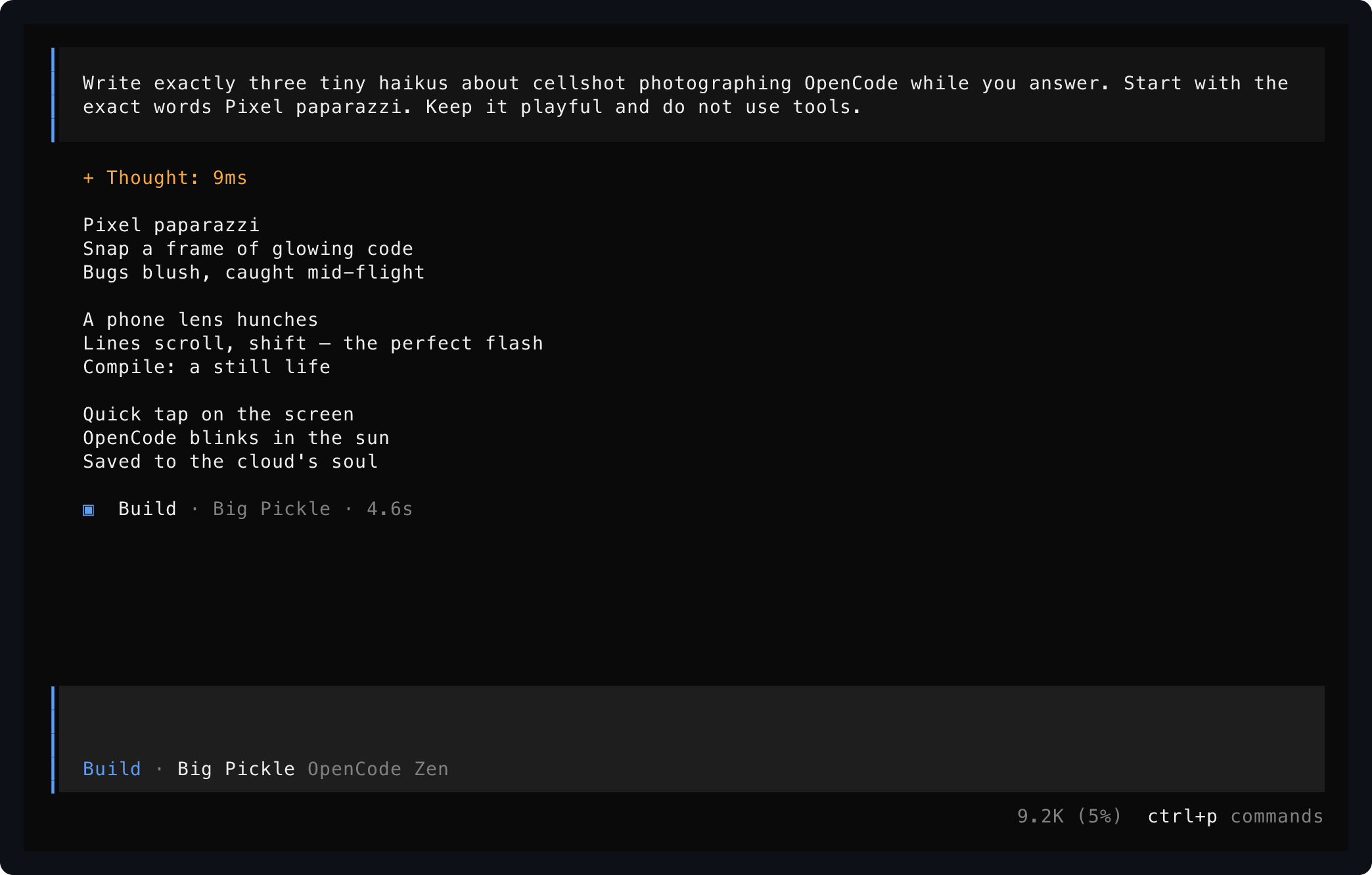
Saved from one live OpenCode session using start, send, and save.
Source builds require Rust 1.93 or newer, Zig 0.15.2, Git, and network access while the pinned
Ghostty terminal core is built. Video export also requires ffmpeg.
cargo install --locked terminal-control
termctrl --help
Or install the current repository head:
cargo install --locked --git https://github.com/anomalyco/terminal-control terminal-controlTerminal Control is built for agents first. Install the skill so your coding agent knows the workflow:
npx skills add anomalyco/terminal-control --skill terminal-controlOr expose sessions as structured MCP tools instead of shell commands (stdio server):
termctrl mcpMCP screen reads and interactions return the current frame immediately. Use waitFor on interact
when a specific transition must complete. save_screen writes a PNG of the composed workspace, one
named window, or one stable pane.
| MCP task | Tools |
|---|---|
| Discover | list_sessions, get_session_status, get_workspace_context, list_windows, list_panes |
| Observe and drive | get_screen, save_screen, send_input, interact, resize_session |
| Arrange | create_workspace_window, select_workspace_window, rename_workspace_window, move_workspace_window, set_workspace_tab_position, set_workspace_layout |
| Control panes | focus_workspace_pane, move_workspace_pane, resize_workspace_pane, toggle_workspace_zoom |
| End processes | close_workspace_pane, close_workspace_window, stop_session |
Then ask for terminal work in ordinary language:
Use terminal-control to open my TUI, press through the setup flow, and save a screenshot of the final screen.
Record yourself using the terminal app, mark the important moments, and export a short MP4 demo.
The skill teaches the safe workflow: start named sessions, wait for visible text, send exact input, inspect screens, save artifacts, record timelines, and stop sessions when finished.
show runs a program in a PTY and prints its settled visible screen to stdout. No files are created.
Named-session reads such as termctrl show app are immediate by default; omit --settle-ms and
--deadline-ms unless intentional nonzero settling is required.
termctrl show --cols 100 --rows 32 -- my-terminal-appWait for the app to mount and interact before reading:
termctrl show --cols 100 --rows 32 --wait-for "Commands" \
  -s ctrl-p text:model enter -- my-terminal-app
Other stdout representations are explicit:
termctrl show --format json -- my-terminal-app
termctrl show --format svg -- my-terminal-appsave writes only the artifact formats you request:
termctrl save --format png --out captures/home.png -- my-terminal-app
termctrl save --format png --format txt --out captures/model -- my-terminal-app
The second command writes captures/model.png and captures/model.txt. Raw ANSI artifacts can contain sensitive terminal data and require explicit --format ansi.
Use a named session when several interactions target the same running application:
termctrl start demo --host opentui --cols 112 --rows 34 -- my-terminal-app
termctrl wait demo "Ready"
termctrl send demo text:help enter
termctrl show demo
termctrl show demo --format semantic
termctrl save demo --format png --out captures/help.png
termctrl stop demosendacceptstext:<value>, named keys (enter,escape, arrows,tab,shift-tab,backspace,delete,home,end,page-up,page-down), andctrl-athroughctrl-z. Pipe exact bytes with--stdin.waitblocks until text is visible; use it instead of sleeping. It defaults to a five-second maximum, so omit--timeout 5000and override only when choosing a different limit.statusreports running/exited state, command, cwd, viewport, and recording path.listshows running sessions;list --allalso shows retained exited sessions and stale sockets.prune --dry-runpreviews retained exited sessions and stale sockets;pruneremoves them without deleting recording artifacts.show --format semanticreads optional structured UI semantics provided by the application.resize demo --cols 132 --rows 38tests responsive layouts.restart demorelaunches with the stored command, cwd, viewport, and recording settings.- An exited session keeps its final screen for
showuntil stopped.
OpenTUI applications such as OpenCode need the opt-in host handshake:
termctrl start demo --host opentui --cols 112 --rows 34 -- opencode
termctrl wait demo "/connect"
For normal-screen tools and log-like processes, read retained scrollback with logs:
termctrl logs demo
termctrl logs demo --ansi > captures/demo-output.ansi
Full-screen alternate-screen TUIs do not produce useful logs; read their visible screen with show.
Terminal Control gives applications launched with --host opentui a private
TERMCTRL_SEMANTIC_SOCKET. Applications may connect to it and provide structured UI semantics
without changing terminal output:
termctrl start demo --host opentui -- my-tui
termctrl show demo --format semantic
Applications that do not implement the protocol continue to work normally; semantic output is an empty snapshot. OpenTUI applications can install the adapter package and pass their live renderer:
bun add @kitlangton/terminal-control-opentuiimport { provideTerminalControl } from "@kitlangton/terminal-control-opentui"
const semanticProvider = provideTerminalControl(renderer, {
application: { name: "my-tui", version: "1.0.0" },
})
renderer.once("destroy", () => semanticProvider.close())See docs/semantic-protocol.md for the versioned handshake, snapshot messages, limits, timeout behavior, and output contract.
run creates a persistent workspace when its name is absent and attaches the current terminal. Running the same name later reattaches to the existing panes. attach is the strict attach-only form:
termctrl run
termctrl run -- nvim
termctrl run workspace --tab-position top
termctrl run editor --cwd ~/src/project -- nvim
termctrl run editor
termctrl attach editor
The workspace daemon owns named windows and their panes independently from any terminal. Every workspace starts with a main window. Closing an attached terminal detaches without killing anything; ctrl-b Q followed by y, termctrl stop NAME, or closing the final window ends the workspace. One human terminal may be attached at a time, while agent controls remain available whether attached or detached. A new attachment adopts its terminal size and theme and performs a full repaint.
The persistent tab strip shows the selected window, pane count, zoom, and unread activity: +
output, ! bell, and x a pane exit while its window remains. It defaults to the bottom; use
run NAME --tab-position top at creation or tab-position NAME top|bottom at runtime. Click a tab
to select it or drag it to reorder. Human shortcuts use the ctrl-b prefix:
Shortcut after ctrl-b |
Action |
|---|---|
p |
Open the command palette |
c, w |
Create a window; list windows |
n, l, 0-9 |
Select next, last, or indexed window |
<, >, t |
Reorder the window; move the tab strip |
%, " |
Split left/right or top/bottom |
Arrow keys or h/j/k |
Focus a pane |
H/J/K/L, z, q |
Resize, zoom, or show stable pane IDs |
d, ? |
Detach or show help |
x, &, Q |
Close a pane, window, or workspace after confirmation |
Mouse events over a pane use pane-local coordinates and continue to mouse-aware applications. A primary click also focuses that pane; divider clicks are ignored.
Agents discover stable pane IDs and geometry, declaratively grow a layout, and inspect or drive a pane without changing human focus:
termctrl windows workspace --json
termctrl current --json
termctrl tab-position workspace top
termctrl move-window workspace editor --index 0
termctrl new-window workspace editor --cwd ~/src/project -- nvim
termctrl show workspace --window editor
termctrl send workspace --window editor text::help enter
termctrl panes workspace --window editor --json
termctrl layout workspace --window editor --grid 2x2
termctrl layout workspace --window editor --grid 2x2 -- nvim
termctrl select-window workspace editor
termctrl rename-window workspace editor code
termctrl close-window workspace code
termctrl move-pane workspace --pane 3 --window editor
termctrl resize-pane workspace --pane 3 --direction left --cells 5
termctrl zoom-pane workspace --pane 3
termctrl panes workspace --json
termctrl layout workspace --grid 2x2
termctrl show workspace
termctrl show workspace --pane 1
termctrl send workspace --pane 1 text:opencode2 enter
termctrl focus workspace --pane 1
termctrl close-pane workspace --pane 1
Window names are stable exact selectors; numeric indexes are presentation order and change after reorder or close. Pane IDs are globally unique across every window. move-pane preserves the process, screen, logs, recording, and stable ID while inserting it beside the destination's active pane. Pane resize moves the nearest boundary in the requested direction; zoom is reversible presentation state and does not remove hidden panes. Window-targeted reads, input, waits, logs, pane discovery, layouts, and moves do not select that window. Only select-window, a human shortcut, focus --pane ID, or zoom-pane changes the visible window. Layout shrinkage never kills a process implicitly; close exact pane IDs first. Pane titles remain application-owned and are not identities.
Every named session child receives TERMCTRL_SESSION. Workspace panes also receive
TERMCTRL_WORKSPACE, globally stable TERMCTRL_PANE_ID, and historical
TERMCTRL_LAUNCH_WINDOW_ID. Run termctrl current --json inside a pane to resolve its authoritative
current window after rename, reorder, or pane movement. Agents should prefer this command
over inferring context from a title, geometry, or launch-time window ID. In a normal named session,
the same command reports the session name, state, command, and working directory.
Without a command or name, the workspace is named workspace. When a command is supplied without NAME, its executable basename remains the inferred name.
A workspace follows the size of its current human attachment, so resize that terminal itself rather
than using termctrl resize. Attachment resize tracking retries transient size and server errors
instead of silently stopping. An occupied attachment names the workspace and suggests either
ctrl-b d there or termctrl run NAME for another workspace. run --record records the composed
workspace, including tabs, splits, window switches, resizes, and markers. Composed ANSI saves are
rendered snapshots, while --pane ID --format ansi retains that pane's original VT stream.
Each human attachment queries its terminal's default foreground, background, and ANSI 0-15 palette before repainting. Existing Ghostty-backed panes, dividers, overlays, and panes opened later therefore inherit the current visible terminal theme; unsupported terminals retain Terminal Control's deterministic fallback palette.
Record a timeline, mark moments while it runs, then export an edited MP4:
termctrl start demo --record captures/demo.termctrl --host opentui -- opencode
termctrl wait demo "Ask anything"
termctrl mark demo before-prompt
termctrl send demo --pace-ms 35 'text:Write a terminal haiku. End with DONE.' enter
termctrl wait demo "DONE" --timeout 60000
termctrl mark demo after-answer
termctrl stop demo

termctrl markers captures/demo.termctrl
termctrl show --recording captures/demo.termctrl --at-marker after-answer
termctrl video captures/demo.termctrl --edit captures/demo.json --footer --out captures/demo.mp4
An edit plan selects marker ranges with per-clip speed, captions, and optional end holds:
{
  "clips": [
    {
      "from": "before-prompt",
      "to": "after-answer",
      "speed": 4,
      "caption": "The agent answers inside the live terminal UI"
    }
  ]
}
Without --edit, export preserves recorded timing. --footer renders captions, timecode, and branding in a bottom bar. --tail-ms 0 removes the default one-second final hold. Keep speeds low enough for text to stay readable.
Recordings are JSON Lines files containing terminal output and typed input; they can include prompts or secrets. Treat them as sensitive.
Capture piped command output, or render an existing ANSI/VT stream without launching a process:
termctrl save --pipe --format png --cols 100 --rows 16 --out captures/log -- my-command
printf '\033[44;97m terminal output \033[0m\n' | termctrl show --input -
One-off show and save own disposable processes: after the read or save, the launched process tree is terminated. Use start for long-running applications.
@kitlangton/terminal-control on npm wraps the driver as typed test sessions with bundled native binaries — no Rust toolchain needed:
bun add -d @kitlangton/terminal-control vitestimport { TerminalControl } from "@kitlangton/terminal-control"
await using terminal = await TerminalControl.make()
await using session = await terminal.launch({ command: ["my-tui"] })
await session.screen.waitForText("Ready")
await session.keyboard.press("Enter")
expect(await session.screen.text()).toMatchSnapshot()See docs/typescript-client.md for artifacts, recordings, Vitest matchers, and configuration.
- docs/rust-library.md — embed the shot engine and sessions in Rust, plus versioned JSON schemas.
- docs/driver-protocol.md — the
termctrl driverJSON Lines protocol for external tooling. - docs/semantic-protocol.md — the application semantic socket handshake and snapshot contract.
- docs/typescript-client.md — the npm test client in full.
- docs/releasing.md — aligned crates.io, npm, and GitHub release process.
- Persistent sessions use owner-only local Unix sockets and are supported on macOS and Linux.
--host opentuiprovidesTERMCTRL_SEMANTIC_SOCKETand answers startup probes needed by current OpenTUI applications.- Terminal state and reflow use the statically linked Ghostty terminal core; renderers export PNG, SVG, JSON, text, and raw ANSI artifacts.
- Run
termctrl <command> --helpfor dimensions, timing, color, rendering, and output options.