This repository contains instructions and resources for setting up your terminal environment with enhancements for both PowerShell (pwsh) and bash on Windows.
Start by installing oh-my-posh, a highly customizable prompt for PowerShell.
Make sure to download and install the JetBrainsMono Nerd Font for optimal visual experience.
- Open your terminal and right-click to access settings.
- Navigate to "Open Json file" and update the
settings.jsonfile with the new configurations. - install Zoxide
- install fuzzyfinder
Ensure to replace ${YOUR LOCATION} with the actual location where you have stored the theme. The default location is ~/AppData/Local/Programs/oh-my-posh/themes/.
Configure your .bash_profile or .bashrc to load oh-my-posh and your desired theme. Use the following command:
eval "$(oh-my-posh init bash --config ${YOUR LOCATION}/theme.omp.json)"Place the provided script in Documents/Powershell/Microsoft.PowerShell_profile.ps1. Load the theme with the following command:
oh-my-posh init pwsh --config '${YOUR LOCATION}/Theme.omp.json' | Invoke-ExpressionEnsure to replace ${YOUR LOCATION} with the actual location where you have stored the theme. The default location is ~/AppData/Local/Programs/oh-my-posh/themes/.
For terminal icons, you can utilize the Terminal-Icons repository.
Here are some useful commands to enhance your terminal experience:
ls: List directory contents.cd [directory]: Change directory.mkdir [directory]: Create a new directory.rm [file]: Remove a file.rm -r [directory]: Remove a directory and its contents recursively.cp [source] [destination]: Copy files or directories.mv [source] [destination]: Move files or directories.ctrl+w: Close itctrl+c/v: Copy/Pastectrl+shift+-: Slipt the panel
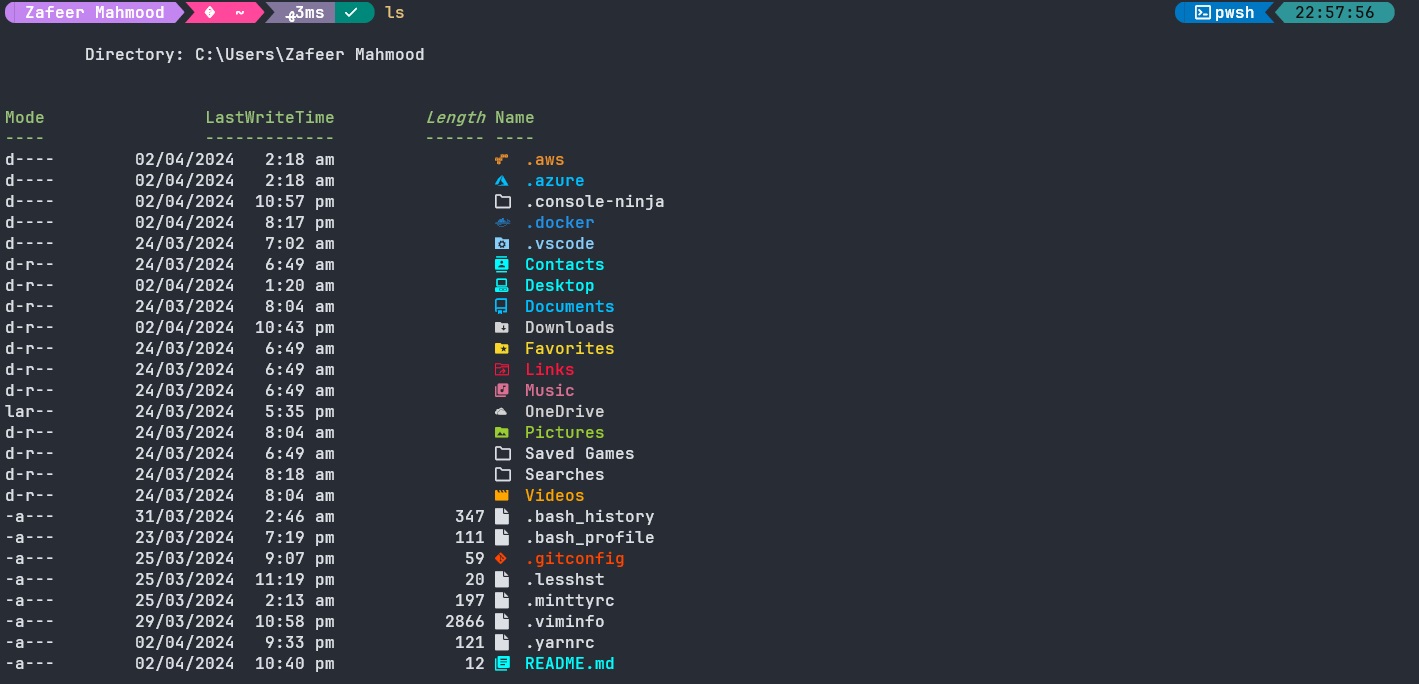
Feel free to customize and enhance your terminal setup further based on your preferences and needs.