Library: Save and Load
Note: This is only usable off-line as custom libraries are not allowed in the on-line editor.
Note: I am in the process of updating the library, and I am changing this as I go. That means that this document partly refers to a version that has yet to be released, so is probably not that use right now!
Sometimes the existing save game mechanism is not what you want; perhaps you want a system that preserves saved game across updates to the game.
This is going to be a nightmare! Be clear on this before you start. You will need to save the state of anything that can change in your game, such as player attributes, the position of anything moveable, the state of anything that can change, such as any NPC, the visited state of every room, and perhaps more. You will need to not save anything that will potentially updated (this is the issue with the existing system, it assumes anything can be changed, so saves the lot). You will also need to ensure every update can handle save games from every previous version.
Alternatively, you might want to make a series of linked games, and need a way to transfer player data from one game to another. You can use exactly the same mechanism (but do not have to worry about saving the state of every object and room, unless the player can go back to previous games).
The library adds four new commands, SAVE, LOAD, DELETE and DIR.
When running in a browser, Quest cannot save files as such, but can save to a special place the browser has available called localStorage. This means the save files will not be visible when you look in the file directory. What thissystem does is fake a file system, allowing the player to save and load games, but also to see a list of save games and delete files (for the current game).
After you have added the library to your game, you need to add one line to the start script of the game object:
SaveLoadInit
Once you have done that, you just need to add an attribute to the game object...
This is the tricky bit. The saveloadatts attribute needs to be added to the game object as a string list, and you need to add to it everything that you want saved.
Each attribute you want to save must be types in a particular format; the name of the object, the name of the attribute and the type of the attribute, each separated by a dot. For example:
hat.alias.string
hat.parent.object
player.achievements.list
player.strength.int
player.female.boolean
You can use "flag" instead of "boolean".
Here is an example from a real game:
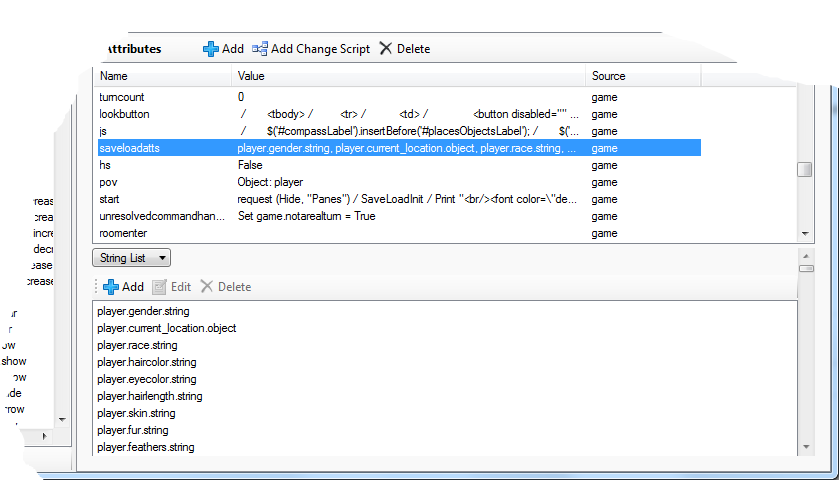
Note that the SaveLoadInit will do some simple tests to catch some errors.
The system will save some attributes by default, so you do not have to include them in the list.
- The visited attribute of rooms.
- The locked and visible attributes of exits
- The parent, locked, open, worn, hidden and display attributes of items
The player and game tend to have a lot of attributes. As a short cut you can set string attributes on either to save a whole set on int or Boolean attributes.
For example, this will have the system save two Boolean attributes, "hasEaten" and "hungry".
player.saveloadflags = "hasEaten;hungry"
It can handle clones, but you do need to set them up. When a save-game is loaded, all existing clones in the game world are destroyed, and then all the clones from the save-game are re-created. Note that they will be cloned from the saved prototypes, so if your prototype has changed, it will be a clone of the prototype as it was when the game was saved.
To ensure a clone gets its attributes set properly, you need to give the prototype a "saveloadatts" attribute - and Quest will refuse to clone anything without it. The attribute should be a string list of attributes to save. Unlike the "saveloadatts" attribute of the game object, Quest will attempt to guess the attribute type, and is restricted to int, string and boolean.
Your game name must not include a vertical bar, |.
This cannot cope with attributes that are scripts, dictionaries or lists, except for string lists and dictionaries of string lists (if the latter seems somewhat obscure, it is because it is required internally). You certainly can use these other attributes in your game, they just will not be saved, so you cannot have them change during game play.
It cannot cope with objects that are created during game time, as you will not know their names or types. It can handle cloned objects, so you can work around that limitation.
It assumes the player object is called "player", and does not allow for changing POV.
The firsttime/otherwise script command saves deep in the underlyng code, inaccessible to Quest, and therefore cannot be saved. It is probably best avoided altogether. You can use the once text processor directive.
Once you release your game, you cannot modify the list of attributes. The system uses the position of a value in a string to determine the value, and if you remove an attribute from the middle of the list, all the subsequent ones will be wrong.
You can, however, add to the list.
Sometimes you will want to do something before and after loading, and before saving, perhaps initialising values or calculating derived attributes. For this, you can override the PreLoad, PostLoad and PreSave functions (none has any parameters or return type).
PreLoad fires after the game has found the save-game, but before anything else.
PostLoad before the player is moved to the right location, but after everything else.