Wechsle Sprache zu DE: 🇩🇪 Deutsch
A LAN/Web Rig Control System for the Albrecht AE-5900 radio, simulating the AMM-500 microphone. This allows the AE5900 to be operated via a web browser in a webinterface.
WARNING!!! There is a risk that using this equipment may be illegal, depending on the laws of your country. Consider this with your conscience. I'm not your mother!
Development of a sophisticated LAN/web remote control for the Albrecht AE-5900. While it's not comparable to rigctl or hamlib, it works. Ultimately, the purpose is also to revive CB radio and make it more attractive. Flexible solutions provide better access. And that's exactly what this project should enable.
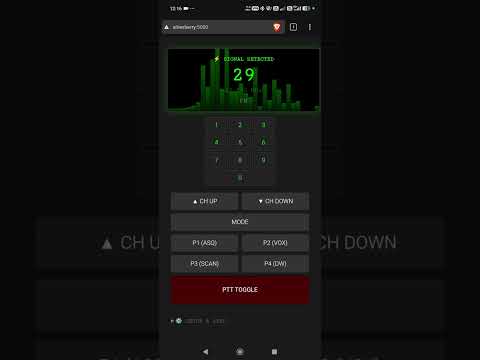
- A screenshot of the current UI, in the browser, on your smartphone
- Visual audio feedback
- Adjustable microphone volume
- Optimized scan function with adjustable speed
- Clarifier
- Lock
- Mute
- Vox
- MW (multi chanel scan)
- Squelch // Autosquelch
- PTT kill switch activates after 30 seconds following connection loss.

- Here's a short clip. I'm transmitting with a handheld to my home station and listening to myself on my smartphone. (Screenshot of the smartphone)
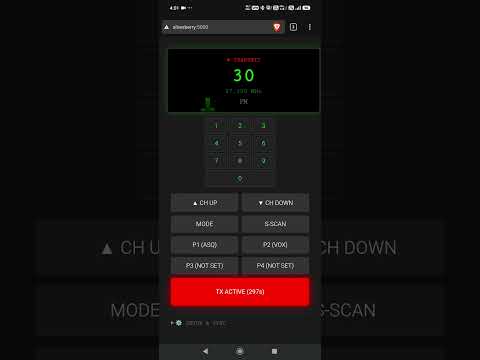
- Another short clip. I'm transmitting with the AE5900. (Screenshot of the smartphone)
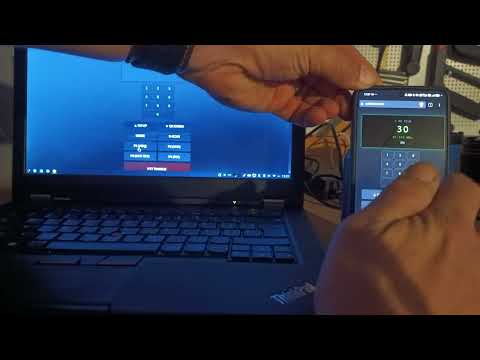
- Various features are demonstrated here. Operable via multiple devices simultaneously. The code shown here will be cleaned up and then published. Unfortunately, everything is very quiet.
- A photo of the newest prototype without jack conector. All audio & control over RJ45.

- Connect the custom device to a Raspberry Pi or another host computer on which the Python script can be executed. This device then serves as a server.
- Connect the Adapter to Mic Port of AE5900.
- You have to plug a jack plug into the PA/EXT output as a dummy to silence the speaker.
- Increase the output volume of the AE5900 from 0 to about 75% on the volume control.
- Ensure proper grounding to prevent rf.
- Ideally, the AE5900 is already set to FM and channel 1.
- Set your AE5900 microphone to TYPE 2, set your P1 - P4 key shortcuts. I use P1 ASQ / P2 VOX / P3 MUTE
- Start Mumble on the host computer and your device (phone/laptop, etc.)
- Run
python3 ae_5900_v2.pyon the host/server. - Open
HOSTNAMEIP:5000in your browser on the device. You should now have control of your AE5900. - Open Setup at the bottom of the WebUI and run Sync.
- Set the appropriate labels for the P1 to P4 buttons as you have set them on the AE5900.
- On the host computer, you may need to make adjustments in the volume control (pavucontrol). Typical adjustments would be: Menu item "Configuration" default sound card your network-connected sound card.
- On the host computer in Mumble, PulseAudio and Standard/Default can now be used for input and output. Audio input: Transmission should be set to continuous, quality to about 44kb/s.
The script is currently only designed for the EU region. Other regions will follow, as will VFO mode.
That's basically it, and anyone who's not completely clueless should be able to figure it out.
With pictures and everything you need to know.
- First, the components for the audio filter and what you can use for building. Most of it I had in my parts box.
For the audio filters we use:
- 1x 600:600 Ohm transformers
- 1x 100 Ohm resistor
- 1x 10 kOhm resistor
- 1x 10nF ceramic capacitor (103) (at least one to filter the RF)
- 1x 10µF electrolytic capacitor (approx. 16 - 50v)
Remaining components:
- USB breakout board or a hub
- FT232RL FT232 FTDI USB 3.3V 5.5V to TTL serial adapter
- USB soundcard
- RJ45 terminal
- A metal enclosure

- I've drawn you a nice picture. It might look like it was drawn by a three-year-old, but any hobbyist and soldering iron owner should be able to understand it. Ignore the jack-to-transformer part.
Use the 10nF // 100 Ohm circuit described above for the RX audio signal. A new schematic will follow.

You can, of course, simply plug the USB devices into a USB hub, but where's the fun in building something "as small as possible"? You still have to solder the two filters, though.
The AMM-500 sends hex codes serially to the AE-5900 and the AE-5900 responds accordingly. This makes a lot possible. To make the build work, I had to listen in between the two devices. Principle: Man in the middle.
Since the AE-5900 itself only releases its codes after a handshake with the AMM-500, this had to be purchased and eagerly awaited.
Mumble & Mumble Server for audio transmission (audio chat)
Tailscale on all devices used for this project. When operating on a local network, Tailscale can be omitted. Tailscale is free for private users but requires an account.
For those who prefer a more relaxed approach, using a fresh Raspberry Pi Trixie image:
This block will first install the script and system updates on the Raspberry Pi. Then, everything necessary, such as Python, Mumble, audio, and Tailscale, will be installed. Finally, the settings in Mumble and the audio will be adjusted, and a simple autostart will be added. After restarting, Mumble will ask for the certificate and the database location. Now restart again, and everything is set up for the first test run.
Simply copy the entire block into the console.
git clone https://github.com/ThatCrazyDcGuy/AE5900_Remote_V2
cd ~/AE5900_Remote_V2/
sudo chmod +x install.sh
./install.sh
#If you want to use tailscale:
#Copy the created TailscaleLink into your browser and follow the instructions
sudo tailscale up
rebootAll of the following settings relate to the host / server. My audio settings don't necessarily have to be yours. They serve merely as an example here.
- Pavucontrol:

- Mumble:

It's a good idea to run a WebSDR at home to check your installation if necessary (channel/modulation). A good WebSDR can be easily set up with OpenWebRX, a Raspberry Pi, an RTL-SDR dongle (e.g., RTL-SDR Blog V3 or V4 / Nooelec NESDR V5), and an antenna.
Check out OpenwebrxPlus: https://luarvique.github.io/ppa/ RTL-SDR Blog v4: https://www.rtl-sdr.com/v4/
-
There's always something missing. What isn't there, will come later.
-
....
-
JS8Call works quite well with it. Of course, you have to play around with the settings a bit and enable VOX. But it should be simple to add a PTT function for the appropriate software.
-
User feedback from April 30, 2026: Linux Mint around version 21.3 and below don't understand the Python Vol- and Vol+. Just in case someone tests on such a system. A mint upgrade helps solve the problem.
Nothing more than my experience. I will not provide personal support. But I will upload some scripts, images, and ideas to share with others.
I am not a programmer, but I can read, understand, implement, and incorporate texts into my projects.
I take no responsibility for your builds. For my dear beta tester and me, both software and hardware work flawlessly. The audio received consistently good feedback in QSOs.