
✨ The modern, intuitive Plug n Play Magic Dashboard that auto-organizes your rooms and devices into Smart Sections. Home Assistant has never looked this good! ✨



- 😓 Manually organizing 100+ devices takes hours of YAML editing
- 🔄 Every new device requires reconfiguration across multiple views
- 📱 Complex configuration just for basic navigation
- 👨👩👧 Family members can't find controls in your custom dashboard
✅ 5 minutes setup vs 2+ hours manual configuration
✅ 2 clicks maximum to access any device
✅ Zero YAML - visual configuration only
✅ Automatic organization - new devices appear instantly in the right place
⚡ Supports 10 to 1000+ devices effortlessly
🎯 Intuitive navigation anyone can understand
📊 Works standalone or alongside your custom dashboards
Linus Dashboard is a Plug n Play magic dashboard designed to simplify and elevate your Home Assistant experience. It automatically organizes your devices into smart sections, grouped by rooms and device types, without requiring complicated setup.
Key features:
-
🏠 Smart Room Navigation All your bedroom lights, sensors, and climate control in one place. No more hunting through entity lists.
-
📟 Device Views That Make Sense Control all your lights across the house from one screen. Same for covers, switches, or any device type.
-
🎨 Beautiful on Any Screen Automatically adapts to mobile, tablet, and desktop. Looks gorgeous everywhere.
-
🔗 Keep Your Custom Dashboards Already built the perfect energy view? Embed it in Linus! Learn more →
-
⚡ Install in 5 Minutes Just plug, play, and enjoy. No YAML required.
Whether you're using hass-magic_areas or just starting with Home Assistant, Linus Dashboard is the ideal solution for a clean, organized, and intuitive interface.
Whether you're using hass-magic_areas or just starting with Home Assistant, Linus Dashboard is the ideal solution for a clean, organized, and intuitive interface.
Curious about what more automation and customization can do for your smart home? Explore thankyou-linus.com to discover the full potential of Linus Dashboard and beyond.
See what the community is saying about Linus Dashboard!
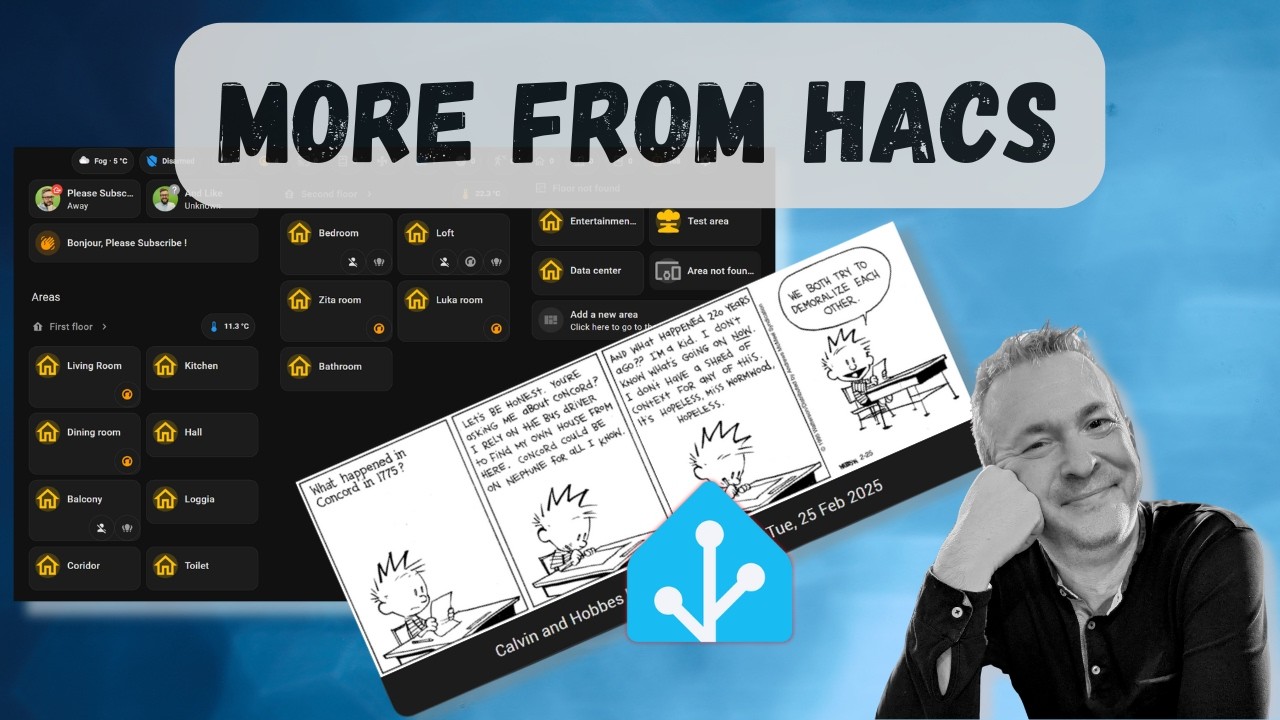
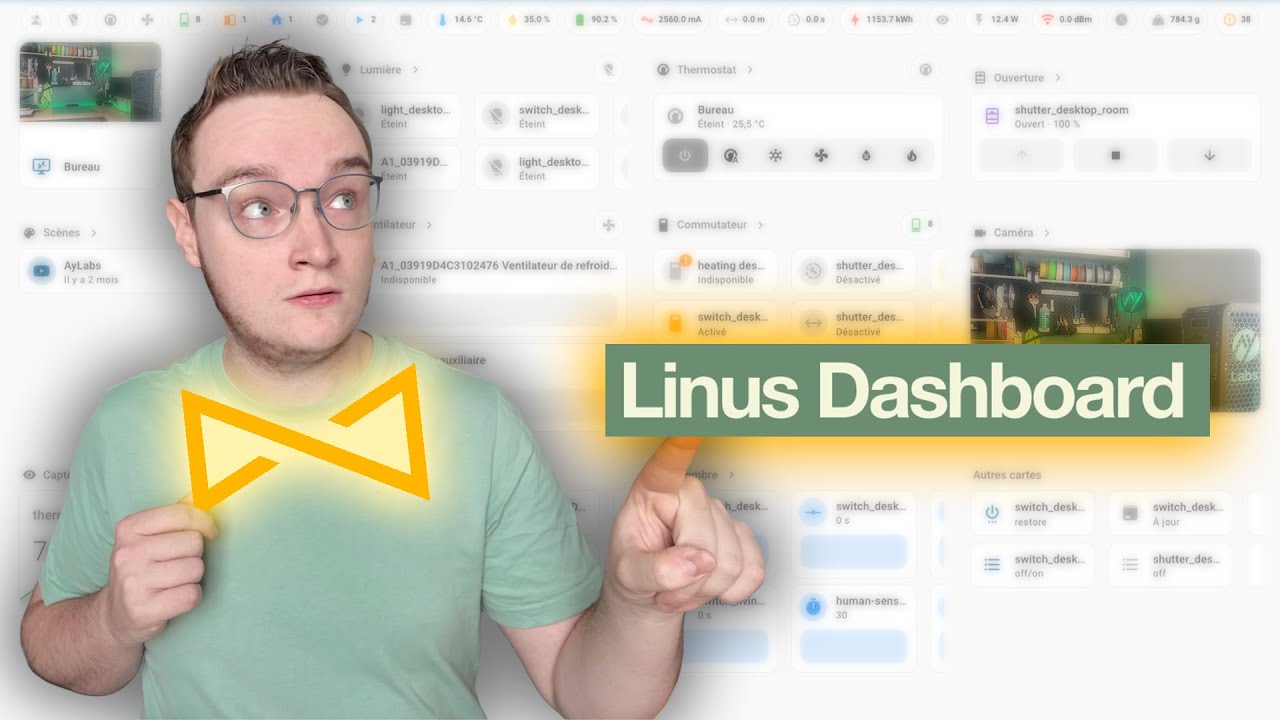
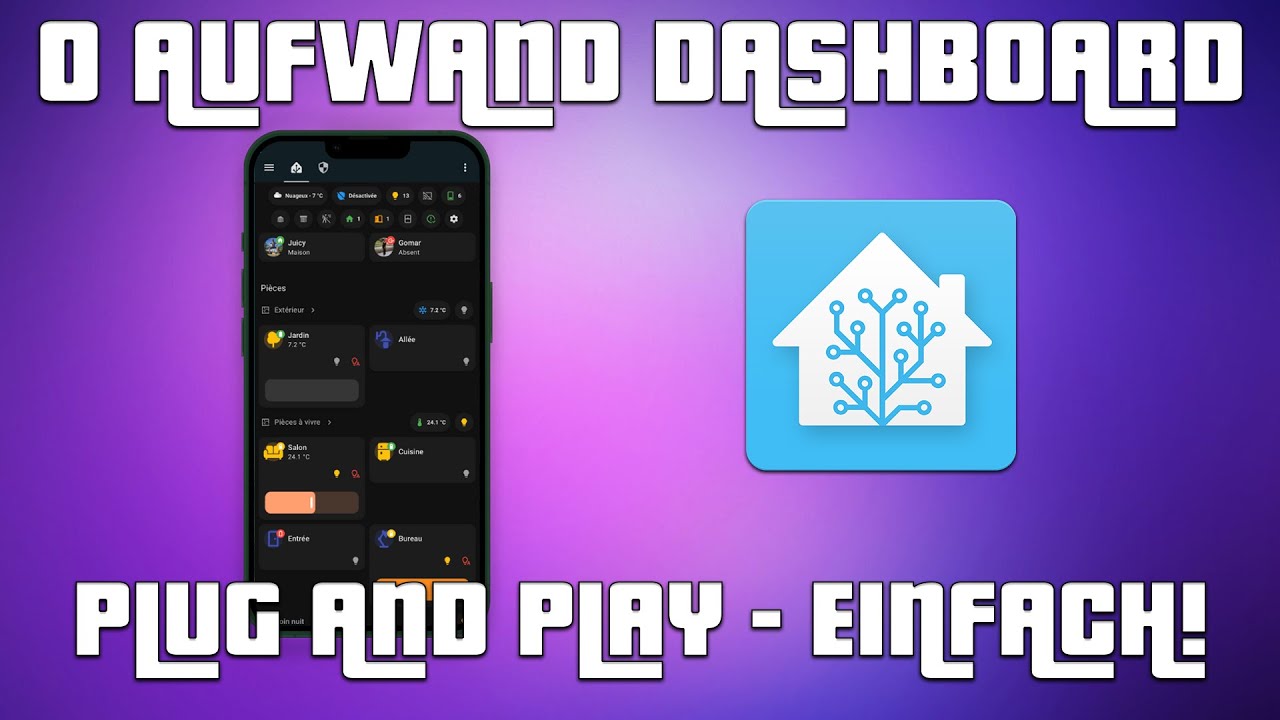
Want to create content about Linus Dashboard? We'd love to feature you here! Reach out on Discord or tag us on social media.
Already built the perfect energy monitoring view? Camera grid? Media center?
Don't rebuild from scratch - embed your existing dashboards right into Linus!
 Example: Energy dashboard embedded seamlessly in Linus
✅ Use Linus for automatic device organization ✅ Keep your custom views for specialized monitoring ✅ Seamless integration - everything in one place
Popular use cases:
- 📊 Energy monitoring with historical graphs
- 📹 Multi-camera security view
- 🎵 Media control center
- 🌡️ Climate & air quality dashboards
Complete guide with step-by-step setup →


New to Linus? → 🚀 5-Minute Quick Start Guide
- Home Assistant (version 2023.9 or newer recommended).
- HACS (Home Assistant Community Store), optional but recommended for easier updates.
- Option 1: For a comprehensive guide, watch the YouTube video by the amazing @BeardedConti where he presents Linus Dashboard and explains the installation process: Watch the video
- Option 2: For a quick visual overview, here’s a silent screen capture showing the installation process: Video link
- Open Home Assistant and go to HACS > Integrations.
- Search directly for Linus Dashboard in the list of available integrations.
- Click Install, then restart Home Assistant.
- Download the latest release from the GitHub Releases page.
- Extract the files and copy the
linus_dashboardfolder into your Home Assistantcustom_componentsdirectory. - Restart Home Assistant to load the integration.
The project includes a complete development environment that sets up automatically:
- Open in VS Code: Clone the repository and open in VS Code
- Reopen in Container: VS Code will prompt to reopen in dev container
- Auto-setup: Dependencies install automatically (Python 3.13, Node.js 20, Home Assistant)
- Start developing:
make devlaunches Home Assistant on http://localhost:8123
make dev         # Start Home Assistant development server
make build       # Build frontend (development)
make build-prod  # Build frontend (production)
make build-watch # Build frontend in watch mode
make lint        # Run ESLint and Prettier
make install # Install all dependencies├── .devcontainer/ # VS Code dev container configuration
├── build-scripts/ # Rspack build configuration
├── config/ # Home Assistant configuration
├── custom_components/ # Linus Dashboard integration
│ └── linus_dashboard/
├── src/ # Frontend TypeScript source
└── scripts/ # Development scripts
After installation, follow these steps to configure and access Linus Dashboard:
- Restart Home Assistant after installing Linus Dashboard via HACS.
- Go to the Integrations page in Home Assistant.
- Search for and add Linus Dashboard as a new integration.
- During the setup process, optionally select a weather or alarm entity (these steps are optional).
- Once setup is complete, a new icon with a bowtie will appear in the left-hand menu. Click it to access Linus Dashboard directly.
- If the icon doesn’t appear immediately, try restarting Home Assistant again.
Q: I don't see the bowtie icon 🎀
- Restart Home Assistant (Settings → System → Restart)
- Clear browser cache (Ctrl+F5 or Cmd+Shift+R)
- Check that Linus Dashboard integration is configured (Settings → Devices & Services)
Q: My devices aren't showing up
- ✅ Check device is assigned to an area (Settings → Areas)
- ✅ Verify device is not in excluded domains (Settings → Linus Dashboard configuration)
- ✅ Some entities are intentionally hidden (unavailable, configuration entities)
Q: How do I reorder my rooms? With Home Assistant 2025.1+, you can drag & drop rooms directly in HA settings (Settings → Areas & Zones). Linus respects your manual ordering automatically. Learn more →
Q: Can I use Linus with my existing dashboard? Yes! Use embedded dashboards to integrate your custom views seamlessly. You can keep your energy monitoring, camera views, or any custom dashboard while enjoying Linus's automatic organization. Setup guide →
Q: Do I need Linus Brain? No - Linus Dashboard works standalone. Linus Brain is an optional upgrade for advanced AI activity detection and automation. Compare features →
Q: Does Linus work with Magic Areas? Yes! Linus auto-detects Magic Areas entities and integrates them beautifully. Whether you're using Magic Areas or just native HA areas, Linus adapts automatically.
Q: I see a timeout or red error message

Follow these steps to resolve the issue:
-
Clear your cache:
- For browsers: Clear your browser cache
- For the Home Assistant mobile app: Clear the app cache via your device settings
- If you're using a reverse proxy or a DNS service like Cloudflare: Clear the cache there as well
-
Force a refresh:
- On Windows: Press
CTRL + F5 - On Mac:
- Hold
⇧ Shiftand click the Reload button - Or, hold down
⌘ Cmdand⇧ Shiftkey, then pressR
- Hold
- On Windows: Press
-
Check your setup: Ensure your Home Assistant instance is correctly set up and that there are no network-related issues
Still having issues? Open an issue on the GitHub repository with details about your setup and the error message.
- 🌟 Show Your Support: GitHub Stars
- 🐛 Report Issues: GitHub Issues
- 💬 Feedback & Support: Discord
We’re always open to contributions! Fork the project, submit improvements, or report bugs to help us make Linus Dashboard even better.
Curious about how Linus Dashboard can transform your smart home? Ready for more automation and personalization?
Visit thankyou-linus.com to dive deeper into the Linus ecosystem and discover all the possibilities.


![@dependabot[bot]](https://avatars.githubusercontent.com/in/29110?s=64&v=4)

![@github-actions[bot]](https://avatars.githubusercontent.com/in/15368?s=64&v=4)