Control your Mac with Nintendo Joy-Con controllers. Optimized for Claude Code and terminal workflows.
By Berrry Computer
Download the latest release from Releases
- Download
Berrry-Joyful-v0.5.dmg - Open the DMG and drag the app to Applications
- Right-click the app and select "Open" (first time only)
- Grant Accessibility permission when prompted
- Pair your Joy-Con via Bluetooth and start controlling your Mac!
- Unified Control Mode - Mouse, keyboard, and scroll all active simultaneously
- Full Mouse Control - Move cursor with left stick, scroll with right stick
- Keyboard Input - Face buttons and D-pad for common keys and navigation
- Voice Input - Hold ZL+ZR to dictate text (text-only mode)
- Profile System - Switch between Desktop, Media, and Gaming profiles
- Menu Bar App - Quick profile switching from the menu bar, runs in background
- Custom Profiles - Create and customize your own button mappings
- Modern Toolbar UI - Configure mouse sensitivity, keyboard layouts, and voice settings
- Permissions-First UX - Friendly onboarding with clear permission explanations
Berrry Joyful includes three built-in profiles. Switch profiles from the menu bar icon or create custom profiles in the app.
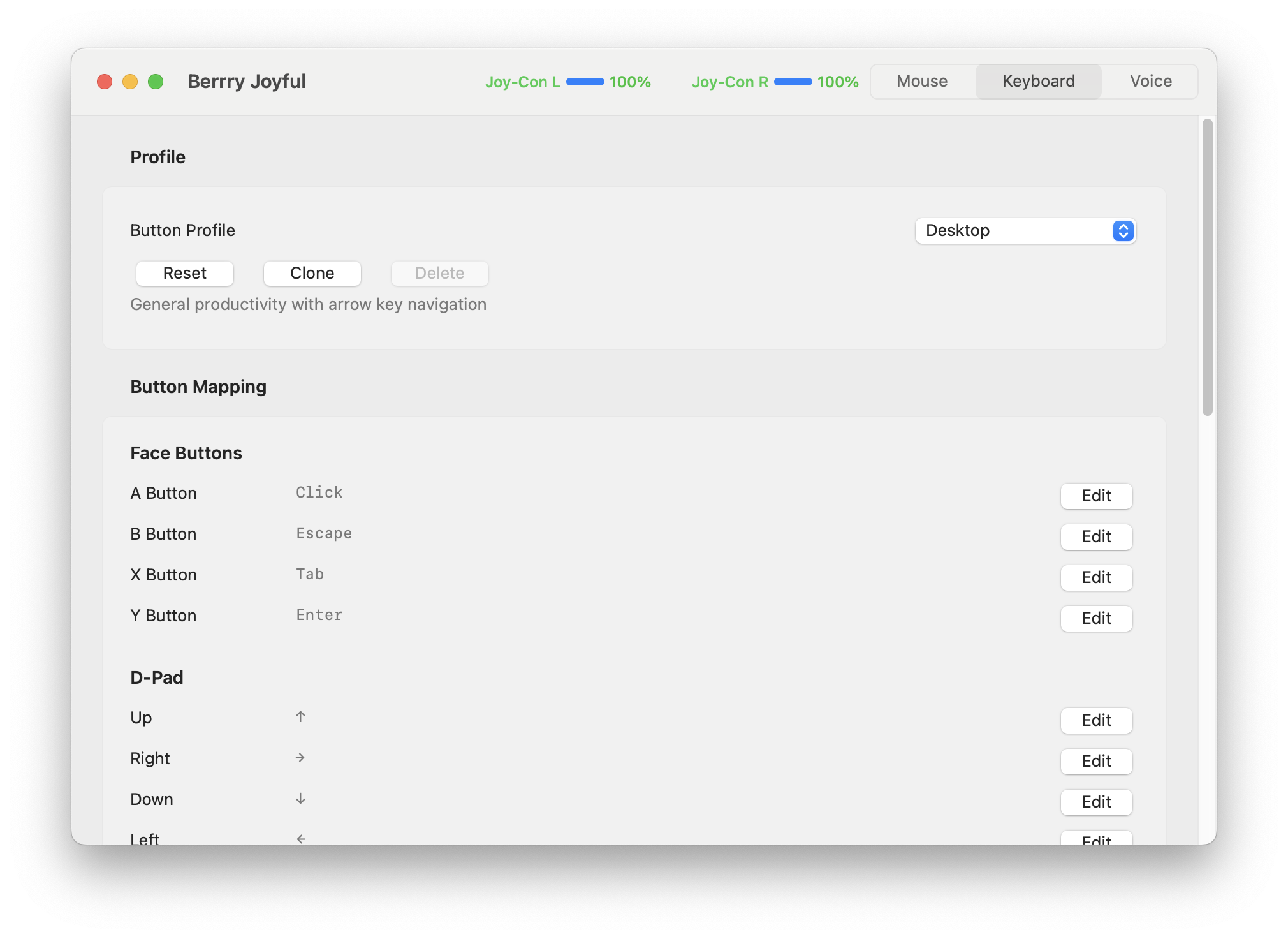
General productivity with arrow key navigation.
| Input | Action |
|---|---|
| A | Click |
| B | Escape |
| X | Tab |
| Y | Enter |
| D-Pad | Arrow keys |
| L | Command (⌘) modifier |
| R | Shift (⇧) modifier |
| ZL | Previous Tab (⌘⇧[) |
| ZR | Next Tab (⌘⇧]) |
| ZL + ZR | Voice input |
| Minus | Backspace |
| Plus | Space |
| Home | Mission Control |
| Capture | Screenshot (⌘⇧4) |
| Left Stick | Mouse cursor |
| Right Stick | Scroll |
Volume and playback controls on D-Pad.
| Input | Action |
|---|---|
| D-Pad Up/Down | Volume Up/Down |
| D-Pad Left | Mute |
| D-Pad Right | Play/Pause |
| Minus/Plus | Rewind/Forward 10s (YouTube) |
| Other buttons | Same as Desktop |
FPS-style controls with WASD movement.
| Input | Action |
|---|---|
| A | Jump (Space) |
| B | Menu (Escape) |
| X | Interact (E) |
| Y | Reload (R) |
| D-Pad | Weapon slots 1-4 |
| L | Sprint (Shift) |
| R | Crouch (Control) |
| ZL | Aim (Right Click) |
| ZR | Shoot (Click) |
| ZL + ZR | Grenade (G) |
| Left Stick | WASD movement |
| Right Stick | Mouse aim |
Hold ZL + ZR to activate voice input. Speak naturally, then release both buttons to type what you said.
Voice input is text-only - it types whatever you speak. There are no voice commands.
Example:
- Hold ZL + ZR
- Say: "git commit dash m quote added new feature quote"
- Release buttons
- Text appears:
git commit -m "added new feature"
- macOS 14.0+ (Sonoma)
- Nintendo Joy-Con controllers (L, R, or both) or Pro Controller
- Accessibility permission (required for mouse/keyboard control)
- Speech Recognition permission (optional, for voice input only)
- On your Joy-Con, hold the Sync button (small round button on the rail) until the lights start flashing
- On your Mac, open System Settings → Bluetooth
- Look for "Joy-Con (L)" or "Joy-Con (R)" and click Connect
- Repeat for the other Joy-Con if using both
- Launch Berrry Joyful - the controller should be detected automatically
Tip: Joy-Cons stay paired. Next time, just press any button to wake them up.
The app shows a permissions screen on first launch:
Needed to control mouse and keyboard. Click GRANT to open System Settings, enable berrry-joyful in Accessibility, then click Continue.
Needed for voice input (ZL+ZR). You can skip this and enable it later if desired.
# Install XcodeGen
brew install xcodegen

# Generate Xcode project
xcodegen

# Build
xcodebuild -project berrry-joyful.xcodeproj -scheme berrry-joyful -configuration Debug build

# Or open in Xcode
open berrry-joyful.xcodeproj
Run xcodegen after adding or removing source files.
See DISTRIBUTION.md for release build instructions including code signing and notarization.
Sources/
├── main.swift                 # App entry point
├── AppDelegate.swift          # Application lifecycle & controller monitoring
├── ViewController.swift       # Main toolbar UI & Joy-Con input handling
├── PermissionsViewController.swift  # First-launch permissions UI
├── InputController.swift      # Mouse/keyboard simulation via CGEvent
├── VoiceInputManager.swift    # Speech recognition (text-only)
├── ControlMode.swift          # Control mode & settings
├── ButtonProfile.swift        # Profile definitions (Desktop, Media, Gaming)
├── ProfileManager.swift       # Profile persistence & switching
├── ProfileOverlay.swift       # On-screen profile indicator
├── ButtonMappingEditor.swift  # Custom button mapping UI
├── KeyCaptureView.swift       # Keyboard shortcut capture
├── DesignSystem.swift         # UI styling constants
├── StickyMouseManager.swift   # Mouse edge behavior
├── AccessibilityScanner.swift # UI element scanning
├── DriftLogger.swift          # Stick drift diagnostics
└── JoyConSwift/               # Vendored Joy-Con library
Settings are accessible via the toolbar UI and persist automatically:
- Mouse Sensitivity: Adjust cursor speed
- Deadzone: Ignore small stick movements
- Invert Y: Flip vertical axis
- Acceleration: Enable mouse acceleration curve
- Profiles: Switch between Desktop, Media, Gaming, or custom profiles
- Pure Swift 5.9 with AppKit (no storyboards, all programmatic UI)
- Vendored JoyConSwift library for direct Joy-Con HID communication
- CGEvent API for mouse/keyboard simulation
- Speech framework for voice recognition (on-device)
- Menu bar app with profile switching
- XcodeGen-based project configuration
The app shows real-time Joy-Con battery status and provides tabs for configuring mouse, keyboard, and voice settings. The button mapping editor allows customizing the Desktop, Media, Gaming, and custom profiles.
- Navigate quickly - Left stick for cursor, right stick for scrolling
- Voice for long prompts - Hold ZL+ZR to dictate complex commands
- Arrow keys - Use D-pad for terminal history and cursor movement
- Tab switching - ZL/ZR for previous/next tab
- Precision control - Hold L+R for slow, accurate mouse movement
Controller not detected?
- Pair Joy-Con via Bluetooth in System Settings
- Try disconnecting and reconnecting
Mouse/keyboard not working?
- Grant Accessibility permission in System Settings
- Restart the app after granting permission
Voice input not working?
- Grant Speech Recognition permission
- Check microphone privacy settings
- Verify ZL+ZR button combination
Build errors?
- Run
xcodegento regenerate the project - Clean build folder if issues persist
- No rumble/HD rumble: Haptic feedback is not implemented
- No motion controls: Gyro/accelerometer data is not used
- Joy-Con drift: If your Joy-Con has stick drift, increase the deadzone in settings
- macOS only: No Windows or Linux support
- JoyConSwift by magicien - Joy-Con HID communication library
MIT License - see LICENSE for details.
© 2025 Berrry Computer