

Automatically activates the right source control provider in Visual Studio for every solution you open.



Visual Studio can have only one source control provider active at a time, and it does not choose one per repository. If you work with Git in one solution and Subversion, TFVC or Perforce in another, you end up changing Tools > Options > Source Control > Plug-in Selection by hand every time.
Source Control Switcher does it for you: when a solution or folder opens, it detects which kind of repository it belongs to and activates the matching provider.
| Repository | Detected by | Provider activated |
|---|---|---|
| Git | a .git folder, or a .git file (worktrees, submodules), in the solution folder or a parent |
Git (Microsoft Git provider, built into Visual Studio) |
| Subversion | a .svn folder in the solution folder or a parent |
VisualSVN or AnkhSVN |
| Team Foundation (TFVC) | TFVC bindings in the .sln/.slnx, or a TFVC local workspace ($tf) |
Visual Studio Team Foundation Server (built in) |
| Perforce | p4 where succeeds in the solution folder (only when p4.exe is on PATH) |
P4VS |
| Anything else | a file or folder name you choose | any source control provider, by GUID |
Works with solutions (.sln, .slnx) and with Open Folder.
- Visual Studio 2022 or Visual Studio 2026: Community, Professional or Enterprise, on x64 or Arm64.
- The source control client(s) you use: Git and TFVC are built into Visual Studio; for Subversion install VisualSVN or AnkhSVN; for Perforce install P4VS.
Still on Visual Studio 2015–2019? Use version 1.1.2.
In Visual Studio: Extensions > Manage Extensions, search for Source Control Switcher, install and restart. Alternatively, download it from the Visual Studio Marketplace or from the GitHub releases.
That's it: there is nothing to configure for the common cases.
When a solution or folder opens, the extension looks for repository markers starting from the solution folder and moving up to the drive root. The nearest marker wins; at each folder level the order is:
- your custom markers (see Custom providers);
- TFVC bindings in the solution file (solution folder only);
.git, then.svn, then$tf.
If nothing is found and Perforce detection is enabled, it asks the Perforce client in the background. When a repository is found, the provider configured for it is activated; when nothing is found, the current provider is left unchanged.
Every switch is logged in the Source Control Switcher pane of the Output window:

Tools > Options > Source Control Switcher > General
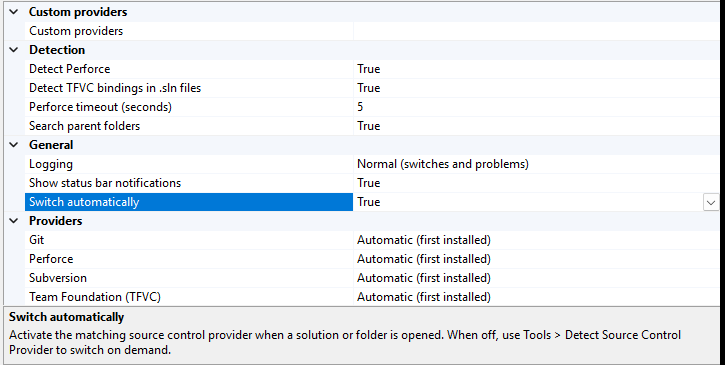
| Category | Option | Default | Description |
|---|---|---|---|
| General | Switch automatically | On | Switch when a solution or folder opens. When off, use the Detect Source Control Provider command. |
| General | Show status bar notifications | On | Show a message in the status bar when the provider changes. |
| General | Logging | Normal | Detail written to the Source Control Switcher pane of the Output window: Off, Normal, Verbose. |
| Providers | Git / Subversion / Team Foundation / Perforce | Automatic | Automatic picks the first supported provider installed; you can force a specific one, or choose Disabled to leave the provider alone for that repository type. |
| Detection | Search parent folders | On | Look for markers in the solution folder and all its parents. |
| Detection | Detect TFVC bindings in .sln files | On | Turn off for repositories migrated from TFVC that still carry old bindings. |
| Detection | Detect Perforce | On | Ask p4 where when no other marker is found (background, only if p4.exe is on PATH). |
| Detection | Perforce timeout (seconds) | 5 | Maximum wait for the Perforce client (1–60). |
| Custom providers | Custom providers | (empty) | marker=providerGuid rules, separated by ;. |
Tools > Detect Source Control Provider runs the detection again for the open solution or folder and activates the matching provider. Use it after changing the provider by hand, or to switch on demand with automatic switching turned off.
For a source control client the extension does not know, add a rule mapping a marker to the client's provider GUID, for example:
.vault=01234567-89ab-cdef-0123-456789abcdef
When .vault (a file or a folder) is found, that provider is activated. To find a provider's GUID, look for
SourceControlProviders\{GUID} in the .pkgdef files of the client's extension folder.
Set Logging to Verbose and open View > Output, then pick Source Control Switcher in the
Show output from list: every detection step and its outcome is logged there. Messages are also written to the
Visual Studio activity log when Visual Studio is started with /log.
Found a bug or have an idea? Open an issue.
Open SourceControlSwitcher.slnx in Visual Studio 2022 (17.14+) or 2026 and build; press F5 to debug in the
experimental instance. Details in
BUILD.txt. Release notes are in the
CHANGELOG.
Based on SccAutoSwitcher by Francesco Pretto. Thanks to everyone who contributed fixes and ideas, including @QianMoXi (start-up with a solution), @joe-kr (Visual Studio 2022 support, AnkhSVN 2019) and @davideciarmiello (TFVC support).
MIT — see also the official page on ryadel.com.