- Version Control System (VCS) is a software that helps software developers to work together and maintain a complete history of their work.
- Types of VCS :
- Centralized version control system (CVCS).
- Distributed/Decentralized version control system (DVCS).
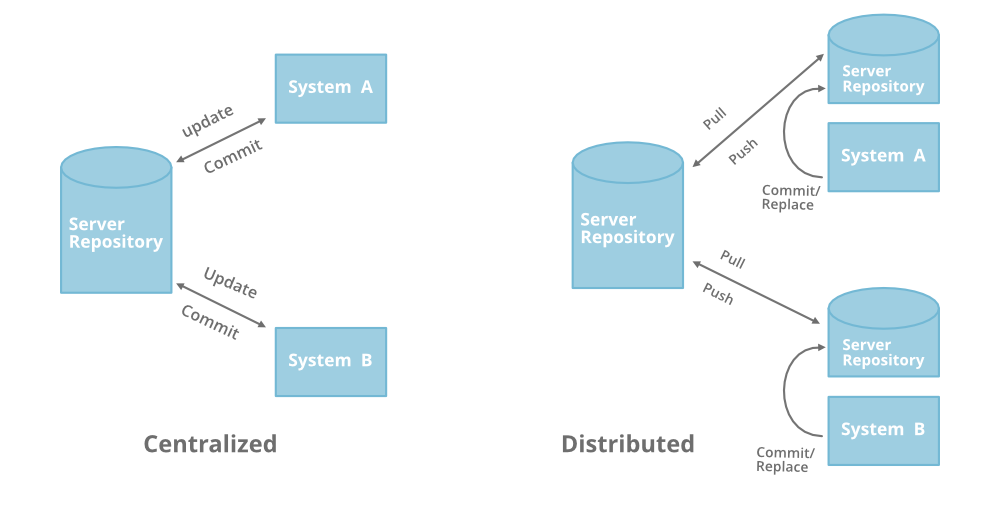
- Git is a VCS that allows you to take snapshots & distribute your creations & modifications over time.
- If you are using Debian base GNU/Linux distribution, then apt-get command will do the needful.
sudo apt-get install git-core
password for ubuntu:
git --version
git version 1.8.1.2
- Setting username:
git config --global user.name "Tom Cat"
- Setting email id:
git config --global user.email "tom@tutorialspoint.com"
- Listing Git settings:
git config --list
- There are 3 levels of git config: project, global and system.
- project: Project configs are only available for the current project and stored in .git/config in the project's directory.
- global: Global configs are available for all projects for the current user and stored in ~/.gitconfig.
- system: System configs are available for all the users/projects and stored in /etc/gitconfig.
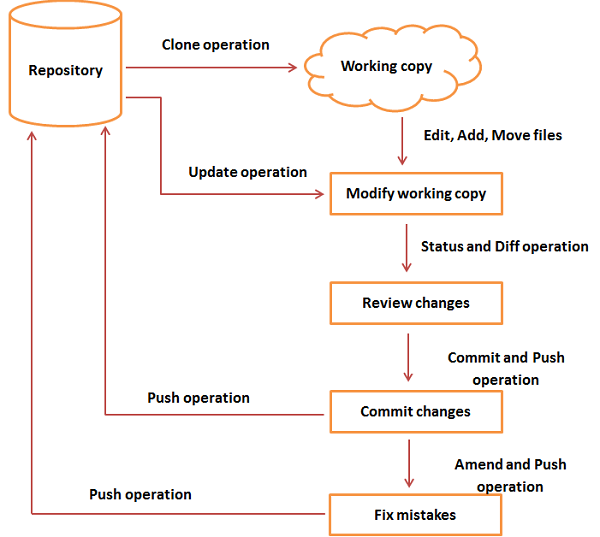
- A Git repository is a virtual storage of your project.
- It allows you to save versions of your code, which you can access when needed.
| Command | Description |
|---|---|
git --version |
check git version |
git init |
initialize git |
git add [file-name] |
adds files to staging area |
git add . |
add all untracked files to staging area |
git status |
check the tracked files |
git rm -f [file-name] |
forced deletion of files |
git rm --cached [file-name] |
remove file from staging area |
git commit |
Take snapshot of all the modifications you've done |
- Branches are a way to create separate development paths without overriding or creating copies of your project.
- Used to achieve different end goals of your project.
- Git merging combines sequences of commits into one unified history of commits.
- There are two main ways Git will merge: Fast Forward and Three way
Fast forward
A fast-forward merge can occur when there is a linear path from the current branch tip to the target branch.
Instead of actually merging the branches, all Git has to do to integrate the histories is move the current branch tip up to the target branch tip.

Three way merge
When there is not a linear path to the target branch, Git has no choice but to combine them via a 3-way merge.
3-way merges use a dedicated commit to tie together the two histories.
The nomenclature comes from the fact that Git uses three commits to generate the merge commit: the two branch tips and their common ancestor.\

| Command | Description |
|---|---|
git branch |
List branches (the asterisk denotes the current branch) |
git branch -a |
List all branches (local and remote) |
git branch [branch-name] |
Create a new branch |
git branch -d [branch-name] |
Delete a branch |
git checkout [branch-name] |
Switch to a branch |
git checkout -b [branch-name] |
Create a new branch and switch to it |
git merge [branch-name] |
Merge a branch into the active branch |
| Command | Description |
|---|---|
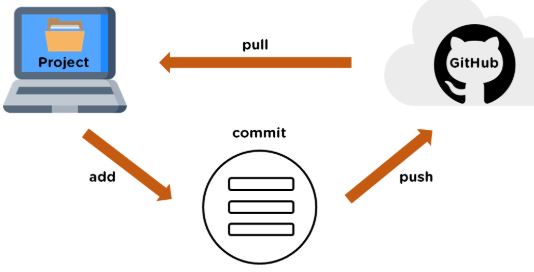
git push origin [branch-name] |
Push a branch to your remote repository |
git push -u origin [branch-name] |
Push changes to remote repository (and remember the branch) |
git push |
Push changes to remote repository (remembered branch) |
git pull |
Update local repository to the newest commit |
git pull origin [branch-name] |
Pull changes from remote repository |
git remote set-url origin ssh://git@github.com/[username]/[repository-name].git |
Set a repository's origin branch to SSH |
| Command | Description |
|---|---|
git log |
View changes |
git log --summary |
View changes (detailed) |
git log --oneline |
View changes (briefly) |
git diff [source-branch] [target-branch] |
Preview changes before merging |
.gitignorefile is used to ignore files that we don't want to share.- It is used to hide such files that we don't want the git environment to recognize and so that git will not track such files.
- You may want to ignore certain files for multiple reasons:
- The files contain sensitive data.
- The files are system specific and do not need to exist on every machine’s copy.
- Excluding the files maintains system security rules and privileges.
| Command | Description |
|---|---|
git show [commit-id] |
Shows what you exactly changed in the commit |
git show HEAD |
Shows changes in the current commit |
git diff |
To see changes in your working directory that are not staged yet |
git diff --staged |
To see what you have in the staging area that is going in the next commit |
git difftool |
To launch difftool |
| Command | Description |
|---|---|
git checkout [commit-id] |
To move back to a particular commit |
git clean -f |
Remove all untracked files |
git clean -n |
List sll files that are removed |
Revert:
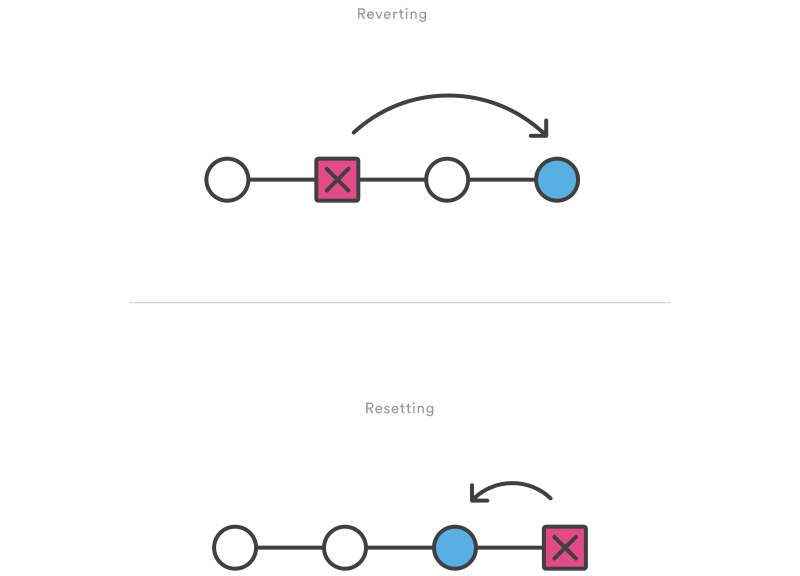
- The git revert command can be considered an "undo" type command, however, it is not a traditional undo operation.
- Instead of removing the commit from the project history, it figures out how to invert the changes introduced by the commit and appends a new commit with the resulting inverse content.
- This prevents Git from losing history, which is important for the integrity of your revision history and for reliable collaboration.
git revert commit_id or HEAD~N
.svg?cdnVersion=797)
Reset:
- The git reset is the command we use when we want to move the repository back to a previous commit, discarding any changes made after that commit.
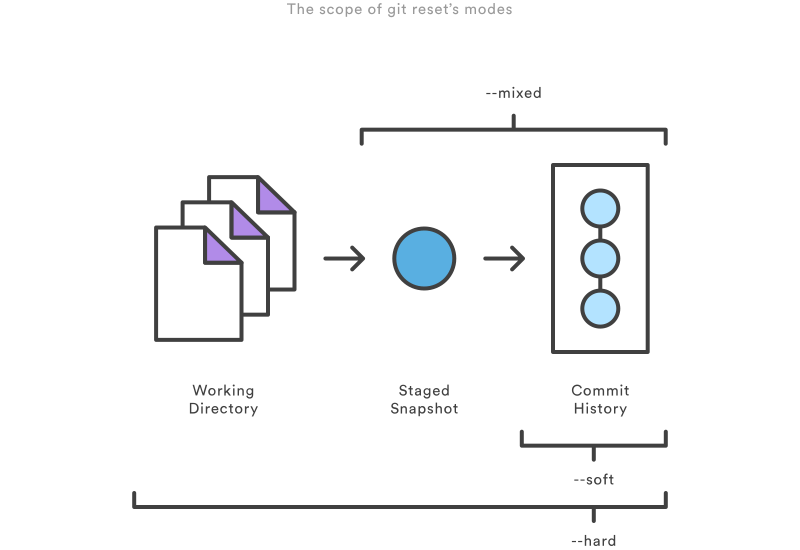
- The git reset command has three core forms of invocation. These forms are as follows.
1.Hard:
When passed --hard The Commit History ref pointers are updated to the specified commit. Then, the Staging Index and Working Directory are reset to match that of the specified commit.
This means any pending work that was hanging out in the Staging Index and Working Directory will be lost.\
git reset --hard
2.Mixed:
This is the default operating mode. The ref pointers are updated.
The Staging Index is reset to the state of the specified commit.
Any changes that have been undone from the Staging Index are moved to the Working Directory.
git reset --mixed
3.Soft:
When the --soft argument is passed, the ref pointers are updated and the reset stops there.
The Staging Index and the Working Directory are left untouched.
git reset --soft
.svg?cdnVersion=797)
Restore:
- The restore command helps to unstage or even discard uncommitted local changes.
- To only unstage a certain file and thereby undo a previous git add, you need to provide the --staged flag:
git restore --staged index.html
- Another interesting use case is to restore a specific historic revision of a file:
git restore --source 7173808e index.html
git restore --source master~2 index.html
Rebase:
- Rebasing is the process of moving or combining a sequence of commits to a new base commit.
- Internally, Git accomplishes this by creating new commits and applying them to the specified base.
- Command :
git rebase feature_branch

Cherry-pick:
- Cherry picking is the act of picking a commit from a branch and applying it to another.
git cherry-pickcan be useful for undoing changes.- For example, say a commit is accidently made to the wrong branch. You can switch to the correct branch and cherry-pick the commit to where it should belong.
Stashing:
git stashtemporarily shelves changes you've made to your working copy so you can work on something else, and then come back and re-apply them later on.- Stashing is handy if you need to quickly switch context and work on something else, but you're mid-way through a code change and aren't quite ready to commit.
- Command :
git stash push -m "MESSAGE"
| Command | Description |
|---|---|
git stash list |
list of all stash. |
git stash drop 1 |
remove the 1st stash. |
git stash clear |
remove all stashes. |