This is my first attempt at building a GitHub repo, so if you find any major issues; be nice and open a ticket under issues. I didn't create any of the containers, I just grouped them together in a single package.
When finished, the attached scripts should build a self contained Web Pen Testing Lab with multiple targets to practice on. Each mapped to a separate port.
Each target is a docker container with a vulnerable web application inside it.
Attached is a web based front end so you can navigate and access each container both for practice and to verify that it's accessible.
Portainer has also now been added to also manage the containers via a Web GUI in event a container isn't working.
My test build was created on Ubuntu Server LTS 20.04.2, but should work on any Debian system that supports docker.
You can download a bare bones Ubuntu Server VM from OSBoxes.org here https://www.osboxes.org/ubuntu-server/
Total build size for the VM when complete was around 20GB.
This project was inspired by WebSploit labs by Omar Santos. https://websploit.org/
Omar's lab is designed to be self contained inside a Kali or Parrot Linux build.
I wanted it to stand alone, which could then allow any offensive security distro to be used at any time without having to redeploy it.
This design also allows multiple users to attack it simultaneously if required.
My test build was a Ubuntu Server LTS 20.04 VM using VMware Workstation
- 2 CPU
- 4GB RAM (Runs at about 75% use, so increase if you have RAM to spare).
- 80GB HDD (Thin Provisioned and used about 24GB when running).
Git clone the repo to your home folder
- cd UltimateWebPenTest
- run ./install.sh to execute the deployment script, this will:
-
- Install docker.io, docker-compose and apache2.
-
- Update the /etc/issue file so it displays the VM IP Address when loaded*.
- *This assumes the IPv4 interface is ens32 so you might need to edit /etc/issue if your VM has a different interface ID. eg. when running in VirtualBox.
-
- To determine the correct interface, type ip address and note it, then edit the /etc/issue file with sudo enabled.
-
- Copy the Web Front end to the apache home directory
-
- pull the docker images from hub.docker.com
-
- run the docker images, remap the default web ports and ensure each container will run on start-up.
-
- I have also added the Portainer Web GUI to make it easier to manage misbehaving containers.
To access the front page just browse to the VMs IP Address. http://x.x.x.x where x.x.x.x is the IP address of your VM.
Note: on boot you might have to wait a minute or two for all the web apps to load and successfully start before accessing them.
- Configure the Admin account for Portainer so you can stop/start troubleshoot containers from a Web GUI.
-
- create a username and password.
-
- This will take you to the Portainer home screen. All done here for now.
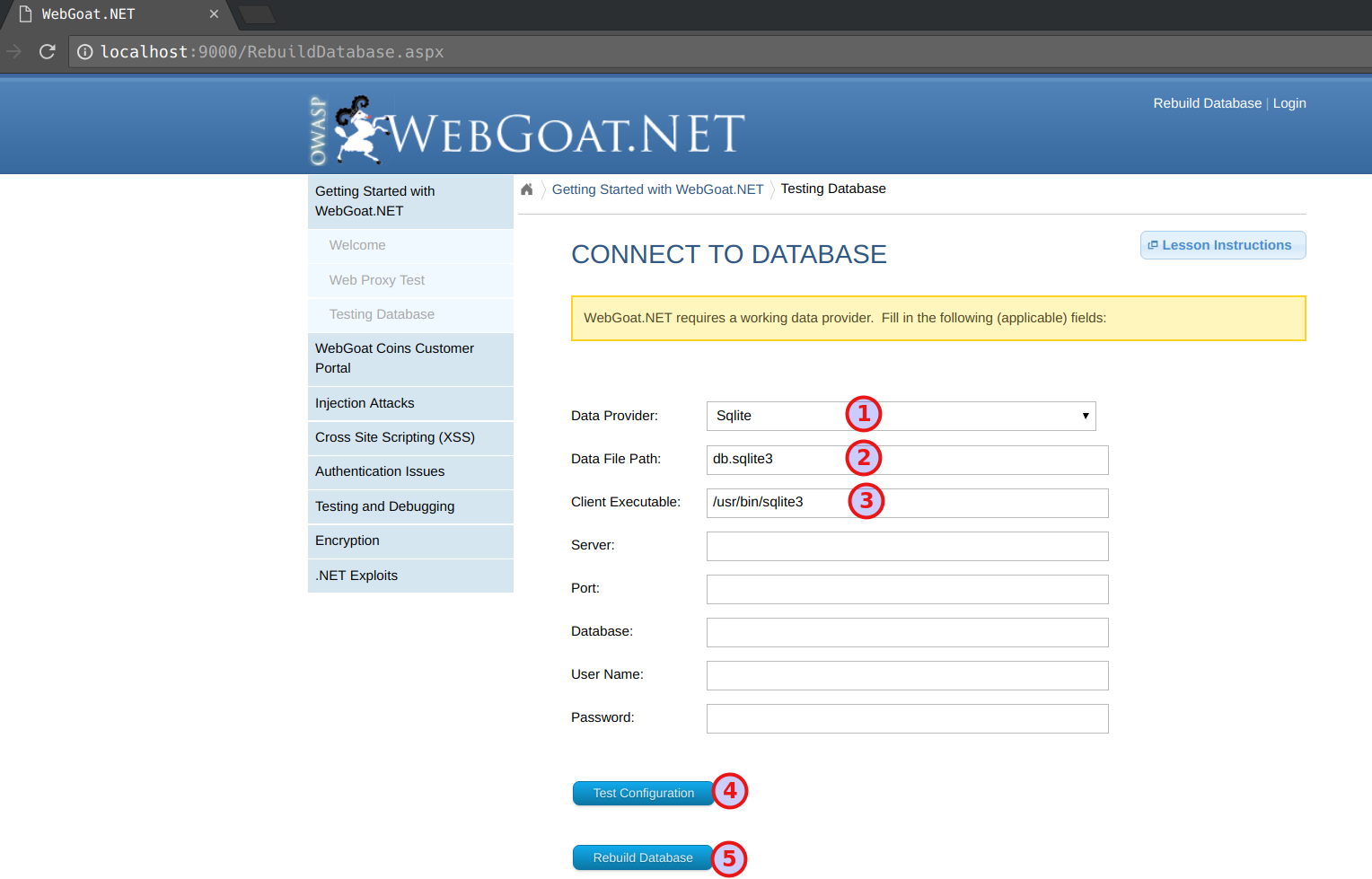
- OWASP WebGoat.net: setup the Database with the following settings
- Data Provider: Sqlite
- Data File Path: db.sqlite3
- Client Executable: /usr/bin/sqlite3
- OWASP Mutillidae 2
- Click setup/reset the DB
- bWapp - An Extremely Buggy Web App
- goto http://ip-address-of-your-vm:8085/install.php
- click on "Click here to install bWapp

- Vulnerable Wordpress
- complete the installation by selecting the language and other configuration settings
- WebGoat/WebWolf - The WebWolf component sometimes fails to start even though the Webgoat app is running fine.
Login to the Portainer Web Console
- goto http://ip-address-of-your-vm:9000
- Goto Home on the top left
- Select the Docker Instance in the middle of the screen
- Goto to containers
- locate the Webgoat Container
- Click Restart
- secretcorp-branch1 - I suspect this one may need more memory as it sometimes works, sometimes doesn't.
Login to the Portainer Web Console
- goto http://ip-address-of-your-vm:9000
- Goto Home on the top left
- Select the Docker Instance in the middle of the screen
- Goto to containers
- locate the secretcorp-branch1 Container
- Click Restart