Tutorial 2: Exploring the API
Once you create a simple application (like we did in the first tutorial), you can customize its functionality using the Parasol API. In this tutorial, you will learn how to:
- Perform clustering analysis
- Make axes dynamically reorderable
- Adjust polyline opacity
Let's get started! Navigate to parasol-es/demo and open tutorial-2.html in your favorite text editor. It is basically the same as the finished product from Tutorial 1. For this tutorial, we will focus on the JavaScript part of the HTML document. That means the code between <script> and </script> at the end of the document.
Clustering is an unsupervised learning technique that groups similar data together. k-means clustering is one of the most common algorithms used for such an analysis and is the one used in the .cluster() method in Parasol. So far, we've been plotting data from a data set about the characteristics of cars (cars.csv). Let's cluster these cars into three different groups (i.e., k=3). To do so, we can chain .cluster({k: 3}) to our Parasol object:
  var ps = Parasol(data)('.parcoords')  // create Parasol object
            .attachGrid({container: '#grid'})  // attach data table
            .linked()  // link PC plots and data table together
            .cluster({k: 3})
This code is almost correct. One problem. The cars data set includes a non-numeric variable: car names. The clustering algorithm only can work with numeric data. Therefore, we need to specify which variables are included.
To do so, let's modify the code like this...
  // returns an array of all variable strings in the data except for the variable 'name'
  var cluster_vars = d3.keys(data[0]).filter(function(key) {
    return key !== 'name';
  });

  var ps = Parasol(data)('.parcoords')  // create Parasol object
            .attachGrid({container: '#grid'})  // attach data table
            .linked()  // link PC plots and data table together
            .cluster({k: 3, vars: cluster_vars})
Like we did in the first tutorial, open view your application by opening your terminal in the parasol-es folder and running the npm run dev command. This will pull up a webpage with example Parasol applications. Click on the link for Tutorial 2 to view the app from this tutorial.
You'll notice that the parallel coordinates plots are now colored based on the clusters and that a new column has been added to the data table. If you would like, you can include the clusters in the parallel coordinates plots by making this edit:
.cluster({k: 3, vars: cluster_vars, hidden: false})One major criticism of parallel coordinates is that the audience can only examine pairwise comparisons between adjacent axes. This means that the layout of the axes dictates the insights revealed to the audience. However, this problem can be resolved by making axes dynamically reorderable. This allows the audience to examine any possible pairwise comparison of variables. To implement it, chain .reorderable() to the Parasol object. Now, if you save and refresh the browser, you can click on the title of any axis and drag it anywhere you'd like (see GIF below).
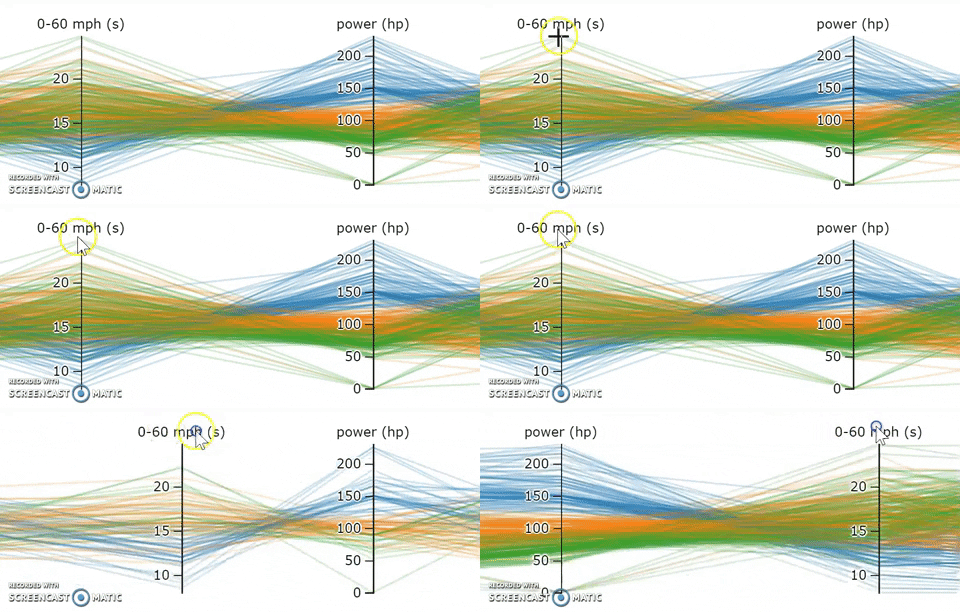
This .reorderable() method comes from the Parcoords library. We've made Parasol wrapper functions for Parcoords methods so that they can be applied the same way that Parasol methods are used. When applied to a Parasol object, these methods affect all plots associated with that object.
But you can also apply these Parcoords methods to individual plots too. For instance, if you want to change the transparency of a plot you'd use the .alpha() method. To alter the opacity of the polylines on the first plot (or chart), add the following code:
// since JavaScript is zero-indexed, the first plot is index 0
ps.charts[0].alpha(0.1)
For a list of more Parcoords methods supported by the Parasol API, check out the API Reference page.
And that's it! You've finished the second Parasol tutorial. In the next tutorial, we will learn how interactive buttons and sliders can be used to add the final touches to a Parasol app.