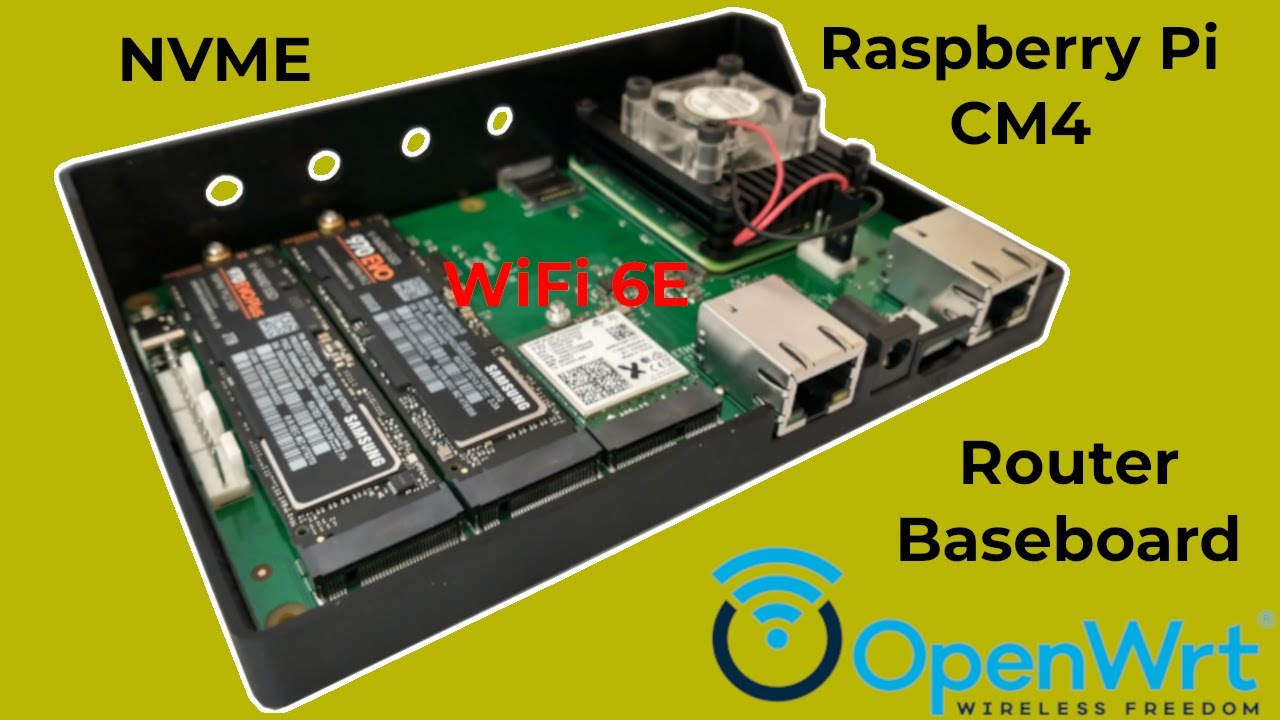
This repository contains the source code for the software and firmware necessary to utilize the custom features of the CM4-WRT-A: A Raspberry Pi CM4 Router Baseboard with NVME support. Currently sold on Tindie: https://www.tindie.com/products/mytechcatalog/rpi-cm4-router-baseboard-with-nvme/
The repository is organized as follows:
| Directory | Description |
|---|---|
| CM4 | Source code for picod: A service for communicating with the Raspberry Pi Pico |
| pico | Firmware for the Raspberry Pi Pico microcontroller |
| case | STL files for a 3D printed case for the CM4-WRT-A |
- Overview of the CM4-WRT-A
- How to install OpenWRT on the CM4-WRT-A router
- How to monitor the CM4-WRT-A board temperatures and fan speed (RPM) in InfluxDB
The build scripts for the CM4-WRT-A rely on Docker. If you would like to build OpenWrt or the Raspberry Pi Pico firmware for the CM4-WRT-A, install Docker with these commands on the terminal in Ubuntu or Debian: See https://docs.docker.com/desktop/install/linux-install/ for further details.
sudo apt update
sudo apt install -y docker.io
sudo usermod -aG docker $USERIt will be possible to update this OpenWrt build by adding kmods and packages from the official repository using opkg, or LuCI software interface.
-
Clone this repository:
git clone https://github.com/MyTechCatalog/cm4-wrt-a.git
-
Run the OpenWrt build script:
cd cm4-wrt-a && ./build-openwrt.sh
-
The OpenWrt images will be located in this folder:
cm4-wrt-a/bin/targets/bcm27xx/bcm2711/ -
Upon first boot up, install the following kmods:
kmod-i2c-core kmod-i2c-bcm2835 kmod-nvmeroot@OpenWrt:~# opkg update root@OpenWrt:~# opkg install kmod-i2c-core kmod-i2c-bcm2835 kmod-nvme
The build script will use the latest tag/version from the OpenWrt repo. If you need to build a specific OpenWrt release version in step 2 above, specify the tag name after the script, for example:
./build-openwrt.sh v23.05.6
After running the following command: ubus call picod status, you should see output similar to:
root@OpenWrt:~# ubus call picod status
{
    "fan_pwm_pct": {
        "System_Fan_J17": 50,
        "CM4_FAN_J18": 50
    },
    "watchdog": {
        "is_enabled": "false",
        "timeout_sec": 10,
        "max_retries": 0
    },
    "temperature_c": {
        "PCIe_Switch": "36.2",
        "M.2_Socket_M_J5": "34.5",
        "M.2_Socket_E_J3": "34.8",
        "M.2_Socket_M_J2": "33.0",
        "RPi_Pico": "37.4",
        "Under_CM4_SOC": "36"
    },
    "tachometer_rpm": {
        "System_Fan_J17": 3420,
        "CM4_FAN_J18": 0
    }
}
Otherwise, if you get an error such as the one below:
root@OpenWrt:~# ubus call picod status
Command failed: Not found
It means that the name of the CM4's serial port (device path) connected to the RPi Pico, is different
from the default value in the picod configuration file /etc/picod.conf.
Edit line 29 in the config file /etc/picod.conf by replacing /dev/ttyAMA3 with the second device path obtained from the output of the following command:
root@OpenWrt:~# ls /dev/ttyA*
/dev/ttyAMA0  /dev/ttyAMA1
For example, based on the above output, line 29 of /etc/picod.conf should be edited to read:
pico_serial_device_path="/dev/ttyAMA1"
Start the picod service, and then verify that it is running as described above:
root@OpenWrt:~# /etc/init.d/picod start
Assuming you have Docker installed as described in the prerequisites above, run the commands below:
cd CM4
make docker-cross
./build-picod.sh
The debian package picod_1.0_arm64.deb will be located in CM4/build folder.
Copy it to the Raspberry Pi and install it with this command:
dpkg -i picod_1.0_arm64.debsudo systemctl daemon-reload
sudo systemctl enable picod.service
sudo systemctl start picod.serviceYou can then access the picod web interface at http://localhost:8086/. This location is not accessible from outside the RPi CM4 itself. As such, an SSH tunnel can be created with the following command to forward port 8086 to localhost on your computer:
ssh -L 8086:localhost:8086 username@cm4_ip_addressCopy to CM4/config_rpios.txt to /boot/firmware/config.txt in order to configure/enable the custom interfaces on the board.
- Clone this repository if you haven't already done so from above:
git clone https://github.com/MyTechCatalog/cm4-wrt-a.git
- Run the Pico build script:
cd cm4-wrt-a && ./build-pico-firmware.sh
- The firmware will be located here :
cm4-wrt-a/pico/build/cm4-wrt-a.uf2
Email: cm4-wrt-a@mytechcatalog.com