As of: Summer'21
Authored By: George Abboud
Last Updated: 09/09/2021
AppExchange Listing:
https://appexchange.salesforce.com/appxListingDetail?listingId=a0N3A00000FMYinUAH
Open-Source Code: https://github.com/salesforce-experiencecloud/LaunchFlowInModal
Ever built a great flow that facilitates the creation of a case, or submitting feedback on a page, or maybe enables a partner to quickly register a deal; and wished you could launch said flows for your users to complete these actions without navigating them off the page they are looking at? With the Launch Flow in Modal lightning component, you can do just that! With options to render a button and launch your flow upon that button's click, and being able to auto-launch the flow as the component renders on the page - all in a modal so not to interrupt your users' navigation!
This package is free to use, but is not an official salesforce.com product, and should be considered a community project. The functionality is not officially tested or documented, and does not come with any support, warrantees, or updates. It is offered as-is.
Lightning Component that allows users to launch flows in a modal, without having to leave the page they're on!
Currently, there are no out-of-the-box components that offer the same user experience in launching a flow in a modal. There have been many use-cases that surfaced the need for such functionality to maintain a high user experience and allow users to complete actions, create records, and go through guided flows without leaving the current page they are viewing.
Can be used on any lightning page.
- Install unmanaged package
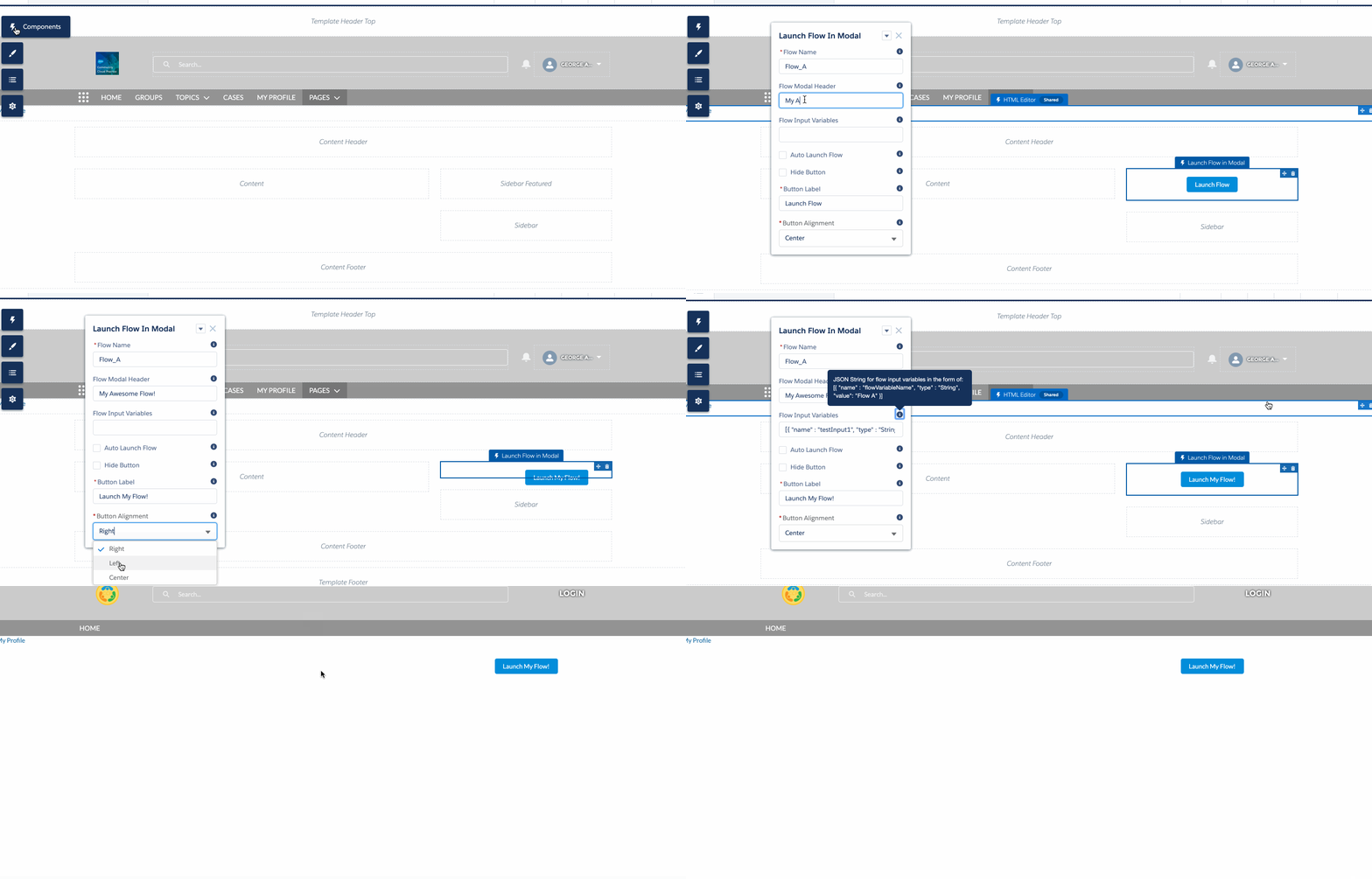
- From builder, go to a lightning page and drag the “Launch Flow in Modal” component anywhere on the page
- Configure the component [sf_flowmodal:ccp_launchFlowModal] as follows:
- Flow Name [flowName]: Required - Set the value to the API name of the flow you wish to launch.
- Flow Modal Header [flowModalHeader]: Text to display in the header of the modal.
- Flow Input Variables [flowInputVariablesString]: JSON string to, optionally, pass input variables to the flow. The JSON structure / variables should follow the following:
- Community Builder example:
[ { "name" : "testInput1", "type" : "String", "value": "{!recordId}" }, { "name" : "testInput2", "type" : "Boolean", "value": "false" } ]
- LEX App Builder example (RECORDID is case insensitive):
[ { "name" : "testInput1", "type" : "String", "value": "_RECORDID_" }, { "name" : "testInput2", "type" : "Boolean", "value": "false" } ]
- Community Builder example:
- Auto Launch Flow [autoLaunchFlow]: Check to launch the flow right after the component renders.
- Hide Button [hideButton]: Check to hide the button (no UI). Assumed to be used with Auto Launch Flow checked if you only want to have the flow auto launch upon rendering and not allow the user to click and launch the flow themselves.
- Button Label [buttonLabel]: Text to use for the button label.
- Button Alignment [align]: Choose how to align the button in its container.
- Button Background Color [buttonBackgroundColor]: Leave empty to inherit the branding styles from the branding editor in Community Builder, or provide a CSS color to set the button background color to.
- Button Text Color [buttonTextColor]: Leave blank if you want the button to inherit the default brand color, otherwise specify a CSS color.
- Button Size [buttonTextSize]: CSS Text size for button. Leave blank if you want the button text to inherit the default size, otherwise specify a size value.
- Hide Flow Transition Overlay [hideFlowTransitionOverlay]: Check to hide the flow transition overlay that flashes when moving from one step in the flow to another.
- Refresh Page on Flow Completion [refreshPageOnFlowCompletion]: Checking this box will refresh the page upon completion of the flow.
- Redirect to Url on Flow Completion [redirectUrlOnFlowCompletion]: Url to redirect to upon flow completion. This setting will override the Refresh Page on Flow Completion setting.
- Hide Modal Close Button [hideModalCloseButton]: Check to hide the modal close button (“X”)
- Render Modal Footer [renderFooter]: Check to render the footer, which currently only contains a close button.
- Text for Close button in footer [closeButtonText]: The text for the Close button in the footer
- Apply Card Background [applyCardBackground]: Checking this box will apply the slds card background.
- Fixed Modal Width / Height [fixedModalWidthHeight]: Checking this box will apply a fixed width and height to the modal, based on the specified width and height.
- Fixed Modal Width [modalWidth]: The width value for the fixed modal width / height mode.
- Fixed Modal Height [modalHeight]: The height value for the fixed modal width / height mode.
- Fixed Button Width / Height [fixedButtonWidthHeight]: Checking this box will apply a fixed width and height to the button, based on the specified width and height.
- Fixed Button Width [buttonWidth]: The width value for the fixed button width / height mode.
- Fixed Button Height [buttonHeight]: The height value for the fixed button width / height mode.
- Button Border Radius [buttonBorderRadius]: The radius value for the button.
Installation URL: https://login.salesforce.com/packaging/installPackage.apexp?p0=04t2E000003VsuM
- Fixed a bug with relaxedCSP and locker service being turned off in an Experience Cloud site using this component.
Installation URL: https://login.salesforce.com/packaging/installPackage.apexp?p0=04t2E000003VssL
- Added the relaxedCSP interface to the component so it is compatible with experience cloud sites with a relaxed CSP config.
Installation URL: https://login.salesforce.com/packaging/installPackage.apexp?p0=04t2E000003VssG
- Added property to set the button border radius
- Fix for error with access check on attribute that wasn’t defined
Installation URL: https://login.salesforce.com/packaging/installPackage.apexp?p0=04t2E000003VsVW
- Added property to set the close button text in the modal footer
Installation URL: https://login.salesforce.com/packaging/installPackage.apexp?p0=04t2E000003VsJY
- Option to render footer, which currently only displays a close button
Installation URL: https://login.salesforce.com/packaging/installPackage.apexp?p0=04t2E000003VsBs
- Option to set fixed width and height of modal
- Option to set fixed width and height of button
- Option to set button text size
- Option to apply slds-card class as background to the button
Installation URL: https://login.salesforce.com/packaging/installPackage.apexp?p0=04t2E000003obYm
- Fix for center alignment not applying branding background to button
- Support for hiding / showing close button for the modal
Installation URL: https://login.salesforce.com/packaging/installPackage.apexp?p0=04t2E000003obYh
- Updated component to allow for an option to redirect to a url upon flow completion
Installation URL: https://login.salesforce.com/packaging/installPackage.apexp?p0=04t2E000003oaKd
- Updated component to allow for an option to reload the page upon flow completion
Installation URL: http://sfdc.co/LaunchFlowInModal
- Updated component to allow for changing the button text color
Installation URL: http://sfdc.co/LaunchFlowInModal
- Updated component to show up in list of components available for home pages
Installation URL: http://sfdc.co/LaunchFlowInModal
- Added option for button to either inherit branding when within communities from branding editor, or override button color with a CSS Color code
- Added option to hide transition overlay when moving from one step to another in a flow
Installation URL: http://sfdc.co/LaunchFlowInModal
- Updated for compatibility with recordId variable substitution in LEX due to limitation in LEX for using merge fields for record Ids. RECORDID (Case Insensitive) now will get substituted for the recordId populated on a detail page in LEX
Installation URL: http://sfdc.co/LaunchFlowInModal
- Initial Release