The extension provides various aids for creating and editing STNE scripts.
You can auto format your scripts using the Format Document action in VS Code.
Default keybinding: ALT + SHIFT + F
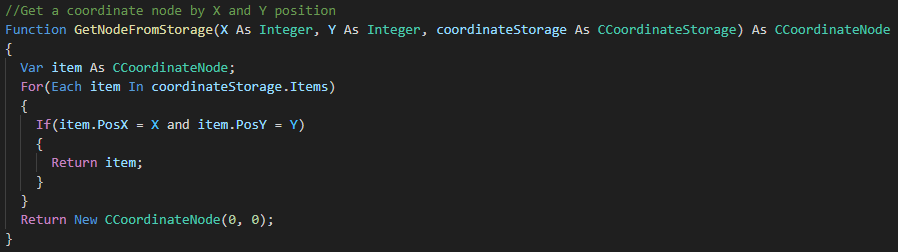
Your STNE scripts will feature complete syntax highlighting, coveringkeywords, comments and all other elements:
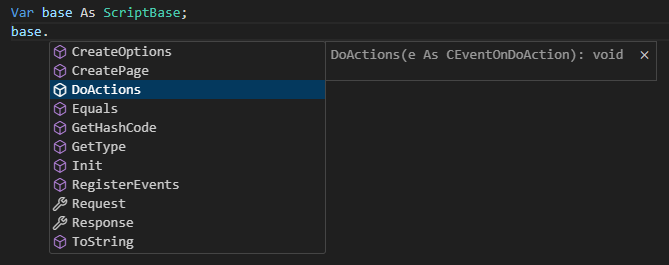
The extension provides completion suggestions when you code:
You can insert code snippets such as ForEach or variable declarations when you type certain keywords:

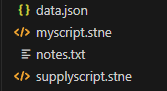
Files with .stne extension will have a special file icon in the explorer:
- Option A:
- Open Visual Studio Code and go to view
Extensions - Search for
STNE Script Supportand chooseInstall
- Open Visual Studio Code and go to view
- Option B:
- Visit the Visual Studio Marketplace page of the extension
- Choose
Installand thenOpen Visual Studio Code
To use the extension, open a workspace in VS Code and create a text file with an .stne extension.
VS Code will automatically detect STNE Script as the programming language in this file.
ℹ️ You can configure brace style and indentation size in File » Preferences » STNE Script Support
To build the extension yourself, you need Visual Studio Code and Node.js installed on your machine.
Use the following commands to download the code and install dependencies:
git clone https://github.com/JackTaylor1114/stnescriptextension.git
npm install
There are two possible ways to build the extension:
-
npm run build- This script will use
tscto compile the TypeScript code into JavaScript - Output will be genereated in
/build - Non-minimized JavaScript versions of source and test files will be created
- Unit tests will run with this build, but it cannot be launched from VS Code
- This script will use
-
npm run compile-webpack- This script will use
webpackto compile a single JavaScript asset - Output will be generated in
/dist(ignoring all test files) - This version will be used when the extension is launched for debugging
- The production version is compiled with
npm run package
- This script will use
To debug the extension, use the Start launch configuration in VS Code.
The default configuration will compile-webpack the project before launch.
The release artifact is created with vsce package.
To run unit tests for the project, use the command npm run test.
Test results will be printed in the Terminal.
You can also run the Run Tests launch configuration.
This allows you to debug the test files in /build/test.
Output from this test run will be printed in the Debug Console.