


Run Detectron2 pointrend algorithm. It is an instance segmentation algorithm.
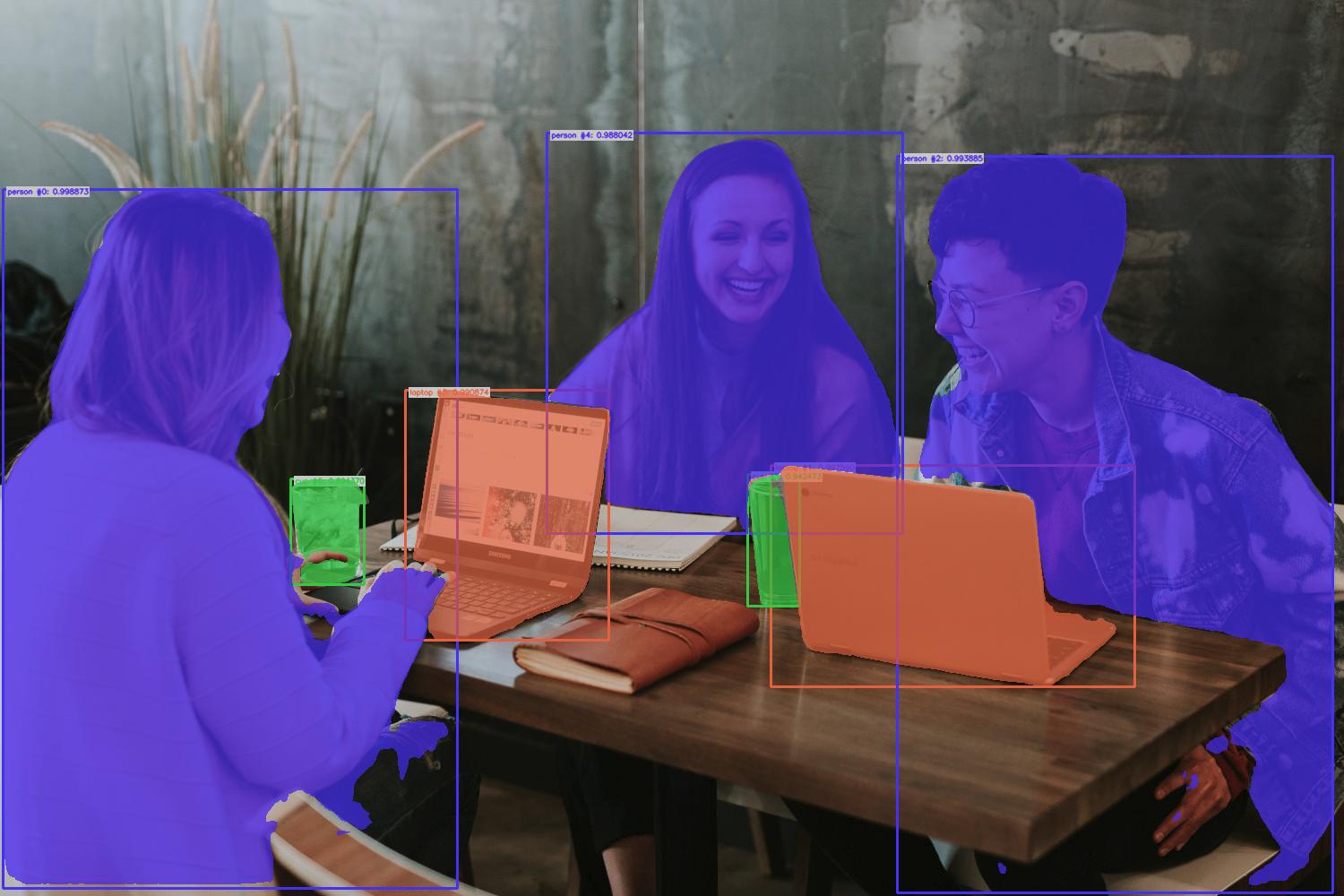
We strongly recommend using a virtual environment. If you're not sure where to start, we offer a tutorial here.
pip install ikomiafrom ikomia.dataprocess.workflow import Workflow
from ikomia.utils.displayIO import display
# Init your workflow
wf = Workflow()
# Add algorithm
algo = wf.add_task(name="infer_detectron2_pointrend", auto_connect=True)
# Run on your image
wf.run_on(url="https://raw.githubusercontent.com/Ikomia-hub/infer_detectron2_pointrend/main/icons/pointrend_example.jpg")
# Display result
display(algo.get_image_with_mask_and_graphics())Ikomia Studio offers a friendly UI with the same features as the API.
- If you haven't started using Ikomia Studio yet, download and install it from this page.
- For additional guidance on getting started with Ikomia Studio, check out this blog post.
- conf_thres (float) - Default 0.8: Box threshold for the prediction [0,1].
- cuda (bool) - Default True: If True, CUDA-based inference (GPU). If False, run on CPU.
algo.set_parameters({
    "conf_thres": "0.5",
    "cuda": "False",
})Note: parameter key and value should be in string format when added to the dictionary.
Every algorithm produces specific outputs, yet they can be explored them the same way using the Ikomia API. For a more in-depth understanding of managing algorithm outputs, please refer to the documentation.
from ikomia.dataprocess.workflow import Workflow

# Init your workflow
wf = Workflow()

# Add algorithm
algo = wf.add_task(name="infer_detectron2_pointrend", auto_connect=True)

# Run on your image
wf.run_on(url="https://raw.githubusercontent.com/Ikomia-hub/infer_detectron2_pointrend/main/icons/pointrend_example.jpg")

# Iterate over outputs
for output in algo.get_outputs():
    # Print information
    print(output)
    # Export it to JSON
    output.to_json()