A tutorial about how you can create a tiny Linux distro to image computers of a fog using iventoy netbooting.
Imagine that you have a "mother" PC and you want to clone its operating system on many other computers. One of the basic options which you have is to just boot everything else using a USB disk and use software like Partclone or Clonezilla in order to do mass cloning.
But what if you wanted more control on what you are doing? Or maybe you want to just experience it yourself. In this case, you can use this tutorial to create a versatile bootable ISO from scratch (or Alpine Linux) in order to do it yourself.
At last, we will use iventoy in order to mass deploy our ISO to multiple computers and image them.
Disclaimer: This tutorial is written for people who are familiar with Linux and somehow familiar with internals of it like modules and such. You should also know how to compile stuff such as Linux kernel itself!
The first step to create a bootable ISO is to get the kernel file. In this case you have two options:
- Compile the kernel yourself
- Get it from a distro
In this case, at first, grab the latest kernel version from kernel.org. The use the following command to install the required dependencies for compiling the Linux kernel:
apt install git fakeroot build-essential ncurses-dev xz-utils libssl-dev bc flex libelf-dev bisonNow you have two options which are explained below:
- Use the default configuration which the Linux gives you
- Use your distro's configuration file
Compile your kernel with make -j $(nproc). In the end, the compiled Linux kernel is located under arch/x86/boot/bzImage and the kernel module files are located in the corresponding directory in the source code tree. They have .ko extension.
You can also set INSTALL_MOD_PATH environment variable before executing make modules_install to gather all modules files in a specific directory.
You can get the default configuration by just using the following command in the kernel's source code directory:
make defconfigThis will replace your configuration with a default and minimal Linux configuration. This configuration is sufficient to run your operating system under a VM. However, you might and probably will run into a lot of driver issues as soon as you try to run this kernel under real hardware.
One easy way to find out which drivers (and modules) are needed under your machine is to run a distro such as Ubuntu or Alpine from a USB stick and use lsmod command to list every loaded module. Then you can go to kernel configuration and simply enable every single module which your distro was using.
You can either enable drivers as modules or simply embed them inside your kernel. If you are building drivers as modules you need to load them inside your init script. I'll talk about this in the next section.
Important
You probably want to always enable the "packet socket" option (CONFIG_PACKET) in the kernel's configuration. This will enable you to use DHCP inside the operating system. You can either mark this as a compiled module or directly build it inside the kernel.
Warning
Some of the drivers might simply NOT work if they are embedded in your kernel. One instance that I've personally encountered is the r8169 driver which is labeled as "Realtek 8169/8168/8101/8125 ethernet support" under Linux configuration (CONFIG_R8169). The OS simply did not recognized my ethernet driver unless the module was loaded manually. I personally recommend avoiding built-in hardware drivers as much as you can.
Another option which I recommend is using a distribution's configuration file. This configuration file is located under /boot directory and usually starts with config-. This file must be copied to Linux's source code tree with the name of .config. After copying this file, make sure to run make menuconfig to fill the missing configurations with default values.You can also double check every module, driver and features.
Tip
You might run into an error such as *** No rule to make target 'debian/canonical-certs.pem', needed by 'certs/x509_certificate_list'. Stop.. In this case, open the .config file using a text editor and search for values containing .pem file. Just empty those values and try to make the kernel again.
One thing which you should probably do when you are compiling the Linux yourself is enabling the modules which are needed to run on the fog. For instance, a network driver might be needed in order to use the LAN. Or a SCSI driver might be needed in order to detect the disk or many other reasons.
In case that you are building based on the default config you have to explicitly enable modules which are needed for your target hardware (such as disk or network drivers). However, if your config file is based on a distro's config file you generally do not need to worry about choosing the modules. You just have to worry about loading them in the boot time (which we will get to later).
In case that the computers are running on low ram, you might want to enable the module compression in the configuration, under the "Enable loadable module support" section. I personally prefer gzip because it is fast and not resource intensive while keeping an acceptable compression ratio.
To export kernel modules in a folder use the following commands:
export INSTALL_MOD_PATH=/tmp/modules
export INSTALL_MOD_STRIP=1
make modules_install
INSTALL_MOD_PATH defines the place which the modules will be put while INSTALL_MOD_STRIP will strip the modules from the debugging symbols, reducing the size of them.
This is a simpler way to get started. You just need to get the ISO of a distro. I personally recommend Alpine Linux standard edition ISO. As you probably know, there are two very main components when you are booting Linux: The kernel and initramfs. In most ISO files like Alpine, the kernel is located at /boot/vmlinuz and initramfs is located as /boot/initramfs. Names may vary; for instance, /boot/bzImage is also another common name for Linux kernel. You can check the files using the file command.
However, one very important note that you should take is that you HAVE TO use the compiled kernel modules included in your distribution and you CANNOT compile them yourself because of the mismatch between the compilers and the kernel version. In alpine the kernel modules are located in the /boot/modloop-lts file. This file can be extracted using 7z.
The the other component which is needed to boot Linux beside the kernel is the initrd or initramfs. This is the file system the Linux kernel sees when it boots up. Usually this file system is very light and only contains a limited set of tools. For us who want to only image the disk, BusyBox is completely sufficient because it provides us with tools such as dd, wget and udhcpc.
The first step to create the initramfs is to compile the BusyBox itself. You have to grab the latest source code from their website. Then run make menuconfig to create a configuration file. In the Settings section, search for "Build static binary (no shared libs)" and enable it. This will create a statically linked executable and enables to create the initramfs without compiling and including glibc.
Then simply execute make and then make install. Busybox will create a folder named _install and copy all files in there.
Tip
Use file busybox to check if the executable is linked statically.
/init is the first file which the Linux kernel executes. This file does stuff such as mounting system file systems, loading drivers and such. But first before creating the init script, in the _install folder execute this command to create the required folders for system:
mkdir dev proc sysWith that, your _install must look like this:
.
├── bin
├── dev
├── proc
├── sbin
├── sys
└── usr
    ├── bin
    └── sbin
Now create a file called init and make it executable with chmod +x init. Put the following content in it:
#!/bin/sh
# Mount system stuff
mount -t devtmpfs none /dev
mount -t proc none /proc
mount -t sysfs none /sys
# Create the loopback interface
ifconfig lo 127.0.0.1
# Shut up kernel logs
dmesg -n 1
echo "Welcome to Flasher OS!"
# Run shell with cttyhack to enable signals
exec setsid cttyhack /bin/sh
In nutshell, this scripts mounts the special file systems such as /dev, /proc and /sys and enables other applications to use them which is quite necessary for your OS to actually function. Next, we create the loopback interface which is needed for networking in general. The dmesg -n 1 log disables the non fatal kernel logs to be printed to console. The message logs can be accessed again in the console using dmesg function. At last, we run /bin/sh with setsid and cttyhack. Both of these commands enables us to use signals and quit from running applications with CTRL + C and such while not killing the /bin/sh.
However as you might have guessed, this script only gives you a shell and does not even enable networking. However, I personally think that this is the barebones of all init scripts and everything must be built on top of something like this.
The first thing which is needed is networking. Because you are netbooting, you are probably using a LAN cable. You also have a DHCP server and every guest gets its IP from it. To enable networking with DHCP, at first you need to write a script to handle the DHCP messages. One example can be found at BusyBox source code. If you have a more predictable environment you can also create one yourself. For example, I used the script which I included in dhcp-sample.script.
Next, just after configuring the loopback driver run these two lines in order to start the interface and the DHCP client.
ifconfig eth0 up
udhcpc -i eth0 -s /usr/share/udhcpc/default.script
Note
Make sure to tune the interface name and the location of the script in the init script. The script must be executable (with chmod +x).
Another feature which I find very useful is a bind shell which can be used to gcet shell from all remote computers from any other remote computer. However, this feature must only be used ONLY AND ONLY if your network is a local network and NOTHING else can access it. These shells can accessed without username as password with root privileges. Be careful if you enable them.
To enable a bind shell on port 12345 use this line after network initialization and driver loading in init script:
nc -lvnp 12345 -e /bin/sh &Here comes the most chaotic part of this tutorial. I actually do not know a good way to automate this step but there are some ways to do it.
The lawful way is to use stuff like kmod and udev to automatically load appropriate kernel modules. This is probably the best way if you want to mass deploy the imager on computers with different hardware. Because each computer will load its own specific set of modules. However, you need more stuff to be included in your initramfs such as kmod or even systemd! So more stuff should be done if you want to go down this way.
I really want to try this method out, but I currently do not have the time and energy to do so. If you did it, please let me know! You can probably also check what other very light distros such as alpine are doing and try to replicate them.
In the case that every computer is the same in the fog, you can hardcode the modules which are going to be loaded. This will make your initramfs file very light because you only need a few modules. In case that you want to go down this way (which I did myself and recommend it!), boot up a distro and by using lsmod command, check which modules are loaded. Then, in the init file and using insmod command install every module which you need. For example, for USB keyboard support, I use this:
insmod /my_modules/6.6.31-0-lts/kernel/drivers/usb/common/usb-common.ko
insmod /my_modules/6.6.31-0-lts/kernel/drivers/usb/core/usbcore.ko
insmod /my_modules/6.6.31-0-lts/kernel/drivers/usb/host/ehci-hcd.ko
insmod /my_modules/6.6.31-0-lts/kernel/drivers/usb/host/ehci-pci.ko
insmod /my_modules/6.6.31-0-lts/kernel/drivers/hid/hid.ko
insmod /my_modules/6.6.31-0-lts/kernel/drivers/hid/usbhid/usbhid.ko
insmod /my_modules/6.6.31-0-lts/kernel/drivers/hid/hid-generic.ko
Important
Be sure to load modules in order. Modules tend to have dependencies on each other. These dependencies can be seen with lsmod or modinfo command.
Load/embed everything. Don't do this :)
When everything is ready in the init script, we have to actually flash the disk. To do so, we can use dd command. The dd command accepts the input file as pipe stream. This means that we can pipe the output of another command to dd and write everything into your block device. In this tutorial we are going to use the good old wget command to get the image from internet/local network and flash it to the disk.
This means that we should use a command like this:
wget -O- 'http://192.168.1.1:8000/disk-image.img' | dd bs=4M of=/dev/sdaWhere http://192.168.1.1:8000/disk-image.img is the address to the disk image.
I think the best place to host the image is where the DHCP server is. Because DHCP server must be reachable from every device and probably you are running iventoy from it so it must be a capable computer. In that computer, you can use python3 -m http.server to bring a very simple file server up and run it on port 8000. If you want to change the port, use python3 -m http.server 12345 to run it on port 12345. Make sure that you have configured your firewall in order to allow incoming connections to your host.
Also, I suggest that before netbooting everything, try to get the file from one of the computers which is booted from a USB stick to Ubuntu or another distro to make sure that your file server works.
We will talk about this in an upcoming section.
A full init script can be found at init-sample. This is the script which I used to netboot bunch of PCs.
Packing the initramfs is very easy. Just go to the folder which is the root of your initramfs and execute the following command:
find . -print0 | cpio --null -ov --format=newc | gzip -9 > ../initramfs.cpio.gzIt will create the initramfs is the upper directory and you can simply use it!
Making the ISO is a very strange process. You need to have a virtual machine with GRUB2 as the bootloader and the same boot type of your target host. This means that if you want to netboot using UEFI, you have to have a virtual machine with UEFI GRUB and if you want to boot using BIOS, you have to have a virtual machine with BIOS boot type. My personal recommendation is to install Debian on VirtualBox and either check or uncheck "Enable EFI (Special OS only)" in the VM system settings. This will make your guest OS run on BIOS or UEFI.
Now to create the ISO, you need three files. Two of them are the bzImage and initramfs which you made in previous parts. The other one is the GRUB config which is needed to tell the GRUB what to load. In case that you want to use BIOS to boot the guest OS use the following config:
set default=0
set timeout=10
menuentry 'myos' --class os {
    insmod gzio
    insmod part_msdos
    linux /boot/bzImage
    initrd /boot/initramfs.cpio.gz
}
In case that you want to boot using UEFI, use the following command:
set default=0
set timeout=10
# Load EFI video drivers. This device is EFI so keep the
# video mode while booting the linux kernel.
insmod efi_gop
insmod font
if loadfont /boot/grub/fonts/unicode.pf2
then
        insmod gfxterm
        set gfxmode=auto
        set gfxpayload=keep
        terminal_output gfxterm
fi
menuentry 'myos' --class os {
    insmod gzio
    insmod part_msdos
    linux /boot/bzImage
    initrd /boot/initramfs.cpio.gz
}
Name this file grub.cfg. Now create a folder to place all files of the ISO in it. I'll call this folder iso. Now create the following directory structure with the given files:
iso/
└── boot
    ├── bzImage
    ├── grub
    │   └── grub.cfg
    └── initramfs.cpio.gz
Now that you have everything in place, run the following command. This command will create the ISO file for you:
grub-mkrescue -o myos.iso iso/
This will create the myos.iso file which is the ISO file for your operating system and netboot boot-strapper.
Note
You might also want to install the xorriso package from your package manager.
Tip
Before netbooting, try the generated ISO in a virtual machine to see if everything works fine.
This can be done with dd command. Something like this should work:
dd bs=4M if=/dev/sda of=/media/USB/disk-image.imgCaution
You must watch out for three different pitfalls:
- Make sure that the destination disk and source disk are different. For example, like in the example, output the image into a flash drive. Not only you will run out of disk but also your image is going to be broken because it's a snapshot of live disk.
- Use a live disk to flash the disk. DO NOT use the installed OS on disk to image the disk. In case of installed OS, your OS might do background task on disk and thus break your image because of inconstancy.
- You must image the whole disk not partitions. If you image partitions, you will probably end up with a broken bootloader. (i.e: do not flash
/dev/sda1)
Based on the above caution, I suggest you to grab a Ubuntu Live USB and boot from it. In the operating system, DO NOT mount any local disk and only mount a USB disk that should hold the image and put the image on the USB.
At last, put this image somewhere in the DHCP computer that runs the python http server. Make sure to check the filename.
It is possible to compress and decompress the image on-fly. When imaging, use the following command:
dd bs=4M if=/dev/sda | gzip -9 > /media/USB/disk-image.img.gzAnd for imaging the init script use the following command:
wget -O- 'http://192.168.1.1:8000/disk-image.img.gz' | gzip -cd | dd bs=4M of=/dev/sdaTip
Other compressions are also possible. For example, xz will result in smaller size archive however, it will take more CPU time to compress it. I personally think that gzip keeps a good time/size ratio.
It is possible to use cpio command instead of dd command in order to only make a snapshot of the partition content instead of block level snapshot. This is useful if the partition or disk is very large or maybe if you want to just clone a partition content (in oppose of OS clone).
There are pros and cons to this method:
- Images use less disk space because files are imaged rather than blocks
- Bigger disks can be cloned into smaller ones as long as the used disk space is less than the total capacity
- Partitions must be created separately
- Different partitions must be imaged in different files
- Bootloader must be handled separately
- NTFS partitions do not work well with
cpio
In general, if you want to use cpio based images, I recommend that you follow these steps to flash it:
- Use
ddto image first two megabytes of disk. This part of disk contains the boot and partition data. - Reload the partition table in the OS to get the new partitions. This can be done with
partprobe /dev/sdacommand. - Use
mkfscommands to create new file systems. You probably want to usemkfs.ext4. - Mount the needed partitions and extract the data in the partitions.
Warning
GPT type disks are a little bit more complicated than that. For example you have to also backup the backup GPT LBA which is stored in the last LBA. If you really want to clone a GPT disk, I suggest that you start creating the partitions from scratch and clone each one. Also remember to clone the ESP partition as well.
You can do partitioning with fdisk or gdisk command.
To clone a partition use the following command in the root of the partition:
find . -print0 | cpio --null -ov --format=newc | gzip -9 > /media/USB/partition-image.cpio.gzCaution
I would like to remind you again that these commands must be ran from a COLD partition which is mounted in a live OS.
To extract the data, use the following command in the root of new file system:
wget -O- 'http://192.168.1.1:8000/partition-image.cpio.gz' | gzip -cd | cpio -idmTip
You might also try tar which is more popular. I have not tried to clone a partition with tar but on paper, it looks good to me.
The very last step to actually boot everything you have made ready on previous steps. To do so, we use iventoy. The first step is to actually download the iventoy from the download tab at top of the website. After you have downloaded it, extract everything in a folder which you like. Then, copy the iso file you created in step 4 in the iso/ directory next to iventoy executable. After that, everything is set! Just click on the exe file or use sudo ./iventoy start to start the iventoy server.
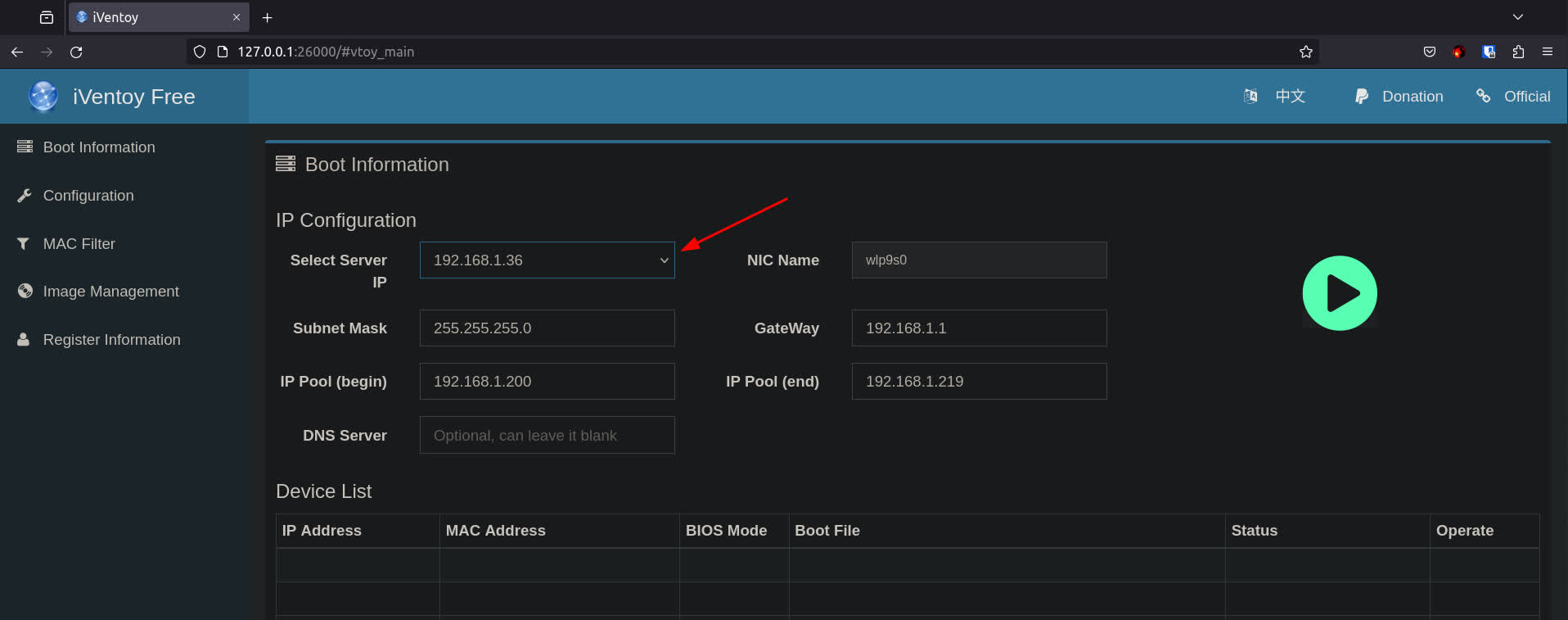
Next, visit http://127.0.0.1:26000 in order to open the control panel of iventoy. Here you can select the interface which the DHCP server should listen and as well as checking if the iventoy detects your ISO or not. To select the interface you want the iventoy to listen on, choose its IP address from the drop down menu below.
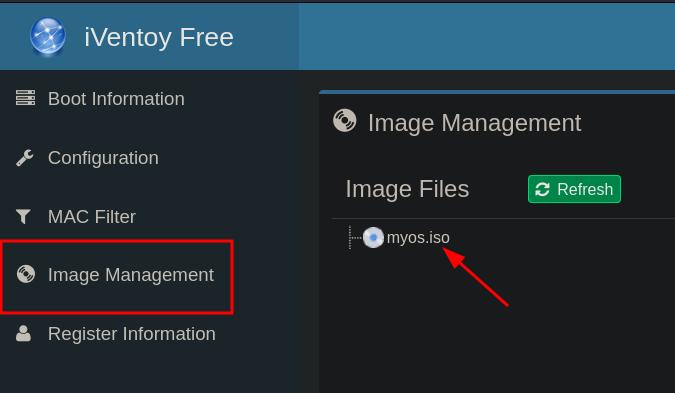
Next, from the side bar, choose "Image Management" in order to check if the iventoy has detected your ISO file or not.
After everything is set, in the "Boot Information" menu click on the big green play button to start the DCHP server.
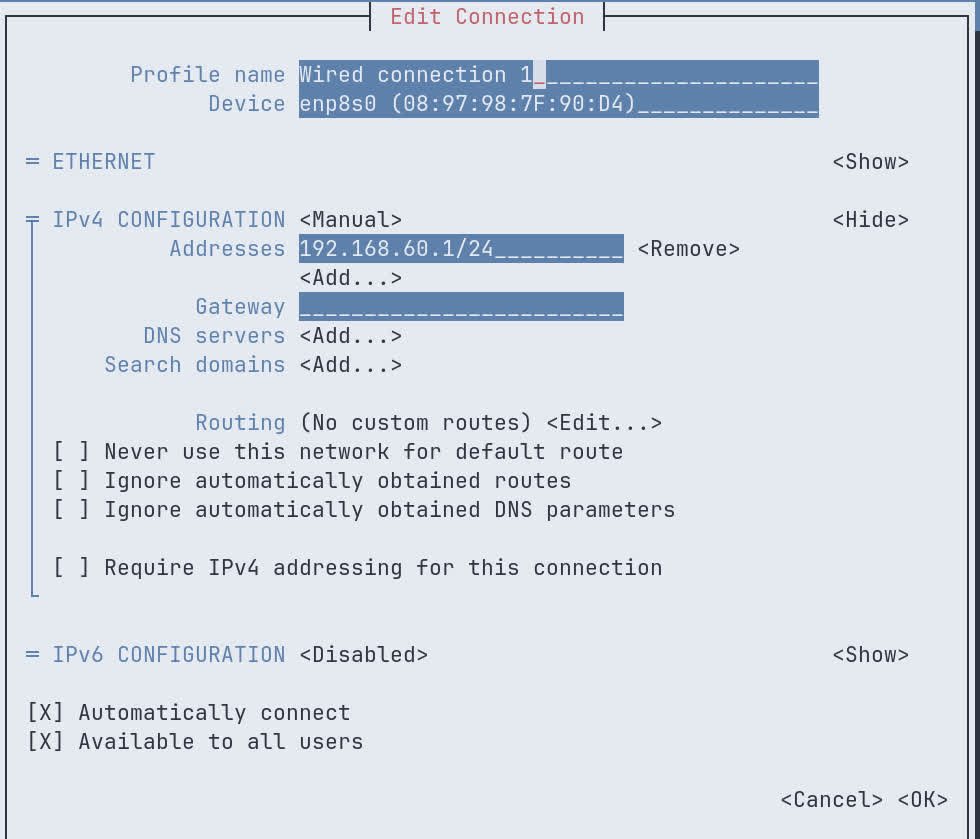
If you are willing to use iventoy's DCHP server, you should give your own interface an static IP address. To do so, if you are using Ubuntu, you can use nmtui in order to assign an static IP address to the interface. For example, as you can see below, I've assigned the 192.168.60.1/24 pool to the interface.
If you are using another distro or not using nmtui at all, you have to options. You can either try to assign the IP address to interface manually with ip command or use the network management program installed on the OS (for example netplan) to assign an static IP address to the interface. Using the ip command is pretty starightforward. This will work on every distribution however all changes will be lost if you restart the computer. For example, if you want to assign the 192.168.60.1 to the eth0 interface try the following command:
ip a add 192.168.60.1/24 dev eth0Note
You might want to restart iventoy after you have made any changes to the network interfaces. Use ./iventoy.sh stop and then ./iventoy.sh start.
The last thing you should do is to boot your slaves. Simply connect every slave including the iventoy PC to a common switch and tell the slaves to boot from PXE. When the iventoy menu comes up, choose your ISO file and wait for everything to be done!
- https://medium.com/@ThyCrow/compiling-the-linux-kernel-and-creating-a-bootable-iso-from-it-6afb8d23ba22
- https://phoenixnap.com/kb/build-linux-kernel
- https://stackoverflow.com/a/51044120/4213397
- https://superuser.com/q/705121/940438
- https://www.hackingtutorials.org/networking/hacking-netcat-part-2-bind-reverse-shells/
- https://superuser.com/a/31080/940438
- Amirhasan Jafar Abadi
- Amirmahdi Namjoo
- Arman Tahmasebi
- Mehdi Mohammadi
- ArshiA Akhavan
- Kamran Bavar