
React native paytabs library is a wrapper for the native PayTabs Android and iOS SDKs, It helps you integrate with PayTabs seamlessly.
Library Support:
- iOS
- Android
$ npm install @paytabs/react-native-paytabs@2.3.11 --save --forceexpo install @paytabs/react-native-paytabs-
Android
- Add
packagingOptionsto modulebuild.gradlefile
android { ... packagingOptions { pickFirst '**/*.so' } } - Add
-
iOS
- Add
libswiftWebKit.tbdto your Link Binary With Libraries - Navigate to the iOS folder and run the following command:
pod install - Add
Import @paytabs/react-native-paytabs
import {RNPaymentSDKLibrary, PaymentSDKConfiguration, PaymentSDKBillingDetails, PaymentSDKTheme, PaymentSDKConstants} from '@paytabs/react-native-paytabs';- Configure the billing & shipping info, the shipping info is optional
let billingDetails = new PaymentSDKBillingDetails(name= "John Smith",
                                  email= "email@test.com",
                                  phone= "+2011111111",
                                  addressLine= "address line",
                                  city= "Dubai",
                                  state= "Dubai",
                                  countryCode= "ae", // ISO alpha 2
                                  zip= "1234")

let shippingDetails = new PaymentSDKShippingDetails(name= "John Smith",
                                  email= "email@test.com",
                                  phone= "+2011111111",
                                  addressLine= "address line",
                                  city= "Dubai",
                                  state= "Dubai",
                                  countryCode= "ae", // ISO alpha 2
                                  zip= "1234")
- Create object of
PaymentSDKConfigurationand fill it with your credentials and payment details.
let configuration = new PaymentSDKConfiguration();
    configuration.profileID = "*your profile id*"
    configuration.serverKey= "*server key*"
    configuration.clientKey = "*client key*"
    configuration.cartID = "545454"
    configuration.currency = "AED"
    configuration.cartDescription = "Flowers"
    configuration.merchantCountryCode = "ae"
    configuration.merchantName = "Flowers Store"
    configuration.amount = 20
    configuration.screenTitle = "Pay with Card"
    configuration.billingDetails = billingDetails
	 configuration.forceShippingInfo = false
Options to show billing and shipping ifno
	configuration.showBillingInfo = true
	configuration.showShippingInfo = true
- Start payment by calling
startCardPaymentmethod and handle the transaction details
RNPaymentSDKLibrary.startCardPayment(JSON.stringify(configuration)).then( result => {
      if(result["PaymentDetails"] != null) { // Handle transaction details
        let paymentDetails = result["PaymentDetails"]
        console.log(paymentDetails)
      } else if(result["Event"] == "CancelPayment") { // Handle events
        console.log("Cancel Payment Event")
      }
     }, function(error) { // Handle error
      console.log(error)
     });
-
Follow the guide Steps to configure Apple Pay to learn how to configure ApplePay with PayTabs.
-
Do the steps 1 and 2 from Pay with Card although you can ignore Billing & Shipping details and Apple Pay will handle it, also you must pass the merchant name and merchant identifier.
let configuration = new PaymentSDKConfiguration();
    configuration.profileID = "*your profile id*"
    configuration.serverKey= "*server key*"
    configuration.clientKey = "*client key*"
    configuration.cartID = "545454"
    configuration.currency = "AED"
    configuration.cartDescription = "Flowers"
    configuration.merchantCountryCode = "ae"
    configuration.merchantName = "Flowers Store"
    configuration.amount = 20
    configuration.screenTitle = "Pay with Card"
configuration.merchantIdentifier = "merchant.com.bundleID"- To simplify ApplePay validation on all user's billing info, pass simplifyApplePayValidation parameter in the configuration with true.
configuration.simplifyApplePayValidation = true- Call
startApplePayPaymentto start payment
RNPaymentSDKLibrary.startApplePayPayment(JSON.stringify(configuration)).then( result => {
        if(result["PaymentDetails"] != null) { // Handle transaction details
          let paymentDetails = result["PaymentDetails"]
          console.log(paymentDetails)
        } else if(result["Event"] == "CancelPayment") { // Handle events
          console.log("Cancel Payment Event")
        }
     }, function(error) { // handle errors
      console.log(error)
});Pass Samsung Pay token to the configuration and call startCardPayment
configuration.samsungToken = "token"It becomes easy to integrate with other payment methods in your region like STCPay, OmanNet, KNet, Valu, Fawry, UnionPay, and Meeza, to serve a large sector of customers.
-
Do the steps 1 and 2 from Pay with Card.
-
Choose one or more of the payment methods you want to support.
configuration.alternativePaymentMethods = [PaymentSDKConstants.AlternativePaymentMethod.stcPay]- Start payment by calling
startAlternativePaymentMethodmethod and handle the transaction details
RNPaymentSDKLibrary.startAlternativePaymentMethod(JSON.stringify(configuration)).then( result => {
      if(result["PaymentDetails"] != null) { // Handle transaction details
        let paymentDetails = result["PaymentDetails"]
        console.log(paymentDetails)
      } else if(result["Event"] == "CancelPayment") { // Handle events
        console.log("Cancel Payment Event")
      }
     }, function(error) { // Handle error
      console.log(error)
     });
Follow the below instructions to enable tokenisation feature.
- Request token
configuration.tokeniseType = PaymentSDKConstants.TokeniseType.userOptinoal // read more about the tokeniseType in the enums section
configuration.tokenFormat = PaymentSDKConstants.TokeniseFormat.hex32 // read more about the tokenFormat in the enums section
After passing those parameters, you will receive a token and transaction reference in the result callback, save them for future usage.
- Pass the token & transaction reference
configuration.token = token
configuration.transactionReference = transactionreferenceThose enums will help you in customizing your configuration.
- Tokenise types
The default type is none
TokeniseType = {
"none":"none", // tokenise is off
"merchantMandatory":"merchantMandatory", // tokenise is forced
"userMandatory":"userMandatory", // tokenise is forced as per user approval
"userOptinoal":"userOptional" // tokenise if optional as per user approval
};configuration.tokeniseType = PaymentSDKConstants.TokeniseType.userOptinoal- Token formats
The default format is hex32
TokeniseFormat = {"none":"1",
"hex32": "2",
"alphaNum20": "3",
"digit22": "3",
"digit16": "5",
"alphaNum32": "6"
};configuration.tokenFormat = PaymentSDKConstants.TokeniseFromat.hex32- Transaction types
The default type is sale
TransactionType = {"sale":"sale",
"authorize": "auth"};configuration.transactionType = PaymentSDKConstants.TransactionType.sale- Alternative payment methods
AlternativePaymentMethod = {"unionPay":"unionpay", "stcPay":"stcpay", "valu": "valu", "meezaQR": "meezaqr", "omannet": "omannet", "knetCredit": "knetcredit", "knetDebit": "knetdebit", "fawry": "fawry", "aman": "aman", "urpay": "urpay"};configuration.alternativePaymentMethods = [PaymentSDKConstants.AlternativePaymentMethod.stcPay, ...]configuration.hideCardScanner = true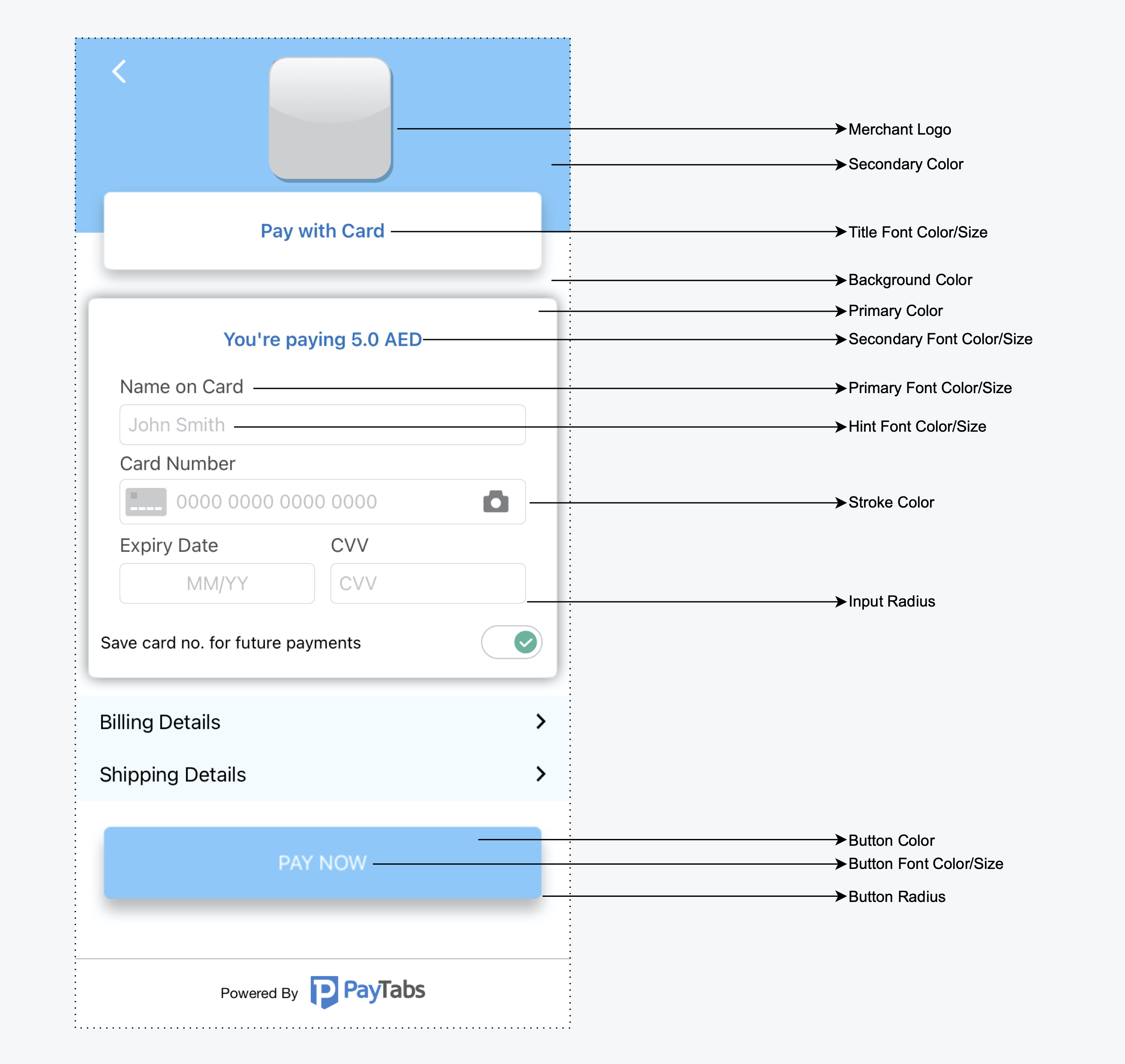
- Theme:
Create an instance from the classPaymentThemeand customize the theme.
let theme = new PaymentSDKTheme()
theme.backgroundColor = "a83297"
theme.primaryColor = "956596"
// Set the merchant logo
const merchantLogo = require('./Logo.png');
const resolveAssetSource = require('react-native/Libraries/Image/resolveAssetSource');
const resolvedMerchantLogo = resolveAssetSource(merchantLogo);
theme.merchantLogo = resolvedMerchantLogo

configuration.theme = theme- Localization:
Use the keys from our localization string files (English, Arabic), then add the same key to your app localizable string file and add your custom string.
- Theme:
Edit yourstyles.xmlto customize the theme.
<resources>
  // to override colors
     <color name="payment_sdk_primary_color">#5C13DF</color>
     <color name="payment_sdk_secondary_color">#FFC107</color>
     <color name="payment_sdk_primary_font_color">#111112</color>
     <color name="payment_sdk_secondary_font_color">#6D6C70</color>
     <color name="payment_sdk_separators_color">#FFC107</color>
     <color name="payment_sdk_stroke_color">#673AB7</color>
     <color name="payment_sdk_button_text_color">#FFF</color>
     <color name="payment_sdk_title_text_color">#FFF</color>
     <color name="payment_sdk_button_background_color">#3F51B5</color>
     <color name="payment_sdk_background_color">#F9FAFD</color>
     <color name="payment_sdk_card_background_color">#F9FAFD</color>

  // to override dimens
     <dimen name="payment_sdk_primary_font_size">17sp</dimen>
     <dimen name="payment_sdk_secondary_font_size">15sp</dimen>
     <dimen name="payment_sdk_separator_thickness">1dp</dimen>
     <dimen name="payment_sdk_stroke_thickness">.5dp</dimen>
     <dimen name="payment_sdk_input_corner_radius">8dp</dimen>
     <dimen name="payment_sdk_button_corner_radius">8dp</dimen>

</resources>- Merchant Logo:
let theme = new PaymentSDKTheme()

// Set the merchant logo
const merchantLogo = require('./Logo.png');
const resolveAssetSource = require('react-native/Libraries/Image/resolveAssetSource');
const resolvedMerchantLogo = resolveAssetSource(merchantLogo);
theme.merchantLogo = resolvedMerchantLogo

configuration.theme = theme- Localization: To override your strings you can find the keys with the default values here English, Arabic.
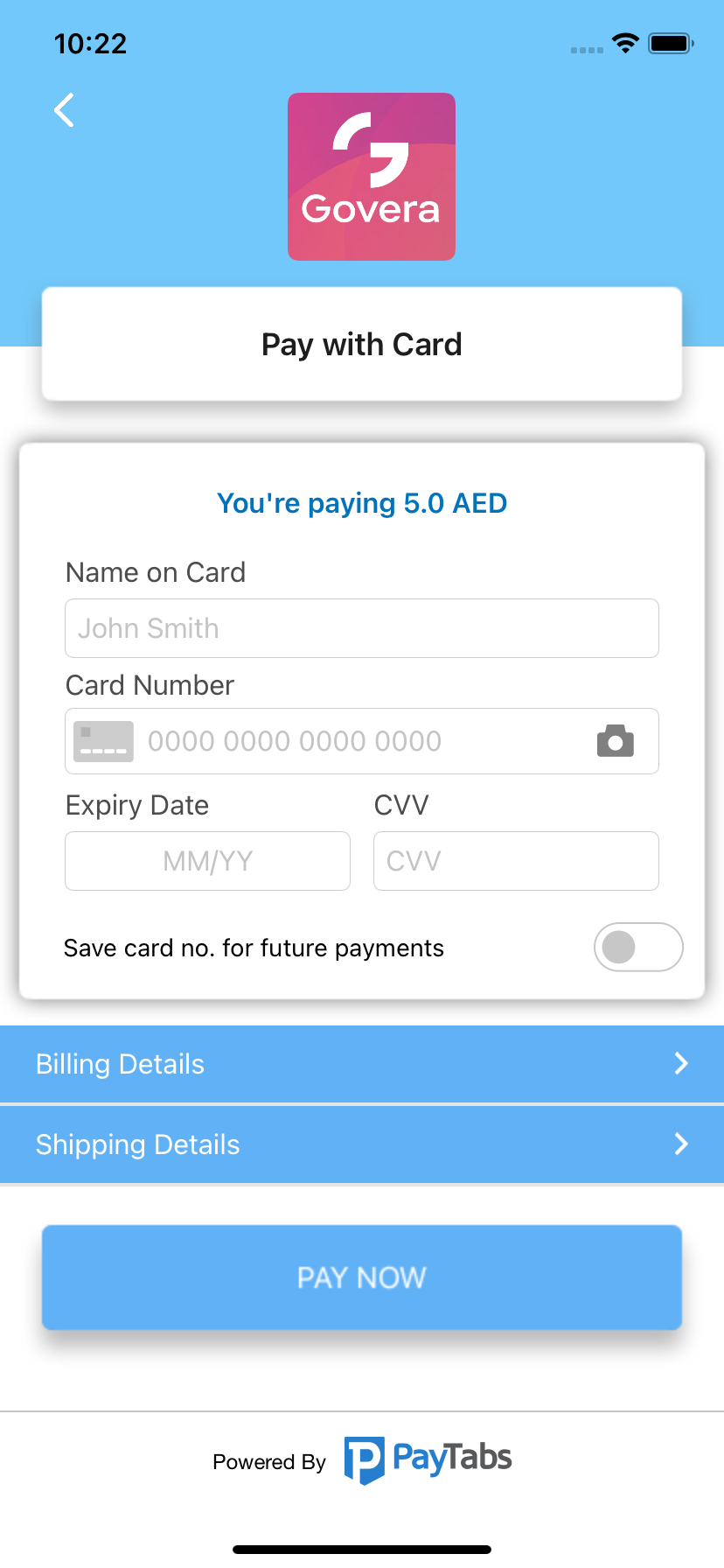
Check our complete examples (React-Native, Expo).
See LICENSE.