Testing multilanguage questions
Once you author a multilanguage question, you can also preview it in each language. By default, it will come back as the English language, but this tool (with qbank) also supports Hindi and Telugu.
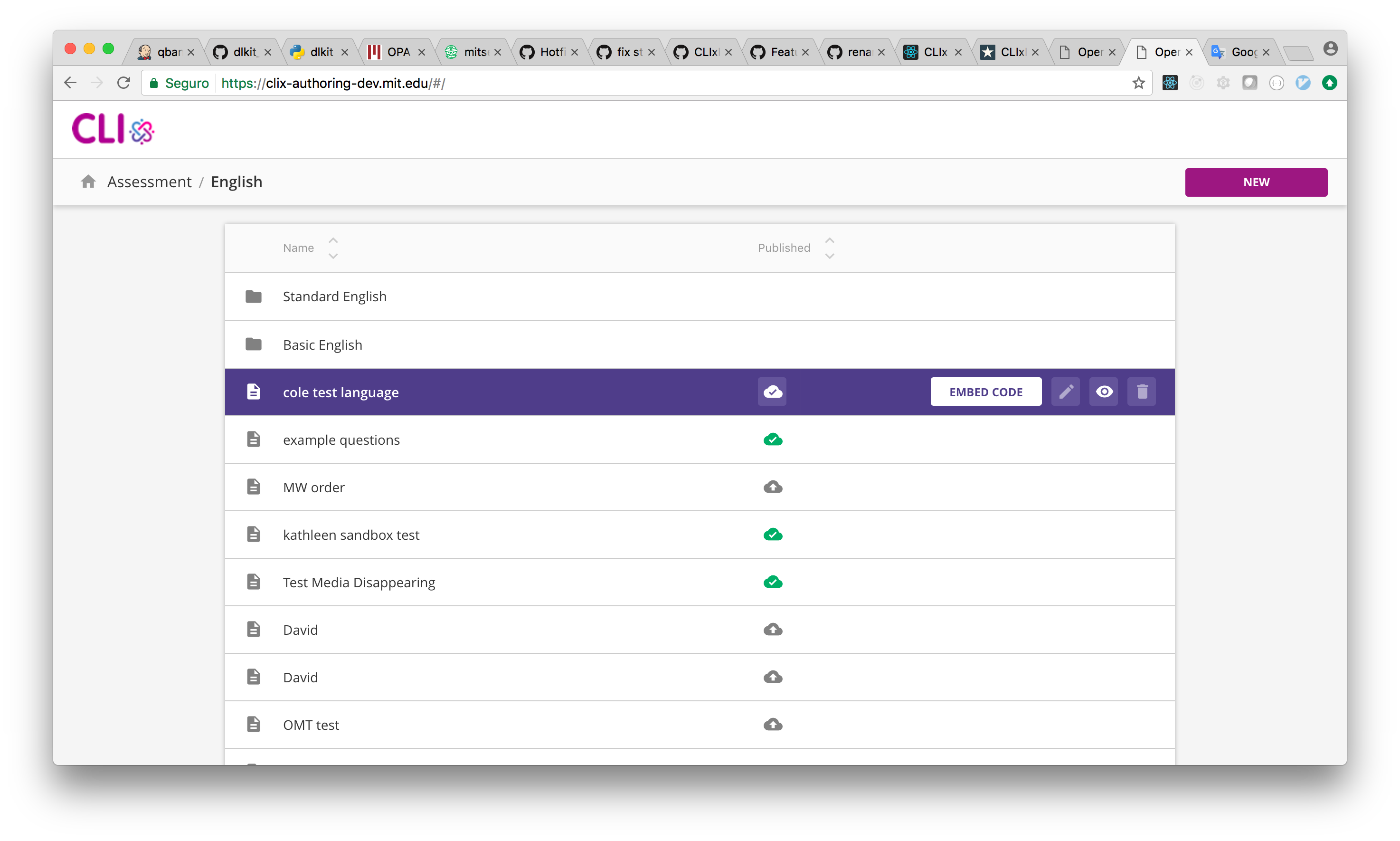
After the assessment is published, you can grab the Embed Code by hovering over the row and clicking on the button:
You can then copy the iframe code from the window that appears:
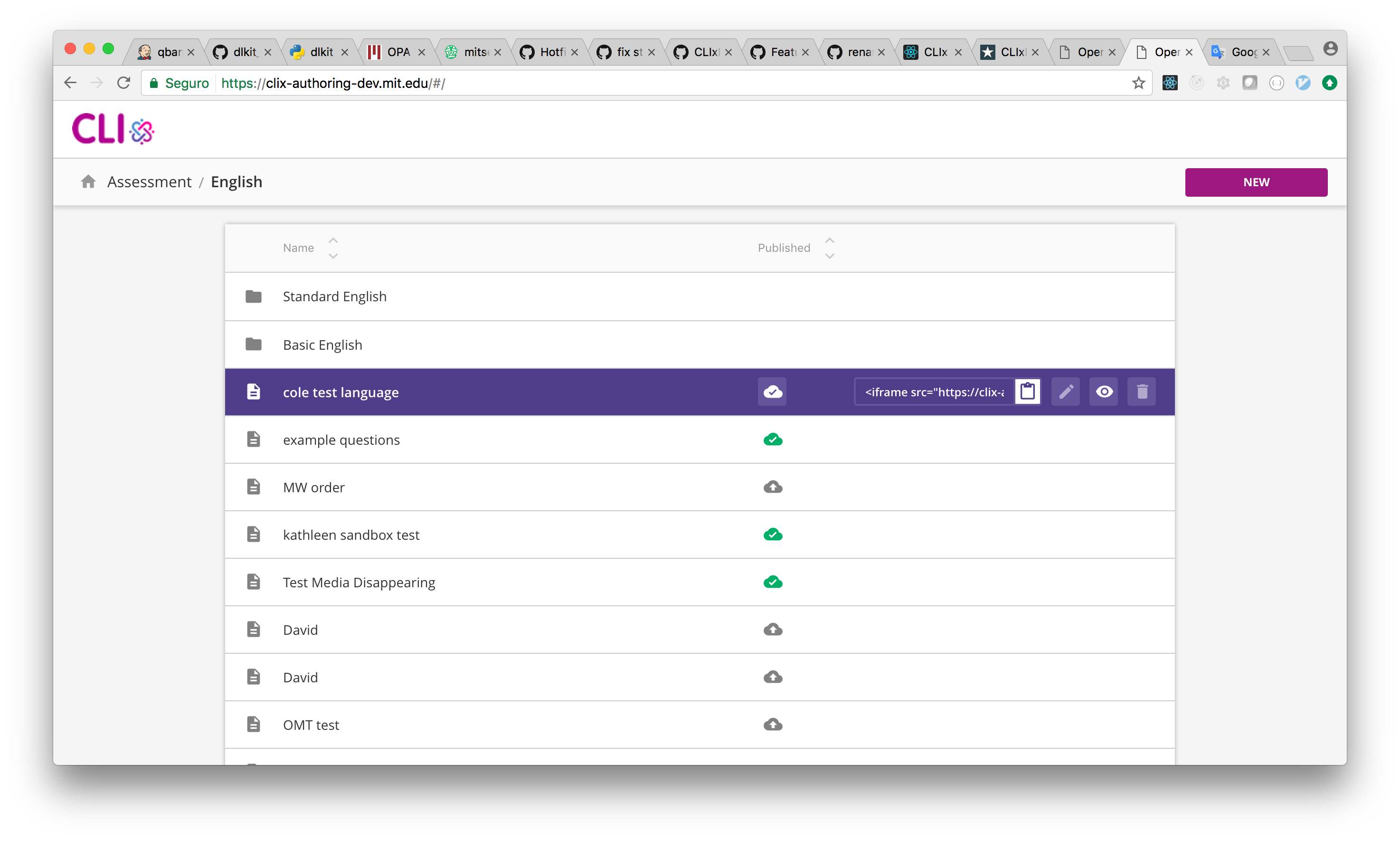
It should look like the following:
<iframe src="https://clix-authoring-dev.mit.edu/index.html?unlock_next=ON_CORRECT&bank=assessment.Bank%3A577fcf7cc89cd90cbd5616fa%40ODL.MIT.EDU&assessment_offered_id=assessment.AssessmentOffered%3A5913609cc89cd9707bf08337%40ODL.MIT.EDU#/assessment"/>
Grab the part within the src attribute:
https://clix-authoring-dev.mit.edu/index.html?unlock_next=ON_CORRECT&bank=assessment.Bank%3A577fcf7cc89cd90cbd5616fa%40ODL.MIT.EDU&assessment_offered_id=assessment.AssessmentOffered%3A5913609cc89cd9707bf08337%40ODL.MIT.EDU
And paste that into a new browser tab. You'll see the assessment in English.
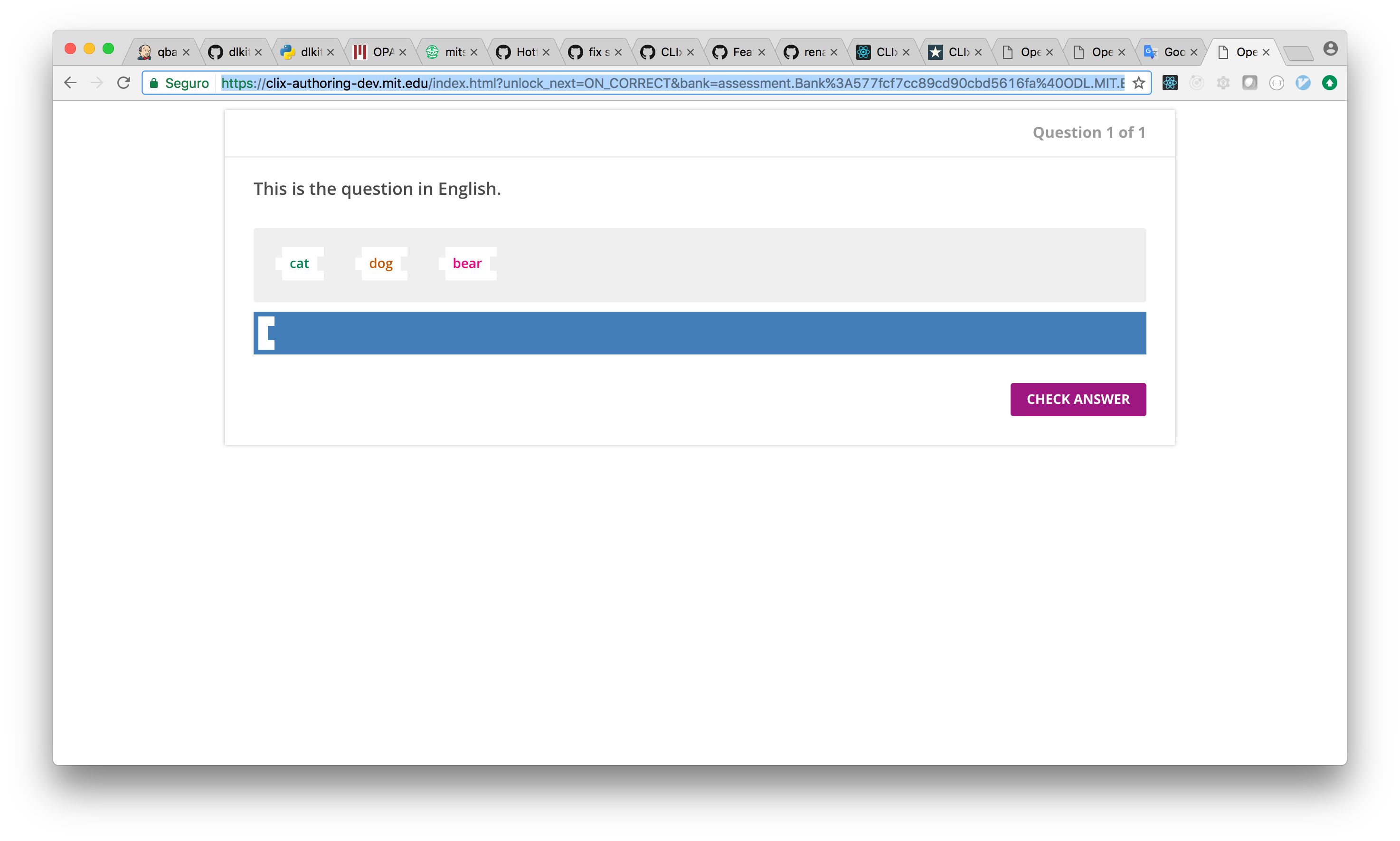
The OEA player supports a locale setting that accepts en, hi, or te as parameters (en is default). We can modify the URL from above with &locale=hi to request the question in Hindi.
https://clix-authoring-dev.mit.edu/index.html?unlock_next=ON_CORRECT&bank=assessment.Bank%3A577fcf7cc89cd90cbd5616fa%40ODL.MIT.EDU&assessment_offered_id=assessment.AssessmentOffered%3A5913609cc89cd9707bf08337%40ODL.MIT.EDU&locale=hi#/assessment
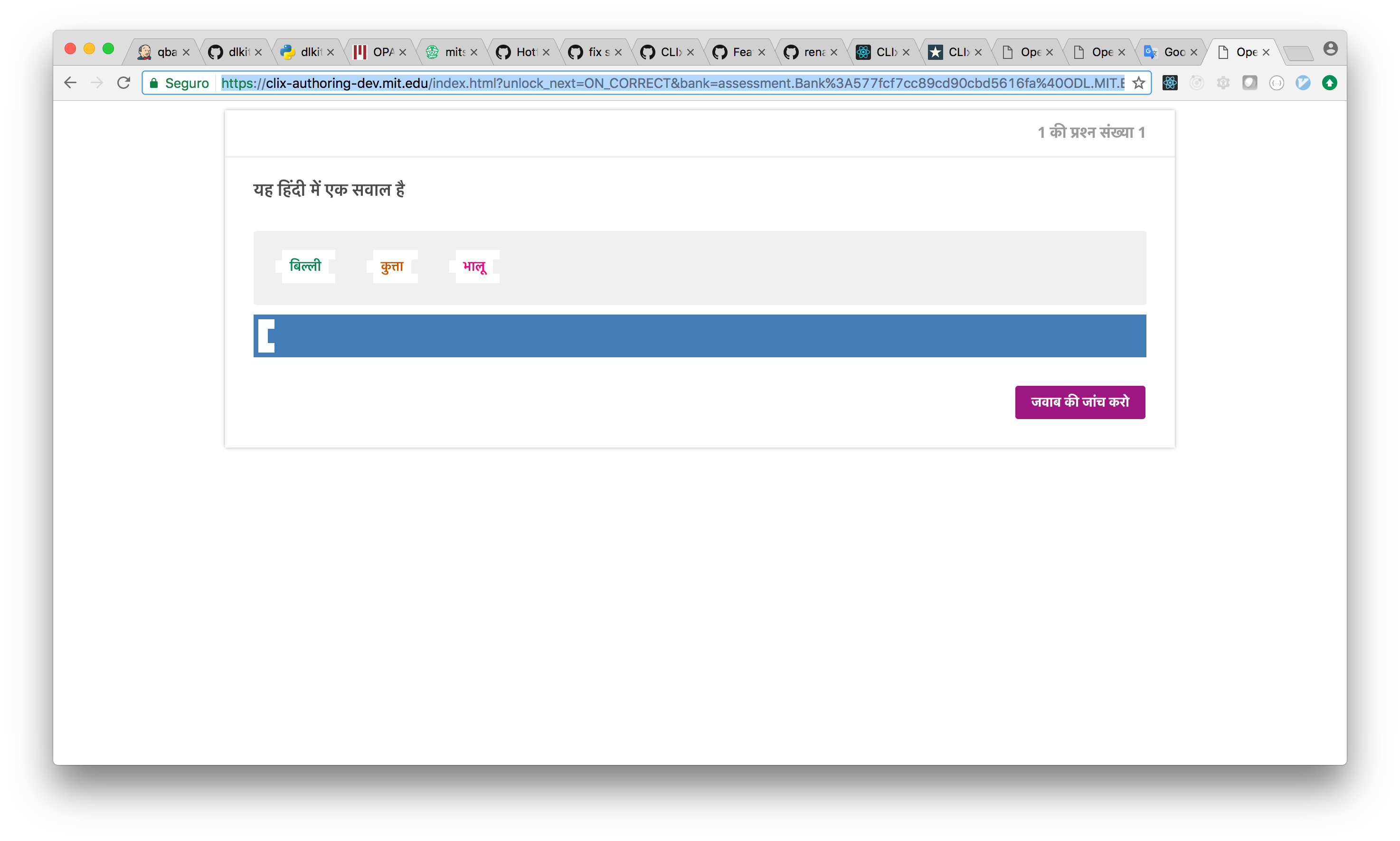
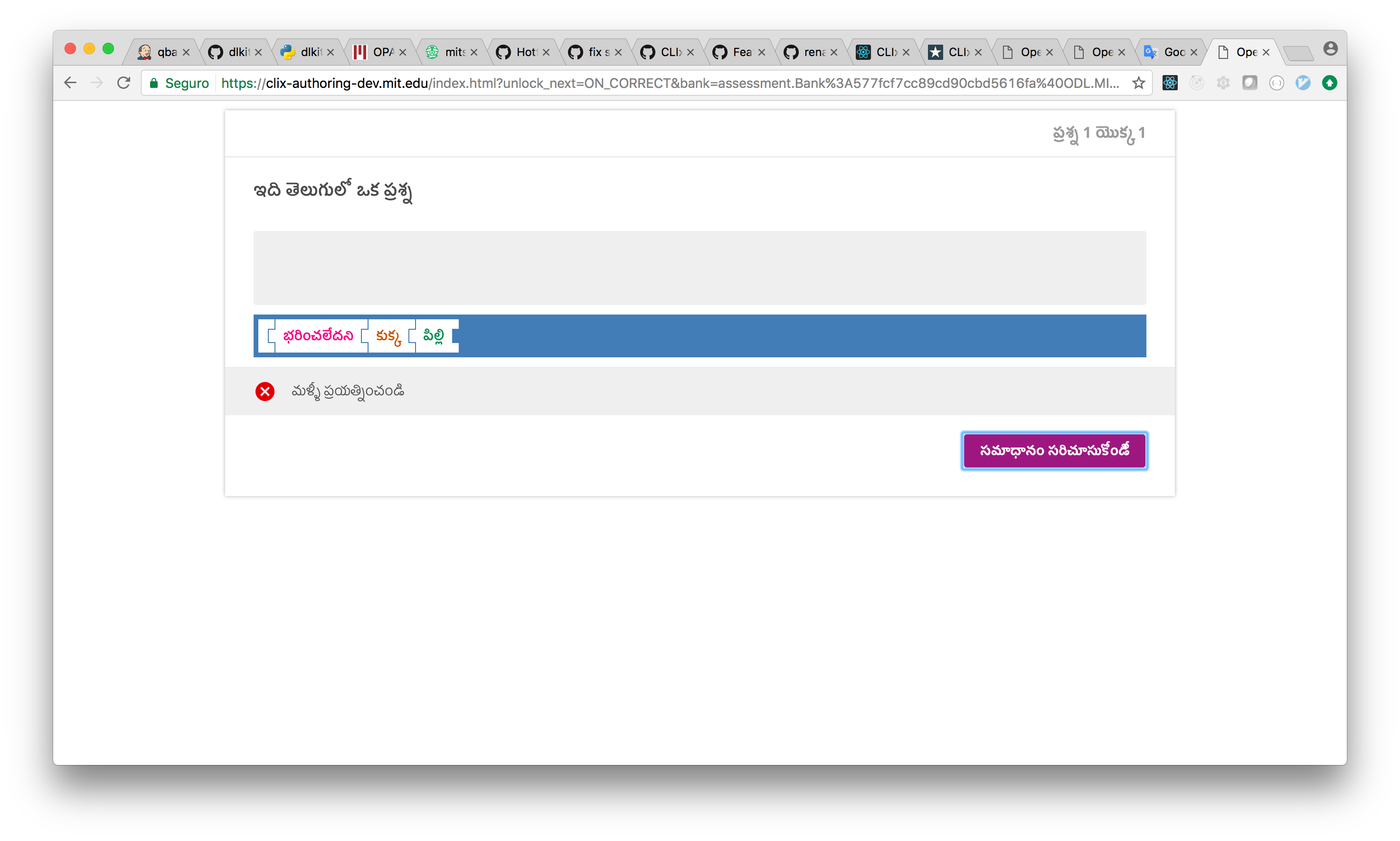
Setting &locale=te requests the question in Telugu.
https://clix-authoring-dev.mit.edu/index.html?unlock_next=ON_CORRECT&bank=assessment.Bank%3A577fcf7cc89cd90cbd5616fa%40ODL.MIT.EDU&assessment_offered_id=assessment.AssessmentOffered%3A5913609cc89cd9707bf08337%40ODL.MIT.EDU&locale=te#/assessment
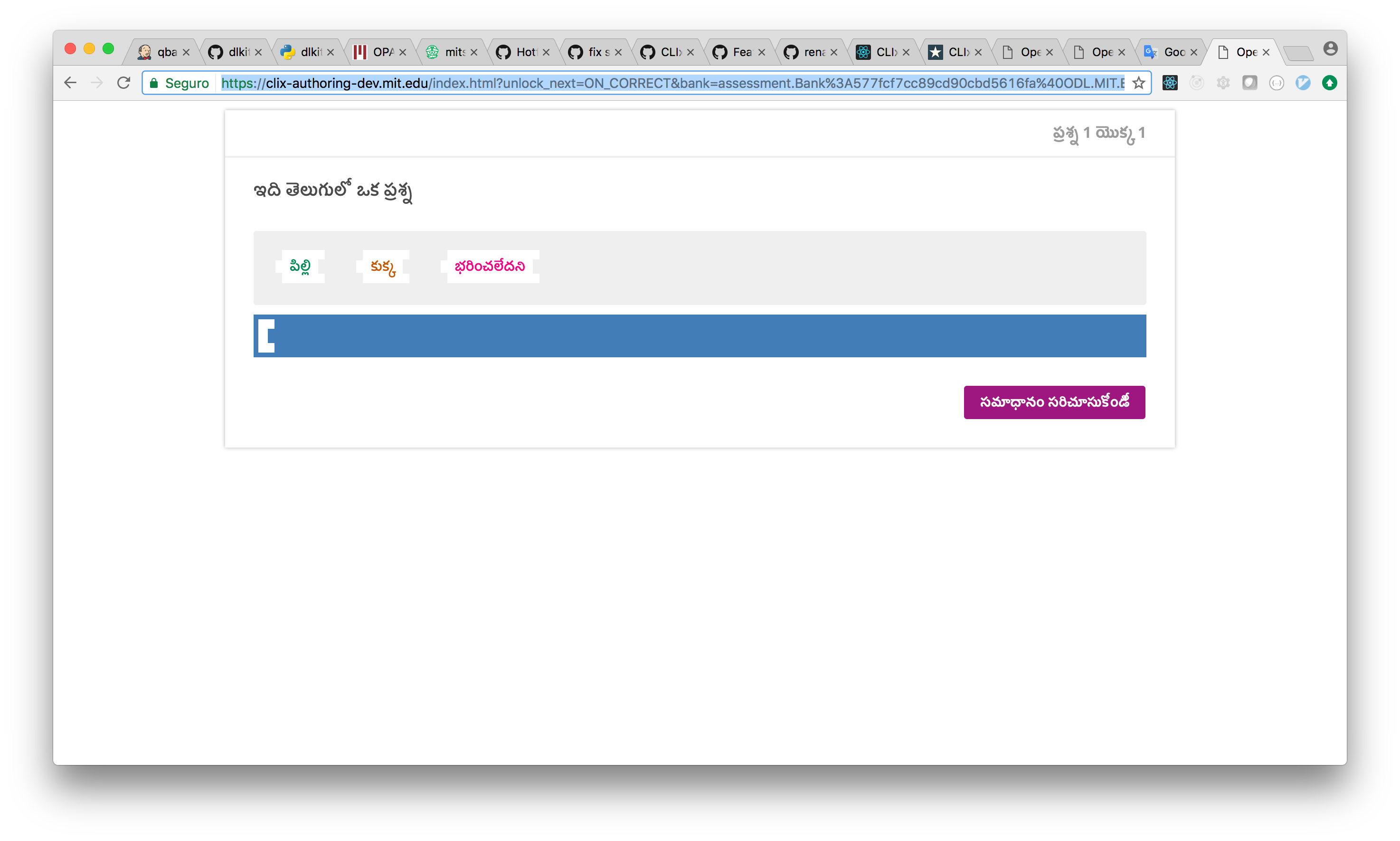
Note that feedbacks are also returned in the requested language, when available.