


Interactive AI segmentation and report generation for medical imaging, directly in your browser.
OHIF-AI brings two main capabilities into the OHIF Viewer:
- Segmentation — Interactive AI segmentation for medical imaging using visual prompts (points, scribbles, lassos, bounding boxes) with models such as nnInteractive, SAM2, MedSAM2, and SAM3, or using text prompts with VoxTell. Supports iterative refinement, live inference, and 3D propagation from minimal input.
- Report generation — AI-assisted radiology-style reports from 3D CT/MRI. Choose local MedGemma (Hugging Face checkpoints) or frontier / open-weight VLMs via provider APIs (e.g. Gemini, GPT, Claude) or the Hugging Face inference router (Kimi, Qwen, Gemma 4), or a self-hosted OpenAI-compatible server such as vLLM (e.g. InternVL, Qwen, Kimi, Gemma 4, depending on what you serve).
By combining these foundation models with the familiar OHIF interface, researchers and clinicians can perform prompt-based segmentation and generate reports without leaving the web environment.
- Features
- Demo Video
- Getting Started
- Local MedGemma GPUs
- Environment variables and API keys
- nnInteractive multi-user concurrency
- Usage Guide
- Keyboard Shortcuts
- FAQ
- How to Cite
- Contributing
- Acknowledgments
Segmentation (medical imaging)
- 🖱️ Visual prompts — Real-time segmentation with points, scribbles, lassos, and bounding boxes
- 📝 Text prompts — Free-form text to obtain segmentation (see Text-prompt segmentation for usage and important notices)
- 🚀 Live mode — Automatic inference on every prompt
- 📦 3D propagation — Single prompt segments the entire volume
- ↩️ Undo — Step back one interaction (nnInteractive)
- 🎨 Manual Segmentation — Brush and eraser tools for refinement between AI interactions
- 🔀 Overlapping segments — Multiple segments can occupy the same region
- 🤖 Multiple models — nnInteractive, SAM2, MedSAM2, SAM3, and VoxTell
- 👥 Multi-user nnInteractive — Concurrent browsers share one GPU model via lease tokens and a GPU lock (see below)
Report generation
- 📄 Flexible VLMs — Local MedGemma (e.g. 1.5–4B and 27B IT on GPU), or cloud / router models (Gemini, GPT, Claude, Kimi, Qwen, Gemma 4), or vLLM on your own machine for open-weight multimodal models such as InternVL
- 🔑 Your keys, your stack — Provider credentials and Hugging Face token are configured in a
.envfile you maintain (see below)
General
- 🌐 Browser-based — No local installation; runs in the web browser
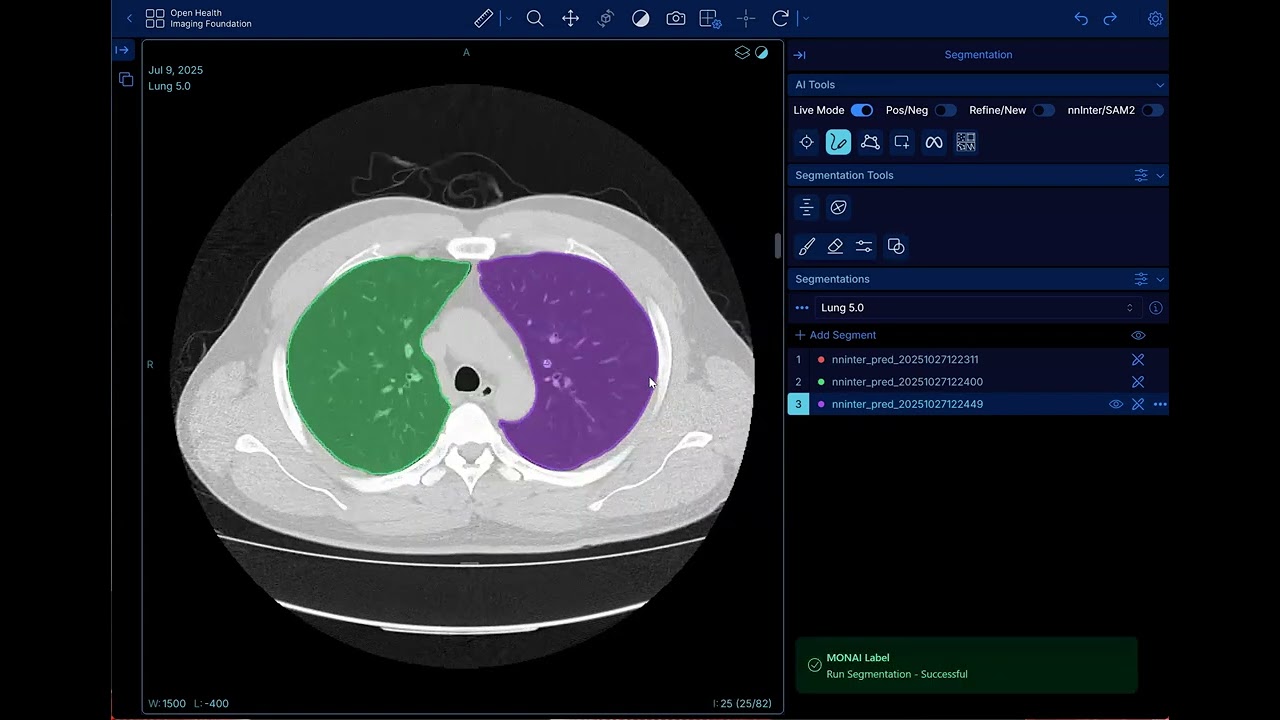
Click to watch the full demonstration of OHIF-AI in action.
- Docker (v27.3.1 or later)
- Docker Compose — if
docker composeis not available, install the plugin:mkdir -p ~/.docker/cli-plugins curl -SL https://github.com/docker/compose/releases/download/v2.27.1/docker-compose-linux-x86_64 \ -o ~/.docker/cli-plugins/docker-compose chmod +x ~/.docker/cli-plugins/docker-compose
- NVIDIA Container Toolkit (v1.16.2 or later)
- CUDA v12.6 or compatible version
- NVIDIA GPU with appropriate drivers
Model checkpoints are typically downloaded automatically during setup. However, if you encounter issues with automatic downloads, you can manually download them:
Automatically Downloaded Models:
- nnInteractive: Hugging Face
- SAM2 (sam2.1-hiera-tiny): Hugging Face
- MedSAM2 (MedSAM2_latest): Hugging Face
- VoxTell: Hugging Face
- MedGemma (local HF): 1.5–4B IT, 27B IT — authenticated download via
HF_TOKENin your.env(recommended) or environment; see Environment variables and API keys. Larger weights (especially 27B) need plenty of VRAM.
docker-compose.yml→monai_server→CUDA_VISIBLE_DEVICES: which host GPUs the container sees (logicalcuda:0, …; shared with segmentation).basic_infer.py→_medgemma_get_processor_and_model→gem_model_kwargs: defaultdevice_map="auto"+max_memoryper logical GPU; adjust caps or usedevice_map={"": "cuda:0"}to pin one GPU.- Rebuild / restart MONAI after editing
basic_infer.py. Not configured via.env.
Default in the repo (logical GPUs 0 and 1, 40GiB cap each — tune to your cards):
gem_model_kwargs = dict(
    dtype=torch.bfloat16,
    device_map="auto",
    max_memory={0: "40GiB", 1: "40GiB"},
    offload_buffers=True,
)
Manual Download Required:
SAM3 Model:
- Request access to the SAM3 model on Hugging Face
- Once access is granted, download the model checkpoint
- Place the downloaded file as
sam3.ptin themonai-label/checkpoints/directory

-
Clone the repository
git clone https://github.com/CCI-Bonn/OHIF-AI.git cd OHIF-AI -
Start the application
bash start.sh
-
Access the viewer
Open your browser and navigate to: http://localhost:1026
-
Load sample data
Upload all DICOM files from the
sample-datadirectory
Report generation can call Hugging Face (Hub downloads and/or the Kimi, Qwen, and Gemma 4 router), Google Gemini, OpenAI, Anthropic (Claude), and optionally vLLM on your host. You must supply your own secrets; nothing in the repo should contain real keys.
-
Copy the template in the project root (same folder as
docker-compose.yml):cp .env-sample .env
-
Edit
.envand fill in only the providers you use. Docker Compose reads.envautomatically and passes values into themonai_servercontainer (seedocker-compose.yml→environment). The MONAI infer task resolves keys from the infer request first, then from these environment variables:HF_TOKEN— Hugging Face token (create a token): authenticated downloads (e.g. MedGemma) and Hugging Face router VLMs (Kimi / Qwen / Gemma 4).GEMINI_API_KEY— Google AI Studio for Gemini.OPENAI_API_KEY— OpenAI for GPT-class models.ANTHROPIC_API_KEY— Anthropic for Claude.VLLM_BASE_URL— Optional override for a local OpenAI-compatible vLLM server (default in Compose:http://host.docker.internal:8000/v1so the container can reach vLLM on the host).
-
File permissions — Treat
.envas secret (e.g.chmod 600 .env). Never commit.env; it is gitignored.
For self-hosted vLLM (open-weight multimodal models such as InternVL, Qwen, Kimi, Gemma 4, etc.), see the vllm/ folder and vLLM Recipes for hardware-matched vllm serve examples.
Multiple users (or browser tabs) can run nnInteractive at the same time without corrupting each other’s prompts or masks. The design follows the concurrency model documented in nnInteractive’s Server / Client guide, adapted in-process inside MONAI Label (no separate nninteractive-server process).
[OHIF tab A]  ─┐
               │  lease token + infer params
[OHIF tab B]  ─┼────►  MONAI Label  ──►  shared nnInteractive model on GPU
               │       (per-client sessions:           (loaded once at startup)
[OHIF tab C]  ─┘        image, target buffer,
                        interactions per session)
| Mechanism | Behavior |
|---|---|
| Lease token | Each tab claims a session (POST /monai/nninter/session/) and sends nninter_token with every nnInteractive request. Each session owns its own image cache, target buffer, and interaction history. |
| Shared model | Network weights are loaded once and shared by reference across sessions — one copy on the GPU regardless of how many sessions are active. |
| GPU lock | Predictions are serialized: only one add_*_interaction / undo runs on the GPU at a time. Image prep and response packaging run outside the lock so one user’s preprocessing does not block another’s inference. |
| Capacity | Up to NNINTER_MAX_SESSIONS concurrent sessions. When full, the least-recently-used session is evicted so new claims still succeed. |
| Idle / close | Idle sessions are reaped after NNINTER_SESSION_IDLE_TIMEOUT. Tabs release their lease on close (sendBeacon). If a session expires mid-workflow, the client reclaims a token and automatically replays prompts. |
Configure via environment (passed through docker-compose.yml → monai_server):
| Variable | Default | Meaning |
|---|---|---|
NNINTER_MAX_SESSIONS |
10 |
Max concurrent nnInteractive sessions (CPU RAM + interaction tensors scale with this; model weights stay shared). |
NNINTER_SESSION_IDLE_TIMEOUT |
600 |
Seconds of inactivity before a session is reaped. |
Example:
NNINTER_MAX_SESSIONS=4 NNINTER_SESSION_IDLE_TIMEOUT=600 bash start.shNote: Multi-user isolation applies to nnInteractive only. SAM2 / MedSAM2 / SAM3 / VoxTell still use a single shared backend instance.
OHIF-AI supports interactive segmentation in two ways: visual prompts (points, scribbles, lassos, bounding boxes) and text prompts. Visual prompts are described below; text-prompt segmentation has its own subsection with usage and important notices.
The tool provides four visual prompt types for segmentation (shown in red boxes from left to right):

- Point: Click to indicate what you want to segment
- Scribble: Paint over the structure to include
- Lasso: Draw around and surround the structure inside the lasso
- Bounding Box: Draw a rectangular box to surround the target structure

Choose which segmentation model to use:
- nnInteractive: Supports all prompt types (point, scribble, lasso, bounding box)
- SAM2/MedSAM2/SAM3: Currently supports positive/negative points and positive bounding boxes only
💡 Based on preliminary internal testing, nnInteractive provides faster inference and generally feels more real-time and accurate in typical clinical image segmentation tasks. The nnInteractive v2 backend further boosts inference speed for a smoother live-mode experience. nnInteractive also supports multi-user / concurrent requests via lease tokens and a GPU lock — see nnInteractive multi-user concurrency.
After providing prompts and choosing the model, you can run inference by clicking the inference button located next to the red box:
Live Mode: To avoid manually clicking the inference button each time, enable Live Mode. Once enabled, the model will automatically segment the target structure on every prompt you provide.
💡 For all models, a single prompt (for example, a point or scribble on one slice) automatically propagates the segmentation across the entire 3D image stack, enabling volumetric segmentation from minimal user input.

You can exclude certain structures from your segmentation by toggling on the neg. (negative) button before providing prompts.
Negative Scribble Example:

Negative Point Example:

If you need to step back after a prompt or inference, use Undo to go back one step. This is supported only with nnInteractive — click the undo button in the toolbar or press Ctrl+Z.

Use the segmentation panel controls to manage segments:

- Add Segment (
m): Create a new, separate segment - Reset Segment (
r): Clear the current segment's prompts and mask - Show/Hide Prompts (
o): Toggle visibility of all visual prompts
Select any existing segment from the list to continue refining it with additional prompts.
Manual Segmentation: Between AI interactions, use the Brush and Eraser tools in the Manual Segmentation panel to refine segmentations manually.
Overlapping segments: Multiple segments can overlap in the same region — each segment is stored independently.
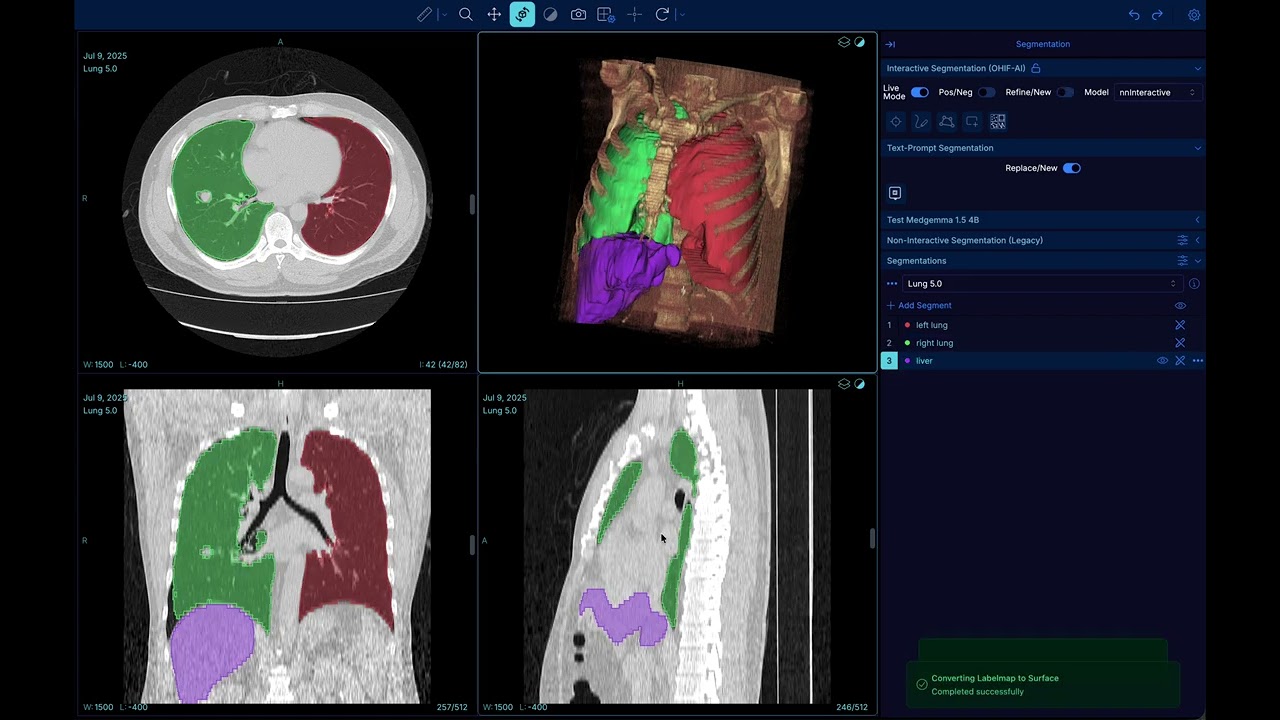
VoxTell is part of the segmentation workflow: it produces segmentations from free-form text instead of visual prompts. Describe the structure or region you want to segment in natural language.
- Replace current segment – Use your text prompt to replace the currently selected segment.
- Add segment label – Create an additional segment with a new label from your text prompt.
Notices:
⚠️ Cross-usage with nnInteractive — Not supported yet (e.g., VoxTell → nnInteractive). Use VoxTell and nnInteractive in separate workflows.

VoxTell demo:
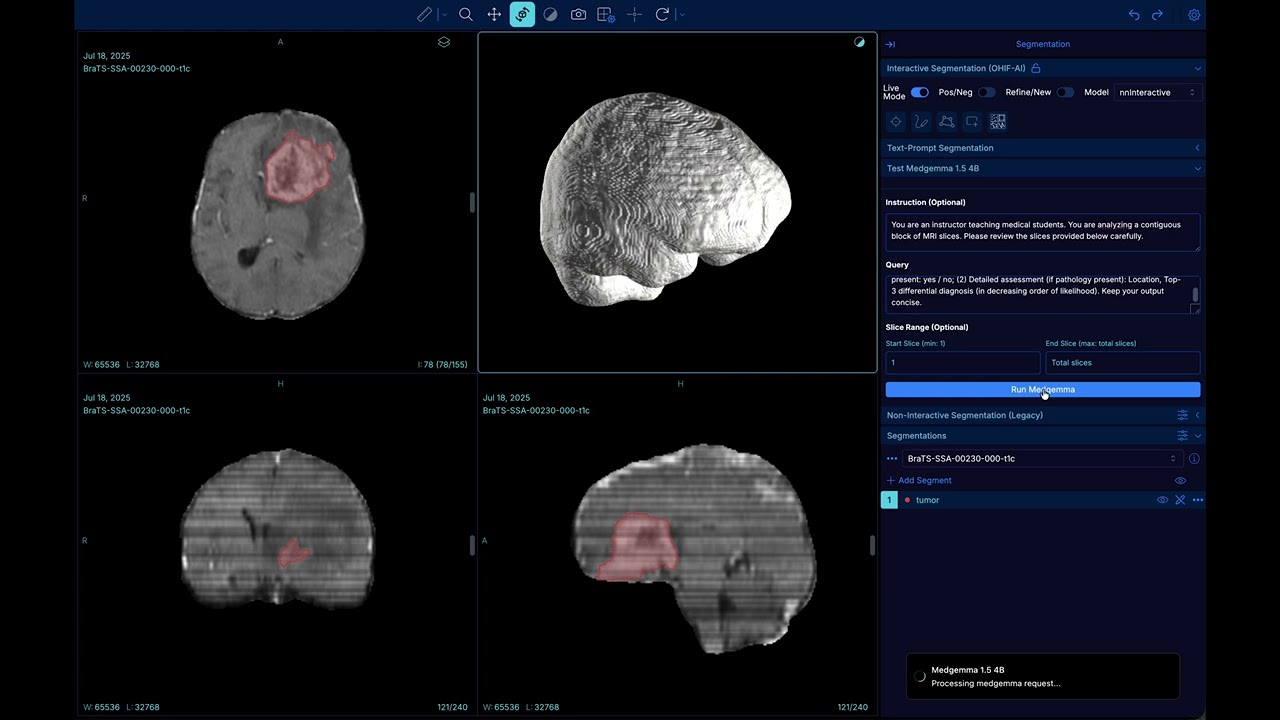
Radiology-style reports from 3D CT/MRI are separate from segmentation. In the OHIF toolbox you choose a report backend (local MedGemma, a cloud API, the Hugging Face router, or vLLM), then set Instruction, Query, and slice range as before.
| Path | Examples | How it runs |
|---|---|---|
| Local MedGemma (Hugging Face) | MedGemma 1.5–4B IT, 27B IT | HF_TOKEN in .env; GPUs: Local MedGemma GPUs. |
| Provider APIs | Gemini, GPT, Claude | Calls the vendor API; set GEMINI_API_KEY, OPENAI_API_KEY, or ANTHROPIC_API_KEY in .env (or pass keys per request where supported). |
| Hugging Face inference router | Kimi, Qwen, Gemma 4 | OpenAI-compatible router; uses HF_TOKEN. |
| Local vLLM | InternVL, Qwen, Kimi, Gemma 4, … (whatever you serve) | Run vLLM (or compatible server) on the host; MONAI defaults to VLLM_BASE_URL → http://host.docker.internal:8000/v1. Pick a model id and GPU layout using vLLM Recipes and the scripts in vllm/. |
Panel fields (all backends):
- Instruction — Broad role (e.g. “You are a radiology assistant”) and style.
- Query — What you want in the report (findings, impression, structured sections, etc.).
- Slice range — Which slices of the 3D stack to send (e.g. 10–50).
Notices:
⚠️ Secrets — Configure your own.envfrom.env-sample; never commit real API keys. See Environment variables and API keys.⚠️ GPU / VRAM (local MedGemma) — Local MedGemma GPUs.⚠️ vLLM — You are responsible for starting the server, model compatibility, andVLLM_BASE_URLif not on the default host port.
MedGemma (local) — model variant and Thinking:

OpenAI — API model id and Reasoning effort:

VoxTell + MedGemma demo:
For faster workflow, you can use the following keyboard shortcuts:
Prompt Tools:
p- Points- Scribblel- Lassob- Bounding box
Segment Management:
m- Add Segmentr- Reset active Segment (clears prompts and mask)o- Show/Hide all promptsCtrl+Z- Undo last step (nnInteractive only)
Mode Controls:
q- Toggle Live Modet- Toggle Positive/Negative

You can view other keyboard shortcuts and customize them in the Settings menu (located in the top-right corner). Select Preferences to access the hotkey configuration panel.
Load library (libnvidia-ml.so) failed from NVIDIA Container Toolkit
Solution: Reinstall Docker CE
sudo apt-get install --reinstall docker-ceFailed to initialize NVML: Unknown Error or "No CUDA available"
Solution: Edit /etc/nvidia-container-runtime/config.toml and set:
no-cgroups = falsennInteractive feels slower with several users at once
Expected: predictions share one GPU and run under a GPU lock, so concurrent add_* calls wait for each other briefly. Non-prediction work can still overlap. Raise throughput by giving MONAI more GPUs / separate processes if needed; raising NNINTER_MAX_SESSIONS only adds session slots, not parallel predictions. See nnInteractive multi-user concurrency and the upstream Server / Client notes.
My nnInteractive segmentation reset after I left a tab idle
Idle sessions are reaped after NNINTER_SESSION_IDLE_TIMEOUT (default 10 minutes), or when the pool is full and your slot is LRU-evicted. The viewer should auto-reclaim a lease and replay prompts on the next interaction; if that fails, start the prompts again. Increase NNINTER_SESSION_IDLE_TIMEOUT or NNINTER_MAX_SESSIONS if users often leave tabs open.
If you use OHIF-AI in your research, please cite:
OHIF-SAM2:
@INPROCEEDINGS{10981119,
  author={Cho, Jaeyoung and Rastogi, Aditya and Liu, Jingyu and Schlamp, Kai and Vollmuth, Philipp},
  booktitle={2025 IEEE 22nd International Symposium on Biomedical Imaging (ISBI)},
  title={OHIF -SAM2: Accelerating Radiology Workflows with Meta Segment Anything Model 2},
  year={2025},
  volume={},
  number={},
  pages={1-5},
  keywords={Image segmentation;Limiting;Grounding;Foundation models;Biological system modeling;Radiology;Biomedical imaging;Web-Based Medical Imaging;Foundation Model;Segmentation;Artificial Intelligence},
  doi={10.1109/ISBI60581.2025.10981119}
}
nnInteractive:
@misc{isensee2025nninteractiveredefining3dpromptable,
  title={nnInteractive: Redefining 3D Promptable Segmentation},
  author={Fabian Isensee and Maximilian Rokuss and Lars Krämer and Stefan Dinkelacker and Ashis Ravindran and Florian Stritzke and Benjamin Hamm and Tassilo Wald and Moritz Langenberg and Constantin Ulrich and Jonathan Deissler and Ralf Floca and Klaus Maier-Hein},
  year={2025},
  eprint={2503.08373},
  archivePrefix={arXiv},
  primaryClass={cs.CV},
  url={https://arxiv.org/abs/2503.08373}
}
SAM2:
@misc{ravi2024sam2segmentimages,
  title={SAM 2: Segment Anything in Images and Videos},
  author={Nikhila Ravi and Valentin Gabeur and Yuan-Ting Hu and Ronghang Hu and Chaitanya Ryali and Tengyu Ma and Haitham Khedr and Roman Rädle and Chloe Rolland and Laura Gustafson and Eric Mintun and Junting Pan and Kalyan Vasudev Alwala and Nicolas Carion and Chao-Yuan Wu and Ross Girshick and Piotr Dollár and Christoph Feichtenhofer},
  year={2024},
  eprint={2408.00714},
  archivePrefix={arXiv},
  primaryClass={cs.CV},
  url={https://arxiv.org/abs/2408.00714}
}
MedSAM2:
@article{MedSAM2,
    title={MedSAM2: Segment Anything in 3D Medical Images and Videos},
    author={Ma, Jun and Yang, Zongxin and Kim, Sumin and Chen, Bihui and Baharoon, Mohammed and Fallahpour, Adibvafa and Asakereh, Reza and Lyu, Hongwei and Wang, Bo},
    journal={arXiv preprint arXiv:2504.03600},
    year={2025}
}
SAM3:
@misc{carion2025sam3segmentconcepts,
      title={SAM 3: Segment Anything with Concepts},
      author={Nicolas Carion and Laura Gustafson and Yuan-Ting Hu and Shoubhik Debnath and Ronghang Hu and Didac Suris and Chaitanya Ryali and Kalyan Vasudev Alwala and Haitham Khedr and Andrew Huang and Jie Lei and Tengyu Ma and Baishan Guo and Arpit Kalla and Markus Marks and Joseph Greer and Meng Wang and Peize Sun and Roman Rädle and Triantafyllos Afouras and Effrosyni Mavroudi and Katherine Xu and Tsung-Han Wu and Yu Zhou and Liliane Momeni and Rishi Hazra and Shuangrui Ding and Sagar Vaze and Francois Porcher and Feng Li and Siyuan Li and Aishwarya Kamath and Ho Kei Cheng and Piotr Dollár and Nikhila Ravi and Kate Saenko and Pengchuan Zhang and Christoph Feichtenhofer},
      year={2025},
      eprint={2511.16719},
      archivePrefix={arXiv},
      primaryClass={cs.CV},
      url={https://arxiv.org/abs/2511.16719},
}
VoxTell:
@misc{rokuss2025voxtell,
  title={VoxTell: Free-Text Promptable Universal 3D Medical Image Segmentation},
  author={Maximilian Rokuss and Moritz Langenberg and Yannick Kirchhoff and Fabian Isensee and Benjamin Hamm and Constantin Ulrich and Sebastian Regnery and Lukas Bauer and Efthimios Katsigiannopulos and Tobias Norajitra and Klaus Maier-Hein},
  year={2025},
  eprint={2511.11450},
  archivePrefix={arXiv},
  primaryClass={cs.CV},
  url={https://arxiv.org/abs/2511.11450}
}
Papers:
- OHIF-SAM2 (IEEE ISBI 2025)
- nnInteractive (arXiv)
- SAM2 (arXiv)
- MedSAM2 (arXiv)
- SAM3 (arXiv)
- VoxTell (arXiv)
Contributions are welcome! Please feel free to submit a Pull Request. For major changes, please open an issue first to discuss what you would like to change.
This project builds upon:
- OHIF Viewer - Open Health Imaging Foundation Viewer
- SAM2 - Segment Anything Model 2 by Meta
- nnInteractive - Interactive 3D Segmentation Framework (multi-user server/client model)
- MedSAM2 - MedSAM2 by Bowang lab
- SAM3 - Segment Anything Model 3 by Meta
- VoxTell - Free-Text Promptable Universal 3D Medical Image Segmentation
- MedGemma - Local report generation from 3D medical images (Google Research Blog)
- vLLM - Optional self-hosted OpenAI-compatible serving for open-weight VLMs; see also vLLM Recipes