In order to configure the Arduino IDE for the ESP32-S2 it is necessary to add the Espressif board configuration files.
1.- Open your arduino IDE Preferences and click the add Additional Boards Manager URLs
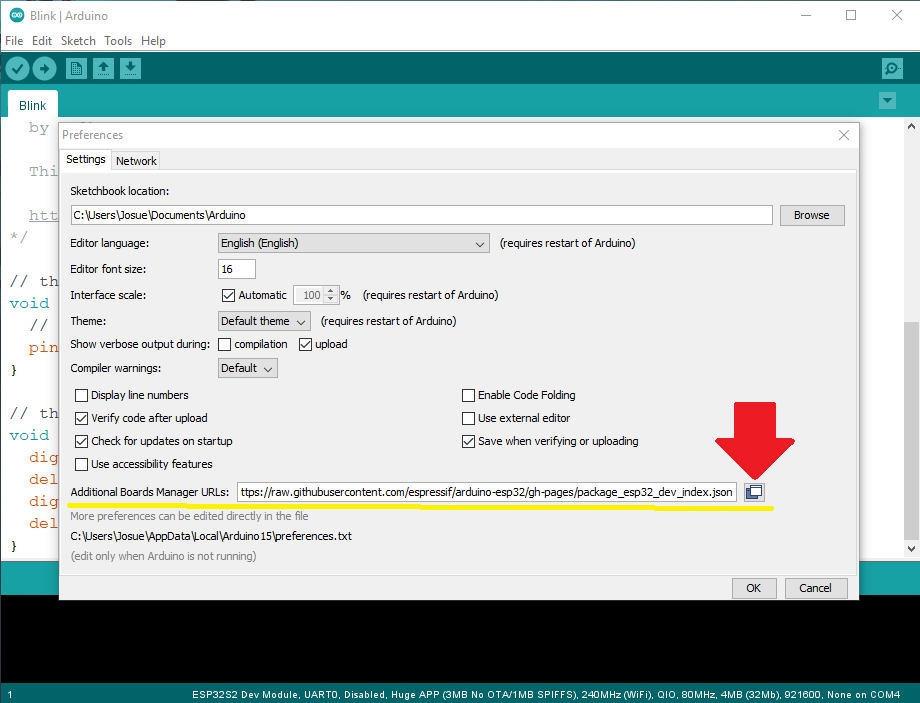
2.- Add the following Espressif Repository for ESP32-S2 URL:
https://raw.githubusercontent.com/espressif/arduino-esp32/gh-pages/package_esp32_dev_index.json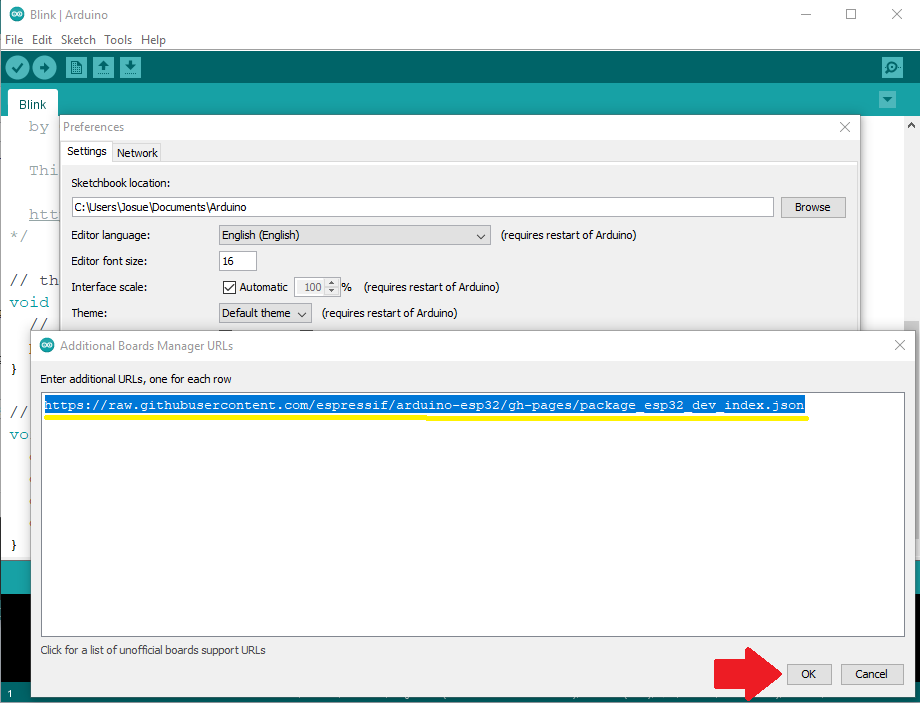
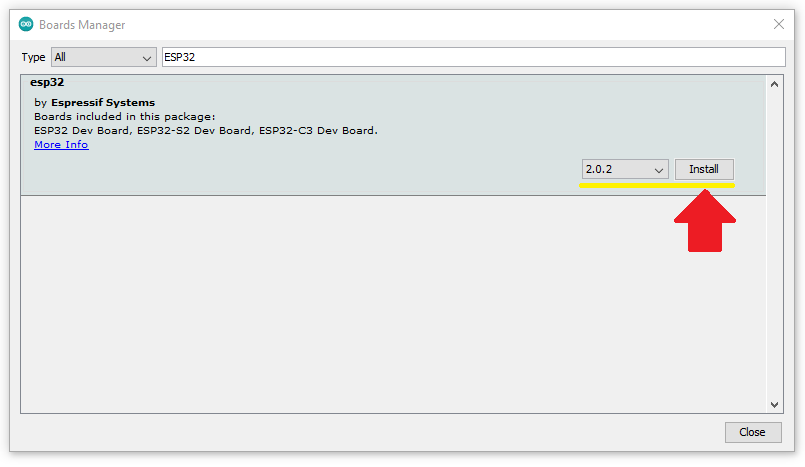
3.- Close and open again the Arduino IDE and click the menu Tools>Board>Boards Manager and search for ESP32 and install the latest version available.
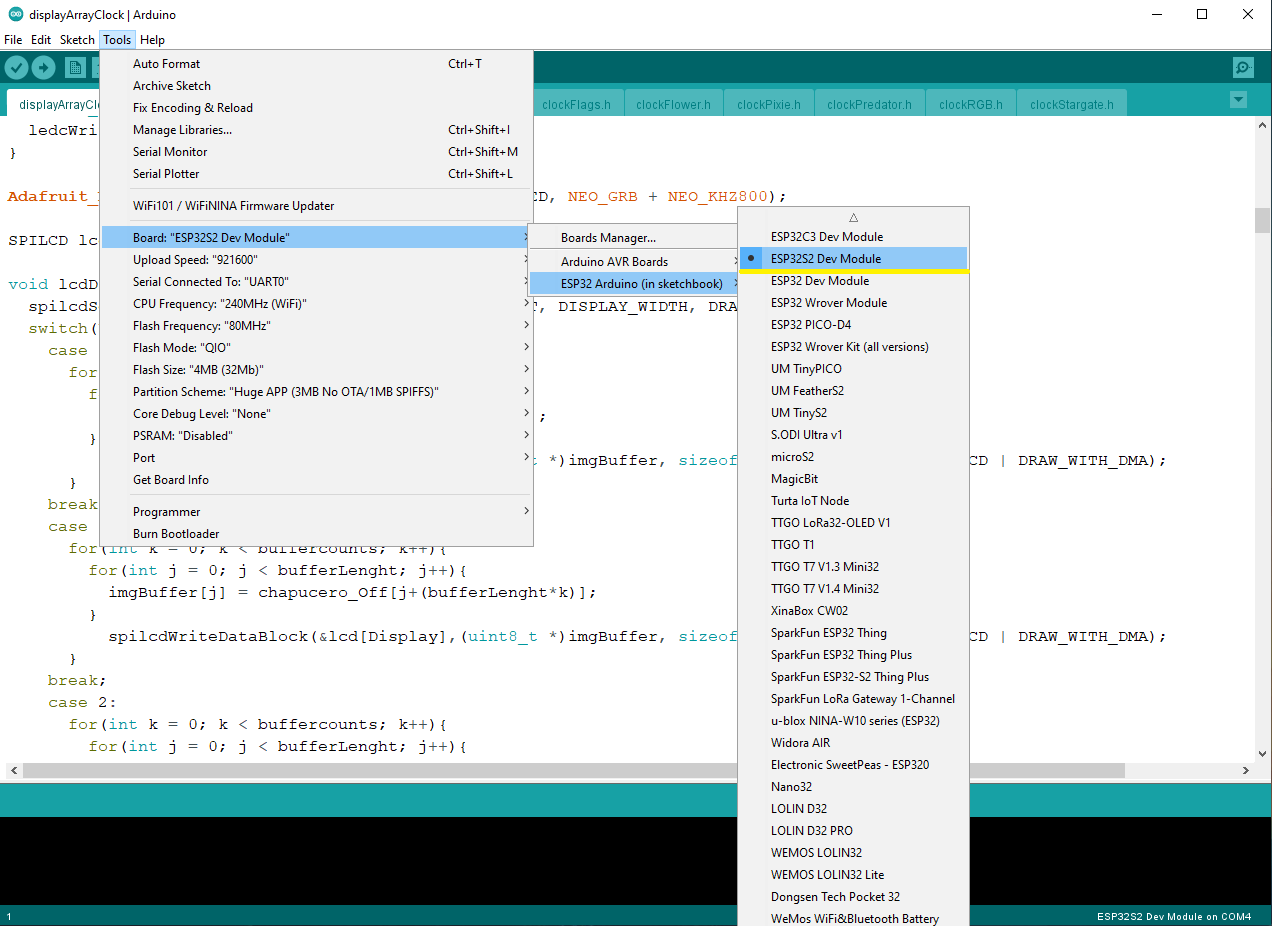
4.- Now you can select the ESP32S2 Dev Module on the menu Tools>Board>ESP32 Arduino.
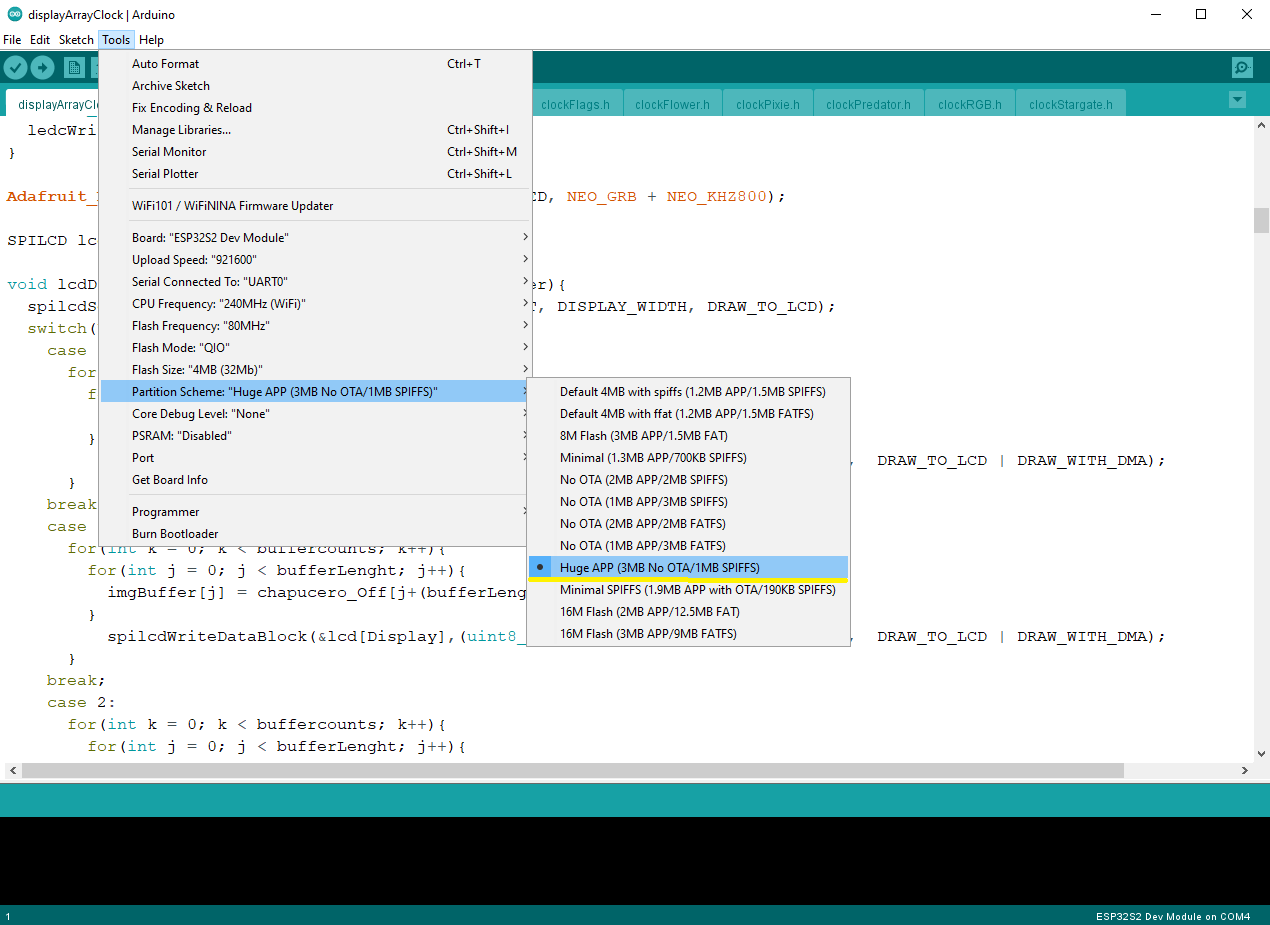
For most of the displayArray apps you will need to use the Huge App partition scheme.
-
Download and install the latest Arduino IDE
Windows Installerfrom arduino.cc -
Download and install Git from git-scm.com
-
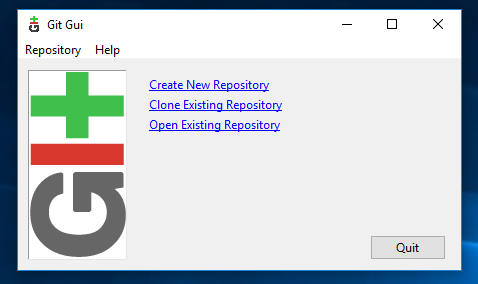
Start
Git GUIand run through the following steps:-
Select
Clone Existing Repository -
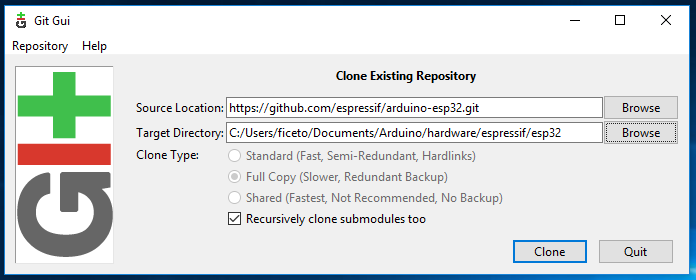
Select source and destination
-
Sketchbook Directory: Usually
C:/Users/[YOUR_USER_NAME]/Documents/Arduinoand is listed underneath the "Sketchbook location" in Arduino preferences. -
Source Location:
https://github.com/espressif/arduino-esp32.git -
Target Directory:
[ARDUINO_SKETCHBOOK_DIR]/hardware/espressif/esp32 -
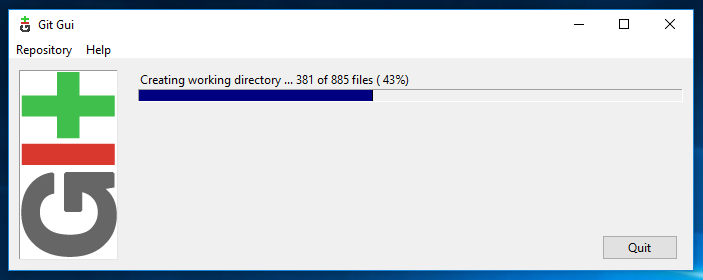
Click
Cloneto start cloning the repository
-
-
open a
Git Bashsession pointing to[ARDUINO_SKETCHBOOK_DIR]/hardware/espressif/esp32and executegit submodule update --init --recursive -
Open
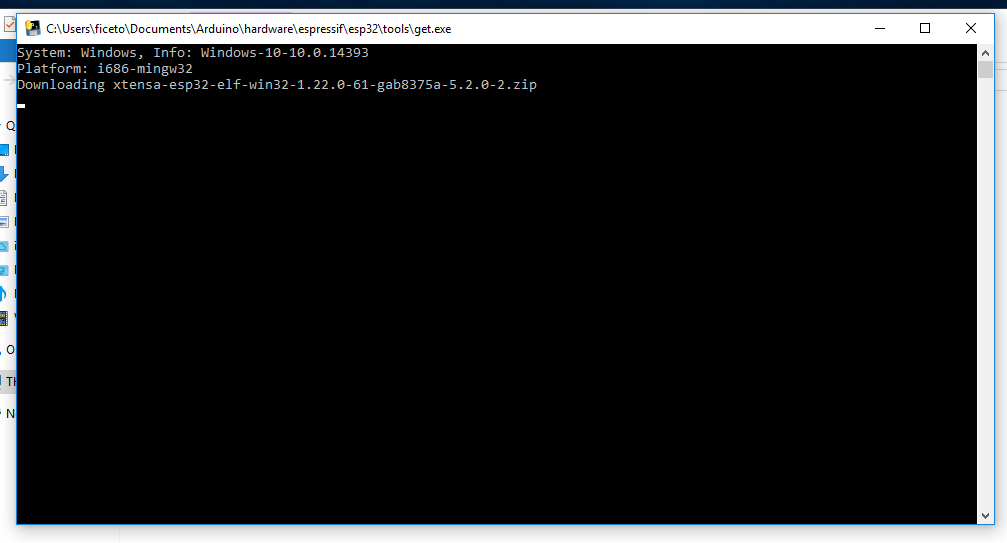
[ARDUINO_SKETCHBOOK_DIR]/hardware/espressif/esp32/toolsand double-clickget.exe -
When
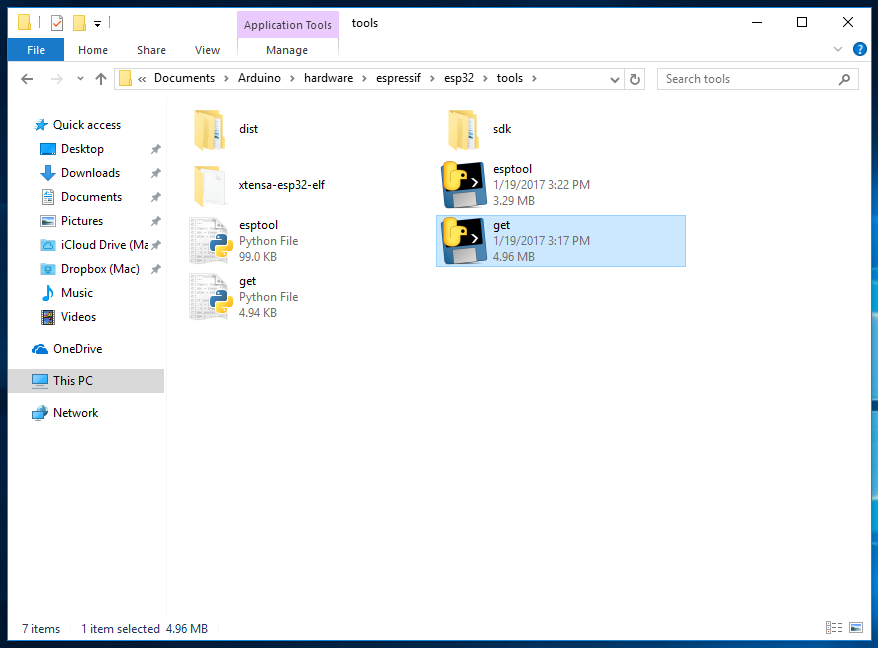
get.exefinishes, you should see the following files in the directory
-
-
Plug your ESP32 board and wait for the drivers to install (or install manually any that might be required)
-
Start Arduino IDE
-
Select your board in
Tools > Boardmenu -
Select the COM port that the board is attached to
-
Compile and upload (You might need to hold the boot button while uploading)