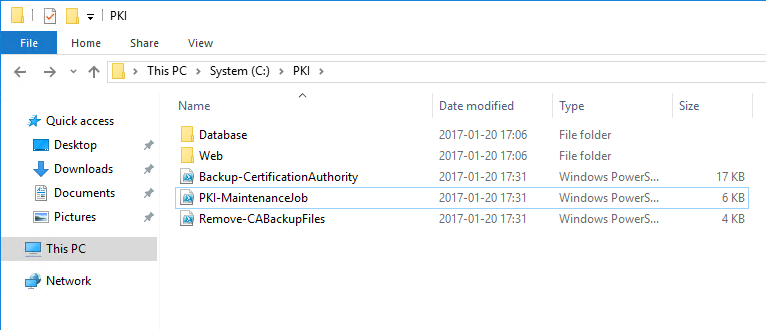
Detailed installation instructions
- Run "Install-ADCSOfflineCA.ps1" on the server dedicated for the Root/Offline CA Role.

- Company: Used to populate the and AIA/CRL and CA Common names.
- DomainURL: Used for CDP and AIA publishing.
- ConfigNC: Used for publishing Root CA in the Active Directory.
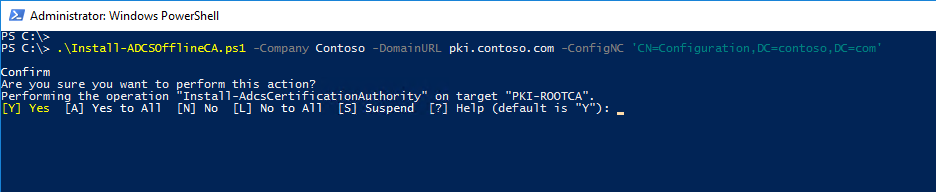
- Confirm the installation when/if prompted. The installation of the Root/Offline CA Role is now done.

- Run "Install-ADCSSubordinateCA.ps1" on the server dedicated for the Enterprise/Subordinate CA Role.

- Company: Used to populate the and AIA/CRL and CA Common names.
- DomainURL: Used for CDP and AIA publishing.
- SMTPServer: Mail server used to send the PKI maintenance/job reminder.
- ToAddress: Recipient address for the PKI maintenance/job reminder.
- FromAddress: Sender address for the PKI maintenance/job reminder.
- City: Used to populate the ADCS Web Enrollment information template.
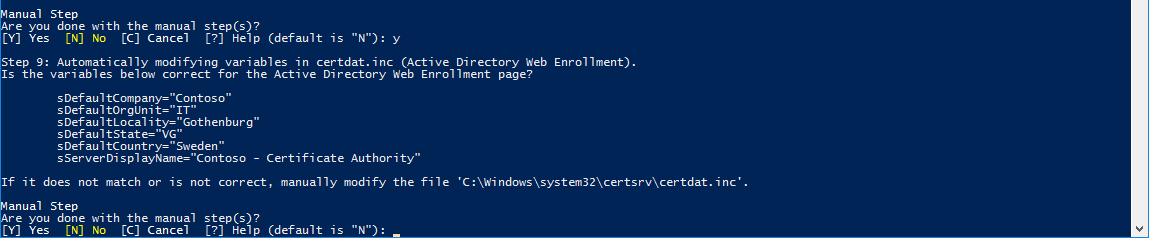
- State: Used to populate the ADCS Web Enrollment information template. *Country is not available as a parameter as of now, default is Sweden. * *ADCS Web Enrollment Template can easily be modified in the $env:WinDir\System32\certsrv\certdat.inc file. *


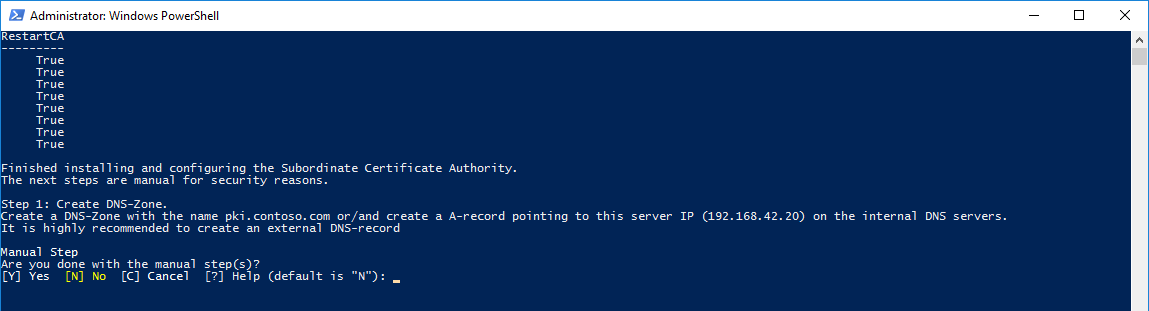
- Each next setup provides a prompt that encourages a manual routine / process.
4.1. Create an Internal DNS-Zone and/or an A-record pointed to the Enterprise Subordinate CA server.
It's highly recommended to create an external publishing for the $DomainURL so the CDP is reachable from the outside.
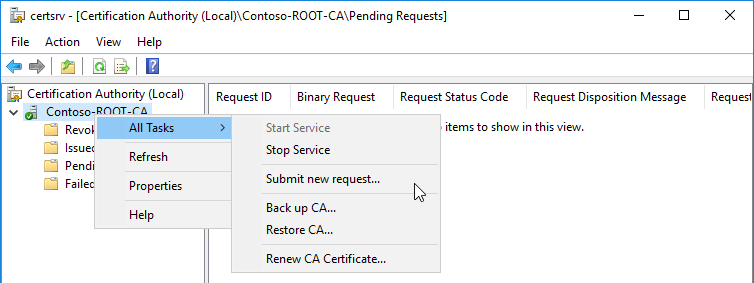
4.2 Sign/Issue the Enterprise/Subordinate CA Certificate on the Root/Offline CA server.
*It's recommended to not have a network connection on the Root/Offline CA Server when running in production. *

Example Submit request:
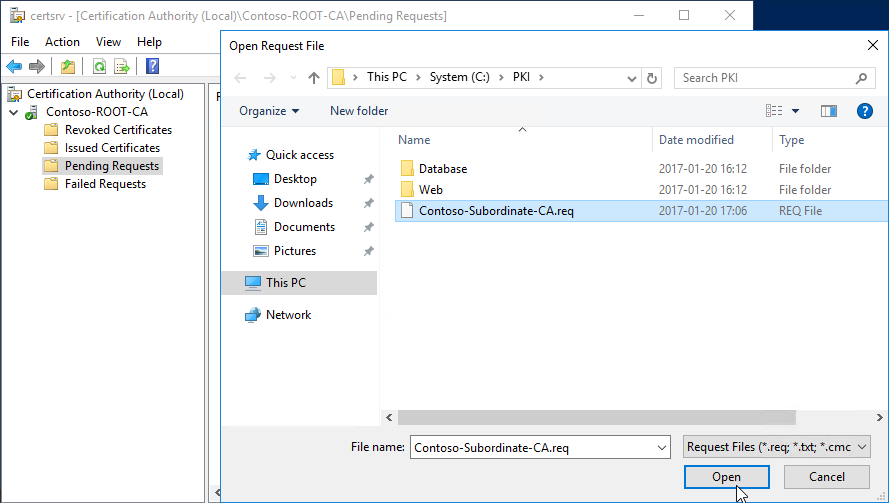
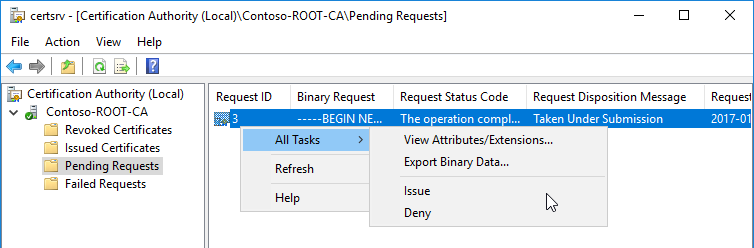
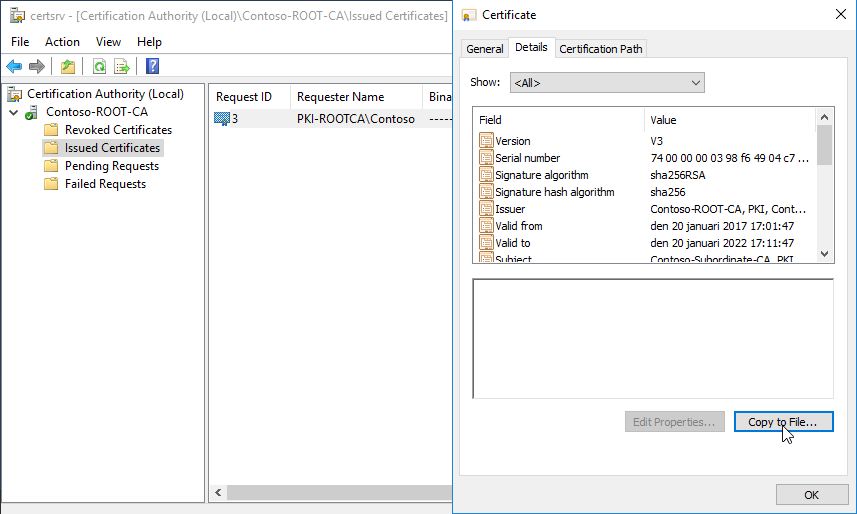
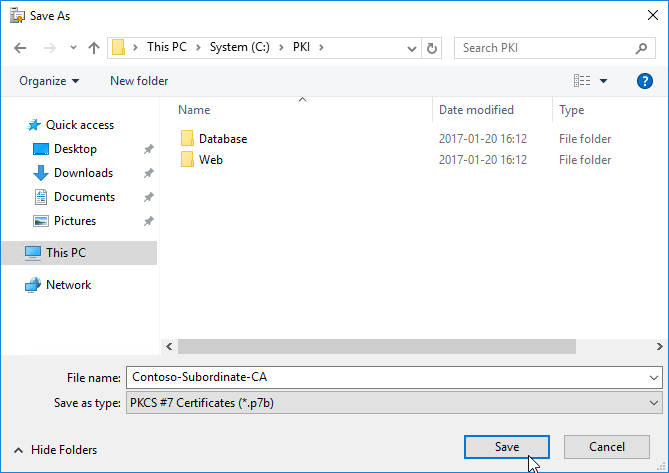
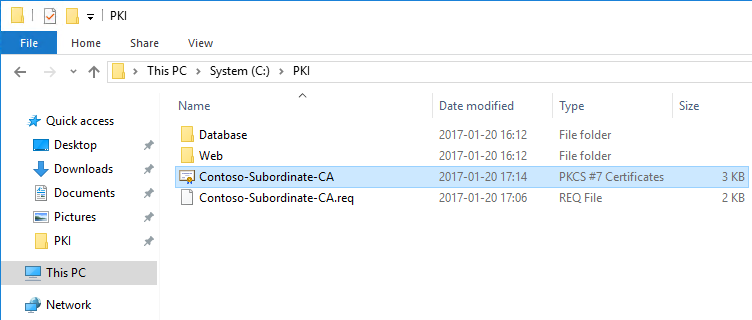
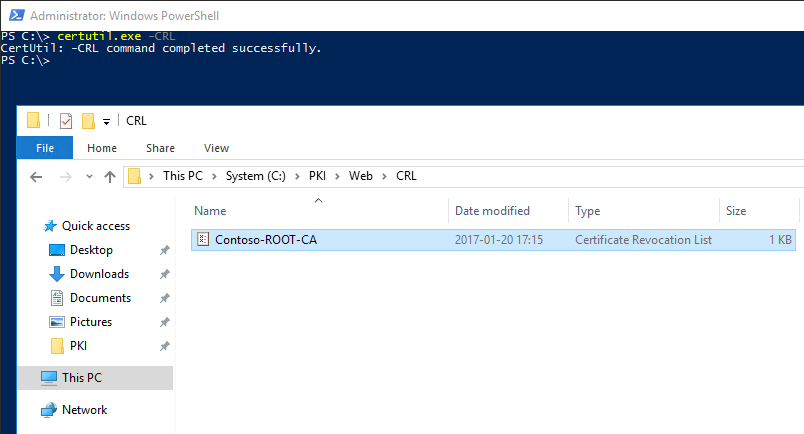
4.3 Publish a new CRL on the Root/Offline CA server.

Example:
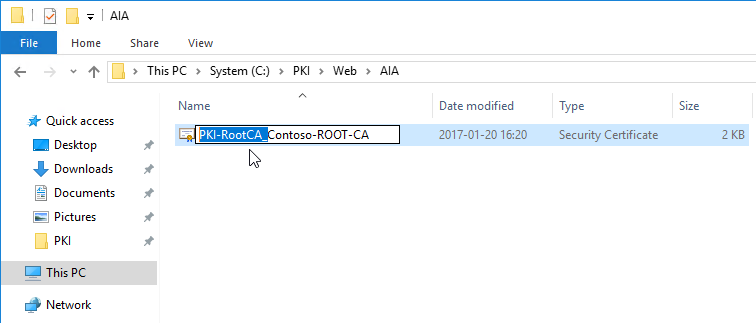
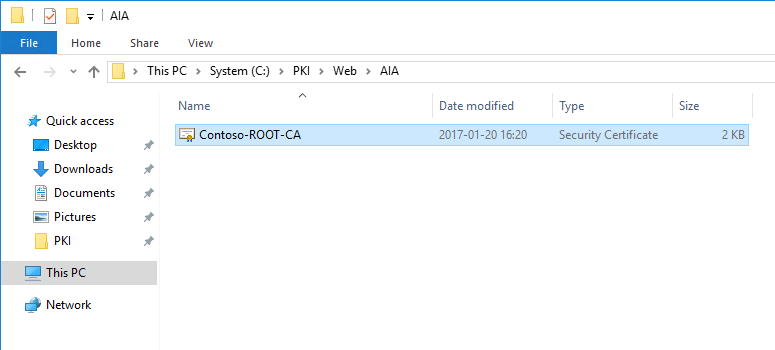
4.4. Rename the Root/Offline CA Certificate to match the AIA location.

4.5. Copy the CRL and CRT files from the Root/Offline CA server to the Enterprise/Subordinate server.

Example:
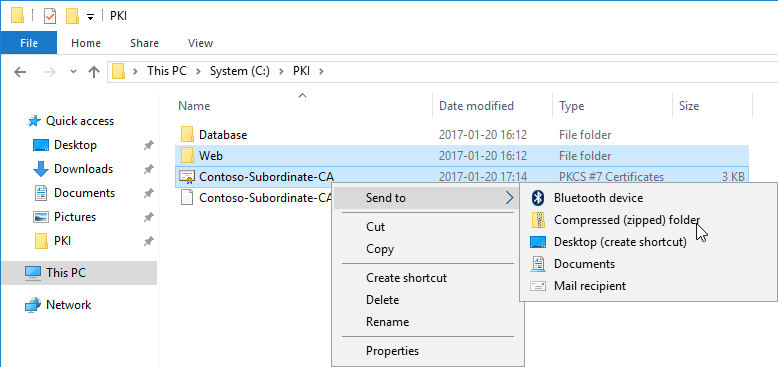
4.6. Unzip / Move the copied CRL and CRT files (Step 4.5) to the correct paths on the Enterprise/Subordinate CA Server.

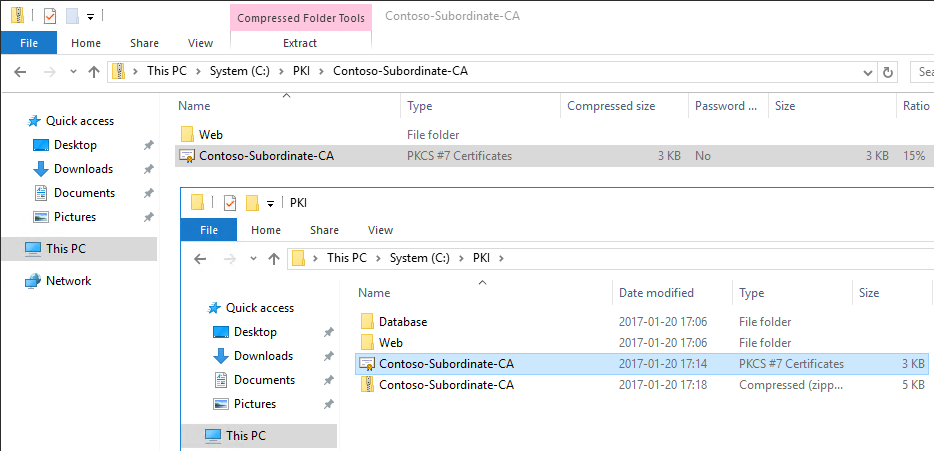
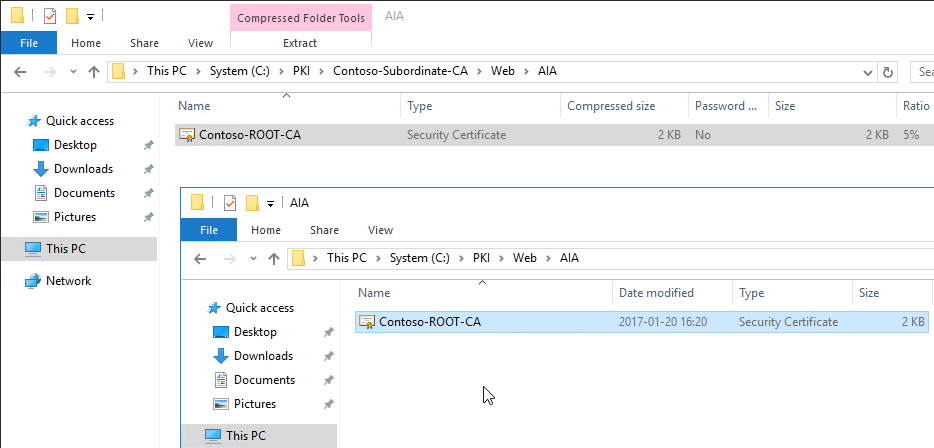
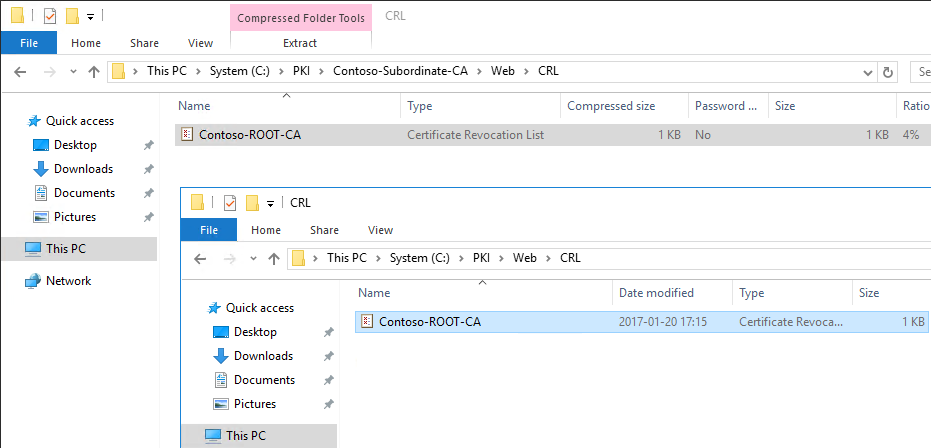
4.7 Automatically trying to add the Root/Offline CA certificate to the Active Directory Configuration.

View in adsiedit.msc after Step 7.

4.8. Install the Enterprise/Subordinate Certificate.

Example:
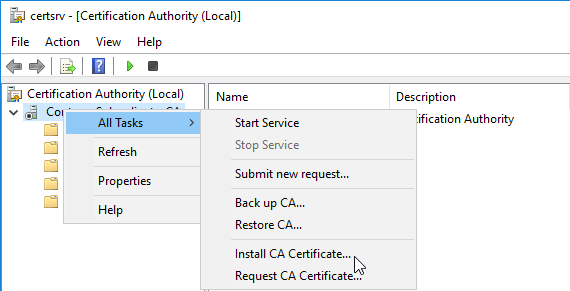
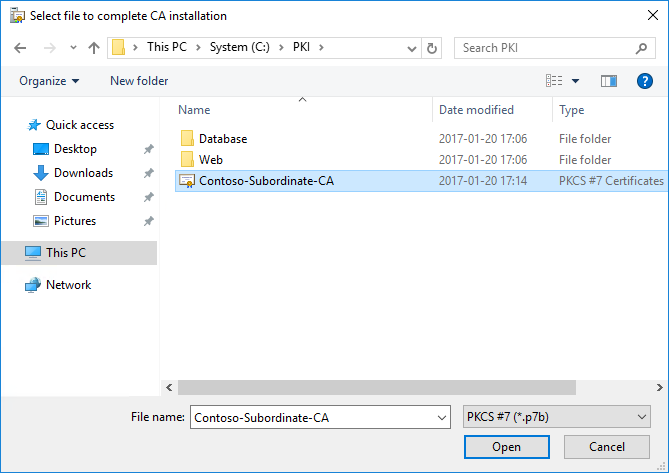
4.9. Automatically modifying "certdat.inc" file to match the Company information.
4.10. Create a Group Policy for Certificate Auto Enrollment (Only recommended).

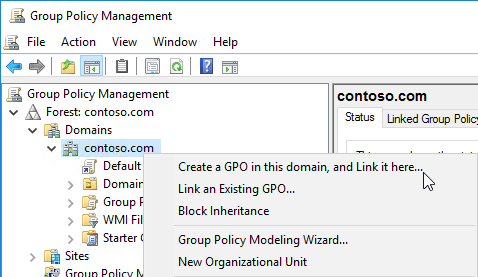
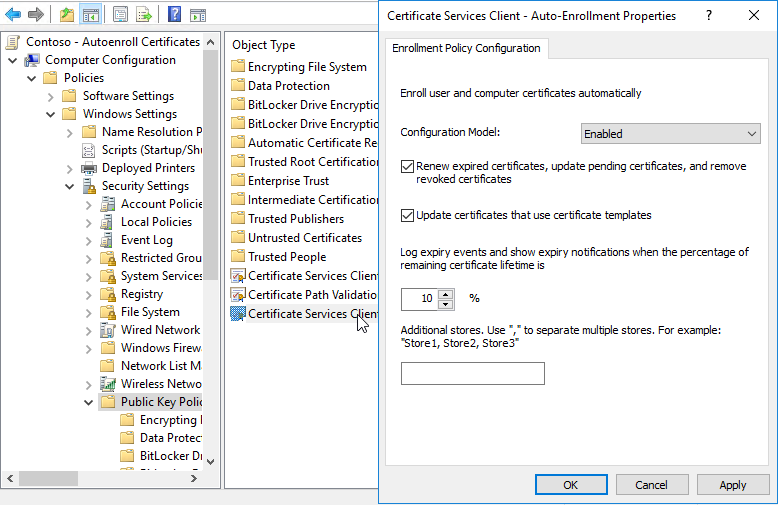
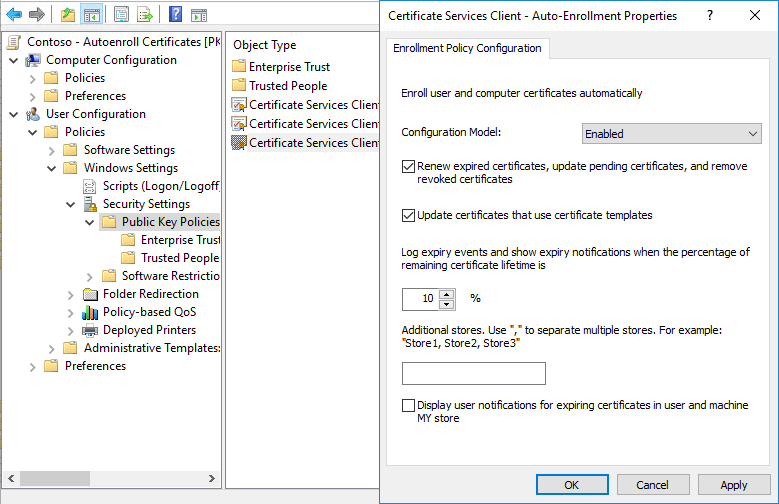
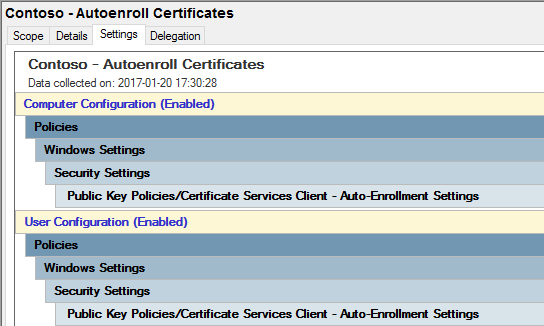

Installation is now done.

Verify the setup in pkiview.msc.


Verify that no default templates are published.
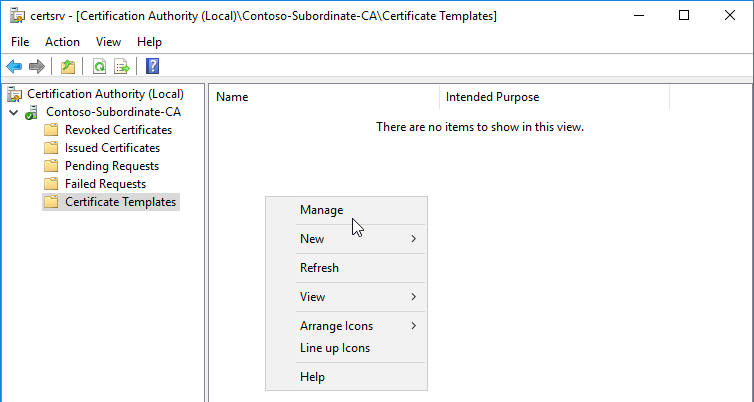
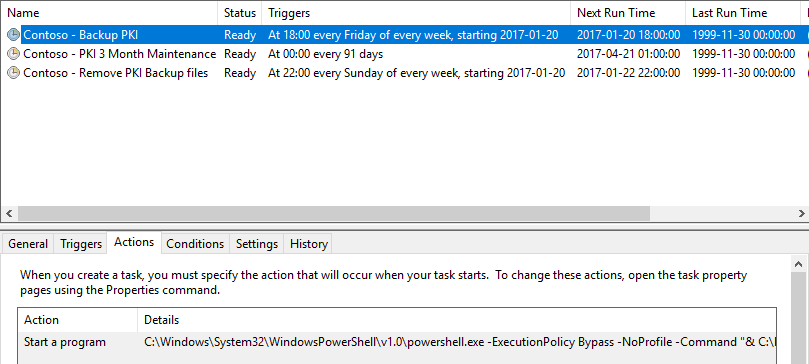
Verify that the Scheduled Tasks is created.
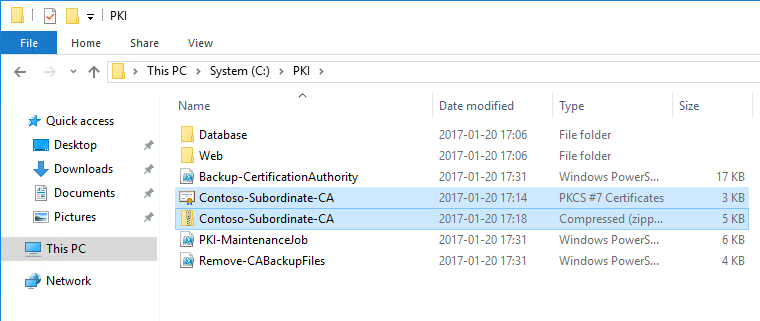
Remove the copied Root/Offline CA Files from the Enterprise/Subordinate CA Server.
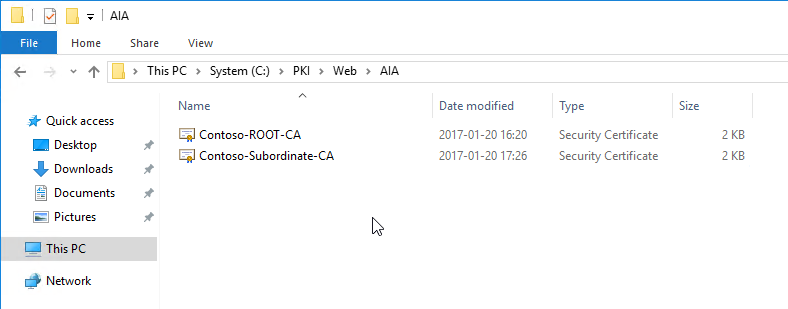
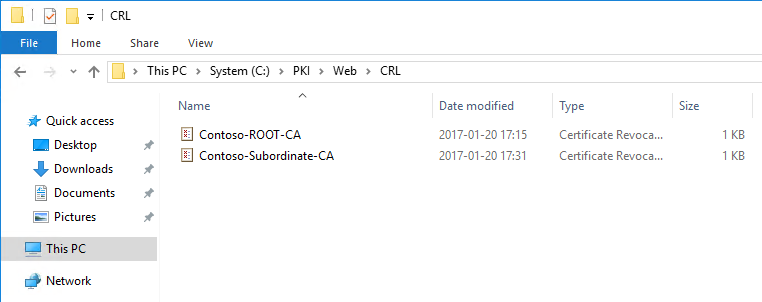
Verify the physical paths for AIA and CDP locations.
Verify the physical paths for the created PowerShell-scripts used in Scheduled Tasks Actions.